Can You Connect Usb B To Usb C Everything Explained
Yes, you can connect USB B to USB C using the right adapter or cable. USB B and USB C are different connector types, but with a USB B to USB C adapter or cable, you can bridge the gap between older devices and modern ports. This guide covers everything from connector types and compatibility to troubleshooting tips.
You have a device with a USB B port, and your new laptop only has USB C. What do you do? This is a common problem in today’s fast-moving tech world. The good news is that you can absolutely connect USB B to USB C. You just need the right adapter or cable. In this guide, we will walk you through everything you need to know. We will cover connector types, compatibility, adapters, and even troubleshooting tips. Whether you are connecting a printer or an external hard drive, this article has you covered.
The world of USB connectors can be confusing. There are USB A, USB B, USB C, Mini USB, Micro USB, and more. Each one serves a specific purpose. USB B connectors are common in older printers and scanners. USB C is the modern standard found on most new laptops, phones, and tablets. Bridging the gap between these two types is easier than you think. Let us dive into the details of how to connect USB B to USB C and what you need to know.
Key Takeaways
- USB B and USB C are not the same: They have different shapes, sizes, and pin layouts, so a direct plug-and-play connection is not possible without an adapter.
- Adapters and cables solve the problem: A USB B to USB C adapter or cable lets you connect older USB B devices to modern USB C ports easily.
- USB 2.0 and USB 3.0 B connectors differ: USB 3.0 B has an extra slot, and USB 2.0 B is smaller, so choose the right adapter for your specific connector type.
- Common devices use USB B: Printers, scanners, external hard drives, and older peripherals often rely on USB B connections.
- Check compatibility before buying: Not all adapters support data transfer and charging, so verify what your adapter can handle.
- Troubleshooting is simple: Most connection issues stem from loose adapters, wrong cable types, or port damage.
📑 Table of Contents
Understanding USB B and USB C Connectors
Before you buy any adapter, it helps to understand what each connector looks like and how it works. Not all USB B connectors are the same, and USB C has its own set of features. Knowing the basics saves you time and money.
What Is USB B?
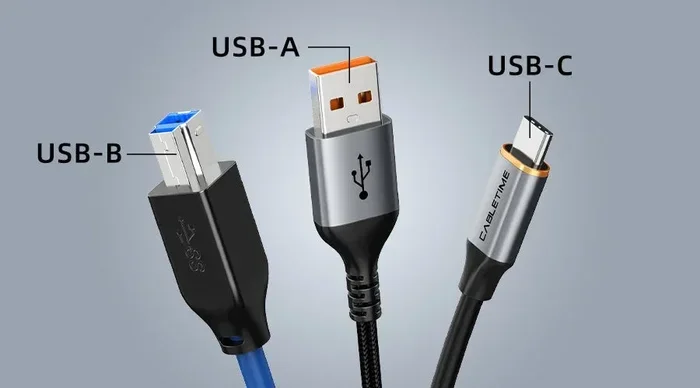
USB B is a square-shaped connector that you often see on printers, scanners, and external hard drives. It comes in two main versions: USB 2.0 B and USB 3.0 B. The USB 2.0 B connector is smaller and has a flat top. The USB 3.0 B connector is larger and has an extra slot on the side. This extra slot is important because it carries additional data lanes for faster transfer speeds.
USB B connectors are designed for data transfer between a host device and a peripheral. They are not meant for charging, although some devices can draw power through them. The USB B male connector plugs into the peripheral device, while the USB B female port sits on the device itself.
What Is USB C?
USB C is the newest standard in USB connectivity. It is small, oval-shaped, and reversible, meaning you can plug it in either way. USB C supports faster data transfer rates, higher power delivery, and video output. Many modern laptops, tablets, and smartphones now use USB C as their primary port.
USB C supports USB 3.1, USB 3.2, and even USB 4 standards. This means it can handle speeds up to 40 Gbps with the right cable and device support. It also supports USB Power Delivery, which can charge devices up to 100 watts. This makes USB C incredibly versatile compared to older connector types.
Key Differences Between USB B and USB C
Here are the main differences you should know before choosing an adapter:
- Shape: USB B is square-shaped, while USB C is oval and compact.
- Size: USB C is much smaller than USB B.
- Reversibility: USB C can be plugged in either way. USB B has a specific orientation.
- Speed: USB C supports much faster data transfer speeds than USB B.
- Power Delivery: USB C can deliver significantly more power than USB B.
- Compatibility: USB C is backward compatible with older USB standards through adapters.
Can You Connect USB B to USB C?
The short answer is yes. You can connect USB B to USB C using an adapter or a dedicated cable. However, the connection is not direct. You need a middle piece to bridge the two different connector types. This is where adapters and cables come in.
When you connect USB B to USB C, the adapter acts as a translator between the two standards. It takes the signals from the USB B port and routes them to the USB C port on your computer or laptop. This allows older devices to work with modern computers that only have USB C ports.
How the Connection Works
A USB B to USB C adapter has a USB B female port on one side and a USB C male plug on the other. You plug your USB B device into the adapter, and then plug the adapter into your USB C port. The data and power signals pass through the adapter seamlessly. Most adapters support plug-and-play functionality, which means you do not need to install any software.
For data transfer, the speed depends on the USB standard your devices support. If your USB B device uses USB 2.0, the transfer speed will be limited to 480 Mbps, even if you are using a USB C port on your computer. If you have a USB 3.0 B device, the speed can go up to 5 Gbps with a proper USB 3.0 B to USB C adapter.
Is It Safe to Use These Adapters?
Yes, it is completely safe. USB adapters are designed to handle the electrical and data signals from both connector types. They do not damage your devices. However, you should buy adapters from reputable brands. Cheap, unbranded adapters may not have proper voltage regulation, which could potentially harm your devices over time.
Also, make sure the adapter supports the features you need. Some adapters only support data transfer but not charging. Others support both. Check the product specifications before purchasing. This is especially important if you need to charge your device while transferring data.
Types of USB B to USB C Adapters and Cables
Not all adapters are the same. There are several types available on the market, and each serves a slightly different purpose. Understanding your options helps you choose the right one for your setup.
USB B to USB C Adapter
This is the most common type. It is a small dongle with a USB B female port on one side and a USB C male plug on the other. You plug your USB B cable into the adapter, and then plug the adapter into your USB C port. These adapters are compact and portable, making them great for travel.
Adapters come in both USB 2.0 and USB 3.0 versions. USB 3.0 adapters have the extra slot to accommodate the larger USB 3.0 B connector. They also support faster data transfer speeds. If you need the best performance, go with a USB 3.0 B to USB C adapter.
USB B to USB C Cable
Instead of a separate adapter, you can use a cable that has a USB B connector on one end and a USB C connector on the other. These cables are convenient because they do not require a separate adapter. You just plug one end into your device and the other end into your computer.
USB B to USB C cables are available in different lengths. Common lengths include 1 foot, 3 feet, and 6 feet. Longer cables give you more flexibility in placing your device. However, longer cables can sometimes result in signal degradation, especially with USB 2.0 cables.
USB Hub with USB B and USB C Ports
If you need to connect multiple devices, a USB hub is a great option. Many USB hubs have both USB B and USB C ports. You can connect your USB B devices directly to the hub and then plug the hub into your computer’s USB C port. This is especially useful for office setups where you have multiple peripherals.
Some hubs also include additional features like SD card readers, Ethernet ports, and HDMI outputs. These all-in-one hubs can replace multiple adapters and cables, keeping your workspace tidy. Look for hubs that support USB 3.0 or higher for the best performance.
Comparison Table: Adapter vs. Cable vs. Hub
| Feature | USB B to USB C Adapter | USB B to USB C Cable | USB Hub |
|---|---|---|---|
| Portability | Very portable | Portable | Less portable |
| Multiple Devices | No | No | Yes |
| Data Speed | Depends on version | Depends on version | Depends on hub |
| Cost | Low | Low to Medium | Medium to High |
| Extra Ports | No | No | Yes |
| Best For | Single device connection | Direct connection | Multiple peripherals |
Devices That Commonly Use USB B Connectors
You might be wondering which devices actually use USB B connectors. These devices are still very common in homes and offices, even though USB C is becoming the new standard.
Printers
Most printers use USB B connectors. This includes both inkjet and laser printers from brands like HP, Canon, Epson, and Brother. If you have a printer with a USB B port and a new computer with only USB C ports, you will need a USB B to USB C adapter or cable to connect them.
Many people still rely on USB-connected printers for home offices and small businesses. Wireless printing is convenient, but a wired connection often provides more reliability and faster print speeds. A simple adapter lets you keep using your existing printer with a modern computer.
Scanners
Flatbed scanners and document scanners also commonly use USB B connectors. Brands like Epson and Canon use USB B for their scanner products. If you need to connect a scanner to a laptop that only has USB C, an adapter is essential.
Scanners often require consistent data transfer rates to produce high-quality scans. Using a USB 3.0 B to USB C adapter ensures you get the best performance from your scanner. USB 2.0 adapters may work, but they will limit your scan speeds.
External Hard Drives
Some external hard drives, especially larger desktop models, use USB B connectors. These drives often need more power than a standard USB A port can provide, which is why they use the USB B form factor. If your new computer lacks USB A ports, a USB B to USB C adapter lets you keep using your existing drive.
For the best performance with external hard drives, look for adapters that support USB 3.0 or higher. This ensures you get the fastest possible transfer speeds for backing up large files. Always check that your adapter supports the data transfer rate your drive needs.
Other USB B Devices
Beyond printers, scanners, and hard drives, several other devices use USB B connectors. These include:
- External CD and DVD drives
- Audio interfaces for music production
- USB MIDI controllers for music keyboards
- Some gaming controllers
- Certain industrial and laboratory equipment
- Older digital cameras with USB B ports
All of these devices can be connected to modern USB C computers using the right adapter. The key is identifying the exact type of USB B connector your device uses and choosing a compatible adapter.
Common Problems and How to Fix Them
While connecting USB B to USB C is generally straightforward, you may encounter some issues. Here are the most common problems and their solutions.
Adapter Not Recognized by Computer
If your computer does not recognize the adapter, try unplugging it and plugging it back in. Sometimes Windows or macOS needs a moment to detect new hardware. If the problem persists, try a different USB C port on your computer. Some ports may be disabled or have limited functionality.
You can also check your device manager (on Windows) or system information (on Mac) to see if the adapter is listed. If it shows up with a yellow warning icon, you may need to update your USB drivers. Visit your computer manufacturer’s website to download the latest drivers.
Slow Data Transfer Speeds
If your data transfer is slower than expected, check which USB standard your adapter supports. A USB 2.0 adapter will be much slower than a USB 3.0 adapter. Also, make sure your USB B device supports faster speeds. If your device is USB 2.0, no adapter can make it faster than 480 Mbps.
Another cause of slow speeds is a low-quality cable. Cheap cables may have thinner wires that limit data throughput. Invest in a well-reviewed cable or adapter from a trusted brand for the best results.
Intermittent Connection
If your connection keeps dropping, the adapter or cable may be loose. Make sure all connections are firm and secure. Dirt or debris in the USB ports can also cause intermittent issues. Use a can of compressed air to clean the ports gently.
Bent pins inside the connector can also cause connection problems. Inspect the adapter and cable ends for any visible damage. If you see bent or broken pins, replace the adapter or cable immediately.
Device Not Charging Through the Adapter
Not all USB B to USB C adapters support charging. Some adapters only support data transfer. If you need to charge your device while connected, check the adapter specifications to confirm it supports power delivery. USB 3.0 adapters are more likely to support charging than USB 2.0 adapters.
If charging still does not work, the USB B device itself may not be designed to receive power through the USB B port. In this case, you may need to use a separate power source for the device while using the adapter for data transfer.
Expert Tips for the Best USB B to USB C Experience
Here are some practical tips from tech experts to help you get the most out of your USB B to USB C connection:
- Buy a USB 3.0 adapter whenever possible. It gives you faster data transfer speeds and better power delivery compared to USB 2.0 adapters.
- Check your device specifications before buying. Know whether your device uses USB 2.0 B or USB 3.0 B, and choose the matching adapter.
- Use short cables for best performance. Longer cables can introduce signal loss, especially at higher data rates.
- Avoid cheap no-name adapters. They may not have proper shielding or voltage regulation, which can cause data corruption or device damage.
- Keep your drivers updated. Outdated USB drivers can cause compatibility issues and slow performance.
- Test with multiple ports. If one USB C port does not work, try another. Some ports on a computer may have limited functionality.
- Consider a USB hub for multiple devices. A hub with USB B and USB C ports lets you connect several peripherals at once.
Following these tips ensures a smooth and reliable connection between your USB B devices and USB C computers. A small investment in a quality adapter goes a long way in keeping your workflow uninterrupted.
When setting up your workspace, having the right connectivity tools matters. A reliable USB B to USB C adapter ensures your older devices work seamlessly with modern computers. For more tips on connecting different devices and finding the right accessories, check out our guide on alternatives to traditional connectivity solutions that can help you streamline your tech setup.
Final Thoughts
Connecting USB B to USB C is simple once you know what you are doing. You need the right adapter or cable, and you need to make sure it matches your specific USB B connector type. Whether you are connecting a printer, scanner, or external hard drive, a USB B to USB C adapter is an affordable and effective solution.
The key takeaways are straightforward. Always check your connector type, choose the right adapter version, and buy from reputable brands. With the right setup, your older USB B devices will work perfectly with modern USB C computers. Do not let connector differences hold you back. A simple adapter bridges the gap and keeps your workflow running smoothly.
Technology evolves quickly, and USB C is becoming the universal standard. But many devices still rely on USB B connectors. Having a few USB B to USB C adapters on hand is a smart move for any home or office. It saves you from buying new devices just because of a connector change. Embrace the adapters, enjoy the compatibility, and keep your tech ecosystem connected.
Frequently Asked Questions
Can I plug a USB B device directly into a USB C port?
No, you cannot plug a USB B device directly into a USB C port. The connectors have different shapes and sizes. You need a USB B to USB C adapter or cable to bridge the gap between the two connector types.
Does a USB B to USB C adapter support charging?
It depends on the adapter. Many USB B to USB C adapters support both data transfer and charging. However, some adapters only support data transfer. Always check the product specifications before purchasing to confirm it meets your needs.
What is the difference between USB 2.0 B and USB 3.0 B connectors?
USB 2.0 B connectors are smaller and have a simple square shape. USB 3.0 B connectors are larger and have an extra slot on the side for additional data lanes. The USB 3.0 B connector supports much faster data transfer speeds than the USB 2.0 B connector.
Can I use a USB B to USB C adapter for a printer?
Yes, USB B to USB C adapters work great with printers. Most printers use USB B connectors, and a simple adapter lets you connect them to a computer with only USB C ports. Just make sure to download the correct printer drivers for your operating system.
Are USB B to USB C adapters expensive?
No, USB B to USB C adapters are very affordable. You can find basic adapters for just a few dollars. Higher-quality USB 3.0 adapters may cost a bit more, but they offer faster speeds and better reliability. They are a small investment that saves you from buying new devices.
Will my USB B device work at full speed with a USB C adapter?
The speed depends on the USB standard of your device and adapter. If your device uses USB 2.0 B, the maximum speed is 480 Mbps regardless of the adapter. If your device and adapter both support USB 3.0, you can achieve speeds up to 5 Gbps. Always match the USB standards for the best performance.
=== CONCLUSION ===
Connecting USB B to USB C is easy, affordable, and completely doable with the right adapter or cable. Whether you are using a printer, scanner, external hard drive, or any other USB B device, a simple adapter bridges the gap to modern USB C ports. Choose the right adapter type, check for compatibility, and follow the expert tips in this guide for a seamless experience. Keep your older devices working with your new computer and enjoy the best of both worlds.