Can You Connect A Printer Directly To A Computer Now
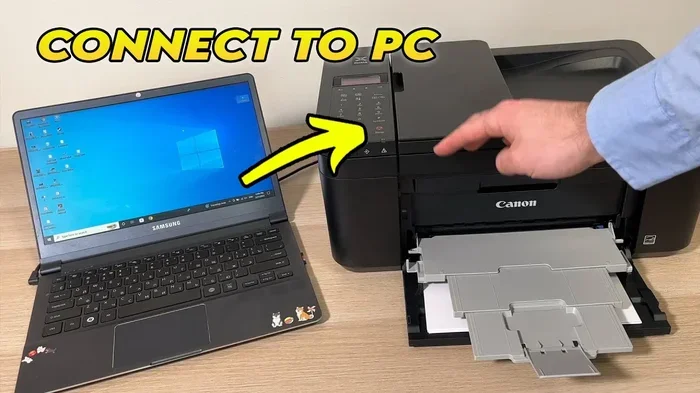
Yes, you can connect a printer directly to a computer using a USB cable, Wi-Fi Direct, Bluetooth, or even a parallel port connection. This guide walks you through every method so you can set up your printer fast and start printing right away. Whether you have a new wireless printer or an older wired model, a direct connection is often the simplest and most reliable option. Let us show you exactly how to do it.
Key Takeaways
- USB Connection Is The Fastest: A simple USB cable gives you a stable, plug-and-play link between your printer and computer.
- Wireless Direct Printing Exists: Wi-Fi Direct and Bluetooth let you print without a router or network.
- Setup Is Simple: Most modern operating systems detect printers automatically when you connect them.
- Driver Installation Matters: Always install the correct print driver for the best performance and features.
- Troubleshooting Is Easy: Most connection problems have quick fixes like restarting devices or updating drivers.
- Direct Connection Beats Shared Printing: Printing directly from one computer is faster and more private than network sharing.
📑 Table of Contents
- Can You Connect A Printer Directly To A Computer?
- Methods To Connect A Printer Directly To A Computer
- Step-By-Step Setup Guide For Direct Printer Connection
- USB Vs Wireless Direct: Which Is Better?
- Common Problems And How To Fix Them
- Expert Tips For A Smooth Direct Connection
- Benefits Of A Direct Printer Connection
- Quick Tips For Printer Setup Success
- Conclusion
Can You Connect A Printer Directly To A Computer?
The short answer is yes. You absolutely can connect a printer directly to a computer, and it is easier than most people think. Whether you are setting up a home office or just need to print a document right now, a direct connection works great. Printer direct connection means linking your printer to one computer without going through a router or network. This method is fast, secure, and simple to set up.
Many people assume they need a fancy network setup to print. But the truth is, a basic USB cable connection or a wireless direct method handles most printing needs. In this guide, we will walk you through every way to connect your printer directly. You will learn about cables, wireless options, setup steps, and how to fix common problems. By the end, you will feel confident setting up your printer on your own.
If you are also looking into cutting the cord on cable TV, you might want to check out alternatives to Dish Network and DirectTV for great options. A home office setup often goes hand in hand with a home entertainment setup. Having a printer that connects directly to your computer makes life much simpler when you are managing both work and entertainment at home.
Why Connect A Printer Directly?
Direct printer connections have several big advantages. First, they are fast. You do not have to wait for data to travel through a network router. Second, they are secure. Your print jobs stay between your computer and printer. Third, they are simple. You do not need to configure network settings or deal with IP addresses.
Here are the main reasons people choose direct connections:
- Speed: USB connections transfer data quickly, so prints start fast.
- Simplicity: Plug in the cable and go. No complex setup needed.
- Security: Your documents stay private and do not travel over a shared network.
- Reliability: Wired connections rarely drop or interfere with other devices.
- No Router Needed: Wireless direct methods work without a home network.
Methods To Connect A Printer Directly To A Computer
There are several ways to make a direct printer connection. Each method has its own benefits. Let us look at them one by one so you can pick the best option for your situation.
USB Cable Connection
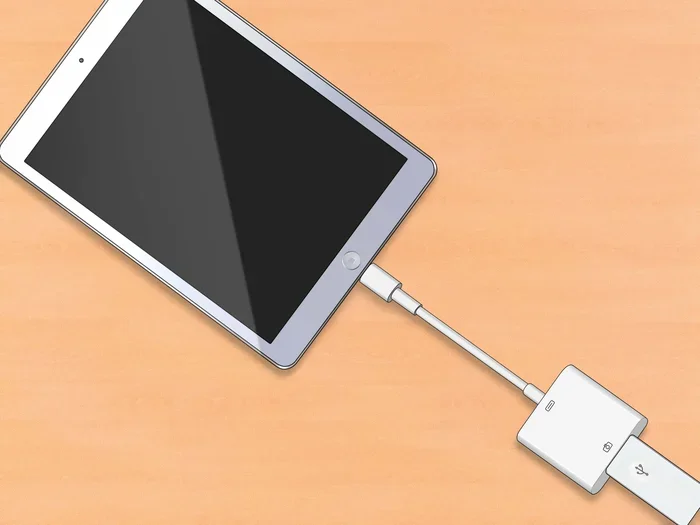
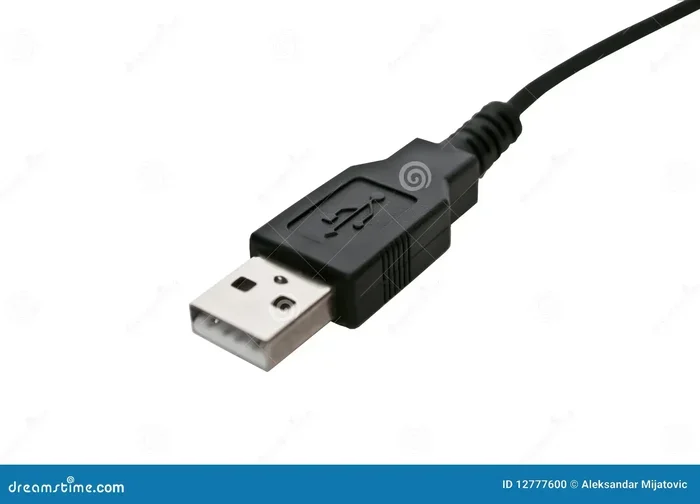
The USB cable method is the most popular way to connect a printer directly to a computer. Almost every printer made in the last 20 years has a USB port. You just need a standard USB cable, usually a USB-A to USB-B cable. Plug one end into your printer and the other into your computer’s USB port.
Most modern computers recognize the printer instantly. Windows and macOS both have built-in drivers for thousands of printer models. You may need to install the print driver from a CD or download it from the manufacturer’s website for full functionality.
Here is what you need for a USB connection:
- A USB printer cable (USB-A to USB-B is most common)
- A working USB port on your computer
- The printer’s power supply
- The correct print driver installed on your computer
USB connections are rock solid. They do not suffer from signal interference or range issues. If you need the most reliable setup, USB is the way to go.
Wi-Fi Direct Connection
Wi-Fi Direct is a wireless method that lets your printer talk directly to your computer without a router. This is different from a regular Wi-Fi network. Wi-Fi Direct creates a point-to-point connection between two devices. Your computer finds the printer just like it finds a regular Wi-Fi network.
This method works great when you do not have a router nearby or when you want to print from a laptop in another room. Here is how Wi-Fi Direct usually works:
- Turn on Wi-Fi Direct on your printer (usually found in the printer menu).
- Your computer detects the printer as an available network.
- Select the printer from your Wi-Fi network list.
- Enter the Wi-Fi Direct password if required.
- Start printing.
Wi-Fi Direct is convenient, but it may be slightly slower than a USB cable. It is perfect for people who want wireless freedom without setting up a full home network.
Bluetooth Connection
Some printers support Bluetooth, which is another way to connect directly to your computer. Bluetooth printing works over short distances, typically within 30 feet. It is handy for quick print jobs from laptops and smartphones.
Not all printers have Bluetooth built in. You may need a Bluetooth adapter for older models. Check your printer’s specs to see if Bluetooth is supported. The setup process is simple:
- Turn on Bluetooth on both your printer and computer.
- Pair the devices through your computer’s Bluetooth settings.
- Select the printer when you want to print.
Bluetooth is slower than USB or Wi-Fi Direct, so it is best for documents and simple print jobs. It is not ideal for large photo prints or high-volume printing.
Parallel Port Connection (For Older Printers)
If you have an older printer, it might use a parallel port connection. This was the standard way to connect printers to computers before USB became common. Parallel ports look like a wide, flat connector with many pins.
Most modern computers do not have parallel ports anymore. You can buy a USB-to-parallel adapter to connect an older printer to a newer computer. These adapters are affordable and work well for basic printing. Just keep in mind that older printers may lack features like double-sided printing or high resolution.
Step-By-Step Setup Guide For Direct Printer Connection
Setting up a direct printer connection is straightforward. Follow these steps for the best results regardless of your connection method.
Step 1: Unbox And Place Your Printer
Start by taking your printer out of the box. Place it on a flat, stable surface near your computer if you are using a USB cable. If you are using Wi-Fi Direct or Bluetooth, the distance can be a bit more flexible. Remove all tape and packaging materials from the printer.
Step 2: Install The Ink And Paper
Open the ink cartridge compartments and insert the ink cartridges. Load paper into the tray. Most printers have a simple slide mechanism for the paper tray. Make sure the paper is aligned properly to avoid jams.
Step 3: Connect The Printer To Power
Plug the power cable into your printer and connect it to a wall outlet. Turn on the printer using the power button. Wait for the printer to finish its startup cycle. You will usually hear a humming sound and see the status light become solid.
Step 4: Make The Connection
Now it is time to connect. For USB, plug the cable into both devices. For Wi-Fi Direct, go to your printer’s menu and enable it. For Bluetooth, turn it on and pair the devices. Your computer should recognize the printer within a few moments.
Step 5: Install The Print Driver
Your computer might automatically install a basic driver. For the best experience, download the full print driver from the manufacturer’s website. Go to the support page, enter your printer model number, and download the driver for your operating system. Run the installer and follow the on-screen prompts.
Step 6: Test Your Print
Open any document or photo and select Print. Choose your printer from the list and click Print. If the printer starts printing, you are all set. If not, check the connection and make sure the printer is turned on.
USB Vs Wireless Direct: Which Is Better?
Choosing between USB and wireless direct depends on your needs. Both methods have pros and cons. Here is a quick comparison to help you decide.
| Feature | USB Connection | Wireless Direct |
|---|---|---|
| Speed | Fast | Good |
| Distance | Cable length limits it | Up to 50+ feet |
| Setup | Very easy | Easy |
| Reliability | Very high | Good |
| Mobility | Low | High |
| Security | Very high | High |
| Cost | Cable cost only | No extra cost |
For most people, USB is the best choice. It is fast, reliable, and requires no configuration. Wireless direct is better if you move around a lot or have limited desk space. Some people even use both methods, keeping USB for large jobs and wireless for quick prints.
Common Problems And How To Fix Them
Even with a direct connection, you might run into issues now and then. Here are the most common problems and their solutions.
Printer Not Detected By Computer
If your computer does not see the printer, try these steps. First, check that the USB cable is firmly plugged in at both ends. Try a different USB port on your computer. Restart both the printer and the computer. Sometimes a simple reboot fixes everything.
If you are using Wi-Fi Direct, make sure both devices are within range. Check that Wi-Fi Direct is turned on in the printer menu. You may also need to forget the printer in your computer’s device list and set it up again.
Driver Installation Fails
Driver issues are common but easy to fix. Make sure you downloaded the driver from the official manufacturer website. Check that the driver matches your operating system version. If the driver fails to install, try running the installer as an administrator. You can also check Device Manager on Windows to see if the printer shows up with a yellow warning icon.
Print Jobs Stuck In Queue
Sometimes print jobs get stuck and will not print. Open your print queue on the computer and cancel all pending jobs. Restart the print spooler service on Windows or the printing system on macOS. Then try sending the print job again. This fixes the problem in most cases.
Poor Print Quality
If your prints look faded or streaky, the issue is usually the ink cartridges or print head. Run the printer’s built-in cleaning cycle. Check ink levels and replace any empty cartridges. Make sure you are using the right paper type in your printer settings.
Expert Tips For A Smooth Direct Connection
Here are some pro tips that make a big difference in your printing experience:
- Use A Short USB Cable: Keep the cable under six feet for the best signal quality. Longer cables can cause connection issues.
- Update Drivers Regularly: Visit the manufacturer’s website every few months to check for driver updates. Updated drivers fix bugs and improve performance.
- Keep Your Printer Clean: Dust can build up inside the printer and cause jams. Wipe down the exterior and clean the paper tray regularly.
- Use The Right Cable: Not all USB cables are the same. Use the cable that came with your printer or buy one rated for data transfer, not just charging.
- Set The Printer As Default: On your computer, set your directly connected printer as the default printer. This ensures documents always print to the right device.
These small habits save a lot of frustration over time. They keep your printer connection strong and your print jobs running smoothly.
Benefits Of A Direct Printer Connection
Connecting your printer directly to your computer has some clear benefits that go beyond just printing. Let us look at the bigger picture.
Privacy: When you print directly, your documents do not pass through a shared network. This is important for sensitive documents like tax forms, medical records, or business contracts. Your print jobs stay private and secure.
Speed: Direct connections eliminate network delays. Your computer sends the print job straight to the printer. This means faster start times and quicker completion, especially for large documents.
Simplicity: You do not need to manage network settings, IP addresses, or router configurations. Plug in the cable or pair the devices, and you are ready to go. This is especially helpful for people who are not tech-savvy.
Cost Savings: You do not need a network switch, extra cables, or a powerful router to print directly. A simple USB cable or a built-in Wi-Fi Direct module keeps costs low. This makes direct connections ideal for budget setups and small offices.
Quick Tips For Printer Setup Success
Want to make sure your setup goes smoothly? Follow these quick tips:
- Always have the printer model number handy before you start.
- Download drivers before you connect the printer.
- Keep your operating system updated for the best compatibility.
- Use a surge protector for your printer to prevent electrical damage.
- Print a test page after setup to confirm everything works.
These tips take just a few minutes but can save you hours of troubleshooting later. A little preparation goes a long way when setting up any printer setup at home or in the office.
Conclusion
So, can you connect a printer directly to a computer? Absolutely. You have several great options to choose from. A USB cable gives you the fastest and most reliable connection. Wi-Fi Direct offers wireless freedom without a router. Bluetooth works for short-range quick prints. And even older parallel port printers can connect with the right adapter.
Setting up a direct printer connection is simple, fast, and secure. You do not need advanced tech skills or expensive equipment. Just follow the steps in this guide, and you will be printing in no time. Keep your drivers updated, use the right cable, and do not hesitate to troubleshoot if something goes wrong.
A direct connection is one of the best ways to get the most out of your printer. It keeps things simple and reliable. Whether you are printing homework, work documents, or photos at home, a direct connection gets the job done right. Start setting up your printer today and enjoy the convenience of printing whenever you need it.
Frequently Asked Questions
Can I connect my printer directly to my laptop without Wi-Fi?
Yes, you can. The easiest way is to use a USB cable. Plug one end into your printer and the other into your laptop’s USB port. Your laptop should detect the printer automatically. You may need to install the print driver from the manufacturer’s website for full features.
What cable do I need to connect a printer directly to a computer?
For most printers, you need a standard USB-A to USB-B cable. This is the same type of cable used for many external devices. Some older printers use a parallel port cable, which requires a USB-to-parallel adapter for modern computers. Check your printer’s manual to be sure.
Is Wi-Fi Direct the same as a regular Wi-Fi network?
No, they are different. Wi-Fi Direct creates a direct connection between your printer and computer without needing a router or home network. A regular Wi-Fi network connects devices through a router. Wi-Fi Direct is great for quick, simple printing without setting up a full network.
Why is my computer not detecting my printer when I connect it?
Try unplugging the USB cable and plugging it back in. Make sure the printer is turned on. Try a different USB port on your computer. If that does not work, restart both devices. You may also need to install or update the print driver from the manufacturer’s website.
Can I connect two computers to the same printer directly?
Not easily with a USB cable since it connects to one computer at a time. However, you can use a USB switch box to share a USB printer between two computers. For a simpler solution, consider using Wi-Fi Direct or setting up a small home network to share the printer wirelessly.
Do I need to install software to connect a printer directly?
Usually yes. Most computers have basic drivers built in, but installing the full driver from the manufacturer’s website gives you access to all features. This includes settings for print quality, paper size, double-sided printing, and ink management. The driver is free to download and easy to install.
=== END ===