Can You Clear Bluetooth Cache On Iphone And Fix Issues
Yes, you can clear Bluetooth cache on iPhone using a few simple methods like resetting network settings, restarting your device, and forgetting paired devices. Clearing your Bluetooth cache can fix connection drops, audio glitches, pairing failures, and other frustrating Bluetooth problems. This guide walks you through every method with easy-to-follow steps so you can get your iPhone Bluetooth working perfectly again.
Have you ever tried connecting your iPhone to your favorite Bluetooth headphones, only to get nothing but silence? Or maybe your Bluetooth speaker keeps disconnecting mid-song. It is incredibly frustrating, right? You are not alone. Thousands of iPhone users deal with Bluetooth connectivity problems every single day.
The good news is that most of these issues come down to a build-up of Bluetooth cache data on your device. And yes, you can clear that cache. In this guide, we will walk you through every method to clear Bluetooth cache on iPhone and get your wireless connections working smoothly again. Whether you are dealing with Bluetooth audio issues, pairing failures, or random disconnections, we have got you covered.
We will explain what Bluetooth cache actually is, why it causes problems, and then give you step-by-step instructions for every fix. No jargon. No confusing tech talk. Just simple, actionable steps you can follow right now.
Key Takeaways
- Clearing Bluetooth cache on iPhone is possible through several built-in methods without needing third-party apps.
- Resetting network settings is the most effective way to clear all Bluetooth data and connections stored on your iPhone.
- Forgetting and re-pairing devices removes cached Bluetooth data for specific peripherals like headphones and speakers.
- Restarting your iPhone is the simplest first step that often resolves minor Bluetooth cache glitches.
- Updating iOS can fix Bluetooth bugs that cause connectivity and audio problems.
- Checking for interference and keeping your Bluetooth devices close improves connection stability significantly.
- Contact Apple Support if none of the methods work, as it could be a hardware or firmware issue.
📑 Table of Contents
- What Is Bluetooth Cache on iPhone and Why Does It Matter?
- Can You Clear Bluetooth Cache on iPhone Directly?
- How to Clear Bluetooth Cache on iPhone: Step-by-Step Methods
- Common Bluetooth Problems and How Clearing Cache Fixes Them
- Tips to Prevent Bluetooth Cache Problems on iPhone
- When Should You Contact Apple Support?
- Quick Tips for Faster Bluetooth Cache Clearing
- Common Mistakes to Avoid When Fixing Bluetooth Issues
- Expert Insights on iPhone Bluetooth Cache Management
- Conclusion
What Is Bluetooth Cache on iPhone and Why Does It Matter?
Understanding Bluetooth Cache
Every time your iPhone connects to a Bluetooth device, it stores small pieces of data about that connection. This includes device names, pairing codes, signal strength records, and connection preferences. Think of this stored data as a Bluetooth memory or cache. It helps your iPhone reconnect faster to devices you use often.
But here is the problem. Over time, this cache can become corrupted or outdated. Maybe you updated your headphones firmware, or your iPhone went through a software update. The old cached data no longer matches what the device needs. This mismatch causes all kinds of Bluetooth troubleshooting headaches.
Common signs of a problematic Bluetooth cache include:
- Bluetooth headphones not connecting even though they are charged and turned on.
- Audio cutting out randomly during calls or music playback.
- iPhone not finding nearby Bluetooth devices during a scan.
- Connection drops frequently, especially when you move around the room.
- Bluetooth settings freezing or not responding when you try to toggle it off and on.
- Paired devices showing as connected but producing no sound.
- Slow pairing process that takes forever or fails entirely.
When you experience these issues, clearing the Bluetooth cache is often the fastest and most effective solution. It gives your iPhone a fresh start with all your wireless devices.
Can You Clear Bluetooth Cache on iPhone Directly?
The Short Answer
Apple does not give you a single button that says “Clear Bluetooth Cache.” Unlike some Android phones that offer a direct Bluetooth cache clear option in settings, iOS handles things differently. But that does not mean you are stuck. There are several methods that achieve the same result.
Each method clears different levels of Bluetooth memory on your iPhone. Some are quick and simple. Others are more thorough. We will cover all of them so you can choose the approach that fits your situation.
Why Apple Does Not Offer a Direct Option
Apple designs iOS to manage cache automatically in most cases. The system handles Bluetooth low energy data and connection records behind the scenes. They prefer a “set it and forget it” approach. But sometimes the automatic management fails. That is when manual intervention becomes necessary.
The methods we share below essentially do the same job as clearing a cache. They remove stored Bluetooth pairing data and force your iPhone to create fresh connections. The result is the same, even if the path is slightly different.
How to Clear Bluetooth Cache on iPhone: Step-by-Step Methods
Method 1: Restart Your iPhone
This is the simplest fix and it works more often than you might think. Restarting your iPhone clears temporary memory, including small bits of Bluetooth cache data. It resets your wireless connections and forces your phone to re-detect nearby devices.
Here is how to do it:
- Press and hold the power button on your iPhone.
- Slide to power off when the prompt appears.
- Wait at least 30 seconds.
- Press and hold the power button again until the Apple logo appears.
- Once your iPhone boots up, go to Settings > Bluetooth and try connecting again.
This method is perfect for minor Bluetooth glitches that just started happening. It takes less than a minute and requires no technical knowledge.
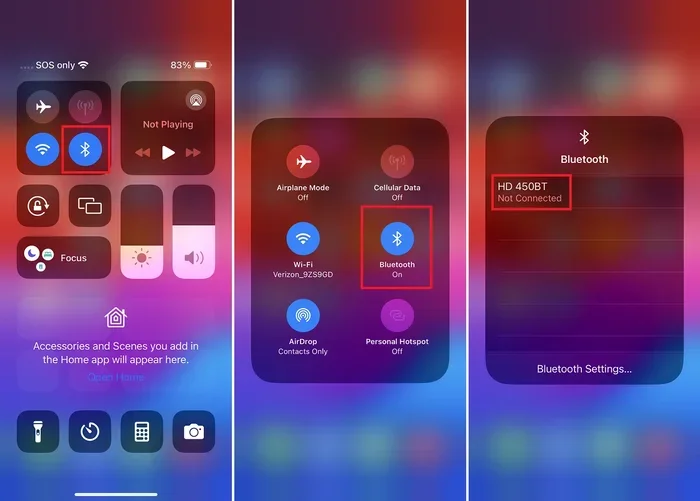
Method 2: Toggle Bluetooth Off and On
Sometimes a simple toggle is all you need. This clears the active Bluetooth connection cache and forces your iPhone to re-scan for available devices.
Follow these steps:
- Open the Control Center by swiping down from the top right of your screen.
- Tap the Bluetooth icon to turn it off. The icon will turn gray.
- Wait for 15 to 20 seconds.
- Tap the Bluetooth icon again to turn it back on.
- Go to Settings > Bluetooth and check if your device appears and connects properly.
This quick trick works well for Bluetooth audio stuttering or when your iPhone shows a device as connected but there is no sound output.
Method 3: Forget the Device and Re-Pair
This is one of the most effective ways to clear Bluetooth cache for a specific device. When you forget a device, your iPhone deletes all the stored pairing data for that peripheral. You then create a brand new connection from scratch.
Here is the process:
- Go to Settings > Bluetooth on your iPhone.
- Find the device causing problems in the list of paired Bluetooth devices.
- Tap the small “i” icon next to the device name.
- Select Forget This Device and confirm.
- Turn off Bluetooth, wait 10 seconds, and turn it back on.
- Put your Bluetooth device in pairing mode.
- Tap the device name when it appears in the iPhone Bluetooth settings list.
- Enter the pairing code if prompted and test the connection.
This method is especially helpful for Bluetooth headphones iPhone issues, Bluetooth speaker disconnections, and car audio Bluetooth problems. It removes any corrupted data that might be causing the connection failure.
Method 4: Reset All Network Settings
If the above methods do not work, resetting your network settings is the most thorough way to clear Bluetooth cache on iPhone. This method wipes all saved Wi-Fi passwords, VPN settings, and Bluetooth pairings. It gives your wireless connections a completely fresh start.
Here is what to do:
- Open the Settings app on your iPhone.
- Go to General > Transfer or Reset iPhone.
- Tap Reset.
- Select Reset Network Settings.
- Enter your passcode if prompted.
- Confirm the reset.
- Wait for your iPhone to restart.
- Reconnect to your Wi-Fi network and re-pair your Bluetooth devices.
Important: This method will delete all your saved Wi-Fi passwords. Make sure you know your Wi-Fi password before proceeding. However, it is the most powerful fix for persistent Bluetooth connection drops and pairing failures.
Method 5: Update Your iPhone Software
Apple regularly releases iOS updates that fix known Bluetooth bugs. If your iPhone Bluetooth issues started after a recent update or have been ongoing for a while, a software update might solve the problem.
Follow these steps:
- Go to Settings > General > Software Update.
- If an update is available, tap Download and Install.
- Make sure your iPhone is connected to Wi-Fi and has at least 50% battery.
- Wait for the update to complete and your iPhone to restart.
- Test your Bluetooth connections afterward.
Many users report that iOS Bluetooth fixes in newer software versions resolved their connection issues entirely. Keeping your iPhone updated is one of the best preventative measures you can take.
Method 6: Reset Your Bluetooth Device
Sometimes the problem is not with your iPhone at all. The Bluetooth device itself might have corrupted cache data. Most Bluetooth headphones, speakers, and peripherals have a factory reset option.
Here is a general guide:
- Check the manufacturer’s manual for specific reset instructions.
- Common methods include holding the power button and volume button together for 10 seconds.
- Some devices require pressing a small reset pin hole on the bottom.
- Once reset, put the device back in pairing mode and reconnect to your iPhone.
Resetting both your iPhone and the Bluetooth device ensures that no cached data on either end is causing the problem. This is a great approach for Bluetooth audio issues and intermittent connection drops.
Common Bluetooth Problems and How Clearing Cache Fixes Them
Bluetooth Headphones Not Connecting
This is the most common complaint among iPhone users. Your headphones show up in the Bluetooth devices list but refuse to connect. The issue is usually stale pairing data in your iPhone cache. Using the forget and re-pair method clears this old data and creates a clean connection path.
Audio Quality Issues and Stuttering
Are you hearing crackling, popping, or choppy audio through your Bluetooth headphones? This often happens when cached Bluetooth signal data becomes outdated. Your iPhone might be trying to use an old connection profile that no longer matches your device’s current capabilities. Clearing the cache forces your iPhone to negotiate a fresh, optimized audio connection.
Bluetooth Keeps Disconnecting
If your Bluetooth speaker or headphones keep cutting out, especially when you move more than a few feet from your iPhone, the cache might be interfering with signal management. Resetting your network settings clears all stored connection preferences and allows your iPhone to maintain a stable signal based on current conditions.
iPhone Cannot Find Bluetooth Devices
When your iPhone does not show nearby devices during a scan, the Bluetooth cache might be blocking the discovery process. Restarting your iPhone or resetting network settings refreshes the scanning module and restores normal device discovery.
Bluetooth Icon Shows But No Sound
This is a tricky one. Your iPhone says the device is connected, but you hear nothing. The Bluetooth connection profile cached on your iPhone might be set to the wrong audio output. Forgetting the device and re-pairing it resets the audio routing profile to the correct default.
Tips to Prevent Bluetooth Cache Problems on iPhone
Keep Your iPhone and Devices Updated
Always install the latest iOS updates. These updates include Bluetooth firmware improvements and bug fixes that prevent cache corruption. Set your iPhone to update automatically so you never miss a patch.
Limit the Number of Paired Devices
Your iPhone can remember many paired devices, but the more devices it tracks, the larger the Bluetooth cache grows. Go through your paired Bluetooth devices list regularly and forget devices you no longer use. This keeps your cache lean and reduces the chance of conflicts.
Turn Off Bluetooth When Not in Use
Leaving Bluetooth on all the time means your iPhone is constantly scanning for devices and maintaining connections. This builds up cache data faster. Get in the habit of turning Bluetooth off when you are not actively using a device. You can use Control Center for quick toggling.
Keep Your Devices Close During Pairing
When you are pairing a new device, keep it within a few feet of your iPhone. This ensures a strong, clean initial connection that stores correctly in your cache. Pairing from across the room can result in weak cached signals that cause problems later.
Restart Your iPhone Weekly
Make it a habit to restart your iPhone once a week. This clears temporary memory, refreshes all wireless connections, and prevents cache build-up. It takes less than a minute and keeps everything running smoothly.
When Should You Contact Apple Support?
Most Bluetooth cache issues resolve with the methods we have covered. But sometimes the problem goes deeper. If you have tried every method in this guide and your Bluetooth still not working, it might be a hardware or firmware issue that needs professional attention.
Contact Apple Support if you experience:
- Bluetooth completely disabled and grayed out in settings even after a restart.
- Bluetooth icon disappearing from the status bar and Control Center.
- None of your Bluetooth devices connect, even brand new ones you have never paired before.
- Bluetooth issues started after a drop or water exposure to your iPhone.
- Other wireless connections like Wi-Fi are also malfunctioning alongside Bluetooth.
Apple Support can run diagnostic tests on your iPhone to determine if the Bluetooth hardware module needs repair or replacement. In most cases, these issues are software-related and can be resolved remotely. But it is always better to check with a professional when basic fixes do not work.
Quick Tips for Faster Bluetooth Cache Clearing
Here are some quick tips to speed up the process and get your Bluetooth working again faster:
- Always restart your iPhone before trying other methods. It takes 30 seconds and solves half the problems.
- Check your Bluetooth device battery first. A low battery can mimic cache problems.
- Move closer to your device when testing connections. Distance can cause false cache-related issues.
- Turn off other Bluetooth devices nearby. Too many active signals can interfere with pairing.
- Use Airplane Mode as a quick reset. Turn it on for 10 seconds, then turn it off. This refreshes all wireless connections including Bluetooth.
- Check for obstructions between your iPhone and the Bluetooth device. Walls and metal objects weaken signals.
Common Mistakes to Avoid When Fixing Bluetooth Issues
Avoid these common mistakes that make Bluetooth troubleshooting harder than it needs to be:
- Do not download third-party Bluetooth cleaner apps. Most of them are unnecessary and some are malware. Apple does not support these apps and they can cause more harm than good.
- Do not skip the restart step. Many people jump straight to resetting network settings without trying a simple restart first.
- Do not ignore firmware updates on your Bluetooth devices. Headphone and speaker manufacturers release updates that fix compatibility issues with iPhones.
- Do not pair too many devices at once. Trying to connect multiple Bluetooth devices simultaneously can confuse your iPhone and cause cache conflicts.
- Do not assume it is a hardware problem too quickly. In 9 out of 10 cases, clearing the cache or resetting network settings solves the issue.
Expert Insights on iPhone Bluetooth Cache Management
Apple’s Bluetooth architecture is designed to handle cache management automatically. The iOS system continuously monitors stored Bluetooth pairing data and refreshes connection profiles in the background. However, this automatic management is not perfect.
According to Apple support documentation, resetting network settings is the recommended first step for persistent Bluetooth issues. This clears all network-related cache including Bluetooth pairings, Wi-Fi configurations, and cellular settings. It is a safe process that does not delete any personal data like photos, messages, or apps.
Tech experts also recommend keeping your Bluetooth devices within close range during the initial pairing process. This ensures that the Bluetooth signal strength data stored in cache accurately reflects your typical usage environment. Strong cached signals lead to more stable connections.
Another expert tip is to check your iPhone storage regularly. When storage is nearly full, iOS has less room to manage temporary cache files efficiently. This can indirectly affect Bluetooth performance. Keeping at least 5GB of free storage helps your iPhone run all systems, including Bluetooth, more smoothly.
Finally, understand that Bluetooth low energy devices like fitness trackers and smartwatches use a different caching mechanism than audio devices. If your fitness tracker is having connection issues, the same methods apply but the reset process might need to be done on both the iPhone and the tracker itself.
Conclusion
Clearing Bluetooth cache on iPhone is not only possible but also one of the most effective ways to fix frustrating wireless connection problems. Whether you use the simple restart method, the forget-and-re-pair technique, or the thorough network settings reset, each approach removes stale cached data and gives your Bluetooth connections a fresh start.
Remember that most Bluetooth issues on iPhone are temporary and cache-related. You do not need to be a tech expert to fix them. With the steps outlined in this guide, you can troubleshoot and resolve connection drops, audio glitches, pairing failures, and other common problems in just a few minutes.
Keep your iPhone updated, manage your paired devices list, and restart your phone regularly. These simple habits go a long way in preventing Bluetooth cache build-up and keeping your wireless connections strong and reliable. If all else fails, Apple Support is always there to help you through more advanced troubleshooting.
Now that you know how to clear Bluetooth cache on iPhone and fix issues, you can enjoy uninterrupted audio, seamless device connections, and a frustration-free wireless experience every single day.
Frequently Asked Questions
What happens when I clear Bluetooth cache on iPhone?
Clearing Bluetooth cache removes all stored pairing data and connection preferences for your paired devices. You will need to re-pair your Bluetooth devices after clearing the cache. This process does not delete any personal data like photos, messages, or apps from your iPhone.
Is it safe to reset network settings to clear Bluetooth cache?
Yes, it is completely safe. Resetting network settings clears Wi-Fi passwords, VPN configurations, and Bluetooth pairings, but it does not delete any personal content on your iPhone. Make sure you know your Wi-Fi password before resetting so you can reconnect easily afterward.
Why does my Bluetooth keep disconnecting even after clearing cache?
If Bluetooth keeps disconnecting after clearing cache, the issue might be related to signal interference, distance from the device, or a firmware problem on the Bluetooth peripheral itself. Try moving closer to your device, checking for interference from other electronics, and updating the firmware on your Bluetooth accessory.
How often should I clear Bluetooth cache on my iPhone?
You do not need to clear Bluetooth cache regularly. Only do it when you experience connection problems like pairing failures, audio stuttering, or frequent disconnections. Regular maintenance like restarting your iPhone weekly and keeping your software updated is usually enough to prevent cache-related issues.
Can clearing Bluetooth cache fix sound quality issues on iPhone?
Yes, clearing Bluetooth cache can often fix sound quality issues. Stale cached data can cause your iPhone to use outdated audio profiles or codecs, resulting in poor sound quality. After clearing the cache and re-pairing your device, your iPhone will negotiate the best available audio connection for optimal sound quality.
Do I need any special apps to clear Bluetooth cache on iPhone?
No, you do not need any third-party apps. Apple provides all the tools you need directly in the iPhone settings. Avoid downloading Bluetooth cleaner apps from the App Store as they are unnecessary and can potentially harm your device. The built-in methods in this guide are safe, effective, and completely free.
=== CONCLUSION ===
Clearing Bluetooth cache on iPhone is a simple yet powerful way to resolve most wireless connection problems you will encounter. From Bluetooth headphones not connecting to audio stuttering and random disconnections, the methods in this guide cover every scenario. Start with the simplest fixes like restarting your iPhone and toggling Bluetooth off and on. Move to forgetting and re-pairing devices if those quick fixes do not work. Use the network settings reset for persistent issues that refuse to go away.
Prevention is always better than cure. Keep your iPhone updated, manage your paired devices list, and restart your phone regularly to keep your Bluetooth cache clean and your connections strong. With these practices, you will spend less time troubleshooting and more time enjoying your favorite music, calls, and podcasts wirelessly.