Can Samsung Tablet Be Used As A Laptop For Your Work
The answer is yes — a Samsung tablet can be used as a laptop for many tasks, especially with Samsung DeX mode and the right accessories. Whether you are a remote worker, student, or creative professional, turning your Samsung tablet into a laptop setup can boost your daily productivity. This guide walks you through everything you need to know, from setup steps to real-world performance comparisons.
Can Samsung tablet be used as a laptop? The short answer is a confident yes. More professionals, students, and creatives are ditching bulky laptops and picking up a Samsung tablet as a laptop alternative. With the right setup, a Samsung tablet handles emails, documents, spreadsheets, and even creative projects with ease.
The idea of replacing your laptop with a tablet might sound risky. But Samsung has built powerful tools like DeX mode that make the transition smoother than you think. In this guide, we will walk you through everything you need to know about using your Samsung tablet as a laptop for work.
We will cover setup steps, essential accessories, real-world performance, and common pitfalls. By the end, you will know exactly whether a Samsung tablet fits your workflow. Let us dive in.
Key Takeaways
- Samsung DeX mode turns your tablet into a desktop-like experience with a taskbar, resizable windows, and multitasking support.
- Using a Samsung tablet as a laptop works best with a keyboard cover and mouse for a comfortable workflow.
- Samsung Galaxy Tab S series tablets deliver strong performance for office tasks, creative work, and light coding.
- Not all apps run perfectly in desktop mode, so check compatibility before committing to a tablet-only setup.
- Accessories like docking stations and external monitors make the tablet-to-laptop transition seamless.
- Battery life on Samsung tablets often exceeds traditional laptops, making them great for on-the-go work.
- The right setup depends on your specific work needs — heavy software users may still need a full laptop.
📑 Table of Contents
- What Does It Mean to Use a Samsung Tablet as a Laptop?
- How Samsung DeX Mode Transforms Your Tablet
- Samsung Tablet vs. Laptop: A Head-to-Head Comparison
- Essential Accessories for a Laptop-Style Setup
- Real-World Productivity: What Can You Actually Do?
- Common Mistakes and How to Avoid Them
- Expert Tips to Maximize Your Samsung Tablet as a Laptop
- Conclusion
What Does It Mean to Use a Samsung Tablet as a Laptop?
When people ask, “can Samsung tablet be used as a laptop,” they usually mean one thing. They want to know if a tablet can handle the same daily work tasks a traditional laptop does. The answer depends on what kind of work you do and how you set things up.
Understanding the Basic Concept
A Samsung tablet running Android is not a laptop by default. It is a touchscreen device designed for quick tasks and media consumption. However, with the right software and accessories, it transforms into something much more powerful. Samsung DeX mode is the key player here. It gives your tablet a desktop-style interface with a taskbar, resizable windows, and support for a mouse and keyboard.
Think of it this way. You take your Samsung tablet, connect a keyboard cover, plug in a mouse, and suddenly you have a portable workstation that fits in a bag smaller than most laptop sleeves. That is the core idea behind using a Samsung tablet as a laptop replacement.
Who Benefits Most from This Setup?
Not everyone needs a full laptop. Many workers would be better served by a Samsung tablet for work. Here are the people who benefit the most:
- Remote workers who mainly handle email, video calls, and cloud documents
- Students taking notes, writing papers, and researching online
- Creative professionals who sketch, edit photos, or design on the go
- Frequent travelers who want a lightweight device without sacrificing productivity
- Sales professionals who need to present, take notes, and stay connected
If your daily tasks fall into any of these categories, can Samsung tablet be used as a laptop for you is almost certainly yes. But if you rely on heavy desktop software like AutoCAD or advanced video editing tools, you may still need a traditional machine.
How Samsung DeX Mode Transforms Your Tablet
Samsung DeX is the heart of the tablet-as-laptop experience. It stands for Desktop Experience, and it does exactly what the name suggests. It turns your Samsung Galaxy Tab S series tablet into something that looks and feels like a desktop computer.
What Is DeX and Why Does It Matter?
DeX gives you a full desktop environment on your tablet. You get a taskbar at the bottom, a Start menu-style app launcher, and the ability to run multiple windows side by side. You can drag and drop files between apps, resize windows freely, and even connect an external monitor for a dual-screen setup.
This matters because it bridges the gap between a tablet and a laptop. Without DeX, your Samsung tablet runs Android apps in a mobile format. With DeX, those same apps open in resizable windows that feel like a real desktop. For many people, this is the difference between a gadget and a genuine laptop replacement.
Setting Up DeX for the First Time
Getting started with DeX is simple. Here is how to do it on a Samsung Galaxy Tab S8, S9, or newer model:
- Swipe down from the top of your screen to open the quick settings panel
- Look for the DeX icon and tap it
- Your tablet will switch to the desktop layout instantly
- Connect a Bluetooth keyboard and mouse for the full experience
- Open the taskbar to access your favorite apps and settings
You can also use DeX wirelessly with a compatible smart TV or monitor. Just go to Settings, find DeX, and select wireless casting. This feature makes Samsung tablet productivity incredibly flexible. You can present from your tablet, work on a big screen, and still control everything from the device in your hands.
DeX Compatibility and Limitations
Most Android apps work well in DeX mode. Samsung Notes, Microsoft Office, Google Docs, and Slack all run smoothly. However, some apps are not optimized for the desktop layout. They may display in a small window or behave unpredictably. Before you commit fully, test the apps you use daily in DeX mode to make sure they work as expected.
Samsung Tablet vs. Laptop: A Head-to-Head Comparison
When deciding whether to use a Samsung tablet as a laptop, it helps to compare the two directly. The table below breaks down the key areas that matter most for work.
Performance Comparison
Samsung’s latest tablets pack serious horsepower. The Galaxy Tab S9 Ultra runs a Snapdragon 8 Gen 2 processor, which rivals many mid-range laptops. For everyday tasks like browsing, email, and document editing, the performance is excellent. You will not notice lag or slowdowns.
However, laptops still hold an edge in sustained heavy workloads. Running complex spreadsheets, compiling code, or rendering video puts more stress on the system. A Samsung tablet handles these tasks, but it may slow down faster than a dedicated laptop. For most office workers, this difference is barely noticeable.
Portability and Battery Life
This is where Samsung tablets shine. A tablet weighs between 1 and 1.5 pounds, while most laptops weigh 3 to 5 pounds. The Samsung Galaxy Tab S9 fits easily in a small bag or even a large pocket. You can take it anywhere without feeling weighed down.
Battery life is another strong suit. Samsung tablets typically deliver 10 to 14 hours of mixed use. Many laptops struggle to hit 8 hours under real-world conditions. If you work on the go all day without access to an outlet, a tablet gives you more breathing room.
Screen Size and Display Quality
Samsung tablets offer stunning AMOLED displays with vibrant colors and sharp details. The Tab S9 series features 12.4-inch or 14.6-inch screens that are perfect for multitasking. Laptops typically have 13 to 15-inch IPS displays that are good but not as vivid. For creative work like photo editing or design, the Samsung display has a clear advantage.
Essential Accessories for a Laptop-Style Setup
Using a Samsung tablet as a laptop without accessories is possible, but it is not ideal. The right gear turns a tablet into a genuinely productive machine. Here is what you need.
Keyboard Covers and Cases
A keyboard cover is the single most important accessory. Samsung sells its own Book Cover Keyboard for the Tab S series, which attaches magnetically and provides a comfortable typing experience. Third-party options from brands like Logitech and SPEN also work well.
When choosing a keyboard cover, look for these features:
- A built-in trackpad or trackpad buttons for easy navigation
- Slim profile that does not add bulk to the tablet
- Long battery life that lasts weeks on a single charge
- Secure attachment that holds the tablet firmly in place
With a good keyboard cover, your Samsung tablet productivity jumps dramatically. You can type emails, write reports, and take notes as easily as on a laptop.
Docking Stations and External Monitors
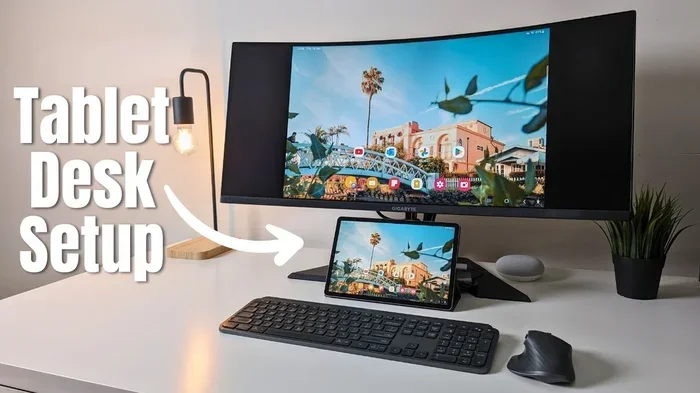
If you want a true desktop replacement, consider a docking station. Samsung’s DeX mode supports wired and wireless connections to external monitors. A USB-C docking station lets you connect your tablet to a large display, wired internet, and peripherals all at once.
This setup turns your tablet into a mobile workstation that sits on your desk. You get the portability of a tablet with the screen real estate of a desktop monitor. Many professionals use this arrangement at home and then disconnect to work from a coffee shop or conference room.
Samsung S Pen and Stylus Productivity
The S Pen is one of Samsung’s biggest advantages over traditional laptops. It allows precise note-taking, drawing, and annotation. In DeX mode, you can use the S Pen to navigate, edit documents, and sign PDFs. For creatives and students, this stylus support adds a dimension that most laptops simply cannot match.
Real-World Productivity: What Can You Actually Do?
Theoretical benefits are nice, but what matters most is real-world performance. Let us look at what you can actually accomplish when you use a Samsung tablet as a laptop for daily work.
Office Work and Email
Handling emails, writing documents, and managing spreadsheets are core work tasks. Samsung tablets run Microsoft Office, Google Workspace, and Samsung’s own office suite. All of these work smoothly in DeX mode with a keyboard and mouse. You can create PowerPoint presentations, edit Excel sheets, and draft long emails without any issues.
Many professionals report that they switched to a Samsung tablet and never looked back for routine office work. The combination of a lightweight device and cloud-based tools makes the tablet productivity experience surprisingly powerful.
Creative Work and Note-Taking
For creative professionals, Samsung tablets are a dream. The S Pen pressure sensitivity works beautifully in apps like Clip Studio Paint, Procreate (via emulation), and Samsung Notes. You can sketch, illustrate, annotate PDFs, and even edit photos with precision.
Students benefit equally. Taking handwritten notes during lectures, highlighting textbook PDFs, and organizing study materials is effortless with a tablet and stylus setup. The Samsung tablet for work becomes a personal assistant that fits in your backpack.
Video Calls and Meetings
Samsung tablets have excellent front-facing cameras and high-quality microphones. They handle Zoom, Microsoft Teams, and Google Meet calls with ease. The large screen makes it easy to see participants and share your screen during presentations. With a keyboard cover attached, you can type notes while on a call without switching devices.
Common Mistakes and How to Avoid Them
Switching to a Samsung tablet as a laptop comes with a learning curve. Here are common mistakes people make and how to avoid them.
Overlooking Storage Limitations
Samsung tablets typically come with 128 GB of internal storage. That sounds generous until you install several apps, store documents, and download media. Running out of space mid-project is frustrating. The fix is simple. Use cloud storage services like Google Drive, OneDrive, or Samsung Cloud for files you do not need offline. Invest in a microSD card for expandable storage on supported models.
Ignoring Software Compatibility
Not every desktop application has an Android version. If your work relies on specialized software like QuickBooks Desktop or certain engineering tools, a Samsung tablet may not fully replace your laptop. Before making the switch, list every app you use daily and verify that each one works on Android or has a web-based alternative.
Skipping the Right Accessories
Trying to use a Samsung tablet without a keyboard and mouse is like buying a car and never learning to drive. The accessories make the experience. Budget for a quality keyboard cover and a Bluetooth mouse. These small investments pay off massively in daily productivity.
Underestimating Multitasking Needs
Samsung tablets support split-screen multitasking and floating windows. However, heavy multitaskers who constantly juggle many apps may find the experience limiting compared to a high-end laptop. Learn DeX’s multitasking shortcuts to get the most out of your setup.
Expert Tips to Maximize Your Samsung Tablet as a Laptop
Want to get the most out of your setup? Here are some expert-backed tips that make a real difference.
First, customize your DeX layout. Pin your most-used apps to the taskbar so you can launch them instantly. Arrange your favorite windows in a layout that matches your workflow. DeX remembers your preferred window positions, so you can save time every time you open the mode.
Second, invest in a good stand. A tablet stand keeps your screen at eye level and reduces neck strain during long work sessions. Adjustable stands that tilt and rotate give you the flexibility to switch between typing and drawing modes.
Third, enable automatic backups. Use Samsung Cloud or Google Drive to back up your files regularly. Losing work because of a storage issue or accidental deletion is preventable with the right backup routine.
Fourth, keep your tablet updated. Samsung regularly releases software updates that improve DeX performance, fix bugs, and add new features. Staying up to date ensures your Samsung tablet productivity remains at its peak.
Fifth, explore keyboard shortcuts. DeX supports many keyboard shortcuts similar to Windows. Learning shortcuts for switching windows, taking screenshots, and opening the taskbar speeds up your workflow significantly.
Conclusion
The question “can Samsung tablet be used as a laptop” no longer has a simple yes or no answer. It has a nuanced, practical answer. Yes, a Samsung tablet can absolutely serve as a laptop for many types of work. With Samsung DeX mode, the right accessories, and a clear understanding of your needs, a tablet can replace your laptop entirely or serve as a powerful companion device.
Samsung tablets offer portability, long battery life, stunning displays, and a growing ecosystem of productivity tools. They excel at office work, creative projects, communication, and everyday tasks. While they are not perfect for every use case, the gap between tablets and laptops continues to shrink with each new generation.
If you are considering making the switch, start by trying DeX mode on your current Samsung tablet. Connect a keyboard cover, spend a few days working with it, and see how it fits your routine. The Samsung tablet as a laptop experience might just surprise you.
Your workflow is unique. Find the setup that works best for you, and let your Samsung tablet handle the rest.
Frequently Asked Questions
Can I run Microsoft Office apps on a Samsung tablet in DeX mode?
Yes, Microsoft Office apps including Word, Excel, and PowerPoint work perfectly in Samsung DeX mode. You can install them directly from the Google Play Store and use them just like you would on a laptop. The experience is smooth and fully functional with a keyboard and mouse.
Do I need to buy a special keyboard for my Samsung tablet?
You do not need a special keyboard, but a keyboard cover designed for your specific Samsung tablet model works best. Samsung’s own Book Cover Keyboard is a popular choice, but many third-party options offer similar quality at lower prices. Any Bluetooth keyboard will also work if you prefer a separate option.
Is Samsung DeX mode available on all Samsung tablets?
DeX mode is available on most Samsung Galaxy Tab S series tablets, including the Tab S6, S7, S8, and S9 models. Some older Galaxy Tab A series models also support DeX, but the experience varies. Always check Samsung’s official website for the latest compatibility list before purchasing.
Can I connect my Samsung tablet to an external monitor?
Yes, you can connect your Samsung tablet to an external monitor using a USB-C to HDMI cable, a USB-C docking station, or wirelessly through DeX casting. This allows you to extend your screen or mirror your DeX desktop on a larger display for a more comfortable work experience.
How does battery life compare between a Samsung tablet and a laptop?
Samsung tablets generally offer better battery life than most laptops. A Galaxy Tab S9 can last 10 to 14 hours on a single charge with mixed use. Most laptops last between 6 and 10 hours under similar conditions. This makes tablets ideal for long workdays away from power outlets.
Can I use a Samsung tablet for coding and programming?
Yes, you can use a Samsung tablet for coding with the right setup. DeX mode supports Linux terminal apps, code editors like Acode and Spck, and even remote desktop connections to full development environments. While it is not a replacement for a powerful development laptop, it works well for learning to code and handling lighter programming tasks.