Can I Use A Second Monitor With My Laptop For Productivity
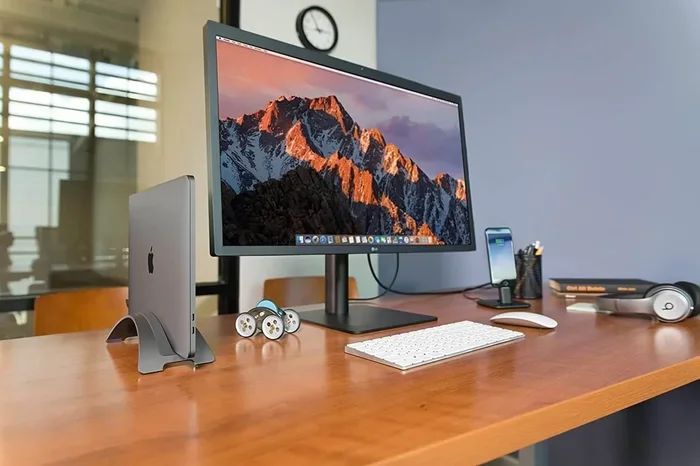
Yes, you can absolutely use a second monitor with your laptop. Connecting an external display to your laptop is one of the simplest ways to boost productivity and multitask with ease. Whether you work from home or in an office, a dual screen setup can transform how you handle daily tasks. This guide walks you through every step, from choosing the right cable to troubleshooting common issues. You will learn how to set up, optimize, and enjoy a seamless multi-monitor experience with your laptop.
Have you ever wished your laptop had more screen space? Maybe you were juggling spreadsheets, emails, and a browser at the same time. The good news is that adding a second monitor to your laptop is easier than you think. It does not matter if you use a Windows laptop or a Mac. There is a way to connect an external display and get more done every day.
A second monitor can completely change how you work. You can keep your main tasks on one screen while referencing other material on the second. This setup reduces the need to constantly switch between windows. Many professionals swear by the dual screen setup for a reason. In this guide, we will cover everything you need to know about using a second monitor with your laptop.
We will walk through the connection process step by step. You will learn about different cables, adapters, and display settings. We will also share practical tips to help you get the most out of your laptop productivity setup. By the end of this article, you will feel confident setting up your own external monitor with your laptop. Let us dive in.
Key Takeaways
- Easy Setup: Most laptops support external monitors through HDMI, USB-C, or DisplayPort connections.
- Productivity Boost: A second screen helps you multitask, compare documents, and stay organized.
- Right Cable Matters: Choosing the correct cable or adapter ensures smooth performance and full resolution.
- Display Settings Are Key: Configuring extended display mode and screen resolution makes a big difference.
- Common Issues Are Fixable: Most problems like lag or no signal have simple solutions.
- Worth the Investment: A second monitor is a small upgrade with a big payoff for your workflow.
📑 Table of Contents
Why A Second Monitor Boosts Your Productivity
Adding a second screen to your laptop is one of the best upgrades you can make. It opens up new ways to work and helps you stay focused. Many people notice a big difference in their daily output once they go dual screen. Here is why a second monitor makes such a difference.
More Screen Space Means Less Switching
When you only have a laptop screen, you constantly toggle between windows. You switch from your email to a document to a browser and back again. This constant switching breaks your focus and wastes time. With a second screen, you can keep email open on one display while working on the other. Your brain stays in the zone instead of jumping around.
Better Multitasking And Window Management
A dual screen setup lets you run two full applications side by side. You can edit a report on one screen while keeping research on the other. Video editors can watch a preview on one screen and the timeline on the other. This kind of window management makes complex tasks feel much simpler. You do not have to resize windows or scroll through tiny tabs anymore.
Improved Workflow Efficiency
When your tools are spread across two screens, your workflow becomes smoother. You can drag files between windows with a simple drag and drop. You can compare two versions of a document side by side. Designers, programmers, writers, and analysts all benefit from this kind of setup. The productivity boost from a second monitor is real and measurable.
Quick Tips For A Better Dual Screen Setup
- Place your second monitor at eye level to reduce neck strain.
- Use a laptop stand to raise your laptop screen to the same height.
- Keep cables organized with cable management clips or sleeves.
- Match the screen resolution of both monitors for a consistent look.
How To Connect A Second Monitor To Your Laptop
Connecting a second monitor to your laptop is a straightforward process. You do not need to be a tech expert. In most cases, you just plug in a cable and your laptop detects the new screen. Let us walk through the steps so you can get started right away.
Check Your Laptop’s Video Output Ports
Before you buy any cable, check what ports your laptop has. Most modern laptops come with at least one video output. Common ports include HDMI, USB-C, DisplayPort, and VGA. Older laptops may only have VGA or DVI ports. Knowing what your laptop supports helps you choose the right connection.
Here are the most common video output options you will find:
- HDMI: The most common port on laptops and monitors today.
- USB-C: Found on newer laptops, especially MacBooks and ultrabooks.
- DisplayPort: Common on Windows laptops and high-end monitors.
- VGA: An older analog port still found on some business laptops.
Choose The Right Cable Or Adapter
Once you know your laptop’s ports, pick the right cable. If both your laptop and monitor have HDMI, an HDMI cable is the simplest choice. If your laptop has USB-C but your monitor has HDMI, you need a USB-C to HDMI adapter. Some laptops support USB-C docking station hubs that offer multiple ports in one device.
Here is a quick comparison of common connection options:
| Connection Type | Best For | Max Resolution | Ease Of Use |
|---|---|---|---|
| HDMI | Most laptops and monitors | 4K at 60Hz | Very Easy |
| USB-C | Modern laptops and thin devices | 4K at 60Hz | Very Easy |
| DisplayPort | High-performance setups | 8K at 60Hz | Easy |
| VGA | Older monitors and laptops | 1080p max | Moderate |
| USB-C Docking Station | All-in-one connectivity | 4K at 60Hz | Easy |
Setting Up Your External Monitor
After connecting the cable, your laptop should detect the new display automatically. If it does not, go to your display settings. On Windows, right-click the desktop and select Display Settings. On Mac, go to System Settings and click Displays. From there, you can choose how you want the screens to work.
You have three main options for how your screens behave:
- Extend Display: This creates one big desktop across both screens. This is the most common setup for productivity.
- Duplicate Display: This shows the same image on both screens. Great for presentations or sharing your screen.
- Show Only On One Screen: This turns off one display and uses only the other.
For laptop productivity, the extend display mode is almost always the best choice. It gives you the most flexibility and screen real estate.
Expert Insight
According to tech experts, the ideal multi-monitor setup places the second monitor directly in front of you at a slight angle. Your laptop screen should be off to one side. This arrangement reduces head turning and keeps your focus centered on the main task.
Types Of Connections And What Works Best
Not all connections are created equal. The type of cable or adapter you use affects image quality, refresh rate, and ease of setup. Understanding your options helps you make the best choice for your needs.
HDMI Connections
HDMI is the most widely used connection for external monitors. It carries both video and audio through a single cable. Most laptops made in the last decade include at least one HDMI port. HDMI cables are affordable and easy to find. A standard HDMI cable supports 1080p and even 4K resolution depending on the version.
USB-C And Thunderbolt Connections
USB-C is the modern standard for connecting laptops to external displays. It is small, reversible, and supports high-resolution video. Thunderbolt 3 and Thunderbolt 4 ports use the USB-C connector but offer even faster data transfer. If your laptop has a Thunderbolt port, you can connect a monitor directly or use a USB-C docking station for multiple devices.
Wireless Display Options
Not everyone wants to run cables across their desk. Wireless display options like Miracast, Chromecast, and Apple AirPlay let you cast your laptop screen to a compatible monitor or TV. These solutions are convenient but may have slight lag. For tasks that require precise mouse movements, a wired connection is still better.
Common Problems And How To Fix Them
Even with a simple setup, you might run into a few hiccups. Most problems are easy to fix and do not require technical expertise. Here are the most common issues people face when using a second monitor with their laptop.
Troubleshooting Display Issues
If your external monitor shows no signal, the first thing to check is the cable connection. Make sure both ends are firmly plugged in. Try a different cable if the current one looks damaged. Also, check that your laptop is sending output to the external display. Sometimes the display settings default to showing only on the laptop screen.
Another common issue is the wrong screen resolution. If text and icons look blurry on your second monitor, go to display settings and adjust the resolution. Make sure both monitors are set to their native resolution for the sharpest image.
Dealing With Lag And Laggy Screens
A slight delay between your mouse movement and the cursor on the second screen can be frustrating. This is often caused by a low-quality cable or an outdated graphics driver. Update your laptop’s graphics drivers through the device manager or manufacturer’s website. Use a high-quality HDMI cable or USB-C cable rated for the resolution you need.
Common Mistakes To Avoid
- Using a cheap or damaged cable that cannot carry a clean signal.
- Forgetting to update your graphics drivers after adding a new monitor.
- Setting different refresh rates on both monitors, which causes flickering.
- Placing the second monitor too far to the side, causing neck strain.
- Not checking if your laptop’s graphics card supports dual displays.
Tips For Maximizing Productivity With Two Screens
Setting up a second monitor is only the first step. How you use it matters just as much. A few smart habits can help you get the most out of your dual screen setup and take your productivity to the next level.
Organize Your Windows Strategically
Do not just put random windows on each screen. Think about how you naturally work. Keep your primary task on the main screen and reference material on the second. For example, keep your email on the left monitor and your work document on the right. This arrangement keeps your main focus front and center.
Use Keyboard Shortcuts
Keyboard shortcuts save tons of time when working with two screens. On Windows, use Win + Left Arrow or Win + Right Arrow to snap windows to half the screen. On Mac, use Mission Control to arrange windows across displays. Learning a few shortcuts makes managing two screens feel effortless.
Match Your Monitors For A Seamless Experience
Where possible, try to match the size and resolution of both monitors. A mismatch can make the transition between screens feel jarring. If you use a 27-inch 4K external monitor, try to keep your laptop screen at a similar resolution. This creates a smooth, unified workspace that feels natural to use.
Invest In A Good Laptop Dock
A laptop dock or docking station simplifies your setup dramatically. Instead of plugging and unplugging cables every day, you connect everything once. Then your laptop just clicks into the dock. This is especially helpful if you switch between your laptop screen and an external monitor throughout the day.
Quick Tips For A Smarter Dual Screen Setup
- Use your second monitor for communication tools like Slack or Teams.
- Keep your calendar and task manager visible on the second screen.
- Adjust the brightness of both monitors to reduce eye strain.
- Use a monitor arm to adjust the height and angle of your second screen.
- Set different wallpapers on each monitor to visually separate your workspaces.
Is A Second Monitor Worth It For Your Laptop Setup
The short answer is yes for most people. A second monitor is a relatively small investment that pays off quickly in saved time and reduced frustration. Whether you work from home, study, or run a business, an additional screen gives you room to breathe and work smarter.
Consider your daily tasks and how you currently use your laptop screen. If you frequently switch between applications, compare documents, or work with data, a second monitor will feel like a game changer. Even if you just use your laptop for browsing and light tasks, a second screen adds convenience and comfort.
The key is to choose the right monitor and connection for your needs. A simple 24-inch monitor with an HDMI connection works great for most users. If you need more screen real estate, consider a 27-inch or ultrawide monitor. And if your laptop supports USB-C or Thunderbolt, a docking station gives you flexibility and future-proofing.
Remember, the goal is to make your work easier and more enjoyable. A well-configured dual screen setup does exactly that. Take the time to set it up properly, adjust your display settings, and build habits that make the most of your extra screen space. You will wonder how you ever worked with just one screen.
Conclusion
Using a second monitor with your laptop is one of the easiest and most effective upgrades you can make. It boosts your productivity, improves your workflow, and makes multitasking feel natural. Whether you connect via HDMI, USB-C, or a wireless solution, the setup process is simple and the results are rewarding. You now know how to choose the right cable, configure your display settings, and troubleshoot common issues. You also have practical tips to get the most out of your laptop productivity setup. The investment is small, but the payoff in efficiency and comfort is huge. So go ahead, connect that external monitor, and experience the difference a second screen can make in your daily work.
Frequently Asked Questions
Can I connect two monitors to my laptop at the same time?
Yes, many laptops support two external monitors. Check your laptop’s graphics card specs to confirm. You may need a docking station or adapter to connect more than one external display. The total number of supported monitors depends on your laptop model and operating system.
Do I need a special monitor for my laptop?
No, you do not need a special monitor. Any standard external monitor works with most laptops. Just make sure the monitor has a compatible input port like HDMI or USB-C. Match the port on your monitor with the output on your laptop or use the right adapter.
Will a second monitor slow down my laptop?
Generally, no. Modern laptops handle dual displays without noticeable slowdown. The only exception is if you run very graphics-heavy tasks on both screens. For everyday work like browsing, writing, and spreadsheets, a second monitor has no impact on performance.
What is the best monitor size for a dual screen setup?
A 24-inch or 27-inch monitor is ideal for most users. These sizes offer plenty of screen space without being too large for a desk. Ultrawide monitors are another great option if you prefer a single long display instead of two separate screens.
Can I use a second monitor wirelessly with my laptop?
Yes, wireless options like Miracast and AirPlay let you cast your laptop screen to a compatible display. Wireless connections are convenient but may have slight input lag. For tasks that need precise cursor control, a wired connection is recommended.
How do I set up a second monitor on Windows 11?
Go to Settings, then System, and click Display. Your laptop should detect the external monitor automatically. Choose Extend Display to use both screens as one workspace. You can also adjust resolution, scale, and monitor arrangement from this same menu.
=== CONCLUSION ===
Adding a second monitor with your laptop is a simple change that delivers big results. From the moment you connect that external monitor, you will feel the difference in how you work. The dual screen setup opens up new possibilities for multitasking, organization, and focus. Whether you are a student, a professional, or a creative, a second display gives you the room to do your best work. Follow the steps in this guide, avoid common mistakes, and enjoy a smoother, more productive workflow every single day.