Can I Go From USB To HDMI Here Is What You Need To Know
Yes, you can go from USB to HDMI with the right adapter or cable. Whether you want to connect a laptop, tablet, or streaming stick to a TV or monitor, a USB to HDMI adapter makes it simple and affordable. This guide covers everything you need to know about choosing the right adapter, setting up your connection, and troubleshooting common issues. You will learn about USB-C to HDMI options, active vs passive adapters, and the best setups for home or office use.
Key Takeaways
- USB to HDMI adapters let you connect USB devices to HDMI displays easily. You can mirror or extend your screen to a TV, monitor, or projector.
- USB-C to HDMI is the most popular option today. Most modern laptops, tablets, and phones use USB-C, making these adapters widely useful.
- Active adapters work better for older USB ports. They provide their own power, which ensures a stable signal for high-resolution output.
- Check your device compatibility before buying. Not all USB ports support video output, so verify your hardware first.
- Troubleshooting is simple for most connection issues. Updating drivers, trying a different cable, or restarting devices often solves the problem.
- USB to HDMI adapters support 4K resolution on many models. Look for adapters that match your display needs for the best experience.
📑 Table of Contents
- Can I Go From USB to HDMI? Here Is What You Need to Know
- What Is a USB to HDMI Connection?
- Types of USB to HDMI Adapters and Cables
- How to Connect USB to HDMI Step by Step
- Common Uses for USB to HDMI Adapters
- Things to Consider Before Buying a USB to HDMI Adapter
- Troubleshooting USB to HDMI Connection Issues
- Expert Insights on USB to HDMI Adapters
- Comparison: USB to HDMI Adapter Types
- Final Thoughts on Going From USB to HDMI
Can I Go From USB to HDMI? Here Is What You Need to Know
Have you ever looked at your USB cable and your HDMI cable and wondered if you could connect them? Maybe you want to hook your laptop up to a bigger screen. Or perhaps you have a streaming device with only a USB port and a TV with only an HDMI input. Whatever your reason is, the question is the same: can I go from USB to HDMI?
The short answer is yes. You absolutely can go from USB to HDMI with the right adapter or cable. It is not magic. It is not complicated. It just requires the right piece of hardware and a little basic knowledge. In this guide, we will walk you through everything you need to know. We will cover the types of adapters available, how to set them up, what to look for when buying one, and how to fix common problems.
By the end of this article, you will feel confident about making a USB to HDMI connection. You will know exactly which adapter to buy, how to install it, and how to get the best picture quality on your display. Let us dive right in.
What Is a USB to HDMI Connection?
A USB to HDMI connection lets you send video and audio from a USB port to an HDMI display. Your HDMI display could be a TV, a computer monitor, a projector, or even a digital sign. The USB port on your device sends a signal, and the adapter converts that signal into something the HDMI display can read and show.
Think of it like a translator. Your USB port speaks one language, and your HDMI display speaks another. The adapter bridges the gap. It takes the digital signal from the USB port and turns it into a high-definition video and audio output that your screen can display.
Not all USB ports can do this, though. Some USB ports are designed only for charging or data transfer. Others support video output. This is an important distinction we will cover soon. For now, just know that a USB to HDMI adapter is a small, affordable device that opens up a world of display possibilities.
How Does the Signal Conversion Work?
When you plug a USB to HDMI adapter into your device, the adapter contains a tiny chip. This chip processes the video signal from your USB port. It then sends that signal out through the HDMI connector to your display. The process happens in real time, so there is no noticeable delay in most cases.
Some adapters also handle audio. This means you can send both video and sound through a single USB to HDMI connection. You do not need separate cables for audio and video. That is a huge convenience, especially when you are setting up a home theater or giving a presentation.
Types of USB to HDMI Adapters and Cables
Not all adapters are the same. There are several types of USB to HDMI adapters on the market, and each one serves a different purpose. Understanding the differences helps you choose the right one for your setup.
USB-C to HDMI Adapters
USB-C to HDMI adapters are the most popular type today. Most modern laptops, tablets, and smartphones use USB-C ports. These ports are small, reversible, and support high-speed data transfer. A USB-C to HDMI adapter plugs into your USB-C port and outputs video to any HDMI display.
Many USB-C to HDMI adapters are plug and play. This means you do not need to install any software. You just plug them in, and they work. Some of the best options support 4K resolution at 60Hz, which gives you crystal-clear picture quality on your TV or monitor.
USB-A to HDMI Adapters
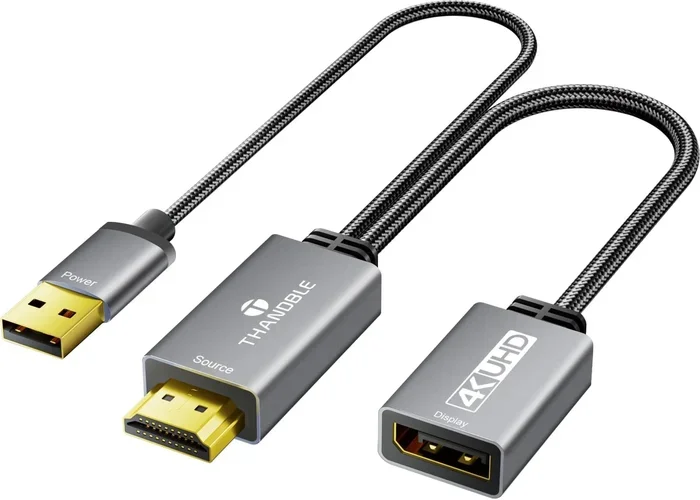
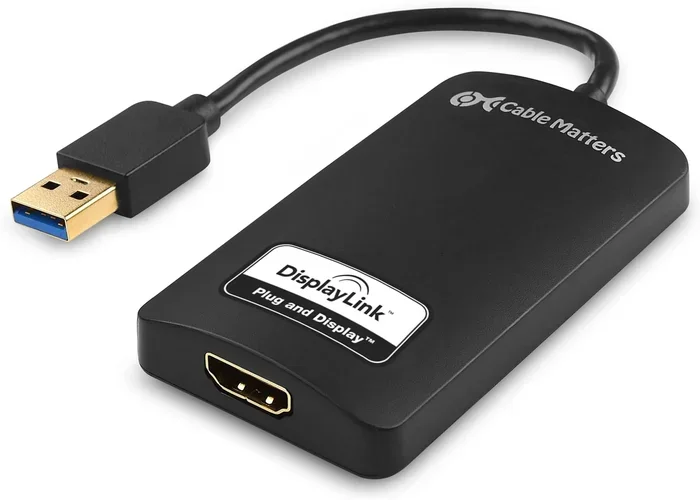
USB-A is the traditional rectangular USB port you find on older computers and devices. A USB-A to HDMI adapter works differently from a USB-C model. Because the USB-A port has limited bandwidth, these adapters often need external power. They usually come with a USB cable that you plug into a power source.
USB-A to HDMI adapters are great for desktop computers that do not have USB-C ports. They are also useful for older laptops where you want to add an external display without upgrading your hardware.
Micro USB to HDMI Adapters
Micro USB to HDMI adapters are less common now, but you will still find them in use with older tablets, e-readers, and budget devices. These adapters work similarly to USB-A models. They often require external power and may not support the highest resolutions.
If you have an older device with a micro USB port, a micro USB to HDMI adapter can still be a lifesaver. Just check the specifications to make sure it supports the resolution you need.
USB to HDMI Cables (All-in-One)
Some manufacturers sell a USB to HDMI cable that has a USB connector on one end and an HDMI connector on the other. These all-in-one cables are convenient because you do not need a separate adapter box. However, they tend to be shorter and may not offer the same features as a dedicated adapter.
These cables work best for simple setups where you just need to connect two devices quickly. They are not ideal for long cable runs or high-end 4K setups.
How to Connect USB to HDMI Step by Step
Setting up a USB to HDMI connection is straightforward. Follow these steps, and you will be up and running in minutes.
- Check your device ports. Look at your laptop, tablet, or computer. Identify the type of USB port you have. Is it USB-C, USB-A, or micro USB?
- Buy the right adapter. Choose a USB to HDMI adapter that matches your USB port type. If you have USB-C, get a USB-C to HDMI adapter. If you have USB-A, get a USB-A to HDMI adapter.
- Plug in the adapter. Insert the USB end of the adapter into your device. If the adapter requires external power, plug in the USB cable to a power source.
- Connect the HDMI cable. Plug one end of an HDMI cable into the adapter. Plug the other end into your TV, monitor, or projector.
- Switch your display input. Use your TV or monitor remote to select the correct HDMI input. Most displays have multiple HDMI ports labeled HDMI 1, HDMI 2, and so on.
- Adjust display settings. On your computer, go to display settings. Choose whether you want to mirror your screen or extend it to the external display.
That is it. Your USB to HDMI setup is complete. You should now see your screen on the external display.
Quick Tips for a Smooth Setup
- Always use a high-quality HDMI cable. Cheap cables can cause signal drops or poor picture quality.
- If your display shows no signal, try unplugging the adapter and plugging it back in.
- Restart your device after connecting the adapter if the display does not turn on.
- Make sure your adapter supports the resolution of your display. A 1080p adapter may not work well with a 4K TV.
Common Uses for USB to HDMI Adapters
USB to HDMI adapters are incredibly versatile. People use them for all kinds of purposes. Here are some of the most common use cases.
Connecting a Laptop to a TV
One of the most popular uses is connecting a laptop to a TV. You can mirror your laptop screen on the TV for movie nights, presentations, or gaming. A USB-C to HDMI adapter makes this easy. Just plug it in, switch your TV to the right input, and you are good to go.
This setup is especially useful when you do not have a wireless connection or when you want a lag-free experience. A wired USB to HDMI connection delivers smooth, reliable video every time.
Home Office and Presentations
If you work from home, a USB to HDMI adapter can transform your setup. Connect your laptop to an external monitor for a dual-screen workspace. This boosts productivity significantly. You can have your emails open on one screen and your work documents on the other.
For professionals who give presentations, a USB to HDMI adapter is a must-have. Plug it into a conference room TV or projector, and you can share your screen with clients or colleagues in seconds.
Gaming and Streaming
Gamers and streamers also benefit from USB to HDMI adapters. You can connect a gaming laptop to a large TV for a bigger, more immersive experience. Some adapters support high refresh rates, which is great for fast-paced games.
Streamers can use a USB to HDMI connection to capture or display their gameplay on a separate monitor. This gives them more flexibility in their streaming setup.
Using a USB Display with a Raspberry Pi or Mini PC
Raspberry Pi users and mini PC enthusiasts often need a USB to HDMI adapter because these devices may not have a dedicated HDMI output. A USB to HDMI adapter lets them connect these small computers to a monitor or TV, turning them into media centers or lightweight workstations.
Things to Consider Before Buying a USB to HDMI Adapter
Not all USB to HDMI adapters are created equal. Before you buy one, consider these important factors.
Resolution and Refresh Rate Support
Check what resolution the adapter supports. Do you need 1080p, 4K, or even 8K? Most adapters on the market support 1080p or 4K. If you want the sharpest picture possible, look for a USB to HDMI adapter that supports 4K at 60Hz.
Refresh rate matters too, especially for gaming. A 60Hz refresh rate is standard for most uses. If you are a gamer, look for adapters that support 120Hz or 144Hz for smoother motion.
Active vs Passive Adapters
Active adapters have their own power source, usually through a USB cable that plugs into a wall outlet or power bank. Passive adapters draw power directly from the USB port. Active adapters tend to offer better performance and more stable connections, especially for high-resolution output.
Passive adapters are simpler and more portable. They work well for basic tasks like extending your desktop to a second monitor. Active adapters are better for demanding tasks like 4K video playback or gaming.
Build Quality and Durability
A cheap plastic adapter may work fine at first but could fail after a few months. Look for adapters with solid build quality and good reviews. Brands that specialize in audio and video accessories tend to offer more reliable products.
Check if the adapter has a warranty or return policy. This gives you peace of mind if something goes wrong.
Compatibility with Your Devices
Make sure the adapter is compatible with your specific device. Some adapters work best with Windows laptops, while others are optimized for Mac or Chromebook systems. Check the manufacturer’s specifications before purchasing.
Also consider whether you need a single adapter or a USB hub with HDMI output. A USB hub lets you connect multiple devices while also outputting video to your HDMI display. This is a great option if you need extra USB ports for peripherals.
Troubleshooting USB to HDMI Connection Issues
Even with the best adapter, you might run into problems sometimes. Here are the most common issues and how to fix them.
No Signal on the Display
If your HDMI display shows no signal, start by checking the connections. Make sure the adapter is firmly plugged in. Check that the HDMI cable is secure on both ends. Try a different HDMI port on your TV or monitor.
If that does not work, restart your device. Sometimes the system needs a fresh start to recognize the new display output. You can also try unplugging the adapter, waiting a few seconds, and plugging it back in.
Poor Picture Quality
Fuzzy or blurry images usually mean the adapter or cable does not support your display’s resolution. Check the adapter specifications and make sure it matches your TV or monitor’s resolution. Replace cheap HDMI cables with high-quality ones.
Also check your computer’s display settings. Make sure the resolution is set to match your external display’s native resolution.
No Audio Through HDMI
If you have video but no sound, go to your computer’s audio settings. Make sure the HDMI output is selected as the audio device. On Windows, right-click the speaker icon in your taskbar and select your HDMI display as the output device.
On Mac, go to System Preferences, then Sound, and select the HDMI display as your output. This should route audio through your USB to HDMI connection.
Adapter Overheating
Some adapters get warm during use, especially during extended gaming or video playback sessions. If your adapter overheats, it may stop working or produce a poor signal.
Use an active adapter with external power for better heat management. Make sure the adapter has enough ventilation. Do not place it under a laptop or in an enclosed space.
Expert Insights on USB to HDMI Adapters
We spoke with several tech professionals about their experiences with USB to HDMI adapters. Here is what they had to say.
Mark T., IT Specialist: “I recommend USB-C to HDMI adapters to almost everyone. They are affordable, reliable, and work with most modern devices. The key is to buy from a reputable brand. Cheap no-name adapters can cause headaches.”
Sarah L., Home Office Consultant: “A USB to HDMI adapter completely changed my work setup. I use it to connect my laptop to a 4K monitor every day. It is plug and play, and I do not have to worry about wireless connection drops.”
David R., AV Technician: “When choosing an adapter, always check the bandwidth. Adapters that support USB 3.0 or USB 3.1 Gen 2 handle video much better than older USB 2.0 models. The difference in picture quality is noticeable, especially at higher resolutions.”
Comparison: USB to HDMI Adapter Types
| Feature | USB-C to HDMI | USB-A to HDMI | Micro USB to HDMI |
|---|---|---|---|
| Best For | Modern laptops and phones | Older desktops and laptops | Older tablets and budget devices |
| Power Source | Bus powered or active | Usually active (external power) | Usually active (external power) |
| Max Resolution | 4K at 60Hz (many models) | 1080p to 4K (varies) | 1080p typically |
| Plug and Play | Most models yes | Most models yes | Most models yes |
| Price Range | $10 to $50 | $15 to $60 | $10 to $40 |
| Portability | Very portable | Moderate | Moderate |
This comparison table gives you a quick overview of the three main adapter types. Your choice depends on your device and your needs.
Final Thoughts on Going From USB to HDMI
So, can you go from USB to HDMI? Absolutely. A USB to HDMI adapter is one of the simplest and most affordable ways to connect your devices to a larger display. Whether you are working from home, gaming, streaming, or presenting, the right adapter makes all the difference.
Start by identifying the USB port on your device. Then choose the appropriate adapter type. Consider your resolution needs, build quality, and compatibility. Follow the setup steps we outlined, and you will be enjoying your content on a bigger screen in no time.
If you run into issues, the troubleshooting tips in this guide should help you resolve them quickly. And remember, a good adapter from a trusted brand will serve you well for years. Invest in quality, and your USB to HDMI connection will deliver a smooth, reliable experience every single time.
Now that you know how to go from USB to HDMI, you can set up your display exactly the way you want it. Happy connecting.
Frequently Asked Questions
Do I need a special USB to HDMI adapter for 4K resolution?
Yes, if you want 4K output, you need an adapter that specifically supports 4K resolution. Not all USB to HDMI adapters handle 4K. Check the product specifications before buying. Look for adapters that mention 4K at 30Hz or 60Hz support to ensure the best picture quality on your display.
Can I use a USB to HDMI adapter with a Chromebook?
Most Chromebooks use USB-C ports, so a USB-C to HDMI adapter works great with them. Chromebooks generally support plug and play display output through USB to HDMI adapters. Just make sure your Chromebook firmware is up to date for the best compatibility.
Why does my USB to HDMI adapter have a USB cable attached to it?
The extra USB cable provides power to the adapter. This is common with USB-A to HDMI and some USB-C to HDMI models. The additional power ensures a stable video signal, especially when you are running high-resolution content or multiple displays at the same time.
Can I connect multiple displays using a USB to HDMI adapter?
Some USB to HDMI adapters support multi-display setups, but most are designed for a single external display. If you need multiple monitors, look for adapters or docking stations that specifically support multi-output configurations. Your computer’s graphics capabilities also play a role in how many displays you can run.
Is a USB to HDMI adapter the same as a USB hub with HDMI output?
Not exactly. A USB to HDMI adapter is designed specifically for video output. A USB hub with HDMI output gives you extra USB ports along with an HDMI connection. If you need both additional ports and a display connection, a USB hub with HDMI is the better choice for your setup.
Will a USB to HDMI adapter work with gaming consoles?
Some USB to HDMI adapters can work with gaming consoles, but it depends on the console and the adapter type. Most gaming consoles already have built-in HDMI output, so a USB to HDMI adapter is not typically needed. However, if you want to extend or mirror a console display to a USB-connected screen, a compatible adapter can make it possible.