Can I Connect Thunderbolt 2 To USB C Without Any Hassle
Yes, you can connect Thunderbolt 2 to USB C, but you need the right adapter or cable to make it work. Thunderbolt 2 uses a Mini DisplayPort connector, while USB C is a smaller reversible port found on modern laptops and devices. With a Thunderbolt 2 to USB C adapter, you can bridge the gap between older and newer hardware, transfer data at high speeds, and even hook up external displays. This guide covers everything you need to know about compatibility, adapters, setup, and common pitfalls.
Have you ever stared at two completely different ports on your devices and wondered if there is a way to make them work together? If you have a Thunderbolt 2 port on an older machine and a shiny new USB C device, you are not alone in asking this question. The good news is that Thunderbolt 2 to USB C connections are possible. The not-so-good news is that you cannot just plug one into the other and expect it to work.
So, can you connect Thunderbolt 2 to USB C? The short answer is yes, but you need the right adapter or cable. In this article, we will walk you through everything you need to know. We will cover compatibility, the best adapters to buy, setup steps, and common mistakes to avoid. By the end, you will feel confident making this connection without any hassle.
Key Takeaways
- Thunderbolt 2 and USB C are not the same: They use different connectors and protocols, but they can work together with the right adapter.
- You need a Thunderbolt 2 to USB C adapter or cable: A direct connection without an adapter will not work.
- Data transfer speeds vary: Thunderbolt 2 maxes out at 20 Gbps, while USB C can go up to 10 or 20 Gbps depending on the version.
- Not all adapters are equal: Cheap adapters may not support video output or data transfer properly.
- Mac and Windows compatibility differs: Thunderbolt 2 was common on older Macs, and USB C is standard on newer devices.
- Daisy chaining works differently: Thunderbolt 2 supports daisy chaining, but USB C does not always offer the same capability.
- Check your device specs first: Always verify port types and supported protocols before buying an adapter.
📑 Table of Contents
Understanding Thunderbolt 2 and USB C
Before you buy any adapter, it helps to understand what each port is and how they differ. Knowing the basics saves you money, time, and frustration.
What Is Thunderbolt 2?
Thunderbolt 2 is a hardware interface developed by Intel. It first appeared in 2013 and was widely used in Apple devices like the Mac Mini, MacBook Pro, and iMac. The connector looks like a Mini DisplayPort plug. It combines PCI Express and DisplayPort into one single connection. This means you can transfer data and send video signals through the same cable.
Thunderbolt 2 offers a maximum data transfer speed of 20 Gbps. It also supports daisy chaining, which means you can connect up to six devices in a chain from a single port. For its time, this was incredibly fast and versatile.
What Is USB C?
USB Type-C is a newer connector standard that has become the norm on most modern laptops, tablets, and phones. It is a small, oval-shaped port that is reversible, meaning you can plug it in either way. USB C supports multiple protocols, including USB 3.1, USB 3.2, and Thunderbolt 3 or 4.
USB C ports can handle data transfer, video output, and power delivery all through one cable. The speeds depend on the version. USB 3.1 Gen 2 offers 10 Gbps, while USB 3.2 Gen 2×2 can reach 20 Gbps. Thunderbolt 3 and 4 over USB C can go up to 40 Gbps.
Key Differences Between Thunderbolt 2 and USB C
Here are the main differences you should know about before trying to connect these two technologies:
- Connector shape: Thunderbolt 2 uses a Mini DisplayPort connector. USB C uses a small oval-shaped reversible connector.
- Protocol: Thunderbolt 2 uses the Thunderbolt protocol. USB C is a connector type that can carry multiple protocols, including USB and Thunderbolt.
- Speed: Thunderbolt 2 tops out at 20 Gbps. USB C speeds vary based on the USB standard or Thunderbolt version it supports.
- Power delivery: USB C supports USB Power Delivery, which can charge devices up to 100 watts. Thunderbolt 2 does not offer power delivery.
- Video output: Both can carry video signals, but through different methods and protocols.
- Daisy chaining: Thunderbolt 2 natively supports daisy chaining. USB C does not always support this feature.
Can You Connect Thunderbolt 2 to USB C?
The short answer is yes, but not directly. You cannot take a Thunderbolt 2 cable and plug it into a USB C port. The shapes are completely different, and the protocols do not match without an adapter. However, with the right Thunderbolt 2 to USB C adapter, you can absolutely make these two work together.
Here is what you need to understand. When you use an adapter, you are essentially converting the signal from one format to another. The adapter takes the Thunderbolt 2 signal and translates it so that a USB C port can understand it. This works for data transfer and, in many cases, video output too.
Keep in mind that the connection will only be as fast as the slower of the two standards. Since Thunderbolt 2 maxes out at 20 Gbps and USB C can handle 10 or 20 Gbps in most common setups, you will generally be fine. But if you are connecting to a Thunderbolt 3 or 4 USB C port, you will still be limited by the Thunderbolt 2 speed.
When Does the Connection Work?
The connection works in several common scenarios:
- You have an older Mac with a Thunderbolt 2 port and want to connect it to a modern USB C display or hub.
- You need to transfer files from a Thunderbolt 2 external drive to a laptop with only USB C ports.
- You want to use a Thunderbolt 2 device with a newer laptop that has USB C ports.
- You are setting up a workspace with mixed older and newer peripherals.
When Does the Connection Not Work?
There are situations where a Thunderbolt 2 to USB C connection will not work:
- If the USB C port only supports USB 2.0 or USB 3.0 without Thunderbolt support, some adapters may not function properly for all features.
- If you need Thunderbolt-specific features like daisy chaining multiple Thunderbolt devices, a simple adapter will not give you that capability over USB C.
- If the adapter you buy is low quality or does not support the protocols you need.
Best Adapters for Connecting Thunderbolt 2 to USB C
Not all adapters are created equal. Some are cheap and unreliable, while others are built to handle the demands of high-speed data and video transfer. Here are the best types of adapters you should consider.
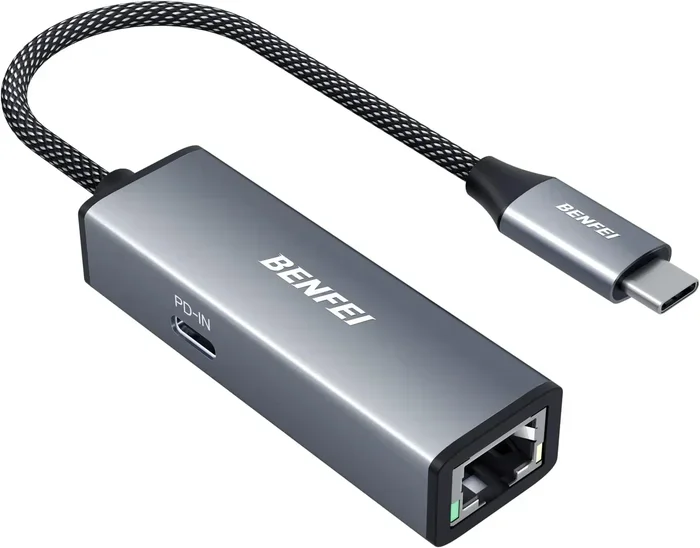
Thunderbolt 2 to USB C Adapter Cable
This is the most straightforward option. It is a cable with a Thunderbolt 2 connector on one end and a USB C connector on the other. Brands like Belkin, CalDigit, and Cable Matters make reliable options. These cables typically support data transfer and video output.
When shopping for this type of cable, look for ones that explicitly state Thunderbolt compatibility. Some cables marketed as “USB C to Mini DisplayPort” may work for video but will not support data transfer.
Thunderbolt 2 Dock with USB C Output
If you need more ports, a Thunderbolt 2 dock is a great choice. These docks connect to your Thunderbolt 2 port and provide USB C outputs along with other ports like HDMI, Ethernet, and USB A. They are perfect for desk setups where you need multiple connections.
USB C Hub with Thunderbolt 2 Compatibility
A USB C hub can also work in reverse. Some hubs accept USB C input and offer Thunderbolt 2 output. This is useful if your primary device is a modern laptop with USB C and you need to connect an older Thunderbolt 2 peripheral.
What to Look for in an Adapter
Here are some quick tips for choosing the right adapter:
- Check Thunderbolt certification: Look for adapters that are Thunderbolt certified or explicitly mention Thunderbolt 2 support.
- Verify data transfer speeds: Make sure the adapter supports the speeds you need.
- Look for video support: If you need to connect a display, confirm the adapter supports video output.
- Brand reputation: Stick with well-known brands to avoid compatibility issues.
- Read reviews: Check user reviews for real-world performance feedback.
How to Set Up the Connection
Setting up a Thunderbolt 2 to USB C connection is straightforward if you follow these steps. Most people get this right on the first try once they have the correct adapter.
Step 1: Identify Your Ports
First, look at your devices. Find the Thunderbolt 2 port on the older device. It looks like a Mini DisplayPort connector with a Thunderbolt lightning bolt icon next to it. Then find the USB C port on the newer device. It is a small oval-shaped port.
Step 2: Choose the Right Adapter
Based on what you need, pick the right adapter or cable. If you just need a simple connection, a Thunderbolt 2 to USB C cable works well. If you need more ports, go for a dock or hub.
Step 3: Plug In and Power On
Connect the Thunderbolt 2 end to your older device and the USB C end to your newer device. Power on both devices. Your computer should recognize the connection automatically in most cases.
Step 4: Check Device Recognition
On a Mac, go to System Preferences and click on Thunderbolt or USB. On Windows, check Device Manager under Universal Serial Bus controllers. If the device shows up, you are good to go. If not, try a different adapter or cable.
Step 5: Test Data Transfer or Video Output
If you are using the connection for data transfer, try copying a file to the external device. If you are using it for a display, check that the monitor shows a signal and the correct resolution. Adjust display settings if needed.
Quick Setup Tips
- Always use the original Thunderbolt 2 cable that came with your device if possible.
- Make sure your adapter firmware is up to date if the manufacturer provides updates.
- If the connection is unstable, try a different USB C port on your device.
- Restart both devices if they do not recognize each other immediately.
Common Mistakes to Avoid
Connecting Thunderbolt 2 to USB C is not complicated, but people do make mistakes that cause frustration. Here are the most common ones and how to avoid them.
Buying the Wrong Adapter
The biggest mistake people make is buying an adapter that does not support Thunderbolt. A standard USB C to Mini DisplayPort adapter will work for video but may not support data transfer. Always check that the adapter specifically supports Thunderbolt 2.
Assuming All USB C Ports Are the Same
Not every USB C port supports the same protocols. Some USB C ports only support USB 2.0, which is very slow. Others support USB 3.1 or Thunderbolt 3. Before buying an adapter, check what your USB C port actually supports. Look for the Thunderbolt lightning bolt icon next to the port if you are on a Mac.
Ignoring Speed Limitations
Even with a great adapter, you are limited by the Thunderbolt 2 speed of 20 Gbps. If you are transferring large files, it will take longer than it would with a Thunderbolt 3 or USB 3.2 connection. Manage your expectations and plan accordingly.
Using Low-Quality Cables
Cheap cables from unknown brands may not deliver the speeds or reliability you need. They can also cause connection drops or damage your devices in rare cases. Invest in a quality adapter from a reputable brand.
Forgetting About Power Delivery
Thunderbolt 2 does not deliver power through the cable. If you are connecting an external drive, make sure it has its own power source or is connected to a powered USB C hub. Otherwise, the drive may not be recognized or may disconnect randomly.
Thunderbolt 2 vs USB C: A Comparison
To help you understand how these two technologies stack up, here is a quick comparison:
| Feature | Thunderbolt 2 | USB C |
|---|---|---|
| Connector Type | Mini DisplayPort | Reversible oval |
| Max Data Speed | 20 Gbps | 10 to 40 Gbps (varies) |
| Video Output | Yes | Yes (via DisplayPort Alt Mode) |
| Power Delivery | No | Yes (up to 100W) |
| Daisy Chaining | Yes (up to 6 devices) | Not always supported |
| Year Introduced | 2013 | 2014 |
| Common Devices | Older Macs, PCs | Modern laptops, phones, tablets |
| Protocol | Thunderbolt | USB, Thunderbolt 3/4, DisplayPort |
As you can see from the comparison, both technologies have their strengths. Thunderbolt 2 was a powerhouse in its era, and USB C continues to evolve with faster speeds and more features. The key is using the right adapter to bridge the gap between them.
Expert Tips for a Smooth Connection
Here are some insider tips from tech experts that will help you get the most out of your Thunderbolt 2 to USB C setup:
- Update your drivers: On Windows, make sure your USB and Thunderbolt drivers are up to date. On Mac, keep your macOS updated to the latest version.
- Use a powered hub: If you are connecting multiple devices through a USB C hub, use a powered hub to avoid bandwidth issues.
- Test with one device at a time: If something is not working, disconnect everything and test with just one device to isolate the problem.
- Label your cables: If you have multiple adapters and cables, label them so you always know which one is Thunderbolt 2 compatible.
- Check for firmware updates: Some adapters and docks receive firmware updates that improve compatibility and performance.
Final Thoughts
Connecting Thunderbolt 2 to USB C is absolutely doable with the right adapter. Whether you are trying to connect an older Mac to a modern display, transfer files from a legacy external drive, or set up a mixed-device workspace, the right adapter makes all the difference. The key is to choose a quality adapter that explicitly supports Thunderbolt 2 and to understand the limitations of each technology.
Do not let the different port types intimidate you. With the adapter in hand, the setup takes just a few minutes. Avoid the common mistakes we covered, and you will have a smooth and reliable connection. Now that you know the answer to the question “can I connect Thunderbolt 2 to USB C,” you are ready to make it happen with confidence.
Take a look at your current setup and see if a Thunderbolt 2 to USB C adapter is what you need. It is a small investment that can breathe new life into older devices and make your tech workspace more versatile than ever before.
Frequently Asked Questions
Do I need a special adapter to connect Thunderbolt 2 to USB C?
Yes, you need a Thunderbolt 2 to USB C adapter or cable. A regular USB C to Mini DisplayPort cable will not support data transfer. Always look for adapters that specifically mention Thunderbolt 2 compatibility to ensure full functionality.
Will connecting Thunderbolt 2 to USB C slow down my data transfer speeds?
The connection will operate at the speed of the slower device. Since Thunderbolt 2 maxes out at 20 Gbps, your transfer speeds will be limited to that even if your USB C port supports faster speeds. For most everyday tasks, this speed is still very fast.
Can I use a Thunderbolt 2 to USB C adapter for video output?
Yes, many Thunderbolt 2 to USB C adapters support video output. However, you should check the adapter specifications to confirm it supports display output. Some adapters are data-only and will not carry a video signal.
Is a USB C to Thunderbolt 2 adapter the same as a Thunderbolt 2 to USB C adapter?
Generally, yes. Most adapters work in both directions. They convert the Thunderbolt 2 signal to USB C and vice versa. However, always check the product description to confirm bidirectional support, especially if you plan to use it both ways.
Can I daisy chain Thunderbolt 2 devices through a USB C port?
No, daisy chaining Thunderbolt 2 devices through a USB C port is not supported. USB C does not natively support Thunderbolt daisy chaining unless the USB C port itself is a Thunderbolt 3 or 4 port. Even then, Thunderbolt 2 devices may not chain properly over Thunderbolt 3 or 4.
Are Thunderbolt 2 to USB C adapters expensive?
Prices vary widely. Basic adapters can cost between 15 and 30 dollars. More advanced docks or certified Thunderbolt adapters may cost 50 to 150 dollars or more. Investing in a quality adapter from a reputable brand is worth it to avoid compatibility issues and ensure reliable performance.