How Do I Change My 5ghz Channel for Faster Internet
Changing your 5GHz channel is one of the easiest ways to get faster Wi-Fi speeds and reduce interference. You can access your router settings, scan for the least congested channel, and apply the change in just a few minutes. This guide covers everything you need, from finding your router admin panel to selecting the optimal channel width for your devices.
Slow Wi-Fi can be incredibly frustrating. You are trying to stream a movie, join a video call, or game online, and the connection just crawls. One of the simplest fixes many people overlook is changing the 5GHz channel on their router. Most modern routers broadcast on both 2.4GHz and 5GHz bands, but the 5GHz band offers much faster speeds and less interference. The trick is picking the right channel. In this guide, we walk you through every step to change your 5GHz channel and enjoy faster internet right away.
Whether you live in a busy apartment building or a suburban home with neighbors all around, Wi-Fi congestion is real. Dozens of networks competing for the same channel creates slowdowns. Switching to a cleaner channel can make a noticeable difference almost instantly. Let us dive into how to do it, why it matters, and what mistakes to avoid.
Key Takeaways
- Switching to a less congested 5GHz channel can significantly improve your wireless speed and reduce lag.
- You can change your channel through your router’s admin panel using any web browser.
- Channels 36, 40, 44, and 48 are non-DFS channels that offer stable connections in most areas.
- A wider channel width (80MHz or 160MHz) can boost throughput but may increase interference.
- Using a Wi-Fi analyzer app helps you identify which channels are crowded in your neighborhood.
- Restarting your router after making changes ensures the new settings take effect properly.
- Pairing channel optimization with other router tweaks like boosting your Wi-Fi signal delivers the best results.
📑 Table of Contents
What Is a 5GHz Wi-Fi Channel?
Your router sends out a wireless signal on specific frequencies. The 5GHz band uses higher frequencies than the 2.4GHz band, which means it can carry more data at faster speeds. But it also means the signal has a shorter range. Within the 5GHz band, there are multiple channels numbered from 36 to 165. Each channel acts like a separate lane on a highway. When too many devices try to use the same lane, traffic backs up. That is what causes slow speeds and buffering.
The 5GHz band is divided into two types of channels: non-DFS channels and DFS channels. Non-DFS channels (36 through 48) are the most common and widely supported. DFS channels (52 through 144) offer more options but may be shared with radar systems, which can cause temporary interruptions. Understanding this difference helps you pick the best channel for your setup.
Why the 5GHz Band Matters for Speed
The 5GHz band generally delivers faster speeds than 2.4GHz because it has more available channels and wider channel widths. Most modern devices, including smartphones, laptops, and smart TVs, support 5GHz connections. If your device is connected to the 5GHz band, changing the channel can directly impact your speed and stability. If you are still struggling with slow internet, you might also want to check if your router firmware is up to date or consider whether you should change your Wi-Fi router entirely for better performance.
How to Change Your 5GHz Channel Step by Step
Changing your 5GHz channel is straightforward. You do not need to be a tech expert. Here is the process broken down into simple steps you can follow right now.
Step 1: Find Your Router’s IP Address
First, you need to access your router’s admin panel. Open a web browser on any device connected to your Wi-Fi network. Type your router’s IP address into the address bar. Most routers use 192.168.1.1 or 192.168.0.1. You can also find this information printed on a sticker on the back or bottom of your router. If you are unsure, you can check your network settings on your computer or phone.
Step 2: Log In to Your Router Admin Panel
Once you enter the IP address, you will see a login screen. Enter your username and password. The default credentials are often printed on the same sticker as the IP address. Common defaults are “admin” for both the username and password. If you have changed these before and forgot, you can reset your router to factory settings by holding down the reset button for about 10 seconds.
Step 3: Navigate to the Wireless Settings
After logging in, look for a section labeled “Wireless,” “Wi-Fi Settings,” or “Advanced Settings.” The exact name varies by router brand. Inside this section, find the 5GHz network settings. You may see separate options for the 2.4GHz and 5GHz bands. Make sure you are editing the 5GHz settings, not the 2.4GHz band.
Step 4: Change the Channel
Look for a dropdown menu or field labeled “Channel” or “Channel Selection.” Change it from “Auto” to a specific channel number. We recommend starting with channel 36, 40, 44, or 48 since these are non-DFS channels with broad device compatibility. After selecting your preferred channel, save the settings and wait for the router to restart.
Step 5: Test Your Connection
Once your router reboots, reconnect your devices to the 5GHz network. Run a speed test using a website like Speedtest.net to see if your speeds have improved. If not, try a different channel and test again. Sometimes it takes a few tries to find the sweet spot for your specific environment.
How to Find the Best 5GHz Channel
Picking the right channel is the most important part of this process. A crowded channel will still cause slow speeds even after you switch. Here is how to find the best one for your home.
Use a Wi-Fi Analyzer App
Wi-Fi analyzer apps are free tools that scan the wireless networks around you and show which channels are most congested. Popular options include NetSpot, WiFi Analyzer, and Acrylic Wi-Fi Home. These apps display a visual graph of channel usage so you can easily spot which channels are packed and which are open. Simply walk around your home while the app scans and note the least used channels.
Check for Overlapping Channels
In the 5GHz band, channels do not overlap the way they do in the 2.4GHz band. This makes channel selection simpler. However, if many of your neighbors use the same non-DFS channels (36 through 48), those channels can still become congested. In that case, consider using a DFS channel like 52 or 100. Just keep in mind that DFS channels may cause brief disconnections if your router detects radar signals.
Consider Your Channel Width
Channel width affects how much data your connection can handle at once. Most routers default to 80MHz width for 5GHz, which offers a good balance of speed and stability. You can set it to 160MHz for maximum throughput, but this uses more spectrum and may increase the chance of interference. If you live in a dense area, sticking with 80MHz is usually the safer choice.
Common Mistakes When Changing 5GHz Channels
Even with the best intentions, people often make mistakes when adjusting their Wi-Fi settings. Here are the most common ones to avoid.
Leaving the Channel on Auto
Many routers default to “Auto” channel selection, which sounds convenient but often picks a crowded channel. Auto mode can also cause your router to switch channels randomly, leading to brief disconnections. Manually selecting a channel gives you more control and consistent performance.
Changing Both Bands at Once
When you go into your wireless settings, make sure you are only changing the 5GHz channel. Accidentally modifying the 2.4GHz channel can disrupt devices that rely on that band, like smart home gadgets and older printers. Always double-check which band you are editing before saving changes.
Forgetting to Save Settings
This sounds obvious, but it happens more often than you think. After selecting your new channel, always click “Apply” or “Save” before exiting the admin panel. If you close the browser without saving, your changes will not take effect.
Not Restarting the Router
Some routers apply new channel settings immediately, while others require a full restart. If you do not notice any change after switching channels, try unplugging your router, waiting 30 seconds, and plugging it back in. This ensures all settings are properly loaded.
When Should You Change Your 5GHz Channel?
You do not need to change your channel every day. But there are specific situations where it makes a big difference. If you just moved into a new home or apartment, the Wi-Fi environment is different, and a channel scan can reveal the best option. If your neighbors added new routers or access points, your previously clear channel may now be crowded. Seasonal changes matter too, since more people work from home or stream during holidays, increasing network demand in your area.
Another good time to revisit your channel settings is after a firmware update. Router manufacturers sometimes change default channel settings after updates, which can affect your performance. Periodically checking your channel every few months helps you stay on top of your wireless network optimization.
Advanced Tips for Better 5GHz Performance
Once you have found the right channel, there are a few extra steps you can take to squeeze even more performance out of your setup. First, make sure your router is placed in a central location in your home. Walls, furniture, and appliances can weaken the 5GHz signal significantly since it has a shorter range than 2.4GHz. Elevating your router on a shelf or mounting it on a wall helps improve coverage.
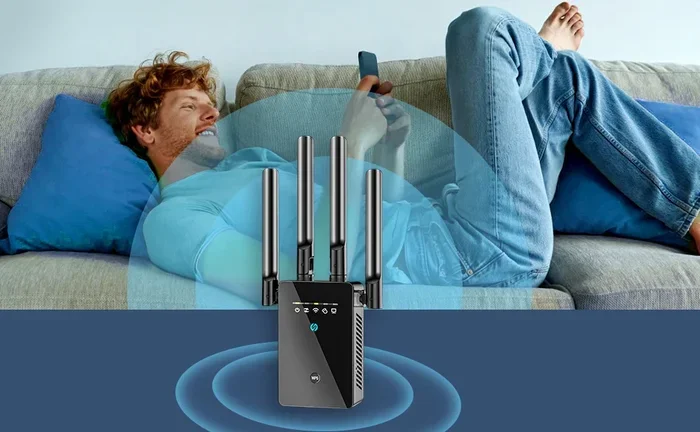
You can also consider adding an external antenna if your router supports it. External antennas provide stronger signal direction and can help extend your 5GHz coverage to harder-to-reach areas. If you are interested in this option, check out our guide on adding an external antenna to your router for detailed instructions.
Another pro tip is to enable WPA3 encryption if your router and devices support it. While this does not directly change your channel, it ensures your wireless connection is secure and optimized for modern devices. Finally, if you have a large home with multiple dead zones, you might want to explore mesh Wi-Fi systems or range extenders to complement your channel optimization efforts.
Key Takeaways
- Changing your 5GHz channel is one of the simplest and most effective ways to improve wireless speed and reduce interference.
- Access your router admin panel by entering its IP address in a web browser and logging in with your credentials.
- Non-DFS channels (36, 40, 44, 48) offer the most stable connections, while DFS channels (52+) provide more options but may have brief interruptions.
- Use a Wi-Fi analyzer app to identify the least congested channels in your area before making a change.
- Avoid common mistakes like leaving the channel on Auto, changing both bands at once, and forgetting to save settings.
- For best results, pair channel optimization with good router placement and consider boosting your Wi-Fi signal for wider coverage.
Conclusion
Getting faster internet does not always require expensive upgrades or professional help. Sometimes, all it takes is switching to a less crowded 5GHz channel. By following the steps in this guide, you can access your router settings, find the best channel for your environment, and enjoy a noticeably faster and more stable wireless connection. It takes just a few minutes and costs nothing. Start by scanning your current channel situation, pick a cleaner channel, and test your speeds. You will be surprised at how much difference this simple change can make. Take control of your wireless network today and experience the internet the way it should be.
Frequently Asked Questions
What is the best 5GHz channel for home use?
Channels 36, 40, 44, and 48 are the best starting points for most homes because they are non-DFS channels with wide device compatibility. Use a Wi-Fi analyzer app to check which of these is least congested in your area before selecting one.
How often should I change my 5GHz channel?
You do not need to change it regularly. A good rule of thumb is to check your channel every few months or whenever you notice a drop in speed. Changes in your neighborhood, like new routers being installed, can also prompt a channel review.
Will changing my 5GHz channel improve my internet speed?
Yes, in most cases. Switching to a less crowded channel reduces interference from neighboring networks, which can lead to faster speeds and more stable connections. However, your overall speed also depends on your internet plan and router capabilities.
What is the difference between DFS and non-DFS channels?
Non-DFS channels (36-48) are universally supported and do not interfere with radar systems. DFS channels (52-144) offer more options but may require your router to switch channels temporarily if radar signals are detected, causing brief disconnections.
Can I use a Wi-Fi analyzer app on my phone to find the best channel?
Absolutely. Apps like NetSpot and WiFi Analyzer are available for both Android and iOS devices. They scan nearby networks and show you which channels are crowded, making it easy to pick the best one for your router.
Should I set my channel width to 80MHz or 160MHz?
80MHz is generally the best choice for most users because it balances speed and stability. 160MHz offers maximum throughput but is more susceptible to interference, especially in densely populated areas with many wireless networks.