How Can I Connect To Att Wifi And Get Fast Internet
Connecting to ATT WiFi is simple once you know the right steps. Whether you are at home or on the go, this guide walks you through the entire process. You will learn how to find your network, enter your credentials, and troubleshoot common issues. Get ready to enjoy fast, reliable internet from ATT in just minutes.
Have you ever stood in your living room staring at your phone, wondering why the internet is so slow? Or maybe you just moved into a new place and need to set up your ATT WiFi connection for the first time. Either way, you are in the right place.
This guide will show you exactly how to connect to ATT WiFi. We will cover home setups, on-the-go hotspots, and even some troubleshooting tips. By the end, you will have a strong and fast internet connection ready to go. Let us get started.
Key Takeaways
- ATT WiFi offers easy home and on-the-go connectivity with multiple ways to get online.
- You need your ATT account credentials and the correct network name to connect at home.
- The ATT WiFi app makes finding and joining hotspots quick and simple.
- Common issues like wrong passwords or signal problems can be fixed with basic steps.
- Optimizing your router placement and settings helps you get the fastest speeds possible.
- ATT WiFi works with most devices including phones, laptops, tablets, and smart home gadgets.
📑 Table of Contents
What Is ATT WiFi and How Does It Work
ATT WiFi is a wireless internet service provided by AT&T, one of the largest telecom companies in the United States. It lets you connect to the internet without using cables. You simply use a device like a phone, laptop, or tablet to pick up the wireless signal.
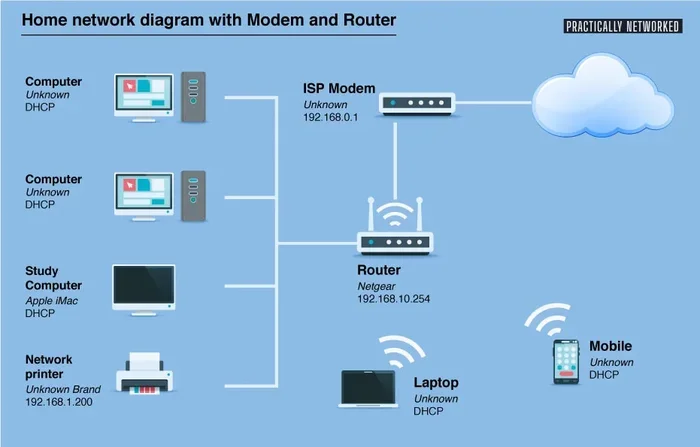
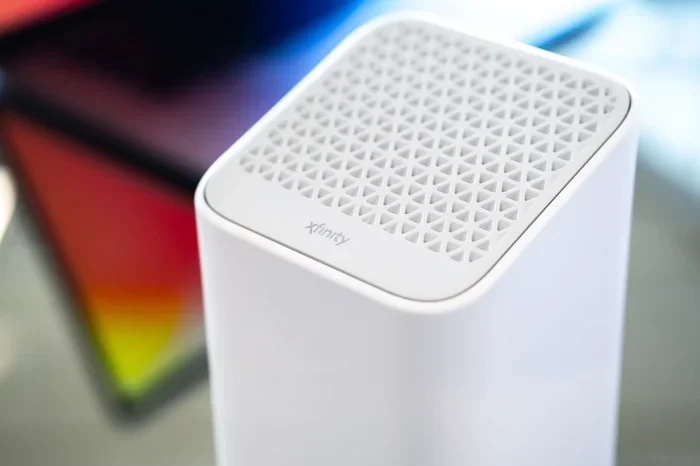
ATT offers several types of WiFi connections. At home, you use a wireless router that plugs into your AT&T modem. On the go, you can connect to ATT WiFi hotspots in public places. Both give you access to the internet, but they work a little differently.
Home WiFi vs. Hotspot WiFi
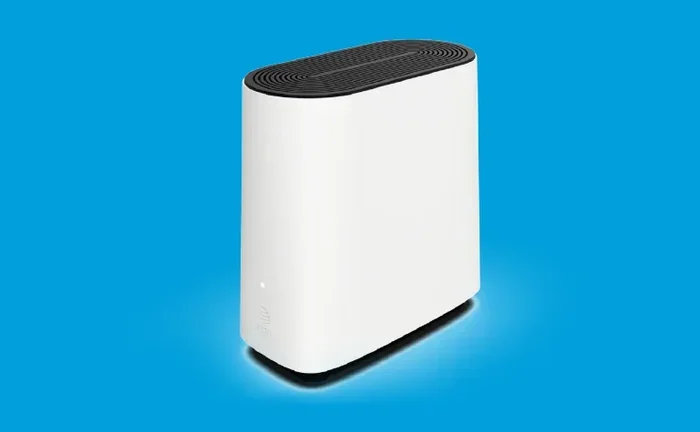
Home WiFi comes with your AT&T internet plan. You get a router from AT&T, and it broadcasts a network name (also called an SSID). Your devices connect to this network using a password. The signal covers your home, and the speed depends on your plan and router.
Hotspot WiFi works differently. AT&T provides hotspots in many public places like airports, coffee shops, and parks. These are separate from your home network. You log in with your ATT account to use them. This is great when you are away from home and need internet fast.
Some people also use a portable WiFi device. If you are curious about options, you can check out Can I Get Portable WiFi to learn more about mobile internet solutions.
How to Connect to ATT WiFi at Home
Setting up your home WiFi with ATT is straightforward. You do not need to be a tech expert. Just follow these steps carefully and you will be online in no time.
Step 1: Set Up Your ATT Router
First, make sure your ATT router is plugged in and turned on. The router should connect to your AT&T modem. Wait about two minutes for the lights on the router to become steady. Flashing lights mean it is still starting up.
Next, look for the network name on the bottom or back of your router. It is usually printed on a sticker. The name will start with “ATT” followed by a few numbers or letters. Write this down or take a photo with your phone.
Step 2: Find the Network on Your Device
Now go to the device you want to connect. This could be your phone, laptop, or tablet. Open your WiFi settings. On most devices, you can do this by swiping down from the top of the screen or going into Settings and tapping WiFi.
Look for your ATT network name in the list of available networks. Tap on it. You will be asked to enter a password. The default password is also on the sticker at the bottom of your router.
If you have changed your password before and forgot it, you can find it saved in your device settings. Check out Can I Find My WiFi Password In Settings for helpful tips on recovering lost passwords.
Step 3: Enter the Password and Connect
Type in the WiFi password carefully. Make sure you match uppercase and lowercase letters exactly. Then tap Connect or Join. Within a few seconds, your device should connect to the internet.
You can test your connection by opening a web browser and visiting any website. If the page loads, you are all set. If not, do not worry. We will cover troubleshooting in a later section.
Using the ATT Smart Home Manager App
ATT provides a free app called Smart Home Manager. This app helps you manage your home WiFi network. You can see which devices are connected, change your password, and even run speed tests.
To use it, simply download the app from your device’s app store. Log in with your ATT account. The app will show your network name, connected devices, and signal strength. It is a great tool for keeping your home network running smoothly.
How to Connect to ATT WiFi on the Go
One of the best things about ATT WiFi is that you can use it outside your home too. AT&T has thousands of hotspots across the country. These let you stay connected even when you are away from home.
Finding ATT WiFi Hotspots
There are several ways to find ATT WiFi hotspots near you. The easiest method is to use the ATT WiFi app. This app shows a map of nearby hotspots. It also lets you connect with just one tap.
You can also look for the ATT WiFi symbol in public places. Many coffee shops, airports, and hotels display this sign. Just open your WiFi settings and look for a network named “ATT WiFi” or “attwifi.”
Logging In to a Hotspot
Once you find a hotspot, tap on the network name. A login page should appear automatically. If it does not, open your web browser and try visiting any website. The login page will pop up.
Enter your ATT account email and password. If you do not have an ATT account, you can create one for free on the AT&T website. After logging in, you will be connected to the internet.
Some hotspots give you a certain amount of free data each month. After that, you may need to pay a small fee or wait until your next billing cycle. Keep an eye on your data usage to avoid surprises.
Can You Get WiFi Without an Internet Provider
If you do not have a traditional internet plan but still want WiFi, there are options. You can use hotspot WiFi from AT&T or other providers. You can also look into mobile data plans that include WiFi tethering. To explore this further, check out Can I Get WiFi Without Internet Provider for more details.
Troubleshooting Common ATT WiFi Connection Issues
Sometimes things do not go as planned. Your device might not connect, or the internet might be slow. Do not panic. Most WiFi problems have simple solutions. Let us walk through the most common issues.
Cannot Find the ATT Network
If your ATT network does not show up in your WiFi list, try these steps. First, make sure your router is powered on. Check that all cables are plugged in tightly. Wait a minute and then check again.
Next, try restarting your device. Sometimes the WiFi antenna needs a fresh start. On your phone, you can turn WiFi off and back on. On a laptop, you can disable and re-enable the wireless adapter.
If the network still does not appear, your router might be broadcasting on a frequency your device does not support. Older devices may not connect to 5GHz networks. In that case, you might want to add a 2.4GHz band to your router for better compatibility.
Wrong Password Errors
Getting a password error is frustrating but very common. Double-check that you are typing the password correctly. WiFi passwords are case-sensitive, so pay attention to uppercase and lowercase letters.
If you recently changed your password and forgot it, you can reset it through the Smart Home Manager app. You can also log into your ATT account online and change it from there. Another option is to press the reset button on your router. This will restore the default password printed on the router sticker.
Slow Internet Speeds
Slow WiFi can ruin your browsing experience. If your internet is crawling, try moving closer to your router. Walls, furniture, and other objects can block the signal. The further you are from the router, the weaker your connection will be.
You can also check if too many devices are connected at once. Each device uses some of your available bandwidth. Disconnect devices you are not using to free up speed.
Another trick is to change your WiFi channel. Your router might be using a channel that is crowded with neighboring networks. The Smart Home Manager app lets you switch to a less crowded channel easily.
Devices Not Staying Connected
If your device keeps disconnecting, the problem might be with the device itself. Try forgetting the network and reconnecting. On most devices, you can go to WiFi settings, tap your ATT network, and choose “Forget.” Then reconnect by entering the password again.
Also make sure your device’s software is up to date. Outdated software can cause connection problems. Check for system updates and install them if available.
Tips for Getting the Fastest ATT WiFi Speeds
You paid for fast internet, so you should get fast internet. Here are some proven tips to maximize your ATT WiFi speed.
Place Your Router in the Best Spot
Where you put your router matters a lot. Keep it in a central location in your home. Avoid putting it in a closet, behind a TV, or in a corner. The more open space around the router, the better the signal spreads.
Try to keep the router off the floor. Placing it on a shelf or table works much better. Also keep it away from microwaves, baby monitors, and other electronics that can cause interference.
Update Your Router Firmware
Router manufacturers release updates that improve performance and fix bugs. Check the Smart Home Manager app for firmware updates. You can also log into your router settings through a web browser to check for updates manually.
Keeping your router updated is one of the easiest ways to maintain strong speeds. It only takes a few minutes and can make a big difference.
Use a WiFi Extender If Needed
If your home is large or has thick walls, your WiFi signal might not reach every room. A WiFi extender boosts the signal and spreads it further. These devices are affordable and easy to set up.
You can also look into mesh WiFi systems. These use multiple devices placed around your home to create one strong, seamless network. They are more expensive but work very well for larger homes.
Limit Background Usage
Some apps and devices use internet in the background without you knowing. Check your connected devices regularly and remove anything you do not recognize. This frees up bandwidth for the devices you actually use.
On your phone, you can go to settings and restrict background data for certain apps. This helps keep your WiFi fast and responsive.
Frequently Asked Questions About ATT WiFi
How do I connect my device to ATT WiFi at home?
To connect to ATT WiFi at home, plug in your ATT router and wait for the lights to stabilize. Go to your device’s WiFi settings and find your ATT network name. Tap on it and enter the password printed on your router. Your device should connect within seconds. If it does not, try restarting both your router and device.
Can I connect to ATT WiFi without an AT&T internet plan?
Yes, you can connect to ATT WiFi hotspots without a home internet plan. Hotspots are available in many public places and require an ATT account to log in. You can sign up for an account on the AT&T website. Keep in mind that hotspot data may be limited compared to a full home internet plan.
Why can’t I find my ATT WiFi network on my device?
There are a few reasons your network might not appear. First, make sure your router is powered on and all cables are secure. Try restarting your device and turning WiFi off and back on. If the network still does not show, your router may need a firmware update. You can check this through the Smart Home Manager app.
How do I improve my ATT WiFi speed?
To improve your WiFi speed, move your router to a central location in your home. Keep it away from walls and electronics that cause interference. Update your router firmware regularly. You can also reduce the number of connected devices and switch to a less crowded WiFi channel using the Smart Home Manager app.
Is ATT WiFi safe to use in public places?
ATT WiFi hotspots are generally safe to use. AT&T encrypts data on its hotspots to protect your privacy. However, it is always a good idea to avoid entering sensitive information like bank details when using public WiFi. Using a VPN adds an extra layer of security when you are on the go.
How many devices can I connect to my ATT WiFi at once?
The number of devices you can connect depends on your router model and internet plan. Most ATT routers support between 15 and 30 devices at the same time. If you have a smart home with many gadgets, you might notice slower speeds when too many devices are active. Consider upgrading your plan or router if this becomes a problem.
Final Thoughts
Connecting to ATT WiFi does not have to be complicated. Whether you are setting up your home network or jumping on a hotspot while out and about, the process is simple and straightforward. Follow the steps in this guide and you will be online in no time.
Remember to keep your router in a good spot, update your firmware, and use the Smart Home Manager app to stay on top of your network. These small habits make a big difference in your internet experience.
If you run into any issues, go back to the troubleshooting section. Most problems have quick and easy fixes. And if you ever need to manage your connected devices or clean up old networks, check out Can I Delete Unwanted WiFi Networks for helpful guidance.
Now that you know how to connect to ATT WiFi, you can enjoy fast and reliable internet wherever you are. Take what you learned here and put it into action today. Your internet experience will be better for it.