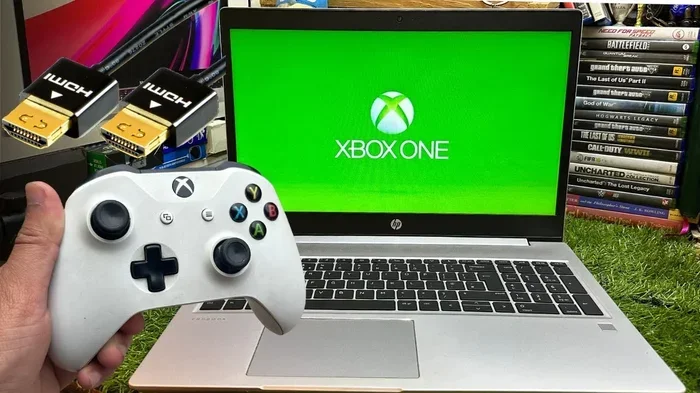
Can I Play My Xbox On My Laptop Through Hdmi Right Now
Yes, you can play your Xbox on your laptop through HDMI, but it requires the right setup and a few extra tools. Most laptops only have HDMI output ports, so you will need an HDMI capture card to receive the signal from your Xbox console. This guide walks you through every step, from choosing the right equipment to troubleshooting common issues. Whether you want to game on a bigger laptop screen or share gameplay easily, we have you covered.
So you want to know if you can play your Xbox on your laptop through HDMI. Maybe your TV is taken, or you want a more portable gaming setup. Whatever the reason, the answer is yes — but it is not as simple as plugging one cable into another.
When you search “can I play my Xbox on my laptop through HDMI,” you will find a lot of conflicting information. Some people say it works instantly. Others say it is impossible. The truth lies somewhere in the middle, and this article will clear up all the confusion.
In this guide, we will walk you through exactly what you need, how to set it up, and what to watch out for. We will also cover wireless alternatives and tips to get the best gaming experience. Let us dive right in.
Key Takeaways
- HDMI output on laptops is one-way: You cannot plug an Xbox directly into a laptop HDMI port without a capture card.
- An HDMI capture card is essential: It converts the Xbox HDMI output into an input your laptop can read and display.
- Wireless alternatives exist: Xbox Wireless and Xbox App streaming let you play without any cables at all.
- Latency can be an issue: Wired HDMI connections with a capture card offer the lowest delay for competitive gaming.
- Not all laptops support HDMI input: Check your laptop model before buying extra equipment.
- Controller pairing is straightforward: You can connect your Xbox controller via USB, Bluetooth, or the Xbox Wireless Adapter.
📑 Table of Contents
- Can You Connect Xbox to Laptop with HDMI?
- What You Need to Play Xbox on Your Laptop
- Step-by-Step Guide to Connecting Xbox to Laptop via HDMI
- Limitations of Using HDMI to Play Xbox on Laptop
- Alternative Ways to Play Xbox Games on Laptop
- Tips for the Best Gaming Experience
- Common Mistakes to Avoid
- Expert Insights on Laptop Gaming with Xbox
- Final Thoughts on Playing Xbox on Your Laptop Through HDMI
Can You Connect Xbox to Laptop with HDMI?
The short answer is yes, but with a catch. Your Xbox console sends video and audio through its HDMI output port. Your laptop, on the other hand, has an HDMI port that acts as an output too. This means you cannot just connect the two directly. You need a bridge device to make the connection work.
That bridge device is an HDMI capture card. A capture card receives the HDMI signal from your Xbox and sends it to your laptop through USB. Your laptop then displays the Xbox gameplay on its screen. It sounds complicated, but the setup process is actually quite simple once you have the right gear.
Some gaming laptops come with specialized HDMI input ports, but these are rare. Most standard laptops only support HDMI output. Always check your laptop specifications before buying any equipment. You do not want to spend money on something that will not work with your setup.
Why HDMI Ports on Laptops Are One-Way
Understanding why this works the way it does helps you make better buying decisions. Your laptop HDMI port is designed to send video out to an external monitor. It is not built to receive video signals from another device. Think of it like a one-way street. The Xbox HDMI port is also an output, sending game visuals to a display.
An HDMI capture card acts like a traffic controller. It takes the outgoing signal from your Xbox and redirects it into your laptop through a USB connection. This is the only reliable way to get Xbox gameplay onto a laptop screen using HDMI technology.
What You Need to Play Xbox on Your Laptop
Before you start buying stuff, let us go over exactly what you need. Having the right equipment makes the whole process smooth and frustration-free.
Essential Equipment
- Xbox Console: Any Xbox model works, including Xbox One, Xbox Series S, and Xbox Series X.
- HDMI Cable: A standard HDMI cable that comes with your Xbox or any compatible cable will do the job.
- HDMI Capture Card: This is the most important piece. Popular options include the Elgato HD60, AVerMedia Live Gamer Mini, and generic USB capture cards.
- Laptop with USB Port: Most laptops have USB-A or USB-C ports. Make sure your capture card matches your laptop’s available ports.
- Xbox Controller: You will need a controller to play games. You can connect it via USB cable, Bluetooth, or the Xbox Wireless Adapter.
Optional but Helpful Accessories
- USB Hub: If your laptop has limited USB ports, a hub gives you extra connections.
- Headset: For audio without disturbing others around you.
- Laptop Cooling Pad: Gaming can heat up your laptop. A cooling pad helps maintain performance.
- HDMI Extender Cable: If your setup requires distance between the Xbox and the capture card.
Choosing the Right Capture Card
Not all capture cards are created equal. Some are built for streaming, while others focus on low-latency gaming. The Elgato HD60 S+ is a popular choice among gamers because it offers excellent quality and minimal delay. Budget options from brands like Generic or EasyCap work too, but they may have more input lag.
When choosing a capture card, look for these features:
- 1080p or 4K support: Higher resolution means sharper visuals on your laptop screen.
- Low latency: This reduces the delay between pressing a button and seeing the action on screen.
- USB 3.0 connection: Faster data transfer means smoother performance.
- Compatible software: Some capture cards come with their own apps that make setup easier.
Step-by-Step Guide to Connecting Xbox to Laptop via HDMI
Now that you have everything, let us walk through the setup process step by step. This is straightforward and should take about 10 to 15 minutes.
Step 1: Connect the Capture Card to Your Laptop
Plug your HDMI capture card into an available USB port on your laptop. If your capture card uses USB-C and your laptop only has USB-A, use a USB-C to USB-A adapter. Install any drivers or software that came with the capture card. Most modern capture cards are plug-and-play, but some require a quick driver installation.
Step 2: Connect the Xbox to the Capture Card
Take your HDMI cable and plug one end into the HDMI output port on your Xbox console. Plug the other end into the HDMI input port on your capture card. Make sure both connections are secure and click into place.
Step 3: Power On Both Devices
Turn on your Xbox console and your laptop. Wait for both devices to fully boot up. Your capture card should light up or show a small indicator when it detects a signal.
Step 4: Open the Capture Card Software
On your laptop, open the capture card software. This could be the Elgato Game Capture app, OBS Studio, or the software that came with your generic capture card. The software should detect the Xbox signal automatically.
Step 5: Select the Capture Card as the Video Source
In your capture software, select the capture card as your video source. You should see your Xbox home screen displayed on your laptop. Adjust the resolution and frame rate settings to match your Xbox output for the best quality.
Step 6: Connect Your Xbox Controller
Plug your Xbox controller into your laptop using a USB cable, or pair it via Bluetooth. You can also use the Xbox Wireless Adapter for a wireless connection. Once paired, your controller should work immediately and control the Xbox through the laptop display.
Step 7: Start Playing
Navigate to your game on the Xbox home screen using your controller. The gameplay will now appear on your laptop screen. Adjust your laptop volume or use a headset for audio. You are now gaming on your laptop through your Xbox console.
Limitations of Using HDMI to Play Xbox on Laptop
While this setup works well, it comes with some limitations you should know about before diving in.
Input Lag and Latency
Even with a good capture card, there is a small amount of delay between your controller input and the action on screen. This is called input lag. For casual gaming, it is barely noticeable. But if you play competitive multiplayer games like Halo or Call of Duty, even a small delay can put you at a disadvantage.
Wired USB capture cards generally have lower latency than wireless options. If competitive gaming is your priority, invest in a high-quality capture card with low-latency performance.
Laptop Performance Demands
Your laptop is now doing double duty. It is running the capture software while also displaying the Xbox gameplay. This requires decent processing power and RAM. Older or budget laptops may struggle to display the Xbox feed smoothly.
If your laptop overheats or the frame rate drops during gaming, consider closing background applications. You can also lower the Xbox output resolution to reduce the strain on your laptop hardware.
Audio Sync Issues
Sometimes the audio and video may not sync perfectly when using a capture card. This is a common issue with budget capture cards. If you experience this, try adjusting the audio delay settings in your capture software. Most apps have an audio sync slider that lets you fine-tune the timing.
Cable Management
Running multiple cables — HDMI from Xbox to capture card, USB from capture card to laptop, and a controller cable — can get messy. If you are gaming at a desk, this is manageable. But if you want a more portable setup, the cables can be a hassle.
Alternative Ways to Play Xbox Games on Laptop
If the HDMI capture card setup sounds like too much work, there are other ways to play Xbox games on your laptop. These alternatives may be simpler and more convenient depending on your situation.
Xbox App Game Streaming
Microsoft offers the Xbox App for Windows, which includes a game streaming feature. This lets you stream Xbox games directly to your laptop over your home Wi-Fi network. You do not need any cables or extra hardware.
To use this feature, both your Xbox console and laptop need to be on the same network. Open the Xbox App on your laptop, go to the Connection tab, and select your Xbox console. From there, you can browse your game library and launch games directly from your laptop screen.
The downside is that streaming quality depends heavily on your Wi-Fi connection. A weak signal means laggy gameplay and lower image quality. For the best experience, use a 5GHz Wi-Fi band or connect your laptop to your router via Ethernet cable.
Xbox Cloud Gaming with Game Pass
If you have an Xbox Game Pass Ultimate subscription, you can use Xbox Cloud Gaming. This service streams games directly from Microsoft servers to your laptop through a web browser. You do not even need an Xbox console.
All you need is a Microsoft account, a Game Pass Ultimate subscription, and a reasonably fast internet connection. This is the most portable option because you can game anywhere with internet access. The trade-off is that you need a stable, fast connection for smooth performance.
Remote Play Features
Xbox also offers a Remote Play feature that works similarly to the Xbox App streaming. You can access it through a web browser on any device. This is useful if you want to play away from home or when your console is in another room.
Remote Play requires your Xbox to be in standby mode and connected to the internet. The setup is simple, and the quality is decent on a good connection. It is not as smooth as a direct HDMI connection, but it works well for casual gaming sessions.
Comparison Table: HDMI vs. Wireless Options
- HDMI Capture Card Setup: Lowest latency, best image quality, requires extra hardware, less portable.
- Xbox App Streaming: No extra hardware needed, depends on Wi-Fi quality, moderate latency.
- Xbox Cloud Gaming: No console needed, requires Game Pass Ultimate, depends on internet speed.
- Remote Play: Works through a browser, requires Xbox in standby, decent quality on fast connections.
Tips for the Best Gaming Experience
Once you have your Xbox connected to your laptop, a few tweaks can make a huge difference in your experience.
Optimize Your Laptop for Gaming
Close all unnecessary background applications before you start gaming. Browser tabs, antivirus scans, and other programs eat up your laptop’s processing power. This can cause stuttering and reduced frame rates in your Xbox feed.
Make sure your laptop is plugged into power. Gaming through a capture card uses more resources than normal tasks, and battery drain can cause your laptop to throttle performance. Also, set your laptop to High Performance mode in your power settings for the best results.
Use a Wired Connection When Possible
If you are using Xbox App streaming or Xbox Cloud Gaming, a wired internet connection will always outperform Wi-Fi. Ethernet cables provide a stable, low-latency connection that makes a noticeable difference in gameplay responsiveness.
Keep Your Drivers Updated
Outdated capture card drivers can cause display issues, crashes, and poor performance. Check the manufacturer’s website regularly for driver updates. Most capture card software also has an automatic update feature you can enable.
Adjust Xbox Settings
On your Xbox console, go to Settings and then Display & Sound. Lower the resolution or refresh rate if your laptop struggles to keep up. You can always increase these settings later if your setup handles them well.
Invest in a Good Headset
Gaming on a laptop screen is great, but audio matters just as much as visuals. A quality headset gives you immersive sound and lets you communicate with teammates during multiplayer games. Many headsets now offer surround sound features that enhance your gaming experience.
Common Mistakes to Avoid
Setting up Xbox on a laptop through HDMI can come with a few pitfalls. Here are common mistakes to watch out for.
- Buying a capture card without checking compatibility: Not all capture cards work with all laptops. Check the specifications before purchasing.
- Using a cheap, low-quality HDMI cable: A poor cable can cause signal loss, flickering, or no display at all.
- Ignoring driver updates: Outdated drivers are the number one cause of capture card issues.
- Overlooking laptop cooling: Extended gaming sessions can overheat your laptop, leading to performance drops.
- Expecting perfect wireless performance: Wi-Fi streaming is convenient but will never match the quality of a wired HDMI setup.
- Forgetting to update Xbox firmware: An outdated Xbox console can cause connection and compatibility issues with capture cards.
Expert Insights on Laptop Gaming with Xbox
Many gamers prefer the HDMI capture card method because it delivers the most reliable and highest-quality experience. According to gaming hardware experts, the Elgato HD60 X and AVerMedia Live Gamer Ultra are among the top-performing capture cards for Xbox-to-laptop setups in 2024.
Expert reviewers also emphasize that laptop hardware matters a lot. A laptop with at least 8GB of RAM and a dedicated graphics card will handle Xbox streaming through a capture card far better than a basic budget laptop. If your laptop is older, consider upgrading its RAM or using an external GPU enclosure for better performance.
Another tip from experienced gamers is to position your laptop and Xbox close together. Longer HDMI cables can introduce signal degradation, and longer USB cables can reduce data transfer speeds. Keep your setup compact for the best results.
Final Thoughts on Playing Xbox on Your Laptop Through HDMI
So, can I play my Xbox on my laptop through HDMI? Absolutely. With the right capture card and a few cables, you can enjoy Xbox games on your laptop screen anytime you want. The setup is straightforward once you understand the basics, and the results are worth the effort.
Whether you choose the wired HDMI capture card route or explore wireless streaming options, the key is to match your setup to your needs. Casual gamers will find Xbox App streaming perfectly fine. Hardcore gamers who want zero lag and the best image quality should invest in a quality capture card.
Remember, gaming should be fun. Do not let technical details discourage you from trying. Start with the basics, experiment with different setups, and find what works best for your gaming lifestyle. The ability to play your favorite Xbox titles on your laptop opens up new possibilities for where and how you game.
Now that you have all the information you need, it is time to set up your Xbox on your laptop and start playing. Grab your capture card, plug in your cables, and enjoy your favorite games wherever you are.
Frequently Asked Questions
Can I plug my Xbox directly into my laptop HDMI port?
No, you cannot plug your Xbox directly into your laptop HDMI port. Laptop HDMI ports are output-only, meaning they send video out to displays, not receive video in. You need an HDMI capture card to bridge the connection between your Xbox and your laptop.
Do I need an Xbox Game Pass to play Xbox games on my laptop?
No, you do not need Xbox Game Pass to play games through an HDMI capture card setup. You only need your Xbox console and a game you already own. Game Pass becomes relevant if you want to use Xbox Cloud Gaming or the Xbox App streaming features instead.
Is HDMI capture card gaming on a laptop better than Xbox App streaming?
Yes, HDMI capture card gaming generally offers lower latency and better image quality than Xbox App streaming. The capture card provides a direct wired connection, which is more reliable and responsive. However, streaming is more convenient because it requires no extra hardware.
Can I use any USB capture card for this setup?
Most USB capture cards will work, but quality varies greatly. Budget capture cards may introduce more input lag and lower image quality. For the best experience, choose a capture card that supports at least 1080p resolution, 60fps, and USB 3.0 connectivity. Popular reliable brands include Elgato and AVerMedia.
Will playing Xbox through HDMI drain my laptop battery faster?
Yes, running Xbox gameplay through a capture card will drain your laptop battery faster than normal use. The capture software and display processing require significant processing power. It is best to keep your laptop plugged in during gaming sessions for optimal performance and battery health.
Can I use this setup with an Xbox Series S or Xbox Series X?
Yes, the HDMI capture card setup works with all Xbox models, including the Xbox Series S and Xbox Series X. Both consoles use standard HDMI output, so any compatible capture card will work. Just make sure your capture card supports the resolution and frame rate your Xbox is set to output.
=== CONCLUSION ===
Playing your Xbox on your laptop through HDMI is entirely possible and more accessible than most people think. The key is using an HDMI capture card to bridge the connection between your Xbox console output and your laptop input. Once set up, you can enjoy your favorite games on a larger screen with minimal setup time.
If you prefer a wireless approach, Xbox App streaming and Xbox Cloud Gaming offer convenient alternatives that require no extra hardware. Each method has its strengths, so choose the one that fits your gaming style and setup.
Now that you know the answer to can I play my Xbox on my laptop through HDMI, you are ready to get started. Gather your equipment, follow the steps in this guide, and you will be gaming on your laptop in no time. Happy gaming.