Can I Just Press The Power Button On My Laptop Safely
Yes, you can press the power button on your laptop safely in most situations. The power button controls how your device starts, sleeps, and shuts down. Knowing the right way to use it can protect your data and extend your laptop’s life. This guide covers every scenario, from normal use to emergency situations. You will learn exactly when pressing the power button is fine and when it could cause problems.
Key Takeaways
- Normal power button use is safe: Pressing it once gently triggers sleep or shutdown based on your settings.
- Hard resets should be rare: Holding the button for 10 seconds is only for emergencies.
- Improper shutdowns risk data loss: Always try software shutdown first before forcing power off.
- Power settings are customizable: You can change what the power button does in Windows or macOS.
- Frequent forced shutdowns harm hardware: They can damage your hard drive and shorten battery life.
- Restart vs shutdown matters: Restarting clears memory and fixes many minor software issues.
- Know your laptop model: Some laptops have special power button features like quick start.
📑 Table of Contents
- What Happens When You Press The Power Button On Your Laptop
- The Different Ways To Shut Down Your Laptop
- When It Is Safe To Press The Power Button
- Risks Of Pressing The Power Button Too Often
- How To Properly Restart Your Laptop
- Expert Tips For Better Laptop Power Habits
- Common Mistakes People Make With The Power Button
- Conclusion
What Happens When You Press The Power Button On Your Laptop
You have probably wondered about this a hundred times. You sit down at your desk and your laptop screen is dark. You reach for the power button without thinking. But have you ever stopped to wonder what actually happens inside your machine?
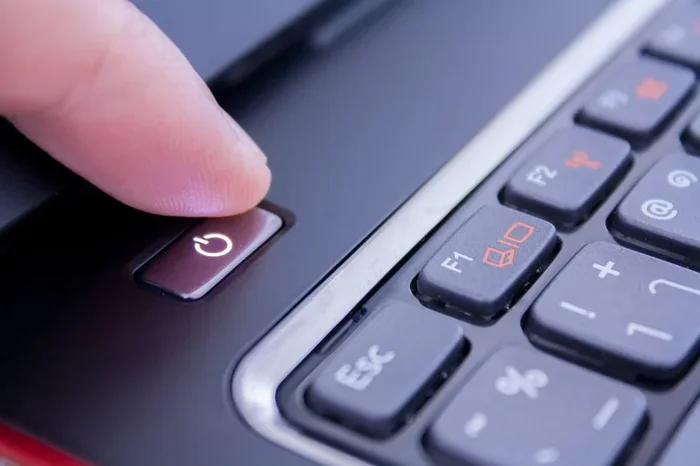
When you press the power button, you send a signal to the motherboard. The motherboard then wakes up the processor and memory. Your operating system starts loading from the storage drive. This whole process is called the startup process. It usually takes between 10 and 30 seconds depending on your laptop.
But pressing the power button is not just about turning things on. It also controls how your laptop goes to sleep. And it can force a shutdown when your system freezes. The behavior depends on your power settings and how long you hold the button.
Most modern laptops are smart about this. A quick press usually puts the laptop into sleep mode. A longer press forces a hard shutdown. Understanding these differences matters more than you might think.
Default Power Button Behavior
By default, most Windows laptops are set to sleep when you press the power button once. Mac laptops behave similarly. They go to sleep or show the shutdown menu. You can change this behavior anytime in your power options. Both operating systems give you full control.
On Windows, you go to Control Panel and find Power Options. On macOS, you go to System Preferences and click Energy Saver. From there, you can choose what a single button press does. You can set it to do nothing, sleep, hibernate, or shut down.
This flexibility is great. It means you can tailor your laptop to fit your workflow. If you want quick access, set it to sleep. If you want to save battery, set it to hibernate.
The Different Ways To Shut Down Your Laptop
There is more than one way to turn off your laptop. Most people only know the power button method. But there are several proper shutdown methods you should be aware of. Each one serves a different purpose.
Let us break them down so you can choose the right method every time.
Normal Software Shutdown
This is the safest way to power off your laptop. You click the Start menu on Windows or the Apple menu on macOS. Then you select Shut Down. Your operating system closes all programs safely. It saves any open files. It also stops background processes in an orderly fashion.
This method protects your data loss risk. It also keeps your system crash logs clean. Regular software shutdowns help your laptop stay healthy over time.
Sleep Mode
Sleep mode is not a full shutdown. Your laptop uses a small amount of power to keep your session alive. Your open apps and documents stay exactly where you left them. Waking up from sleep takes just a few seconds.
This is perfect for short breaks. If you are stepping away for an hour or two, sleep mode is ideal. It also saves battery compared to leaving your laptop fully on.
Hibernate Mode
Hibernate is like sleep but uses zero power. Your laptop saves the current session to your hard drive. Then it completely powers off. When you turn it back on, everything is right where you left it.
This is great for laptops that you will not use for a long time. Hibernate combines the speed of sleep with the battery savings of a full shutdown.
Forced Power Off
Holding the power button for 10 seconds forces an immediate shutdown. This is called a hard reset or forced restart. Your operating system has no chance to save anything. All unsaved work is lost.
This should only be used when your laptop is completely frozen. If your screen is locked and nothing responds, a hard reset is your last resort. But do not make it a habit.
| Method | Speed | Data Safety | Best For |
|---|---|---|---|
| Software Shutdown | Moderate | High | Daily use |
| Sleep Mode | Instant wake | High | Short breaks |
| Hibernate | Fast wake | High | Long breaks |
| Hard Reset | Immediate | Low | System freeze |
When It Is Safe To Press The Power Button
Now let us answer the big question directly. Can I just press the power button on my laptop safely? The short answer is yes. In most everyday situations, pressing the power button is perfectly fine.
Here are the scenarios where a quick press is completely safe.
Turning Your Laptop On
Pressing the power button to start your laptop is 100% safe. This is exactly what the button is designed for. Every single day, millions of people do this without any issues. Your laptop handles this thousands of times during its lifespan.
Just make sure your power supply is connected. If your laptop battery is very low, plug it in first. A low battery startup can sometimes cause issues with the startup process.
Waking From Sleep
A single press to wake your laptop from sleep is completely normal. This is a standard function built into every modern laptop. The operating system handles this gracefully. No data is at risk during a sleep-to-wake transition.
Logging Out Or Signing In
Some people use the power button to access the sign-in screen. This is especially common on laptops that go to sleep when the lid closes. A quick press wakes the screen and lets you log in. This is safe and convenient.
When The System Is Responding Normally
If your laptop is working fine, a quick press to sleep or shut down is safe. Your system will handle the request properly. All open files will be saved if you use the software method first. The power button just makes the process faster.
Risks Of Pressing The Power Button Too Often
Here is where things get tricky. While occasional use is safe, pressing the power button incorrectly can cause real problems. You need to understand the risks so you can avoid them.
Data Loss And File Corruption
This is the biggest risk. When you force a shutdown by holding the power button, your laptop stops instantly. Any file your operating system was writing gets cut off mid-process. This can lead to data loss or even corrupted files.
Imagine you are writing an important document. Suddenly the power cuts. Your last five minutes of work might be gone forever. Worse, the file itself might become corrupted. You may not be able to open it again.
This risk is highest during sudden shutdown moments. File writes happen constantly in the background. Your operating system updates system files, logs, and temporary data all the time. A forced interruption can damage any of these.
Hard Drive Damage
If your laptop uses a traditional hard drive (HDD), forced shutdowns are especially risky. The read/write head inside a hard drive moves very fast. During normal shutdown, the head parks safely. During a forced shutdown, it might not have time to park properly.
Over time, this can cause physical damage to your hard drive. It can lead to bad sectors. It can even cause total drive failure. This is why hardware damage from improper shutdowns is a real concern.
Solid state drives (SSDs) are less vulnerable to this. But they are still not immune to data corruption from sudden power loss.
Battery And Power Supply Stress
Frequent forced restart cycles put stress on your power supply circuits. The sudden drop in power followed by a restart is not gentle on components. Over months and years, this can shorten the lifespan of your power cord and internal power circuitry.
Your laptop battery also takes a hit. Each hard shutdown and restart cycle uses a small amount of battery power. If you do this frequently, it adds up. Proper shutdown methods are gentler on your battery health.
Operating System Instability
Your operating system expects shutdowns to happen in a specific order. Programs close in a sequence. Services stop one by one. The file system unmounts safely. When you bypass this with a hard reset, you skip all of these steps.
Over time, this can lead to system crash issues. Your laptop might become slower. You might see more error messages. File system errors can accumulate. Windows users might encounter the infamous “checking disk” message on startup.
Thermal Shutdown Risks
Some laptops automatically shut down when they overheat. This is called a thermal shutdown. It is a safety feature. But if you frequently force restart after a thermal shutdown, you might restart the laptop before it has cooled down. This can cause repeated overheating cycles.
Repeated overheating damages internal components. It can warp the motherboard. It can degrade the battery life permanently. Always let your laptop cool down before restarting after a thermal event.
How To Properly Restart Your Laptop
Restarting your laptop is different from shutting it down. A restart clears your memory and refreshes system processes. It is often the best fix for minor software glitches. But you still need to do it the right way.
Normal Restart Method
The safest way to restart is through your operating system. On Windows, click Start and select Restart. On macOS, click the Apple menu and choose Restart. This gives your system time to close programs properly. It also allows updates to install if needed.
A normal restart laptop process takes about 30 to 60 seconds. It is fast and safe. You should restart your laptop at least once a week. This helps clear memory leaks and keeps things running smoothly.
When To Use A Hard Reset
There are only a few times when a hard reset is justified. If your laptop has been frozen for more than five minutes, a hard reset might be necessary. If the screen is completely black and unresponsive, try a hard reset. If your keyboard and trackpad are not working at all, a hard reset is your only option.
The proper technique is to press and hold the power button for 10 to 15 seconds. Then release it. Wait a few seconds. Then press it briefly to turn the laptop back on.
After a hard reset, check your work. Some programs might not have saved properly. Open your files and make sure everything is intact.
Quick Tips For Safe Power Button Use
- Always save your work before pressing the power button.
- Use the software shutdown method whenever possible.
- Only hold the power button for 10 seconds during emergencies.
- Keep your laptop plugged in during updates to avoid power loss.
- Restart your laptop weekly to clear system memory.
- Check your power settings to customize button behavior.
- Let your laptop cool down before restarting after overheating.
- Back up important files regularly to prevent permanent data loss.
Expert Tips For Better Laptop Power Habits
Small changes to how you use your power button can make a big difference. These expert tips will help you get the most out of your laptop while keeping it safe.
Customize Your Power Settings
Take five minutes to review your power settings. On Windows, search for “Power Options” in the Start menu. On macOS, go to System Preferences and then Energy Saver. You can set the power button to do exactly what you want.
Some people prefer the power button to shut down instead of sleep. Others want it to do nothing and use the keyboard shortcut instead. It is all about personal preference and workflow.
Use Keyboard Shortcuts
Keyboard shortcuts can reduce your reliance on the power button. On Windows, Alt+F4 closes the active window. Ctrl+Alt+Delete gives you access to the shutdown menu. On macOS, Control+Command+Q locks your screen instantly.
These shortcuts are faster and safer than reaching for the power button. They give your operating system time to handle the shutdown process properly.
Enable Auto-Save And Backup Features
One of the best defenses against data loss is auto-save. Many modern apps save your work automatically every few minutes. Microsoft Word has an auto-recover feature. Google Docs saves to the cloud in real time.
You should also set up automatic backups. Use Windows Backup or Time Machine on macOS. Cloud storage like OneDrive or Google Drive adds another layer of protection. Even if a hard reset causes data loss, your backups have you covered.
Keep Your System Updated
Operating system updates often include fixes for power management issues. These updates improve how your laptop handles shutdown and startup. They also patch bugs that might cause unexpected freezes.
Set your laptop to install updates automatically. This ensures you always have the latest power management improvements. A well-maintained system is less likely to need forced shutdowns.
Monitor Your Laptop Temperature
Overheating is a leading cause of unexpected shutdowns. Use a temperature monitoring tool to keep an eye on your laptop’s heat levels. If your laptop runs hot, clean the vents regularly. Consider using a cooling pad.
Keeping your laptop cool reduces thermal shutdowns. It also extends the life of your internal components. A cooler laptop is a more reliable laptop.
Common Mistakes People Make With The Power Button
Even experienced laptop users make mistakes with the power button. Here are the most common errors and how to avoid them.
- Holding the button too long out of habit: A quick press is all you need for sleep or shutdown. Only hold it for 10 seconds during emergencies.
- Ignoring unsaved work: Always save before shutting down. A forced restart will not recover unsaved data.
- Using the power button during updates: Never interrupt a system update. This can corrupt your operating system and require a full reinstall.
- Pressing the power button repeatedly: If your laptop does not respond, do not keep pressing the button. Wait a few seconds and try a single long press instead.
- Not knowing your power settings: Take time to understand what your power button does. You might be surprised by what you find.
Avoiding these simple mistakes will protect your laptop and your data. It takes just a little awareness to make a big difference.
Conclusion
So, can you just press the power button on your laptop? Yes, absolutely. In most situations, a quick press is perfectly safe and exactly what the button is designed for. Whether you are turning your laptop on, waking it from sleep, or putting it to bed for the night, the power button is your friend.
The key is knowing when to use it and when to avoid it. A gentle single press during normal use is always fine. A long hold during a system freeze is sometimes necessary. But making forced shutdowns a regular habit is a recipe for trouble.
Your laptop is a valuable tool. Treating it with care pays off in reliability and longevity. Use the software shutdown method when you can. Save your work frequently. Keep your system updated. And remember that the power button is a convenience, not a crutch.
Follow the tips in this guide and you will get the best of both worlds. Safe, efficient power management without the risks. Your laptop will thank you for it.
Frequently Asked Questions
Is it bad to press the power button to turn off a laptop?
No, a quick press is not bad at all. Most laptops are set to sleep or shut down properly when you press the power button once. The problem only arises when you hold the button down to force a shutdown. That should only be done in emergencies when your system is completely frozen.
How long should you hold the power button to turn off a laptop?
If you need to force a shutdown, hold the power button for 10 to 15 seconds. This gives your laptop enough time to cut power completely. Do not hold it for longer than that. Once the laptop is off, wait a few seconds before turning it back on.
Can pressing the power button damage your laptop?
Occasional use will not damage your laptop. However, frequent forced shutdowns can cause data corruption and wear on your hard drive. The real risk comes from making hard resets a regular habit instead of an emergency tool.
What is the difference between a restart and a shutdown?
A shutdown turns your laptop completely off. A restart turns it off and then back on immediately. Restarts clear your system memory and refresh processes. They are great for fixing minor software issues and applying updates that require a reboot.
Should I unplug my laptop before pressing the power button?
There is no need to unplug your laptop before a normal shutdown. However, if you are performing a hard reset or your laptop is overheating, unplugging the power cord first is a good safety step. This prevents any electrical issues during the forced shutdown process.
Why does my laptop not respond when I press the power button?
If your laptop does not respond, the battery might be completely dead. Try plugging in the charger and wait a few minutes before pressing the power button again. If it still does not respond, the issue might be a frozen system. In that case, hold the power button for 10 seconds to force a reset.