Does My Roku Have Wi Fi And How To Check Your Connection
Yes, every Roku device comes with built-in Wi-Fi built right in. You can easily check your connection through the Settings menu on your Roku home screen. Knowing how to verify and troubleshoot your Roku Wi-Fi connection saves you from buffering and streaming headaches.
This is a comprehensive guide about Does My Roku Have Wi Fi.
Key Takeaways
- All Roku devices include built-in Wi-Fi: You do not need any extra hardware to connect to your home wireless network.
- Checking your connection takes less than a minute: The Settings menu on your Roku home screen shows your network status instantly.
- Weak signal causes buffering: Moving your Roku closer to the router or using a signal booster can dramatically improve streaming quality.
- Multiple ways to troubleshoot: From restarting your device to resetting network settings, several fixes work for most Wi-Fi problems.
- Wi-Fi 5 and Wi-Fi 6 both work with Roku: Most modern Roku models support dual-band wireless frequencies for faster speeds.
[FEATURED_IMAGE_PLACEHOLDER]
Does My Roku Have Wi Fi And How To Check Your Connection
So you just got a Roku and you want to start streaming your favorite shows. The first thing that probably crossed your mind is whether your Roku even has Wi-Fi built in. The good news is yes, it absolutely does. Every Roku device on the market comes with wireless connectivity right out of the box. You do not need to buy any extra adapters or dongles. In this guide, we walk you through everything you need to know about your Roku Wi-Fi connection. We also show you exactly how to check it, fix common problems, and get the best streaming experience possible.
Does My Roku Have Wi Fi?
The short answer is yes. Every single Roku model includes a built-in wireless adapter. Whether you own a Roku Express, Roku Streaming Stick, Roku Ultra, or Roku TV, Wi-Fi is already inside the device. This is one of the biggest reasons Roku has become so popular. You do not need to mess with extra cables or external hardware just to get online.
When you first set up your Roku, the device walks you through connecting to your home wireless network. You pick your network name from a list, type in your password, and boom. You are streaming. The setup process is designed to be simple because Roku targets everyday users, not tech experts.
Now here is something important to know. Not all Wi-Fi connections are the same. Your Roku supports both 2.4 GHz and 5 GHz wireless frequencies on most models. The 2.4 GHz band reaches farther but is slower. The 5 GHz band is faster but has a shorter range. Understanding this difference helps you troubleshoot slow streaming later on.
If you have been wondering about other ways to get your Roku online, you might also want to check whether you can use portable Wi-Fi or connect your Roku directly to your TV’s network. These are common questions that many Roku users have.
How To Check If Your Roku Is Connected To Wi-Fi
Checking your Roku Wi-Fi connection is super easy. You do not need any technical skills. Here is the step-by-step process to verify your connection status.
First, turn on your TV and Roku device. Press the Home button on your Roku remote. This takes you to the main home screen. Now use the directional pad to scroll to the left. You will see a menu option called Settings. Click on it.
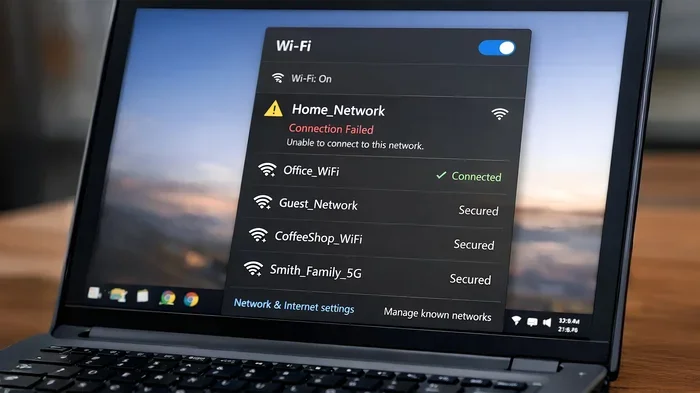
Inside Settings, scroll down until you find Network. Click on Network. At the top of this screen, you will see your current connection status. If you are connected, it will show your network name and signal strength. If you are not connected, it will prompt you to select a network and enter your password.
There is another quick way to check. Press the Home button five times, then press the Up button once, then the Rewind button twice, and finally the Fast Forward button twice. This secret shortcut opens a network diagnostic screen. It shows detailed information about your connection including IP address, signal strength, and connection type.
If your Roku is not connecting to Wi-Fi, do not panic. There are several things you can try before calling for help. Start by checking your router. Make sure the router is powered on and the internet light is solid. You can also try moving your Roku device closer to the router. Walls and furniture can block wireless signals and weaken your connection.
Sometimes the simplest fix works best. Restarting your Roku can solve most connection issues. Unplug the power cable, wait ten seconds, and plug it back in. This clears temporary glitches and refreshes the network connection.
Roku Wi-Fi Troubleshooting Tips
Even with built-in Wi-Fi, you might run into connection problems from time to time. Here are some proven troubleshooting tips that actually work.
Restart Your Router and Roku
This is the number one fix for most streaming issues. Unplug your router from the power outlet. Wait thirty seconds. Plug it back in. Then restart your Roku the same way. Doing both at the same time ensures a fresh connection between the two devices.
Check Your Wi-Fi Password
It sounds obvious but you would be surprised how often this is the culprit. If you recently changed your Wi-Fi password, your Roku will not connect automatically. Go to Settings, select Network, and choose your network again. Enter the new password carefully. Make sure there are no typos or extra spaces.
Move Your Roku Closer to the Router
Physical distance matters a lot for wireless signals. If your Roku is in a different room from your router, the signal may be weak. Try moving it closer and see if your streaming improves. If you cannot move the Roku, consider moving the router instead.
Forget the Network and Reconnect
Sometimes your Roku gets stuck on an old network configuration. Go to Settings, select Network, and choose your Wi-Fi network. Select the option to forget the network. Then reconnect by selecting it again and entering your password fresh. This clears any corrupted settings.
Check for Roku Updates
Roku regularly releases software updates that fix bugs and improve performance. Go to Settings, select System, and choose System Update. If an update is available, install it. An outdated Roku software version can cause connection problems.
Reduce Network Congestion
If too many devices are using your Wi-Fi at the same time, your Roku might struggle. Streaming video uses a lot of bandwidth. Other devices like phones, tablets, and computers also compete for the same connection. Try pausing downloads or streams on other devices while you watch Roku.
If none of these fixes work, you might want to consider whether your router needs an upgrade or if your internet plan has enough speed for streaming.
Understanding Roku Wi-Fi Signal Strength
Signal strength directly affects your streaming quality. A weak signal means buffering, low resolution, and a frustrating experience. Understanding how to read your signal strength helps you take action before problems get worse.
On your Roku, go to Settings, select Network, and look at the signal indicator. It usually shows bars or a percentage. A strong signal has three to four bars and a percentage above 70%. A moderate signal has two bars and a percentage between 40 and 70%. A weak signal has one bar or below 40%.
If your signal is weak, here are some things you can do. Move your Roku closer to the router. Remove physical obstacles between the two devices. Avoid placing your Roku behind a TV stand or inside a closed cabinet. These block wireless signals.
You can also improve your overall home network. Consider adding an external antenna to your router for better coverage. Some users also use a Wi-Fi extender or mesh system to boost the signal to far rooms. If you have a shed or garage where you want to stream, extending your Wi-Fi to that area can help too.
Another option is switching your router to the 2.4 GHz band. It travels farther than the 5 GHz band even though it is slower. For streaming, 5 GHz is better when you are close to the router. But 2.4 GHz works well when you are farther away.
Does My Roku Support Wi-Fi 6?
Wi-Fi 6 is the latest wireless standard. It offers faster speeds, better performance in crowded areas, and lower latency. Many people wonder if their Roku supports this newer technology.
Most Roku models from the past few years support Wi-Fi 5 (802.11ac). Some newer models also support Wi-Fi 6 (802.11ax). The Roku Ultra (2022 model and newer) and Roku Streambar Pro support Wi-Fi 6. Older models typically only support Wi-Fi 5 or even Wi-Fi 4.
You do not need a Wi-Fi 6 router to use your Roku. Wi-Fi 6 is backward compatible. Your Roku will connect to a Wi-Fi 5 router without any issues. However, if you have both a Wi-Fi 6 Roku and a Wi-Fi 6 router, you get the best possible speeds and performance.
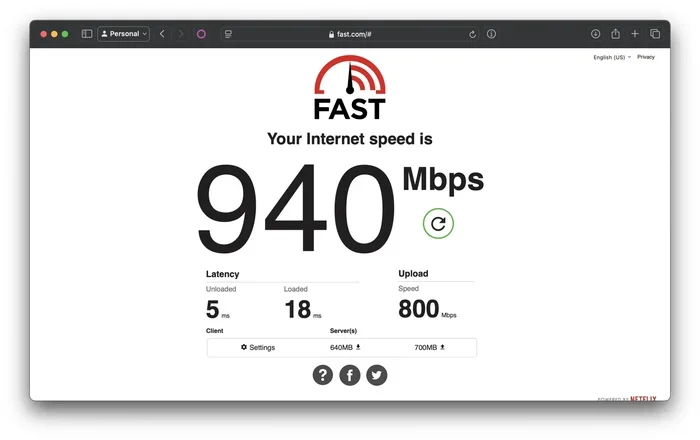
If you are buying a new router, look for dual-band or tri-band models. These handle multiple devices better and reduce interference. You can also check if your internet plan provides enough speed for 4K streaming on Roku. Most streaming works fine with 10 Mbps but 4K content needs at least 25 Mbps.
Common Roku Wi-Fi Mistakes to Avoid
Even experienced Roku users make mistakes that hurt their connection. Here are some common ones to watch out for.
Placing the Roku Too Far From the Router
This is the most common mistake. People hide their Roku behind the TV or place it in a different room from the router. The further away you are, the weaker the signal. Keep your Roku within reasonable distance of your router for the best experience.
Ignoring Router Updates
Your router needs updates too. An outdated router firmware can cause slow speeds and connection drops. Check your router manufacturer’s website for updates. Keeping your router current improves overall network performance.
Using Too Many Devices on One Network
Every device connected to your Wi-Fi shares the available bandwidth. If you have twenty smart home devices, phones, laptops, and Roku all on the same network, things slow down. Consider creating a separate network for streaming devices if possible.
Not Deleting Unwanted Networks
If your Roku keeps connecting to old networks that are no longer in use, it can cause confusion. Go to your Wi-Fi settings and delete any networks you no longer need. This keeps your connection list clean and prevents accidental connections.
Skipping the Router Restart
Routers need to be restarted occasionally just like any other electronic device. If your internet feels slow, restart your router first. Unplug it, wait thirty seconds, and plug it back in. This clears the cache and refreshes the connection.
Comparing Roku Wi-Fi With Other Streaming Devices
It helps to know how Roku compares to other streaming devices when it comes to Wi-Fi performance. Most streaming devices like Fire TV Stick, Apple TV, and Chromecast have similar built-in Wi-Fi capabilities. They all support dual-band wireless connections.
Roku stands out for its consistent performance across price points. Even the budget Roku Express delivers reliable Wi-Fi streaming. Higher-end models like the Roku Ultra offer better antenna design and faster wireless speeds.
One thing that sets Roku apart is its simple interface for managing Wi-Fi settings. Other devices sometimes bury network settings deep in their menus. Roku keeps it accessible and easy to understand.
If you want to learn more about connecting streaming devices to your home network, you might also want to read about whether you can boost your Wi-Fi signal outside or how to add Wi-Fi to your garage door opener. These topics cover related networking concepts that can improve your overall home network.
Final Thoughts
So does your Roku have Wi-Fi? Absolutely yes. Every Roku device comes with built-in wireless connectivity. Checking your connection is quick and easy through the Settings menu. And troubleshooting common problems does not require any special skills or equipment.
The key to a great Roku streaming experience is a strong Wi-Fi signal. Keep your Roku close to your router, restart both devices regularly, and keep your software up to date. These simple habits go a long way toward preventing buffering and connection issues.
If you are still having trouble, consider upgrading your router or internet plan. A better router can transform your streaming experience. And remember, you are not alone. Millions of people use Roku every day and most connection problems have simple solutions.
Take a few minutes today to check your Roku Wi-Fi connection using the steps we shared. You might discover something that improves your streaming right away. Happy watching.
Frequently Asked Questions
Do all Roku models have built-in Wi-Fi?
Yes, every Roku model comes with built-in Wi-Fi. Whether you have a Roku Express, Streaming Stick, or Ultra, wireless connectivity is included. You do not need any additional hardware to connect to your home network.
Why does my Roku keep disconnecting from Wi-Fi?
Frequent disconnections are usually caused by a weak signal or router issues. Try moving your Roku closer to the router and restarting both devices. If the problem persists, forget the network and reconnect with fresh settings.
Can I use Wi-Fi 6 with my Roku?
Some newer Roku models support Wi-Fi 6. Older models work with Wi-Fi 5 and Wi-Fi 4 networks. Wi-Fi 6 is backward compatible, so your Roku will connect to any modern router regardless of the standard it uses.
How do I know if my Roku Wi-Fi signal is strong?
Go to Settings, select Network, and check the signal indicator. Three or four bars means a strong connection. One bar or below 40 percent means a weak signal. You can also use the secret network diagnostic shortcut for detailed signal information.
What internet speed do I need for Roku streaming?
Standard definition streaming needs about 3 to 4 Mbps. HD content requires at least 10 Mbps. 4K Ultra HD streaming needs 25 Mbps or more. Check your internet plan speed to make sure it meets these requirements.
Can I connect my Roku to a mobile hotspot instead of home Wi-Fi?
Yes, you can connect your Roku to a mobile hotspot. The process is the same as connecting to any Wi-Fi network. Just select your hotspot name and enter the password. Keep in mind that streaming uses a lot of data, so check your mobile data plan limits first.