Does A Tp Link Give You Wifi For Your Home Network
Yes, a TP-Link router absolutely gives you WiFi for your home network. TP-Link is one of the most popular networking brands, and their routers deliver reliable wireless internet to homes of all sizes. Whether you are setting up a new connection or upgrading an existing one, understanding how TP-Link WiFi works helps you get the best performance. This guide covers everything from basic setup to advanced tips for maximizing your signal.
If you have just bought a TP-Link router or are thinking about getting one, you might be asking a simple question: does a TP Link give you WiFi? The short answer is yes. TP-Link routers are built to provide wireless internet to your home. But there is a lot more to know about how they work, what you can expect, and how to get the best performance out of them.
This guide breaks everything down in plain language. You will learn how TP-Link WiFi works, how to set it up, which model to choose, and how to fix common problems. Whether you are a total beginner or someone who just wants to squeeze more speed out of your setup, this article has you covered.
TP-Link is a global brand that makes networking equipment. Their routers sit in millions of homes around the world. They are known for being affordable, reliable, and easy to use. That is why so many people trust TP-Link for their home network needs.
Key Takeaways
- TP-Link routers do provide WiFi: They are designed specifically to broadcast wireless internet signals throughout your home.
- Setup is straightforward: Most TP-Link models come with simple step-by-step instructions and mobile apps.
- WiFi speed depends on the model: Higher-end TP-Link routers offer faster speeds and better coverage than budget options.
- Placement matters: Where you put your TP-Link router directly impacts signal strength and range.
- Troubleshooting is simple: Most common WiFi issues with TP-Link routers have easy fixes at home.
- TP-Link supports mesh networking: You can expand coverage by connecting multiple TP-Link devices together.
📑 Table of Contents
What Is A TP-Link Router And How Does It Work
A TP-Link router is a device that connects to your internet source and then sends that connection out wirelessly. Think of it as a traffic cop for your internet. It takes the signal from your modem and shares it with all your devices. Phones, laptops, smart TVs, tablets, and smart home gadgets all rely on the router to stay connected.
Here is how the process works in simple steps:
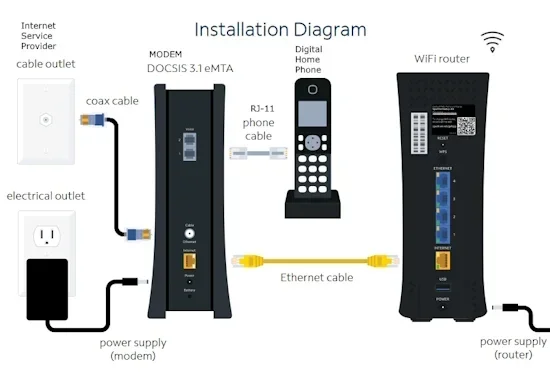
- Your internet service provider sends a signal through a modem.
- The modem connects to your TP-Link router using an Ethernet cable.
- The router receives that signal and broadcasts it as a wireless internet connection.
- Your devices pick up that signal and connect to the internet.
Most modern TP-Link routers support dual-band WiFi. This means they broadcast on two frequencies: 2.4 GHz and 5 GHz. The 2.4 GHz band covers a wider area but moves at slower speeds. The 5 GHz band is faster but has a shorter range. Understanding this difference helps you get the most out of your setup.
Does A TP-Link Router Give You WiFi
The main question this guide is built around is simple: does a TP Link give you WiFi? The answer is a clear yes. Every TP-Link router is designed to create a wireless network in your home. Without a router like this, your devices would need to be plugged directly into the modem with cables. That is not practical for most people today.
TP-Link routers come in different shapes and sizes. Some are small and basic. Others are large, powerful units designed for big homes with many devices. No matter the model, they all share one core function: they provide WiFi. Here are the key things to know:
WiFi Standards And Speeds
TP-Link routers follow the latest WiFi standards. The current standard is WiFi 6 (also called 802.11ax). Older models may use WiFi 5 (802.11ac) or even WiFi 4 (802.11n). The newer the standard, the faster and more efficient the connection.
Here is a quick look at how the standards compare:
- WiFi 4 (802.11n): Speeds up to 600 Mbps. Good for basic browsing and streaming.
- WiFi 5 (802.11ac): Speeds up to 3.5 Gbps. Great for HD streaming and online gaming.
- WiFi 6 (802.11ax): Speeds up to 9.6 Gbps. Best for homes with many devices and heavy use.
If you want the fastest speeds, look for a TP-Link router that supports WiFi 6. These models handle multiple devices at once without slowing down. They are perfect for families or households where many people stream, game, and work from home at the same time.
Coverage Area
One thing that matters a lot with any wireless internet setup is coverage. A TP-Link router can cover anywhere from 1,000 to 3,000 square feet, depending on the model. Smaller apartments and condos need less powerful routers. Larger homes with multiple floors may need extra help.
If your home is large, you might run into dead zones. These are areas where the WiFi signal is weak or does not reach at all. In those cases, you can use a TP-Link mesh system or a WiFi extender to boost the signal. Many people also find that simply moving the router to a central location solves most coverage problems.
For homes with tricky layouts, you might want to explore options like extending WiFi to outbuildings or setting up a mesh network to keep every room connected.
Setting Up WiFi With A TP-Link Router
Setting up a TP-Link router is one of the easiest parts of getting WiFi at home. Most people can have their network running in under 30 minutes. Here is what you need to do step by step.
Step 1: Connect The Hardware
Start by plugging your modem into the TP-Link router with an Ethernet cable. Use the port labeled WAN or Internet on the back of the router. Then plug the router into a power outlet and turn it on. Wait about one to two minutes for the lights to stabilize.
Step 2: Access The Router Settings
Open a web browser on your phone or computer. Type the router’s default IP address into the address bar. Most TP-Link routers use 192.168.0.1 or 192.168.1.1. You will see a login page. The default username and password are usually printed on a sticker on the bottom of the router.
Step 3: Configure Your WiFi Network
Once you are logged in, go to the wireless settings section. Here you can set your network name (SSID) and password. Choose a name that is easy to recognize. Pick a strong password with a mix of letters, numbers, and symbols. This keeps your home network safe from strangers.
Step 4: Connect Your Devices
Now go to your phone, laptop, or tablet and look for the WiFi network name you just created. Tap or click on it, enter the password, and you are connected. That is all there is to it.
TP-Link also offers a free mobile app called Tether. The app lets you set up and manage your router from your phone. It is a great option if you do not want to deal with web pages and IP addresses. The app walks you through every step with clear instructions.
Before you start, make sure you have a working internet connection from your provider. If you are unsure whether you can get internet without a traditional phone line, check out this guide on getting internet without a phone line to understand your options.
TP-Link WiFi Speed And Coverage
Speed and coverage are the two things most people care about when they set up a WiFi network. TP-Link routers deliver solid performance across a wide range of models. But how fast is fast enough? And how do you make sure the signal reaches every corner of your home?
Understanding WiFi Speed
The speed you get from a TP-Link router depends on several factors. The router model is the biggest one. A budget TP-Link router might give you speeds around 100 to 300 Mbps. Mid-range models can hit 1,000 Mbps or more. High-end WiFi 6 routers push speeds well beyond that.
But your actual speed also depends on your internet plan. If your ISP gives you 50 Mbps, a TP-Link router cannot make it faster than 50 Mbps. The router just makes sure you get the full speed your plan provides.
Other factors that affect speed include:
- The number of devices connected to the network.
- Distance between the router and your device.
- Walls, floors, and other obstacles between the router and your device.
- Interference from other electronics like microwaves and baby monitors.
- The WiFi standard your device supports.
Tips For Better Coverage
Want to get the most out of your TP-Link router? Follow these simple tips:
- Place the router in a central location. Do not hide it in a closet or behind furniture. A central spot sends the signal evenly throughout your home.
- Keep it elevated. Put the router on a shelf or table. Signals travel better downward than through the floor.
- Stay away from thick walls and metal objects. These block WiFi signals and create dead zones.
- Restart the router regularly. A quick restart can fix slow speeds and connection drops.
- Use the 5 GHz band for nearby devices. The 2.4 GHz band reaches farther, but 5 GHz is faster for devices close to the router.
If you have a large home and need to connect multiple routers together, you might wonder about compatibility with mesh systems. TP-Link offers its own mesh line called Deco. You can also connect WiFi 6 mesh to an existing WiFi 5 router in some setups to extend coverage across your property.
TP-Link Router Models For Home Networks
TP-Link makes a huge range of routers. Choosing the right one can feel overwhelming. Here is a breakdown of the most popular types to help you decide.
Budget Routers
Budget TP-Link routers cost between $20 and $50. They are perfect for small apartments or homes with light internet use. These models handle basic browsing, email, and SD streaming just fine. They usually support WiFi 4 or WiFi 5 standards and offer speeds up to 300 Mbps.
Popular budget models include the TP-Link Archer A7 and the TP-Link TL-WR840N. These are reliable, affordable, and easy to set up.
Mid-Range Routers
Mid-range TP-Link routers cost between $50 and $120. They offer better speed, wider coverage, and more features. Most support WiFi 5 or WiFi 6 and deliver speeds of 1,000 Mbps or more.
These routers are great for families or small offices. They handle multiple devices streaming, gaming, and video calling at the same time. Popular models include the TP-Link Archer AX55 and the TP-Link Archer AX73.
High-End Routers And Mesh Systems
High-end TP-Link routers and mesh systems cost $120 and up. They are built for large homes with heavy internet use. These models offer the fastest speeds, the widest coverage, and the most advanced features.
TP-Link Deco mesh systems are especially popular. They use multiple units to blanket your entire home in WiFi. Each unit works together as one seamless network. You can move from room to room without losing connection.
Popular high-end models include the TP-Link Deco X50, TP-Link Archer AX90, and TP-Link Deco X60. These are excellent choices for anyone who wants top-notch wireless internet performance.
Common TP-Link WiFi Problems And How To Fix Them
Even the best TP-Link routers can have issues sometimes. The good news is that most problems are easy to fix. Here are the most common issues and their solutions.
Slow WiFi Speeds
If your internet feels slow, try these fixes first:
- Move closer to the router and test the speed again.
- Restart the router by unplugging it for 30 seconds.
- Check if too many devices are using the network at once.
- Switch to the 5 GHz band if you are close to the router.
- Update the router firmware through the TP-Link app or web interface.
WiFi Keeps Disconnecting
A connection that drops frequently can be frustrating. This is often caused by interference or outdated firmware. Try moving the router away from other electronics. Also, check for firmware updates in the router settings. A simple update can fix many stability issues.
Cannot Find The WiFi Network
If your TP-Link WiFi network does not show up, the router might not be broadcasting the signal. Log into the router settings and make sure the wireless function is turned on. Also check that the SSID is not set to hidden. A quick restart of the router often solves this problem too.
Forgot WiFi Password
If you forget your WiFi password, you can reset it through the router settings. Log in at 192.168.0.1 and go to the wireless settings page. You can create a new password there. If you cannot log in, you can factory reset the router by pressing and holding the reset button on the back for about 10 seconds.
Final Thoughts
So does a TP Link give you WiFi? Absolutely. TP-Link routers are reliable, affordable, and easy to use. They are one of the best choices for setting up a home network. Whether you are a casual user or a heavy internet consumer, there is a TP-Link model that fits your needs.
From budget-friendly options to high-end mesh systems, TP-Link covers the full spectrum. The key is to choose the right model for your home size and usage habits. Follow the setup steps in this guide, place your router thoughtfully, and keep the firmware updated. You will enjoy strong, fast WiFi for years to come.
Take some time today to evaluate your current setup. If your router is old or underperforming, a new TP-Link model could make a huge difference. A strong WiFi connection makes streaming, gaming, working, and staying connected with family smoother and more enjoyable.
Remember, your wireless internet experience is only as good as your router. Invest in the right TP-Link device, set it up properly, and you will never worry about dropped connections or slow speeds again.
Frequently Asked Questions
Does A TP-Link Router Work Without A Modem?
A TP-Link router needs a modem to provide internet access. The router creates the WiFi network, but it relies on the modem to receive the internet signal from your provider. You need both devices for a complete setup.
Can I Use A TP-Link Router For A Large Home?
Yes, TP-Link makes routers and mesh systems designed for large homes. The Deco mesh line is especially effective for covering big areas. You can add multiple units to extend coverage throughout your property.
How Do I Update My TP-Link Router Firmware?
You can update firmware through the TP-Link Tether app or by logging into the router web interface. Go to the system tools section and look for a firmware update option. Always keep your router updated for the best performance and security.
Is TP-Link WiFi Safe And Secure?
Yes, TP-Link routers come with built-in security features like WPA3 encryption and firewall protection. You should always set a strong password and keep firmware updated to maintain the highest level of security for your home network.
Can I Connect A Printer To A TP-Link Router?
Yes, you can connect a printer to a TP-Link router either wirelessly or with an Ethernet cable. Many TP-Link routers support USB printer sharing. Check your specific model for printer server features and setup instructions.
What Makes TP-Link Different From Other Router Brands?
TP-Link routers are known for being affordable yet reliable. They offer a wide range of models for every budget. The setup process is user-friendly, and TP-Link provides good customer support. These factors make TP-Link a popular choice for home networking.