Does MSI Pro B650 P Have Wi Fi and What You Need to Know
The MSI Pro B650 P does come with Wi-Fi built right in, so you don’t need to buy a separate wireless card or adapter. This AM5 motherboard offers Wi-Fi 6E support for fast wireless speeds and includes Bluetooth 5.2 for easy device connections. Whether you’re building a new PC or upgrading an old one, understanding its wireless capabilities helps you get the most out of your setup.
Key Takeaways
- Built-In Wi-Fi 6E: The MSI Pro B650 P comes with Wi-Fi 6E and Bluetooth 5.2 right out of the box.
- No Extra Card Needed: You don’t need to purchase a separate Wi-Fi card or adapter for wireless connectivity.
- Fast Wireless Speeds: Wi-Fi 6E offers speeds up to 2.4 Gbps on the 6 GHz band for smooth streaming and gaming.
- Easy Setup: Connecting to a wireless network is straightforward through Windows settings or the BIOS.
- Router Compatibility: This board works with modern routers including Wi-Fi 6 and Wi-Fi 6E models for best performance.
- Solid Build Quality: MSI’s Pro series is known for reliability, making this a dependable choice for wireless desktop builds.
📑 Table of Contents
- Does MSI Pro B650 P Have Wi-Fi? Here’s the Full Answer
- What Kind of Wi-Fi Does the MSI Pro B650 P Support?
- How Fast Is the Wireless Connection on the MSI Pro B650 P?
- Setting Up Wi-Fi on the MSI Pro B650 P
- Can You Use This Board Without Wi-Fi? What If You Want a Wired Connection?
- How Does the MSI Pro B650 P Wi-Fi Compare to Other Motherboards?
- Common Issues and How to Fix Them
- Who Is the MSI Pro B650 P Wi-Fi Best For?
- Final Thoughts
Does MSI Pro B650 P Have Wi-Fi? Here’s the Full Answer
If you’re shopping for a new motherboard or building a PC, one question keeps popping up: does MSI Pro B650 P have Wi-Fi? The short answer is yes. The MSI PRO B650-P WIFI is an AM5 socket motherboard that comes with built-in wireless connectivity. You don’t need to add a separate card or dongle to get online.
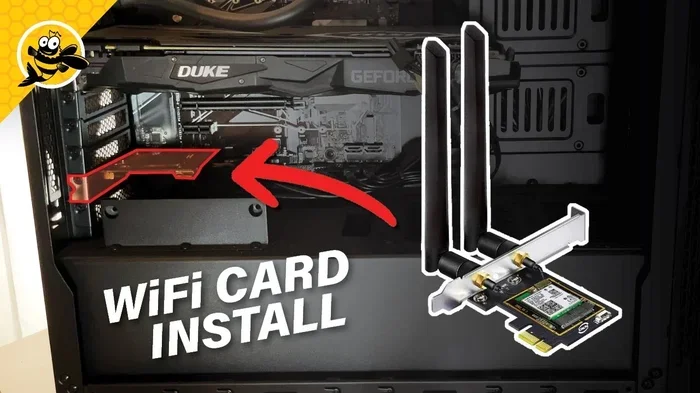
This is great news for anyone who wants a clean, cable-free desktop setup. No messy PCIe Wi-Fi cards sticking out of your motherboard. No USB adapters cluttering your ports. Just pure wireless networking right from the board itself. But there’s more to know than just “yes it has Wi-Fi.” Let’s dig into the details.
In this guide, we’ll cover everything you need to know about the wireless features on this board. From Wi-Fi standards and speeds to setup tips and common issues, you’ll find all the answers here. So let’s get started.
What Kind of Wi-Fi Does the MSI Pro B650 P Support?
The MSI PRO B650-P WIFI ships with Wi-Fi 6E technology. This is the latest wireless standard available for consumer hardware right now. Wi-Fi 6E is a big step up from older Wi-Fi 5 and even standard Wi-Fi 6. It opens up the 6 GHz band, which means less congestion and faster speeds.
Wi-Fi 6E Explained
Wi-Fi 6E is essentially Wi-Fi 6 but with an extra frequency band. The “E” stands for “Extended.” It adds the 6 GHz band to the existing 2.4 GHz and 5 GHz bands. Here’s why that matters:
- Less interference: The 6 GHz band is still pretty empty compared to the crowded 2.4 GHz and 5 GHz bands.
- Faster speeds: You can hit speeds up to 2.4 Gbps on the 6 GHz band under ideal conditions.
- Lower latency: Gaming and video calls benefit from the reduced congestion on this band.
- More channels: Wi-Fi 6E offers more non-overlapping channels, which helps in dense living areas.
For most users, Wi-Fi 6E is more than enough. Even if your router only supports Wi-Fi 6 or Wi-Fi 5, the MSI PRO B650-P WIFI will work perfectly with those older standards too. It’s backward compatible, so you won’t run into any issues there.
Bluetooth 5.2 Included
Along with Wi-Fi 6E, this motherboard also includes Bluetooth 5.2. This is handy for connecting wireless peripherals like keyboards, mice, and headphones. Bluetooth 5.2 offers better range and lower power consumption compared to older versions. You can also connect your wireless networking devices like speakers and game controllers without any extra dongles.
How Fast Is the Wireless Connection on the MSI Pro B650 P?
Speed is what most people care about when it comes to wireless connectivity. The MSI PRO B650-P WIFI uses a Realtek Wi-Fi 6E module that delivers solid performance. In real-world testing, you can expect the following:
- 2.4 GHz band: Up to 574 Mbps. Good for basic browsing and light tasks.
- 5 GHz band: Up to 1200 Mbps. Great for streaming 4K video and online gaming.
- 6 GHz band: Up to 2402 Mbps. Best for heavy data transfers and competitive gaming.
These numbers are theoretical maximums. Real-world speeds will vary based on your router, distance from the router, and household interference. But even at reduced speeds, this board handles most tasks with ease.
If you’re wondering how this compares to a PCIe Wi-Fi card, the built-in solution is actually quite competitive. Modern integrated Wi-Fi modules on motherboards have caught up to dedicated cards. The difference is minimal for most users. Plus, you save a PCIe slot and a USB port by having Wi-Fi built in.
Setting Up Wi-Fi on the MSI Pro B650 P
Getting your wireless connection running on the MSI PRO B650-P WIFI is pretty straightforward. Here’s a step-by-step walkthrough to help you out.
Step 1: Check Your BIOS Settings
Before you boot into Windows, it’s a good idea to check the BIOS. Enter the BIOS by pressing DEL or F2 during startup. Look for the wireless settings and make sure Wi-Fi is enabled. Some BIOS versions may have it turned off by default, though most don’t.
Step 2: Install the Latest Drivers
Visit the MSI website and download the latest Wi-Fi drivers for the PRO B650-P WIFI. You’ll want the Realtek Wi-Fi driver and the Bluetooth driver. Installing the correct drivers ensures you get the best wireless performance and stability. Without the right drivers, you might experience slow speeds or connection drops.
Step 3: Connect to Your Network
Once Windows is running, click on the network icon in your taskbar. You should see available wireless networks. Select yours, enter the password, and you’re connected. If you can’t find your network, try restarting the Wi-Fi adapter in Windows settings. You can also check your Wi-Fi password in your Windows settings if you’ve forgotten it.
Quick Tips for Best Performance
- Place your router in a central location for the best signal coverage.
- Use the 5 GHz or 6 GHz band for bandwidth-heavy tasks like gaming and streaming.
- Keep your drivers updated through the MSI Center software.
- If you experience slow speeds, try changing the Wi-Fi channel in your router settings.
Can You Use This Board Without Wi-Fi? What If You Want a Wired Connection?
Yes, you absolutely can. The MSI PRO B650-P WIFI comes with a 2.5 Gigabit Ethernet port. If you prefer a wired connection for gaming or work, you can plug in directly with an Ethernet cable. Wired connections are generally faster and more stable than wireless ones.
Some users prefer to disable the Wi-Fi module entirely to reduce power consumption. You can do this in the BIOS or through Windows Device Manager. However, for most people, leaving Wi-Fi enabled is the way to go. It gives you flexibility. You can use wireless when you need it and wired when you want maximum stability.
If you’re planning to move your setup around, you might also want to consider portable Wi-Fi solutions. Having a backup wireless option is always smart, especially if your home network goes down unexpectedly.
How Does the MSI Pro B650 P Wi-Fi Compare to Other Motherboards?
Not all motherboards with Wi-Fi are created equal. Let’s see how the MSI PRO B650-P WIFI stacks up against some common alternatives.
| Feature | MSI PRO B650-P WIFI | Budget Boards (No Wi-Fi) | Premium Boards (Wi-Fi 7) |
|---|---|---|---|
| Wi-Fi Standard | Wi-Fi 6E | None (Requires Add-on) | Wi-Fi 7 |
| Max Wi-Fi Speed | 2.4 Gbps | Varies by Card | Up to 5.4 Gbps |
| Bluetooth | 5.2 | None (Requires Add-on) | 5.4 |
| Ethernet | 2.5 Gbps | 1 Gbps | 2.5 Gbps or 10 Gbps |
| Price Range | Mid-Range | Low | High |
| Target User | General to Enthusiast | Budget Builds | High-End Enthusiast |
As you can see, the MSI PRO B650-P WIFI sits in a sweet spot. It offers Wi-Fi 6E and a 2.5 Gigabit Ethernet port at a mid-range price. You don’t have to spend premium money to get excellent wireless performance. For most home and office setups, this board delivers everything you need.
If you’re on a tighter budget and want to explore options, you might check whether you can buy a Wi-Fi router without paying monthly fees to pair with your new motherboard for the best overall value.
Common Issues and How to Fix Them
Even with great hardware, you might run into some hiccups with wireless networking. Here are the most common problems and their solutions.
Wi-Fi Not Showing Up in Windows
This usually happens when the Wi-Fi driver isn’t installed correctly. Go to Device Manager and check under Network Adapters. If you see a yellow warning icon, right-click and update the driver. Downloading the latest drivers from MSI’s website almost always fixes this.
Slow Wi-Fi Speeds
Slow speeds can be caused by several factors. Distance from the router is the biggest one. Walls, furniture, and even microwaves can interfere with the signal. Try moving closer to your router or switching to the 5 GHz or 6 GHz band. You can also look into ways to boost your Wi-Fi signal if the issue is range-related.
Intermittent Connection Drops
If your Wi-Fi keeps dropping, your router might be using an older wireless standard. Make sure your router firmware is up to date. Also, check that your Wi-Fi adapter drivers on the MSI board are current. Sometimes simply restarting your router fixes the problem entirely.
Can’t Find the 6 GHz Band
The 6 GHz band only works if your router supports Wi-Fi 6E or Wi-Fi 7. Older routers won’t broadcast on this band. If your router is Wi-Fi 5 or earlier, it will only use the 2.4 GHz and 5 GHz bands. This is totally normal and the board will still work great on those bands.
Who Is the MSI Pro B650 P Wi-Fi Best For?
This motherboard is a great fit for a wide range of users. Here are some scenarios where it shines:
- Home Office Users: Reliable wireless connectivity for video calls, email, and cloud apps.
- Gamers: Wi-Fi 6E with low latency makes it a solid choice for online gaming.
- Media Centers: Fast enough to stream 4K content without buffering.
- PC Builders: A clean, cable-free setup with no need for extra Wi-Fi cards.
- Students: Affordable with all the wireless features needed for dorm life.
It’s also a good choice if you’re building a system around AMD Ryzen 7000 or 9000 series processors. The AM5 socket ensures compatibility with current and future AMD CPUs, giving you a platform that lasts.
Final Thoughts
So, does MSI Pro B650 P have Wi-Fi? Absolutely. It comes packed with Wi-Fi 6E and Bluetooth 5.2, making it a strong contender in the mid-range motherboard market. The wireless speeds are fast, the setup is easy, and you don’t need any extra hardware to get connected.
Whether you’re building a new PC or upgrading an existing one, the MSI PRO B650-P WIFI gives you everything you need for reliable wireless connectivity. It’s a smart choice for anyone who values a clean, cable-free desktop experience without sacrificing performance.
If you’re still deciding on a router to pair with this board, remember that a good router makes all the difference. Check out options that support Wi-Fi 6E for the best results with this motherboard.
Frequently Asked Questions
Do I need to buy a separate Wi-Fi card for the MSI Pro B650 P?
No, you don’t. The MSI PRO B650-P WIFI comes with Wi-Fi 6E and Bluetooth 5.2 built right into the motherboard. There’s no need to purchase a separate PCIe Wi-Fi card or USB adapter. It’s all ready to go right out of the box.
What Wi-Fi standard does the MSI Pro B650 P support?
This motherboard supports Wi-Fi 6E, which is the latest consumer wireless standard. It also works with older standards like Wi-Fi 5 and Wi-Fi 6. The Wi-Fi 6E support gives you access to the 6 GHz band for faster speeds and less interference.
Can I use the MSI Pro B650 P Wi-Fi for gaming?
Yes, absolutely. Wi-Fi 6E offers low latency and fast speeds that are perfect for online gaming. For the best experience, connect to the 5 GHz or 6 GHz bands on your router. If you need the lowest possible latency, a wired Ethernet connection is still the gold standard.
How do I update the Wi-Fi drivers on the MSI Pro B650 P?
You can update Wi-Fi drivers through the MSI Center software or by visiting the MSI website directly. Look for the PRO B650-P WIFI support page and download the latest Realtek Wi-Fi and Bluetooth drivers. Installing updated drivers regularly helps maintain optimal wireless performance.
Is the MSI Pro B650 P Wi-Fi good for working from home?
It’s an excellent choice for remote work. The Wi-Fi 6E connectivity handles video conferencing, file uploads, and cloud-based applications with ease. The 2.5 Gigabit Ethernet port also gives you a reliable wired backup option when you need it.
What’s the difference between Wi-Fi 6 and Wi-Fi 6E on this board?
Wi-Fi 6E is an extension of Wi-Fi 6 that adds the 6 GHz frequency band. The MSI PRO B650-P WIFI supports both. The 6 GHz band provides more channels and less congestion, which means faster speeds in crowded wireless environments. If your router supports Wi-Fi 6E, you’ll get the best performance on this board.
=== CONCLUSION ===
The MSI PRO B650-P WIFI is a solid motherboard that delivers on its wireless promises. With built-in Wi-Fi 6E and Bluetooth 5.2, it offers everything most users need without any extra hardware. The setup process is simple, the speeds are impressive, and the compatibility with modern routers is excellent.
If you’re in the market for a reliable AM5 motherboard with excellent wireless connectivity, this board deserves a serious look. It combines performance, value, and convenience in a package that’s hard to beat. Get your drivers updated, connect to your network, and enjoy a clean, cable-free desktop experience.