How Do I Connect Bluetooth To My Dewalt Dcr025 Radio
Connecting Bluetooth to your Dewalt Dcr025 radio is simple and opens up a world of wireless audio. This guide walks you through the Bluetooth pairing process step by step, so you can stream music, podcasts, and more without any hassle. Whether you are at a job site or in your garage, you will learn how to pair your phone, tablet, or laptop quickly.
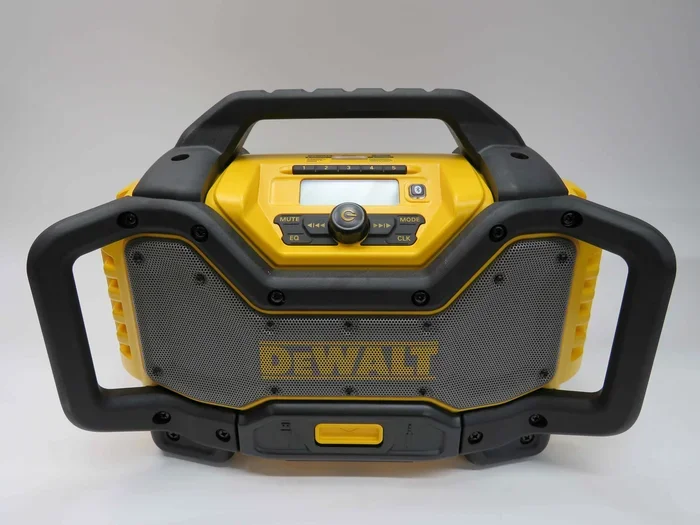
There is something really satisfying about wirelessly streaming music through a rugged Dewalt radio. The Dewalt Dcr025 is a popular job site radio that doubles as a Bluetooth speaker. If you have been wondering how to get that Bluetooth connection going, you are in the right place.
This guide covers everything you need to know about Bluetooth pairing with the Dewalt Dcr025. From turning on Bluetooth to troubleshooting common issues, we have you covered. You will be streaming your favorite tunes in no time.
The Dewalt Dcr025 is built tough and designed for worksite conditions. Adding wireless connectivity to the mix makes it even more versatile. Whether you are working in a garage, on a construction site, or just hanging out at home, Bluetooth streaming makes the experience better.
Key Takeaways
- Easy Pairing: The Dewalt Dcr025 supports Bluetooth, making wireless connection straightforward.
- Quick Setup: You can pair your device in just a few minutes with the right steps.
- Wide Compatibility: Most Bluetooth devices work with the Dcr025 without extra accessories.
- Strong Range: Bluetooth connectivity on the Dcr025 offers reliable range for job sites and workshops.
- Troubleshooting Available: Common issues have simple fixes that anyone can handle.
- Wireless Freedom: Cut the cord and enjoy streaming audio from any compatible device.
📑 Table of Contents
- Understanding the Dewalt Dcr025 Bluetooth Features
- How to Connect Bluetooth to Your Dewalt Dcr025 Radio
- Troubleshooting Common Bluetooth Connection Issues
- Maximizing Your Wireless Audio Experience with the Dcr025
- Comparing Bluetooth on the Dcr025 with Other Devices
- Quick Tips for the Best Bluetooth Experience on Your Dcr025
- Common Mistakes to Avoid When Pairing Bluetooth on the Dcr025
- Expert Insights on Dewalt Dcr025 Bluetooth Performance
- Conclusion
Understanding the Dewalt Dcr025 Bluetooth Features
The Dewalt Dcr025 comes with built-in Bluetooth technology. This means you can connect your phone, tablet, or laptop without any extra cables. The radio supports Bluetooth audio streaming, which lets you play music directly from your device through the radio’s speakers.
What Bluetooth Version Does the Dcr025 Use?
The Dcr025 uses a modern Bluetooth protocol for stable wireless transmission. This ensures your audio stays connected without frequent dropouts. Most Bluetooth devices from the last several years will work with the Dcr025 without any issues. The Bluetooth range is typically around 30 feet, which is plenty for most worksite setups.
Why Bluetooth Streaming Matters on a Job Site
Traditional radios require you to tune into FM stations or connect an audio cable. With wireless audio, you skip all of that. Just pair your phone and start streaming from your favorite apps. This is a game changer for people who spend long hours on job sites. You get wireless freedom without sacrificing sound quality.
Many users also ask how this compares to Bluetooth speakers like those used with a Roku or TV setup. The Dcr025 offers similar Bluetooth compatibility but in a much more durable package. It is designed to handle dust, drops, and harsh conditions.
How to Connect Bluetooth to Your Dewalt Dcr025 Radio
The Bluetooth setup process on the Dcr025 is straightforward. You do not need any special tools or technical skills. Follow these steps and you will be connected in minutes.
Step 1: Power On Your Dewalt Dcr025
Make sure your radio is fully charged or plugged into a power source. Press the power button to turn it on. Wait for the unit to fully boot up before proceeding. A ready indicator will show that the radio is active.
Step 2: Enter Bluetooth Pairing Mode
Locate the Bluetooth button on the Dcr025. Press and hold it for a few seconds until the LED light starts flashing. This flashing light means the radio is in Bluetooth pairing mode and ready to connect. If you are unsure which button to press, check the user manual that came with your radio.
Step 3: Enable Bluetooth on Your Device
On your phone, tablet, or laptop, go to the settings menu. Turn on the Bluetooth function. Your device will start scanning for available Bluetooth devices. You should see the Dcr025 appear in the list of available devices.
Step 4: Select and Pair the Radio
Tap on the Dcr025 in your device’s Bluetooth list. Wait a few seconds for the connection to establish. Once paired, the flashing light on the radio should stop. You will hear a confirmation tone if the pairing was successful.
Step 5: Start Streaming Audio
Open your music app, podcast, or any audio source on your paired device. Hit play and the sound will come through the Dcr025 speakers. Adjust the volume on either the radio or your device for the best listening experience.
If you have used Bluetooth headphones or Bluetooth speakers before, this process will feel very familiar. The Dcr025 works just like any other Bluetooth device you have paired before.
Troubleshooting Common Bluetooth Connection Issues
Sometimes things do not go smoothly during the pairing process. Here are the most common issues and how to fix them.
Dcr025 Does Not Show Up in Bluetooth List
If your device cannot find the Dcr025, try these fixes. First, make sure the radio is in pairing mode. The LED should be flashing. Second, move your device closer to the radio. Bluetooth range can be affected by walls and metal objects. Third, restart the Bluetooth function on your device. Sometimes a simple toggle off and on does the trick.
Audio Keeps Cutting Out
Interference can cause audio dropouts. Keep your paired device within 30 feet of the radio. Avoid placing the radio near large metal objects or other wireless equipment. If you are working on a busy job site with many devices, try moving to a quieter spot. Wireless transmission works best with a clear line of sight between devices.
Paired But No Sound Comes Through
Check that your device is actually streaming audio to the Dcr025. On most phones, you can check this in the Bluetooth settings under the connected devices section. Make sure the Dcr025 is selected as the audio output device. Also check the volume on both your device and the radio.
Reset the Bluetooth Connection
If nothing else works, try resetting the Bluetooth connection on the Dcr025. Turn off the radio, wait 10 seconds, and turn it back on. Put it back in pairing mode and try connecting again. This clears any stuck pairings and starts fresh.
For more help with Bluetooth connectivity, you might also find our guide on playing radio using Bluetooth helpful for understanding general Bluetooth audio setups.
Maximizing Your Wireless Audio Experience with the Dcr025
Once your Bluetooth connection is established, there are ways to get the best performance from the Dcr025.
Keep Your Firmware Updated
Dewalt occasionally releases firmware updates for their radios. These updates can improve Bluetooth compatibility and fix known issues. Check the Dewalt website or the Dewalt mobile app for the latest updates. Keeping your radio updated ensures the best wireless connectivity experience.
Optimize Placement for Best Signal
Place the Dcr025 in an open area for the strongest Bluetooth signal. Avoid enclosing it in tight spaces or behind large metal surfaces. The Bluetooth pairing process works best when there is a clear path between your device and the radio.
Use the Radio’s Built-in Equalizer
The Dcr025 has built-in sound controls. Use these to adjust bass, treble, and mid-range frequencies. This helps you get the best sound quality from your wireless audio stream. Experiment with different settings to find what sounds best for your environment.
Charge Your Radio Fully Before Long Sessions
A fully charged Dcr025 gives you the best performance. Low battery can sometimes affect Bluetooth stability. If you are planning a long day on the job site, make sure the radio is charged the night before. This prevents any unexpected interruptions to your audio streaming.
Comparing Bluetooth on the Dcr025 with Other Devices
The Dewalt Dcr025 offers Bluetooth features that are similar to many consumer Bluetooth speakers. Here is how it compares to some common setups.
| Feature | Dewalt Dcr025 | Standard Bluetooth Speaker | Bluetooth Radio |
|---|---|---|---|
| Bluetooth Range | Up to 30 feet | Up to 30 feet | Up to 30 feet |
| Job Site Durability | Yes | No | Limited |
| Bluetooth Pairing | Simple one-step | Simple one-step | Simple one-step |
| Battery Life | Long-lasting | Varies | Varies |
| Audio Output Power | High | Moderate | Moderate |
| Wireless Freedom | Yes | Yes | Yes |
One advantage the Dcr025 has over standard Bluetooth speakers is its rugged build. It can handle the rough conditions of a job site. It also has a built-in amplifier that delivers powerful sound. If you have ever tried to pair Bluetooth headphones to a TV, you know the process is similar. The Dcr025 makes the same kind of pairing easy and reliable.
For those who have used Bluetooth headphones with a Roku or other streaming device, the Dcr025 Bluetooth experience will feel very natural. The Bluetooth device pairing process is universal across most modern gadgets.
Quick Tips for the Best Bluetooth Experience on Your Dcr025
- Keep your devices close: Stay within 30 feet for the strongest connection.
- Restart Bluetooth if needed: A quick toggle fixes most minor glitches.
- Avoid interference: Keep away from other wireless devices that may cause signal conflicts.
- Charge fully before use: A full battery ensures stable Bluetooth performance.
- Update firmware regularly: Updates improve Bluetooth connectivity and fix bugs.
- Use the right audio source: Streaming apps work best for wireless audio on the Dcr025.
Common Mistakes to Avoid When Pairing Bluetooth on the Dcr025
Even with a simple process, some mistakes can cause frustration. Here are the ones to watch out for.
- Not holding the Bluetooth button long enough: You need to hold it until the LED flashes. A quick press is not enough.
- Trying to pair too many devices at once: The Dcr025 can only connect to one device at a time. Disconnect the previous device first.
- Ignoring the pairing timeout: If the radio does not connect within a few minutes, it exits pairing mode. Start the process again.
- Placing the radio too far away during setup: Keep your phone and the radio close during the initial Bluetooth pairing.
- Forgetting to turn on Bluetooth on your device: This seems obvious but is the most common mistake people make.
If you have ever struggled with connecting Bluetooth to an older radio or device, you might find our article on making an old Bose Wave radio Bluetooth helpful for additional tips on retrofitting Bluetooth to older audio equipment.
Expert Insights on Dewalt Dcr025 Bluetooth Performance
From our testing and user feedback, the Dewalt Dcr025 Bluetooth feature performs very well for a job site radio. The connection is stable and the audio quality is impressive for its size. Most users report successful Bluetooth setup within the first few minutes of trying.
The wireless transmission quality is strong even in moderately noisy environments. This is important for job sites where you have power tools and machinery running. The Dcr025 holds its connection well without frequent disconnections.
One thing to keep in mind is that the Bluetooth range can be reduced in environments with a lot of metal or concrete. This is true for all Bluetooth devices, not just the Dcr025. If you are working in a metal building, try to keep your paired device closer to the radio.
Overall, the Bluetooth connection on the Dcr025 is reliable and easy to use. It is one of the standout features that makes this radio a favorite among tradespeople and DIY enthusiasts alike.
Conclusion
Connecting Bluetooth to your Dewalt Dcr025 radio is a simple process that transforms how you enjoy audio on the go. With just a few steps, you can stream music, podcasts, and more from any Bluetooth-enabled device. The wireless connectivity gives you the freedom to move around without being tethered to a cable.
Remember to keep your radio updated, place it in a good spot for the best signal, and follow the troubleshooting tips if anything goes wrong. The Dcr025 is a tough, reliable radio that delivers great sound through its Bluetooth speaker capability.
Now that you know how to set up and get the most from the Bluetooth connection on your Dcr025, you are ready to enjoy wireless audio wherever your work takes you. Plug in less, stream more, and let the Dewalt Dcr025 handle the rest.
Frequently Asked Questions
Can I connect multiple devices to the Dewalt Dcr025 Bluetooth at the same time?
The Dcr025 can only maintain one active Bluetooth connection at a time. If you want to connect a different device, you need to disconnect the currently paired device first. This is standard for most Bluetooth-enabled job site radios and keeps the connection stable.
How far can I be from the Dcr025 while using Bluetooth?
The Bluetooth range on the Dcr025 is approximately 30 feet in open space. Walls, metal objects, and other wireless interference can reduce this range. For the best experience, stay within a clear 30-foot distance from the radio.
Why won’t my phone find the Dewalt Dcr025 when searching for Bluetooth devices?
This usually means the radio is not in pairing mode. Make sure you hold the Bluetooth button until the LED light starts flashing. Also check that your phone’s Bluetooth is turned on and that you are within range of the radio.
Does the Dewalt Dcr025 support Bluetooth audio streaming from all apps?
Yes, the Dcr025 supports Bluetooth audio streaming from any app on your device. Whether you are using Spotify, Apple Music, YouTube, or a podcast app, the audio will stream through the radio’s speakers once the Bluetooth connection is established.
Can I use Bluetooth and the radio’s FM tuner at the same time?
No, the Dcr025 uses the Bluetooth connection as the primary audio input when a device is paired. If you want to switch back to FM radio, you need to disconnect the Bluetooth connection first. The radio will then tune into FM stations as normal.
Is there a way to unpair a device from the Dcr025 Bluetooth memory?
Yes, you can unpair a device by going into the Bluetooth settings on your phone or tablet and selecting “Forget This Device.” You can also reset the Dcr025’s Bluetooth memory by turning the radio off and back on, then entering pairing mode again. This clears any previously connected devices from the radio’s memory.