Does Google Fi Allow Wi Fi Calling On Iphone Explained
Yes, Google Fi does support Wi-Fi calling on iPhone. You can make and receive calls over Wi-Fi with a few simple steps. This guide walks you through the setup, troubleshooting, and common questions about using Wi-Fi calling with Google Fi on your iPhone.
If you are a Google Fi user with an iPhone, you might be wondering about Wi-Fi calling. The good news is that Google Fi does support this feature. But how exactly does it work? And what do you need to do to get it running on your Apple device?
In this guide, I will walk you through everything you need to know about using Wi-Fi calling on Google Fi with your iPhone. From setup steps to troubleshooting tips, I have got you covered. Let us dive right in.
Key Takeaways
- Google Fi supports Wi-Fi calling on iPhone: You can activate this feature directly on your device.
- Setup is straightforward: Just toggle Wi-Fi calling on in your iPhone settings.
- Carrier settings updates may be needed: Keeping your iPhone updated ensures smooth functionality.
- Troubleshooting steps exist for common issues: Resetting network settings often solves problems.
- Wi-Fi calling works alongside cellular: It serves as a backup when your signal is weak.
- Not all features transfer equally: Some calling features may differ slightly from standard cellular calls.
📑 Table of Contents
- What Is Wi-Fi Calling and Why Does It Matter?
- Does Google Fi Support Wi-Fi Calling on iPhone?
- How to Set Up Wi-Fi Calling on Google Fi for iPhone
- Why Wi-Fi Calling Might Not Work on Google Fi
- Wi-Fi Calling vs. Regular Cellular Calling on Google Fi
- Tips to Get the Best Wi-Fi Calling Experience
- Frequently Asked Questions About Google Fi and Wi-Fi Calling
- Final Thoughts
What Is Wi-Fi Calling and Why Does It Matter?
Wi-Fi calling is a feature that lets you make phone calls using a Wi-Fi network instead of a cellular signal. This is especially useful when you are in an area with weak cell coverage. Instead of dropping calls or dealing with static, you can connect through your wireless internet connection.
Here is why this matters for Google Fi users:
- Better call quality: Wi-Fi calls often sound clearer than regular cellular calls.
- Indoor coverage: Basements and thick-walled buildings often block cellular signals. Wi-Fi calling bypasses this problem.
- No extra charges: Google Fi does not charge extra for Wi-Fi calling. It uses your data plan the same way.
- Seamless handoff: Your call can switch between Wi-Fi and cellular without dropping.
Think of it as a backup path for your voice calls. When your cellular network signal is too weak, your iPhone automatically routes the call through Wi-Fi. This keeps your conversations going without interruption.
Does Google Fi Support Wi-Fi Calling on iPhone?
The short answer is yes. Google Fi fully supports Wi-Fi calling on iPhone. Apple devices and Google Fi work well together for this feature. However, there are a few things you need to know before you get started.
Google Fi uses T-Mobile and U.S. Cellular networks under the hood. These carriers both support voice over Wi-Fi on iPhones. This means Google Fi inherits that capability. You just need to make sure your iPhone model is compatible.
Compatible iPhone Models
Most modern iPhones support Wi-Fi calling. Here is a quick list of compatible models:
- iPhone 15 series
- iPhone 14 series
- iPhone 13 series
- iPhone 12 series
- iPhone 11 series
- iPhone XS and XR
- iPhone SE (2nd generation and later)
If you have an older model, you might still be able to use this feature. But I recommend checking Google Fi’s official support page to confirm. Also, keep in mind that your carrier settings need to be up to date for the best experience.
How to Set Up Wi-Fi Calling on Google Fi for iPhone
Setting up Wi-Fi calling on your Google Fi iPhone is simple. You do not need to contact Google Fi support or visit a store. Everything happens right on your device. Here is the step-by-step process.
Step 1: Connect to a Wi-Fi Network
First, make sure your iPhone is connected to a Wi-Fi network. This can be your home network or any trusted public Wi-Fi. If you are not sure how to connect, go to Settings and tap on Wi-Fi. Select your network and enter the password. You can also find your saved Wi-Fi password in your iPhone settings if you need a reminder.
Step 2: Open Phone Settings
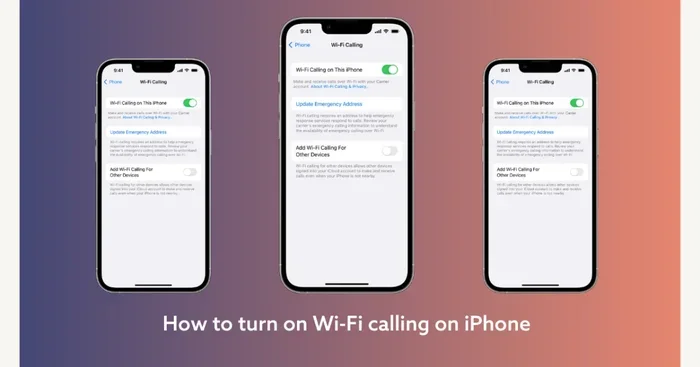
Go to your iPhone Settings. Scroll down and tap on “Phone.” Then look for “Wi-Fi Calling.” You will see a toggle switch. Turn it on.
Step 3: Enable Wi-Fi Calling on This iPhone
A prompt will appear asking you to enable Wi-Fi calling on this device. Tap “Enable.” Your iPhone will register with your carrier for Wi-Fi calling. This usually takes just a few seconds.
Step 4: Verify Your Address (Emergency Services)
Apple requires you to register an address for emergency services. This is because Wi-Fi calls may not always transmit your exact location. Enter your home address or the location where you usually use Wi-Fi calling. This step is important for safety.
Step 5: Test Your Connection
Once enabled, try making a test call. You should see “Wi-Fi” displayed near your signal bars at the top of your screen. This confirms that your call is routing through Wi-Fi instead of the cellular network.
Why Wi-Fi Calling Might Not Work on Google Fi
Sometimes things do not go as planned. If Wi-Fi calling is not working on your Google Fi iPhone, do not panic. There are several common reasons and easy fixes for each one.
Weak or Unstable Wi-Fi Connection
The most common issue is a poor Wi-Fi signal. If your internet connection is slow or dropping frequently, your calls will suffer. Try moving closer to your router. You can also boost your Wi-Fi signal outside if you experience issues in areas farther from your router.
Outdated Carrier Settings
Apple releases carrier settings updates regularly. These updates fix bugs and add new features. To check for updates, go to Settings, then General, then About. If a carrier update is available, you will see a prompt to install it.
Google Fi Account Issues
Rarely, the issue might be on Google Fi’s end. Your account could have a settings conflict. In that case, logging into your Google Fi account and checking your device settings can help. You can also reach out to Google Fi support for assistance.
Airplane Mode or Do Not Disturb Interference
Sometimes simple settings interfere with Wi-Fi calling. Make sure airplane mode is off. Also, check that Do Not Disturb is not blocking incoming calls. These small settings can cause big problems.
VPN or Firewall Restrictions
If you use a VPN or have a strict firewall on your network, it might block Wi-Fi calling traffic. Try disabling your VPN temporarily to see if that resolves the issue. Some networks at work or school also block voice traffic over Wi-Fi.
Wi-Fi Calling vs. Regular Cellular Calling on Google Fi
It helps to understand the difference between Wi-Fi calling and regular cellular calling on Google Fi. Here is a quick comparison of the two methods.
- Network used: Wi-Fi calling uses your internet connection. Regular calling uses the cellular tower network.
- Coverage: Wi-Fi calling works anywhere you have internet. Regular calling only works where cell towers reach.
- Call quality: Wi-Fi calling quality depends on your internet speed. Regular calling depends on signal strength.
- Battery usage: Wi-Fi calling can use slightly more battery if your signal is weak. Regular calling uses standard battery levels.
- Emergency services: Both methods support 911, but Wi-Fi calls require a registered address.
Most users find that Wi-Fi calling is a great backup. You might not need it every day. But when you are in a basement, a rural area, or a crowded stadium, it saves the day. Google Fi handles both methods smoothly on your iPhone.
Tips to Get the Best Wi-Fi Calling Experience
Want to make sure your Wi-Fi calling on Google Fi works perfectly every time? Follow these practical tips.
Use a 5 GHz Wi-Fi Network
If your router supports it, connect to the 5 GHz band instead of 2.4 GHz. The 5 GHz band offers faster speeds and less interference. This means clearer calls and fewer dropped connections.
Keep Your iPhone Updated
Apple releases iOS updates that improve connectivity and fix bugs. Go to Settings, then General, then Software Update. Install any available updates. This keeps your device running smoothly with Google Fi.
Restart Your Router Regularly
A simple router restart can fix many connection issues. If your Wi-Fi calling keeps dropping, try restarting your router. Unplug it, wait 30 seconds, and plug it back in.
Check Your Internet Speed
Wi-Fi calling does not need a lot of bandwidth. But a very slow connection can cause problems. Aim for at least 1 Mbps upload and download speed for reliable calls. You can test your speed using any free speed test app.
Disable Wi-Fi Assist
iPhone has a feature called Wi-Fi Assist that switches to cellular when Wi-Fi is weak. This can sometimes interfere with Wi-Fi calling. To turn it off, go to Settings, then Cellular, and scroll down to Wi-Fi Assist. Toggle it off.
Avoid Public Wi-Fi for Important Calls
Public Wi-Fi networks can be unstable and slow. They may also have restrictions that block voice traffic. For important calls, stick to your home network or a trusted connection. This ensures the best call quality and security.
Frequently Asked Questions About Google Fi and Wi-Fi Calling
Here are some common questions that Google Fi iPhone users ask about Wi-Fi calling.
Does Google Fi support Wi-Fi calling on all iPhone models?
Google Fi supports Wi-Fi calling on most modern iPhones. Models from the iPhone XS onward generally work well. If you have an older model, check Google Fi’s support page for the latest compatibility list. Also, make sure your carrier settings are up to date.
Is Wi-Fi calling free on Google Fi?
Yes, Wi-Fi calling is free on Google Fi. It does not cost extra to make calls over Wi-Fi. The feature uses your existing data allowance. You do not need to add any special plan or pay additional fees for this service.
Can I use Wi-Fi calling internationally with Google Fi?
Google Fi offers limited international Wi-Fi calling support. You can make Wi-Fi calls to U.S. numbers while abroad. However, international calling to non-U.S. numbers may require a different plan or add-on. Check Google Fi’s international calling options for details.
Why does my Wi-Fi calling keep turning off on my iPhone?
This usually happens when your Wi-Fi signal drops or when your iPhone switches networks. It can also occur after a software update. Try toggling Wi-Fi calling off and back on. If the problem persists, reset your network settings or contact Google Fi support.
Do I need to activate Wi-Fi calling separately for Google Fi?
No, you do not need to contact Google Fi to activate Wi-Fi calling. The feature is built into iPhone settings. Simply toggle it on in the Phone section of your settings. Google Fi automatically recognizes your device for Wi-Fi calling once enabled.
Can I receive emergency alerts with Wi-Fi calling on Google Fi?
Yes, you can still receive emergency alerts when using Wi-Fi calling. These alerts come through both Wi-Fi and cellular networks. However, make sure your address is registered correctly in your iPhone settings. This helps emergency services locate you if you need to call 911 over Wi-Fi.
Final Thoughts
Google Fi does allow Wi-Fi calling on iPhone, and it works remarkably well once set up. Whether you are dealing with spotty cell coverage or just want better call quality at home, this feature delivers real value. The setup process is simple, and most users can have it running in under five minutes.
Remember to keep your iPhone updated and your Wi-Fi connection stable for the best results. If you run into issues, the troubleshooting steps in this guide should help you resolve them quickly. Wi-Fi calling with Google Fi is a reliable tool that keeps you connected when you need it most.
Give it a try today. Turn on Wi-Fi calling in your settings, make a test call, and experience the difference. Once you start using it, you will wonder how you ever managed without it. Stay connected, stay clear, and enjoy your Google Fi experience on your iPhone.