Do You Just Plug In A WiFi Extender Here Is The Answer
Do you just plug in a WiFi extender and expect perfect coverage? The short answer is yes, but there is more to it than simply plugging it into any outlet. This guide breaks down exactly what happens when you plug in a WiFi extender, how to set it up for the best results, and the mistakes that ruin your signal.
Key Takeaways
- Plugging in a WiFi extender is simple, but placement matters most for performance.
- You can boost your WiFi coverage without buying a new router.
- A WiFi extender may cut your speed in half if placed poorly or if it is single-band.
- Dual-band extenders work better than single-band for modern homes with streaming and gaming.
- Always update firmware after you plug it in to keep it secure and fast.
- Mesh systems are a better choice for large homes with many dead zones.
- Check if your router supports WPS for the fastest plug-and-play setup.
📑 Table of Contents
What Happens When You Plug In a WiFi Extender
So you bought a WiFi extender. The box says just plug it in. But does it really work that way? Many people think a WiFi extender is a magic box that solves all dead zones. The truth is a little more complicated. You can plug in a WiFi extender in seconds, but getting great performance takes a few extra steps.
A WiFi extender, also called a wireless range extender, picks up your existing signal and rebroadcasts it. Think of it like a mirror for your WiFi. The extender receives the signal from your router and sends a new copy outward. This extends the WiFi coverage to areas where the signal is weak. You get a larger coverage area without running new cables.
The setup is usually simple. Most extenders use a WPS button or a smartphone app. You plug the device into a wall outlet. Then you press a button or follow on-screen steps. Within minutes, the extender joins your home network. It creates a new network name or extends the existing one. Some extenders use the same name and password as your router. This makes the switch seamless for your devices.
The Simple Plug-In Process
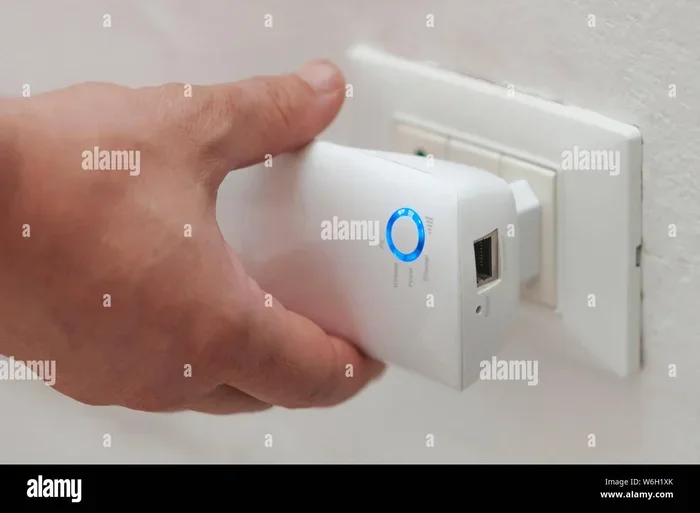
Plugging in a WiFi extender is truly plug-and-play. You find a wall outlet halfway between your router and the dead zone. You insert the extender. Wait for the light to turn solid. Then you press the WPS button on your router. The extender blinks and then stays solid. That’s it. Your WiFi extender is now working.
But here’s the catch. Just because it’s connected doesn’t mean it’s working well. The extender halves your bandwidth if it uses the same radio band. This is a common reason people think their speed dropped after plugging in. We’ll cover this in detail later.
What the Extender Actually Does
A WiFi extender does not create internet out of thin air. It simply repeats what your router sends. If your router has a weak signal in the back bedroom, the extender grabs that weak signal and rebroadcasts it. The result is a stronger signal in that room. But the extender can never be faster than the signal it receives.
This is why placement matters so much. If you plug the extender too far from the router, it has nothing good to repeat. It just spreads a weak signal further. You end up with a larger coverage area but slower speeds. The goal is to find the sweet spot where the extender gets a strong signal from the router and can then push that signal into the dead zone.
Where to Place Your WiFi Extender for Best Results
Placement is the single most important factor. A great extender in the wrong spot will do nothing. A mediocre extender in the perfect spot can work wonders. Here are the rules you need to follow.
The Golden Rule: Halfway Between Router and Dead Zone
Imagine a line from your router to the area with no signal. Place your WiFi extender roughly halfway along that line. It needs to be close enough to the router to get a strong signal. At the same time, it needs to be close enough to the dead zone to reach it.
If you place it too close to the router, it won’t help the dead zone. If you place it too far from the router, it won’t have a strong signal to rebroadcast. The sweet spot gives you the best of both worlds. You get full speed in the extended area.
Avoid These Placement Traps
- Don’t hide the extender behind furniture. Walls block signals.
- Don’t put it in a corner room. It needs to face the router.
- Avoid metal objects and microwaves. They cause interference.
- Don’t place it near a fish tank. Water absorbs WiFi signals.
A good rule of thumb is to keep the extender in the open. A table or shelf works well. You want line-of-sight to the router if possible.
Quick Tips for Perfect Placement
Here are three quick tips to get the best WiFi coverage:
- Use your phone to walk around with the router on. Find the edge of the good signal. That’s where the extender goes.
- Plug the extender into a power strip if the outlet is behind a bed. But keep the strip flat, not coiled.
- Test the signal after each move. Most extenders have a light that shows signal strength.
Take your time with this step. A few minutes of testing saves hours of frustration.
Does Plugging In a WiFi Extender Slow Your Speed?
This is the question everyone asks. The short answer is yes, but it depends. A WiFi extender cuts your speed because it uses the same radio to talk to the router and to your device. This is called a half-duplex bottleneck. The extender receives and sends on the same channel. It can’t do both at the same time. So it cuts the throughput roughly in half.
How Extenders Affect Bandwidth
Imagine a road that carries traffic in both directions. Now imagine a relay worker who has to carry messages back and forth. The worker can only carry one message at a time. That’s what a single-band extender does. It halves the road capacity.
A dual-band extender helps. It uses one band to talk to the router and another band to talk to your devices. This avoids the bottleneck. You still lose some speed, but not as much. Modern dual-band or tri-band extenders are much better for streaming and gaming.
Dual-Band vs. Single-Band Extenders
Single-band extenders only use the 2.4GHz band. They are cheap but slow. Dual-band extenders use both 2.4GHz and 5GHz. They cost more but deliver much better performance. If you have a fast internet plan, a dual-band extender is a must.
Here’s a quick comparison:
| Type | Best For | Speed Impact | Cost |
|---|---|---|---|
| Single-Band | Basic browsing | Up to 50% slower | Low |
| Dual-Band | Streaming & gaming | Up to 30% slower | Medium |
| Tri-Band | Large homes with many devices | Minimal loss | High |
The table shows why investing in a better extender pays off. You get more WiFi coverage without sacrificing too much speed.
Expert Insights
According to networking experts, the biggest factor is not the extender itself but the placement. A $50 extender placed correctly will outperform a $200 extender placed poorly. Take the time to find that sweet spot. It makes all the difference in your home network.
Step-by-Step Setup: Plugging In and Configuring
Now that you know where to put it, let’s set it up. The process is easy if you follow these steps.
What You Need Before You Start
- Your WiFi extender
- A wall outlet near the halfway point
- Your router’s name and password (if not using WPS)
- A smartphone or computer
Make sure your router is on and working. You’ll need a stable connection during setup.
The WPS Method (Fastest)
WPS stands for Wi-Fi Protected Setup. It lets you connect with the push of a button. Here’s how:
- Plug in the extender and wait for the power light to turn on.
- Press the WPS button on your router. The light will start blinking.
- Press the WPS button on the extender. The light blinks again.
- Wait 30 seconds. The light turns solid. That means it’s connected.
You’re done. Your extender now repeats your router’s network name and password. No app needed.
The Manual Setup (More Control)
If your router doesn’t have WPS, you can use the extender’s app or web interface. Plug in the extender. Connect your phone to the extender’s default network (usually named something like “Extender-Setup”). Open a browser and go to the setup page. Follow the prompts to find your home network and enter the password. This method gives you more control over the network name and channel.
Quick Tips: Getting the Most Out of Your Plug-In
- Always update the firmware after setup. This fixes bugs and improves performance.
- Change the default admin password to secure your extender.
- Restart the extender once a month to clear memory.
- If you have a dual-band extender, set the 5GHz band for close devices and 2.4GHz for farther ones.
These small steps make a big difference. They keep your home network running smoothly.
Common Mistakes People Make After Plugging In
Even with a perfect setup, people often make mistakes that ruin their experience. Here are the top errors to avoid.
Placing It Too Far From the Router
The biggest mistake is putting the extender in the dead zone itself. If the extender can’t hear the router well, it can’t repeat a strong signal. It just extends the weakness. You end up with a larger dead zone. Always check the signal strength light on the extender before finalizing placement.
Ignoring Firmware Updates
Manufacturers release updates that improve speed and security. A slow extender might just need a firmware update. Check the app or web interface regularly. This is an easy fix that many people overlook.
Using a Single-Band Extender on a Fast Connection
If you have gigabit internet, a cheap single-band extender will bottleneck your speed. You’ll never get the full speed. Invest in a dual-band or tri-band model if you pay for fast internet. This ensures your internet speed stays high.
Forgetting About Outdoor Coverage
Sometimes your dead zone is outside. A standard indoor extender may not reach your patio or garage. If you want to boost your signal outside, see our guide on how to boost your Wi-Fi signal outside. That article covers weatherproof options and placement tips for outdoor areas.
Another mistake is assuming all extenders work with any router. Compatibility matters. If you’re thinking about changing your entire setup, check whether you can change your Wi-Fi router without paying extra monthly fees. Some ISPs charge for router rentals. Buying your own can save money long-term.
Finally, many people don’t realize that mesh systems are a different beast. If you’re considering a mesh network, you might wonder if you can connect Wi-Fi 6 mesh to a Wi-Fi 5 router. Our guide on connecting Wi-Fi 6 mesh to a Wi-Fi 5 router explains compatibility and setup options.
When a WiFi Extender Isn’t the Answer
A WiFi extender solves some problems, but not all. If your home is very large or has thick walls, an extender might not cut it. In those cases, a mesh WiFi system works better. Mesh uses multiple nodes that talk to each other seamlessly. They create one big, unified network. You don’t have to switch between network names.
Mesh Systems vs. Extenders
Mesh systems are more expensive but far more reliable. They don’t cut speed as much because they use dedicated backhaul channels. A WiFi extender shares the same radio for backhaul and client traffic. Mesh keeps them separate. This is a big advantage for heavy users.
Upgrading Your Router Instead
Sometimes the real problem is an old router. If your router is more than five years old, a new one might solve your coverage issues. Modern routers have better antennas and smarter technology. They can cover a home better than an extender ever could. If you’re considering a change, check if you can change your Wi-Fi router to a newer model. Just make sure it’s compatible with your internet plan.
Comparison: Extender vs. Mesh vs. Router Upgrade
| Solution | Best For | Pros | Cons |
|---|---|---|---|
| WiFi Extender | Small dead zones | Cheap, easy to plug in | Halves speed, needs careful placement |
| Mesh WiFi System | Large homes, many devices | Seamless, fast, no speed loss | Expensive, overkill for small spaces |
| Router Upgrade | Old router, whole-home coverage | Better overall performance | Higher upfront cost |
This table helps you choose the right path. If you just have one or two weak spots, a WiFi extender is perfect. If your entire home needs better coverage, consider mesh or a new router.
Conclusion
So, do you just plug in a WiFi extender? Yes, you do. But you also need to think about placement, speed, and compatibility. A WiFi extender is a simple tool that can transform your WiFi coverage. Just remember to put it in the right spot, use a dual-band model for best results, and keep the firmware updated. With these steps, you’ll enjoy a stronger signal in every corner of your home.
If you run into issues, don’t panic. Check the tips above. And if your needs are bigger, explore mesh systems or a router upgrade. The goal is a fast, reliable connection everywhere you go. Now that you know the answer, you can plug in with confidence.
Frequently Asked Questions
Can I plug a WiFi extender into any outlet?
Yes, you can plug a WiFi extender into any standard wall outlet. However, you should avoid outlets near microwaves, refrigerators, or other heavy appliances. These create electrical noise that can interfere with the WiFi signal. A quiet outlet in a central location works best.
Do I need to buy a new router to use a WiFi extender?
No, you don’t need a new router. A WiFi extender works with your existing router. It simply repeats the signal your router already sends. Just make sure your router is compatible and turned on. The extender will connect to it automatically.
Will a WiFi extender work through walls?
Yes, but with limitations. WiFi signals weaken when they pass through thick walls, especially concrete or brick. A dual-band extender handles walls better than a single-band model. Placing the extender on the same side of the wall as the dead zone helps a lot.
How many WiFi extenders can I use in my home?
You can use up to two or three extenders on most home networks. Using more than that can cause confusion and slow speeds. Each extender adds a hop that reduces bandwidth. If you need more coverage, consider a mesh system instead.
Is it safe to leave a WiFi extender plugged in all the time?
Yes, it is perfectly safe. WiFi extenders use very little power, similar to a phone charger. You can leave them plugged in 24/7. Just restart the device once a month to clear its memory and keep it running smoothly.
Can I use a WiFi extender with my smart TV and gaming console?
Absolutely. A WiFi extender works with any device that connects to WiFi. Smart TVs, gaming consoles, and streaming sticks all benefit from a stronger signal. Just connect them to the extended network name or the same network if your extender uses the same SSID.