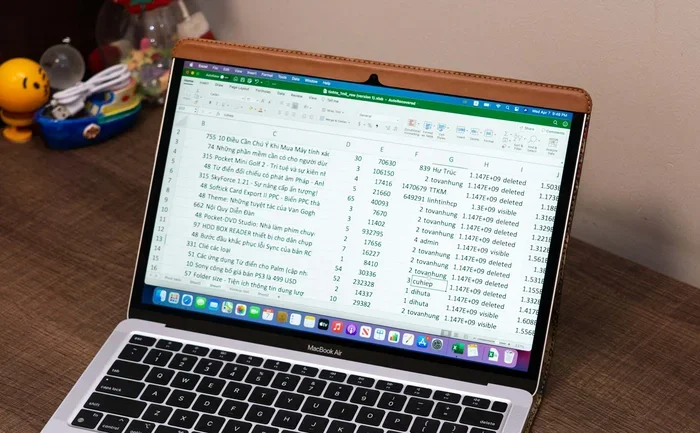
Can You Use Excel On A Mac Everything You Need To Know
Yes, you can absolutely use Excel on a Mac. Microsoft offers a full-featured version of Excel designed specifically for macOS, including support for Apple Silicon M1 and M2 chips. Whether you need Excel for Mac for work, school, or personal use, this guide covers setup, features, limitations, and expert tips to help you get the most out of your spreadsheet experience on a Mac.
If you are a Mac user who needs to work with spreadsheets, you have probably wondered whether Excel runs on a Mac. The short answer is yes. But the full story is more interesting than a simple yes or no. Whether you are a student, a business professional, or someone managing personal finances, knowing how to use Excel on your Mac opens up a world of possibilities.
In this guide, we will walk you through everything you need to know about using Excel on a Mac. We will cover how to get it, what it can do, where it falls short, and how to make the most of it. By the end, you will feel confident navigating Excel on your Mac like a pro.
Key Takeaways
- Excel Works on Mac: Microsoft provides a native Excel app for macOS with full functionality.
- Multiple Ways to Get It: You can download Excel from the Microsoft website, the Mac App Store, or subscribe to Microsoft 365.
- M1 and M2 Support: Modern Macs with Apple Silicon run Excel smoothly with great performance.
- Some Feature Gaps Exist: A few advanced Windows-only features are missing on the Mac version.
- Free Alternatives Available: If you don’t want to pay, Google Sheets and LibreOffice are solid options for Mac users.
- Keyboard Shortcuts Differ: Mac Excel uses Command keys instead of Ctrl, and there are unique Mac-specific shortcuts.
- File Compatibility Is Strong: Excel Mac files work seamlessly with Windows Excel and vice versa.
📑 Table of Contents
- Can You Use Excel On A Mac? The Short Answer
- How to Get Excel on Your Mac
- Excel for Mac Features You Will Love
- Excel Mac vs Excel Windows: What Is Different?
- System Requirements for Excel on Mac
- Common Mistakes Mac Users Make with Excel
- Expert Tips for Using Excel on Mac
- Free Alternatives to Excel for Mac Users
- Final Thoughts: Should You Use Excel on a Mac?
Can You Use Excel On A Mac? The Short Answer
The answer is a resounding yes. Microsoft Excel is fully available for Mac. You can download and install it on any compatible Mac running macOS. The Mac version of Excel is not a watered-down or limited edition. It is the real deal, built by Microsoft specifically for macOS.
Microsoft has invested heavily in making sure the Mac version of Excel matches the Windows experience. You get the same core features, the same file formats, and the same powerful tools. Whether you are creating budgets, analyzing data, or building complex financial models, Excel for Mac handles it all with ease.
However, there are a few differences you should know about. Some advanced features that exist on Windows do not have Mac equivalents. And the way you interact with the software can feel slightly different because of macOS conventions. But none of these differences are dealbreakers. For the vast majority of users, Excel on Mac works just as well as it does on Windows.
How to Get Excel on Your Mac
Getting Excel on your Mac is straightforward. There are several methods you can use depending on your needs and budget. Let us walk through each option so you can pick the one that works best for you.
Option 1: Subscribe to Microsoft 365
The most popular way to get Excel on Mac is through a Microsoft 365 subscription. This gives you access to Excel plus the entire Office suite, including Word, PowerPoint, and Outlook. You get regular updates, cloud storage with OneDrive, and support across multiple devices.
Microsoft 365 plans start at around $6.99 per month for personal use. This is a great option if you use multiple Microsoft apps regularly. The subscription also includes mobile apps for iPhone and iPad, so you can work on your spreadsheets anywhere.
Option 2: Buy Excel for Mac Standalone
If you do not want a subscription, you can purchase a standalone copy of Excel for Mac. This is a one-time payment. You own the license and can use it on a single Mac. However, standalone versions do not receive the same frequent updates as Microsoft 365.
Standalone Excel for Mac versions are available on the Microsoft website. Prices vary depending on the version. Keep in mind that standalone licenses may not include the latest features until you buy an upgrade.
Option 3: Download from the Mac App Store
You can also find Excel for Mac in the Mac App Store. This is often the easiest method for Mac users. Simply open the App Store, search for Excel, and click download. The App Store version integrates smoothly with macOS and updates automatically.
Note that the App Store version requires a Microsoft 365 subscription for full functionality. You cannot use it as a standalone purchase through the App Store. But if you already have a Microsoft 365 subscription, this is the most convenient way to install Excel on your Mac.
Option 4: Use Excel Online for Free
Did you know you can use Excel Online on your Mac for free? Excel Online is a web-based version of Excel that runs in your browser. It offers core spreadsheet functionality without any cost.
Excel Online works well for basic tasks. You can create spreadsheets, add formulas, and collaborate with others in real time. The downside is that you need an internet connection, and you do not get access to all the advanced desktop features. But for quick tasks or light spreadsheet work, Excel Online on Mac is a fantastic free option.
Excel for Mac Features You Will Love
Excel for Mac comes packed with features that make spreadsheet work efficient and enjoyable. Let us explore some of the standout capabilities that make the Mac version worth using.
Familiar Ribbon Interface
The Mac version of Excel uses the same ribbon interface as the Windows version. You will find all your tools organized into tabs at the top of the screen. Whether you need formatting options, chart tools, or formula functions, everything is right where you expect it.
The ribbon is customizable on Mac just like on Windows. You can add or remove tabs, create custom groups, and streamline your workspace. This means Excel Mac users can set up their environment to match their workflow perfectly.
Powerful Formulas and Functions
Excel Mac supports all the standard formulas and functions you rely on. SUM, AVERAGE, VLOOKUP, INDEX-MATCH, and even newer dynamic array functions are all available. You can build complex formulas to analyze data, automate calculations, and generate insights.
The formula bar works the same way on Mac as it does on Windows. You can click into any cell, type your formula, and see the results instantly. Mac users also benefit from AutoComplete suggestions when typing formulas, which speeds up your work significantly.
Charts and Data Visualization
Creating charts in Excel for Mac is simple and powerful. You can choose from dozens of chart types, including bar charts, line graphs, pie charts, scatter plots, and more. The chart customization options are extensive, allowing you to fine-tune every detail.
Mac users also get access to Sparklines, which are mini charts embedded directly within cells. These are perfect for quick visual summaries of data trends. You can also use conditional formatting to highlight key data points automatically, making your spreadsheets more readable and insightful.
Mac-Specific Keyboard Shortcuts
One thing that makes Excel on Mac unique is the keyboard shortcuts. Instead of using the Ctrl key like Windows users, Mac users rely on the Command key. For example, Ctrl+C on Windows becomes Command+C on Mac for copying cells.
Here are some essential Excel Mac shortcuts to get you started:
- Command+C to copy selected cells
- Command+V to paste into cells
- Command+Z to undo your last action
- Command+S to save your workbook
- Command+T to create a table from your data
- Command+Shift+L to toggle filters on and off
- Option+Command+L to open the Format Cells dialog
Learning these shortcuts will dramatically speed up your work. Once you get used to them, you will wonder how you ever managed without them.
Seamless iCloud Integration
If you use iCloud, Excel for Mac integrates beautifully with Apple’s cloud storage. You can save your workbooks directly to iCloud Drive and access them from your iPhone, iPad, or other Macs. This makes it easy to switch between devices without losing your progress.
The integration also means that Excel Mac files sync automatically whenever you make changes. You can start working on a spreadsheet on your Mac, continue on your iPad, and finish on your iPhone. The experience is smooth and consistent across all your Apple devices.
Excel Mac vs Excel Windows: What Is Different?
While Excel for Mac is incredibly capable, it is not identical to the Windows version. Understanding the differences helps you set the right expectations and avoid frustration. Let us compare the two versions side by side.
Feature Differences
Most of the core features are the same between Mac and Windows Excel. But there are a few notable gaps. Some advanced features available on Windows do not have Mac equivalents yet. Here is what you might miss on Mac:
- Some VBA macros: Not all Visual Basic for Applications features work on Mac
- Certain add-ins: Some third-party Excel add-ins are Windows-only
- Power Pivot: This advanced data modeling tool is not available on Mac
- Some chart types: A few specialized chart types are Windows-exclusive
- Sorting and filtering: Some advanced sorting options differ slightly
For most everyday users, these gaps do not matter. But if you rely on Power Pivot or specific VBA macros, you might find Excel Mac limiting. In those cases, you might consider using Excel through a virtual machine or Boot Camp.
Performance Comparison
Performance is where Excel on Mac really shines, especially on newer machines. Apple Silicon Macs with M1, M2, and M3 chips handle Excel with impressive speed. The native optimization means Excel feels fast and responsive on Mac.
On older Intel Macs, Excel still performs well for most tasks. You might notice slightly slower rendering on very large spreadsheets with thousands of formulas. But for typical business and personal use, performance is not a concern on any modern Mac.
Here is a quick comparison of Excel performance across platforms:
| Feature | Excel Mac | Excel Windows |
|---|---|---|
| Native Apple Silicon Support | Yes | N/A |
| Core Feature Set | Full | Full |
| VBA Compatibility | Most features | Full |
| Power Pivot | Not available | Available |
| File Compatibility | Full | Full |
| Performance on M1/M2 Macs | Excellent | N/A |
| Third-Party Add-ins | Limited | Full |
User Interface Differences
The user interface on Excel Mac follows macOS design conventions. You will notice the menu bar sits at the top of the screen rather than inside the Excel window, just like other Mac apps. The toolbar and ribbon look nearly identical to the Windows version, but some icons and button placements differ slightly.
Mac users also get native support for Touch Bar on compatible MacBook Pro models. You can customize the Touch Bar to include your most-used Excel commands for quick access. This is a nice touch that Windows users do not get.
System Requirements for Excel on Mac
Before you download and install Excel on your Mac, make sure your system meets the requirements. Here is what you need:
- macOS 14 or later (Sonoma or newer recommended)
- 4 GB of RAM minimum (8 GB or more recommended)
- 4 GB of available disk space
- A Microsoft account for Microsoft 365 users
- Internet connection for installation and activation
For the best experience on Apple Silicon Macs, make sure you are running the latest version of macOS. Excel is fully optimized for M1, M2, and M3 chips, so you will get excellent performance and battery life.
If you are using an older Intel Mac, Excel still works but you should update to the latest supported macOS version for the best compatibility and security.
Common Mistakes Mac Users Make with Excel
Even experienced Mac users sometimes stumble when working with Excel. Here are common mistakes to avoid so you can get the most out of your spreadsheet experience.
Forgetting to Save to iCloud or OneDrive
One of the biggest mistakes is not saving your workbooks to the cloud. If your Mac crashes or you lose your file, you could lose hours of work. Always save important Excel files to iCloud Drive or OneDrive for automatic backups and access across devices.
Using Windows Shortcuts by Habit
Mac users who also use Windows PCs sometimes accidentally press Ctrl instead of Command. This can cause frustration when shortcuts do not work. Take a few minutes to learn the Mac-specific shortcuts and build muscle memory. Your workflow will be much smoother.
Ignoring Mac-Specific File Formats
While Excel files are generally cross-platform, sometimes Mac Excel saves files in formats that Windows Excel does not recognize perfectly. Always double-check your file format before sharing with Windows users. The .xlsx format works universally, so stick with that when sharing files between platforms.
Not Exploring Excel for Mac Templates
Many Mac users jump straight into creating spreadsheets from scratch. But Excel for Mac offers a library of ready-made templates for budgets, invoices, calendars, and more. Using templates saves time and ensures your spreadsheets look professional from the start.
Expert Tips for Using Excel on Mac
Want to get even better at using Excel on your Mac? Here are some expert tips that will level up your skills.
Use Excel Templates to Save Time
Instead of building spreadsheets from scratch, browse the template gallery in Excel for Mac. There are templates for every common use case. Whether you need a monthly budget tracker, a project timeline, or a data analysis dashboard, there is a template ready for you.
To access templates, open Excel and click File, then New. You will see dozens of options. Pick one that fits your needs, customize it, and you are good to go. This is one of the fastest ways to become productive with Excel Mac.
Leverage Mac Keyboard Shortcuts for Speed
Mac users have access to powerful system-wide shortcuts that work inside Excel. For example, Command+Space opens Spotlight search, which you can use to quickly find and open Excel files. Command+Tab lets you switch between apps without leaving your keyboard.
Combining Mac system shortcuts with Excel-specific shortcuts creates a super-efficient workflow. You will spend less time navigating menus and more time focusing on your data.
Keep Your Excel App Updated
Microsoft releases regular updates for Excel for Mac that add new features, fix bugs, and improve performance. Make sure automatic updates are turned on in your Microsoft 365 settings. This ensures you always have the latest and best version of Excel.
You can check for updates manually by opening Excel, clicking on the Account tab, and selecting Update Options. Keeping Excel updated also ensures compatibility with the latest macOS versions and security patches.
Explore Third-Party Add-ins Carefully
While Excel Mac has fewer add-ins than Windows, there are still some great options. Before installing any add-in, check that it is compatible with the Mac version. Some popular add-ins that work on Mac include data analysis tools, chart enhancers, and productivity boosters.
Always download add-ins from trusted sources. The Microsoft AppSource store is a safe place to find verified add-ins that work with Excel for Mac.
Free Alternatives to Excel for Mac Users
If you do not want to pay for Excel or need a quick spreadsheet solution, there are excellent free alternatives for Mac users. Let us look at the best options.
Google Sheets
Google Sheets is the most popular free alternative to Excel. It runs in your web browser and offers solid spreadsheet functionality. You can create, edit, and share spreadsheets from your Mac without installing anything. Google Sheets also supports real-time collaboration, making it ideal for team projects.
The main limitation of Google Sheets is that it requires an internet connection for full functionality. However, you can enable offline mode to work without the web. For most everyday spreadsheet tasks, Google Sheets is more than sufficient.
LibreOffice Calc
LibreOffice Calc is a free, open-source spreadsheet application that works on Mac. It is part of the LibreOffice suite, which includes word processing, presentation, and other productivity tools. Calc supports Excel file formats and offers most of the standard spreadsheet features.
LibreOffice Calc is a great choice if you want a fully offline spreadsheet solution. It does not require an internet connection or a subscription. The interface is slightly different from Excel, but the learning curve is manageable for most users.
Apple Numbers
Apple has its own spreadsheet app called Numbers, which comes free with every Mac. Numbers is designed specifically for macOS and looks beautiful. It is simpler than Excel but perfect for creating clean, visually appealing spreadsheets.
If you primarily need spreadsheets for personal use, budgeting, or simple data tracking, Numbers might be all you need. It also integrates seamlessly with other Apple apps like Pages and Keynote.
Final Thoughts: Should You Use Excel on a Mac?
So, can you use Excel on a Mac? Absolutely. Excel for Mac is a powerful, full-featured spreadsheet application that handles everything from simple budgets to complex data analysis. It works beautifully on modern Macs, especially those with Apple Silicon chips. The setup process is simple, and the app integrates well with macOS and iCloud.
While there are a few feature gaps compared to the Windows version, most users will never notice them. The core Excel experience is the same on both platforms. If you rely heavily on Power Pivot, specific VBA macros, or niche add-ins, you might want to consider alternatives or workarounds. But for the vast majority of spreadsheet tasks, Excel on Mac delivers an excellent experience.
Whether you choose the Microsoft 365 subscription, a standalone purchase, or the free Excel Online option, you have everything you need to succeed with spreadsheets on your Mac. The key is to explore the features, learn the Mac-specific shortcuts, and make the tool work for you.
Now that you know everything about using Excel on your Mac, it is time to open the app and start creating. Your next great spreadsheet is just a few clicks away.
Frequently Asked Questions
Is Excel free on Mac?
Excel is not completely free on Mac, but you can use Excel Online for free through your web browser. This gives you core spreadsheet functionality at no cost. For the full desktop app, you need a Microsoft 365 subscription or a one-time purchase of a standalone license.
Does Excel for Mac work the same as Excel for Windows?
Mostly yes. The core features, formulas, and file formats are the same. However, some advanced features like Power Pivot and certain VBA macros are not available on Mac. For everyday spreadsheet work, the experience is nearly identical between the two platforms.
Can I open Excel files on Mac that were created on Windows?
Yes, absolutely. Excel Mac fully supports files created on Windows and vice versa. The .xlsx and .xls formats work seamlessly across both platforms. You can share files between Mac and Windows users without any compatibility issues.
Can I use Excel on my Mac with an M1 or M2 chip?
Yes, Excel is fully optimized for Apple Silicon Macs with M1, M2, and M3 chips. The app runs natively on these processors, delivering excellent performance and battery life. You do not need any special settings or workarounds to run Excel on these Macs.
How do I install Excel on my Mac?
You can install Excel on your Mac through the Mac App Store, the Microsoft website, or the Microsoft 365 installer. If you have a Microsoft 365 subscription, sign in to your account, download the Office installer, and follow the setup prompts. The process takes just a few minutes.
Are there keyboard shortcuts for Excel that are different on Mac?
Yes, Mac Excel uses Command keys instead of Ctrl keys for most shortcuts. For example, Command+C copies cells instead of Ctrl+C. There are also Mac-specific shortcuts like Command+T for creating tables. Learning these shortcuts will make your Excel workflow much faster on Mac.
=== CONCLUSION ===
Can you use Excel on a Mac? Yes, and it works great. Excel for Mac offers a robust, feature-rich spreadsheet experience that handles everything from basic data entry to advanced analysis. Whether you download it through Microsoft 365, the Mac App Store, or use the free Excel Online version, you have powerful tools at your fingertips.
The Mac version of Excel is optimized for Apple Silicon, integrates with iCloud, and supports all the standard features most users need. While there are a few differences from the Windows version, they rarely impact everyday use. With the tips and insights from this guide, you are now equipped to make the most of Excel on your Mac. Start exploring, experimenting, and building spreadsheets that get the job done.