Does Cox Use My Router As A Hotspot Here Is What To Know
Does Cox use your router as a hotspot? Yes, Cox activates a public hotspot feature on Panoramic WiFi routers by default. This means strangers can connect to your network, which may slow your speed and raise privacy concerns. You can turn it off through your router settings or by contacting Cox support.
If you have a Cox internet plan, there is a good chance your router is doing more than just giving you WiFi. Cox uses its Panoramic WiFi routers to create a public network that other people can use. This is called a hotspot, and it is turned on by default.
So, does Cox use your router as a hotspot? The short answer is yes. But there is a lot more to know. This article breaks down how the hotspot works, why Cox does it, and what you can do about it.
Many customers feel surprised when they learn their router is broadcasting a public signal. You might notice slower speeds or see unknown devices on your network. Understanding this feature helps you take back control of your home network.
Key Takeaways
- Cox activates a public hotspot on most Panoramic WiFi routers without asking customers first.
- The hotspot feature lets other people connect to a separate network using your router.
- You can disable the hotspot by logging into your router admin panel or calling Cox.
- Using your own router gives you full control over hotspot settings and network security.
- Turning off the hotspot can improve your home network speed and privacy.
- Check your router model because not all Cox routers support the same hotspot features.
📑 Table of Contents
What Is the Cox Hotspot Feature?
Cox uses a feature called Cox Hotspot or WiFi Hotspot on its provided routers. When this feature is active, your router creates two networks. One is your private home network. The other is a public network that anyone nearby can see and join.
The public network uses the same router but keeps your personal data separate. Cox does this to build a large WiFi network across neighborhoods. Customers who travel can connect to these hotspots for free.
How Does It Work?
Your Cox router broadcasts two signals at the same time. Your private network uses your WiFi password. The public hotspot uses a separate name and login. Cox manages the public network from their end.
When someone connects to your router’s public hotspot, they get internet access. But they do not see your personal devices or files. Cox uses special technology to keep the two networks isolated from each other.
Which Routers Support This Feature?
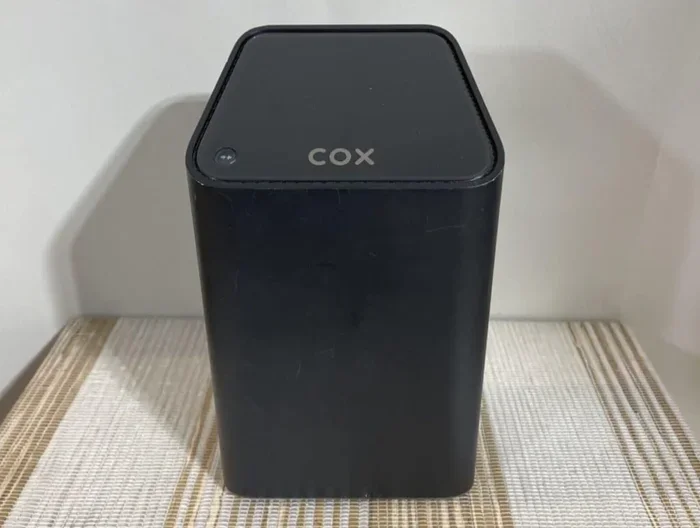
Most Cox Panoramic WiFi routers support the hotspot feature. This includes models like the TC8305C, CGM4140COM, and similar devices Cox provides to customers. If you are not sure which model you have, you can check the label on the back of your router.
If you want more control over your equipment, you might want to can I buy my own router for internet instead of using the Cox-provided unit. Buying your own router gives you full power over all settings, including hotspot options.
Why Does Cox Enable Hotspots by Default?
Cox has a big reason for turning on the hotspot feature automatically. It helps them build a nationwide WiFi footprint. The more customers who have hotspot-enabled routers, the bigger the network becomes.
This benefits Cox in several ways:
- Customer retention: People like having free WiFi when they travel.
- Marketing advantage: Cox can advertise a large WiFi network to attract new customers.
- Infrastructure cost: They do not need to build separate public WiFi hotspots everywhere.
- Revenue sharing: Some plans may include hotspot access as a selling point.
However, this setup does not always benefit the customer. Many people do not want strangers using their router. It can lead to slower speeds and potential security concerns.
Does Using the Hotspot Slow Down Your Internet?
Yes, it can. When someone connects to your router’s public hotspot, they share your internet bandwidth. If many people use the hotspot at once, your home network may slow down.
Here are some things to watch for:
- Videos buffering more than usual
- Slow download speeds during peak hours
- Lag when gaming or video calling
- Multiple devices disconnecting randomly
The impact depends on your internet plan speed and how many people use the hotspot. A 100 Mbps plan handles a few extra users fine. But a 25 Mbps plan might struggle with just one additional heavy user.
How to Check if the Hotspot Is Active
You can check if your router’s hotspot is on by following these steps:
- Open a WiFi settings page on your phone or computer.
- Look for a network name that includes “Cox” or “Hotspot” in the title.
- If you see this network, the hotspot feature is active.
You can also log into your router admin panel. Go to 10.0.0.1 in your browser. Enter your admin username and password. Look for a section called “Hotspot” or “Guest Network.”
If you want more control over your network setup, you might explore can I change my wi-fi router settings to customize how your router broadcasts and manages connections.
How to Disable the Cox Hotspot
Good news. You can turn off the hotspot feature. You have two main options. You can do it yourself through the router settings, or you can call Cox customer support.
Method 1: Disable Through Router Settings
Follow these steps to turn off the hotspot on your own:
- Open a web browser on a device connected to your Cox network.
- Type 10.0.0.1 in the address bar and press Enter.
- Log in with your admin username and password. These are often printed on the router label.
- Find the “Hotspot” or “WiFi Hotspot” section in the menu.
- Toggle the hotspot setting to “Off” or “Disabled.”
- Save your changes and restart the router.
Once you disable the hotspot, your router will only broadcast your private network. No one else will be able to connect through the public signal.
Method 2: Call Cox Customer Support
If you do not want to navigate the router settings, you can call Cox. Tell them you want to disable the hotspot feature on your account. They can make the change from their end.
Have your account number and router information ready. The call should only take a few minutes. Some customers prefer this method because it is simple and does not require any technical steps.
Method 3: Use the Cox Panoramic WiFi App
Cox offers a mobile app for managing your Panoramic WiFi router. You can use the app to:
- Check connected devices
- Manage hotspot settings
- Restart your router remotely
- Run speed tests
Download the Cox Panoramic WiFi app from your app store. Log in with your Cox account credentials. Navigate to the hotspot settings and turn them off.
Is It Safe to Leave the Hotspot On?
Cox says the public hotspot is safe and separate from your private network. They use technology to keep the two networks isolated. Your personal data and files should stay protected.
However, some experts have raised concerns. Here are a few things to consider:
- Security risks: Any public network can be a target for hackers.
- Privacy concerns: Your router’s IP address is shared with hotspot users.
- Liability issues: If someone does something illegal through your hotspot, it could be traced back to you.
- Performance impact: More connected devices mean slower speeds for you.
If you are worried about these risks, turning off the hotspot is the safest choice. You can always turn it back on later if you change your mind.
What If You Want More Control Over Your Network?
Some customers want full control over every aspect of their network. If this sounds like you, there are options beyond the Cox-provided router.
One popular choice is to purchase your own router. When you use your own equipment, you decide which features to enable or disable. You also get access to advanced settings that Cox routers may not offer.
Before you buy a new router, make sure it is compatible with Cox internet. Cox supports many popular brands like Netgear, ASUS, and TP-Link. You can also can i get a modem from cox if you want to keep the modem but swap out the router portion.
Using your own router also means you do not need to worry about Cox enabling features you do not want. You own the hardware, so you own the settings.
Benefits of Using Your Own Router
- Full control over all WiFi settings
- Better performance in many cases
- No rental fee for Cox equipment
- More advanced security features
- Ability to update firmware whenever you want
Things to Keep in Mind
- You may lose access to Cox support for equipment issues
- Setup may require some technical knowledge
- Make sure the modem is compatible with Cox’s network
- You will need to return the Cox router to avoid rental fees
Common Myths About Cox Hotspots
There are several myths floating around about the Cox hotspot feature. Let us clear up some of the most common ones.
Myth 1: Hotspot users can access my personal files. This is not true. Cox separates the public hotspot from your private network. Other users cannot see your computers, phones, or stored files.
Myth 2: Leaving the hotspot on will get me in trouble with my ISP. Cox enables this feature on purpose. It is part of their service. You are not breaking any rules by having it active.
Myth 3: I need a special router to disable the hotspot. You do not need a new router. You can disable the hotspot on any Cox Panoramic WiFi router through the settings or by calling support.
Myth 4: The hotspot uses my data cap. Cox hotspot data is separate from your home data usage. The data used by hotspot connections does not count against your monthly data cap.
Myth 5: Everyone in my neighborhood is using my hotspot. While some neighbors may connect, the number of users depends on how many Cox customers are nearby and how strong your signal is.
Final Thoughts
Does Cox use your router as a hotspot? Yes, they do. It is on by default for most Cox Panoramic WiFi customers. The feature lets other people connect to a public network through your router.
This can slow down your internet and raise privacy concerns. But you have options. You can disable the hotspot through your router settings, the Cox app, or by calling customer support.
If you want even more control, consider buying your own router. This puts all the power in your hands. You decide what features to use and what to turn off.
Take a few minutes today to check your router settings. It is a simple step that can improve your network speed and protect your privacy. Your home WiFi should work the way you want it to.
Frequently Asked Questions
Can I use my Cox router without the hotspot feature?
Yes, you can. You just need to turn off the hotspot setting in your router admin panel or through the Cox app. Once disabled, your router will only broadcast your private home network.
Will disabling the hotspot affect my internet speed?
Yes, it can help. With the hotspot turned off, all your bandwidth goes to your own devices. You may notice faster speeds, especially during peak usage hours when many people are online.
Do I need to return my Cox router if I buy my own?
Yes, you should return the Cox router to avoid monthly rental fees. Contact Cox customer support to get a return label. Keep your own router setup until the return is confirmed.
Is it legal for Cox to enable a hotspot on my router?
Yes, it is legal. When you sign up for Cox internet, your agreement includes the hotspot feature. Cox uses these networks to build a larger public WiFi footprint for their customers.
Can I limit how many devices can connect to my hotspot?
Some Cox router models let you set a device limit for the hotspot. You can find this option in the router admin panel under hotspot settings. If your model does not support this, disabling the hotspot is the best way to control access.
What happens if I forget my router admin password?
You can reset your router to factory settings by pressing the small reset button on the back. This will restore the default login credentials, which are usually printed on a label on the router. Keep in mind that a reset will erase all custom settings.
=== CONCLUSION ===
Does Cox use your router as a hotspot? The answer is a clear yes. Cox activates this feature on most Panoramic WiFi routers to build a larger public network. While it has benefits for travelers and Cox as a company, it can impact your home network speed and privacy.
The good news is that you are not stuck with it. You can disable the hotspot in minutes through your router settings, the Cox app, or by calling customer support. And if you want full control, buying your own router is a great long-term solution.
Take charge of your home network today. A few simple changes can make a big difference in how fast and secure your WiFi experience is.