Do You Really Need A Router With Cox Panoramic Modem
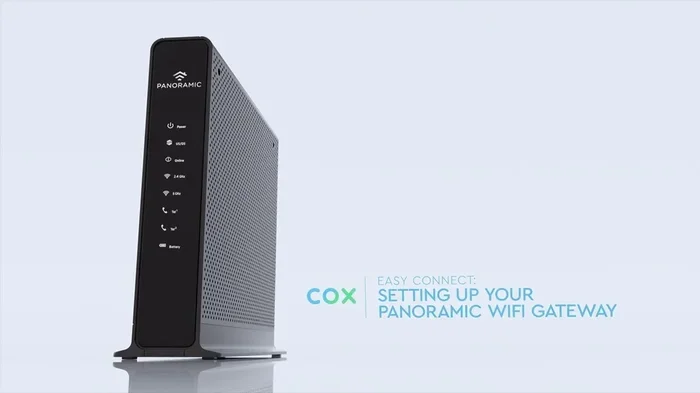
The Cox Panoramic modem comes with a built-in router, so you may not need a separate device. However, if you have a larger home or need better Wi-Fi coverage, adding your own router can make a big difference. This guide breaks down exactly when you need an extra router and when the Cox Panoramic gateway is all you need.
If you just signed up for Cox internet, you probably got a Panoramic modem in the mail. It looks like one sleek device, and it works right out of the box. But here is the question that keeps popping up: do you really need a separate router with it?
The short answer is: it depends. The Cox Panoramic modem acts as a gateway device, meaning it combines the modem and the router into one unit. For many people, that is all they need. But if you live in a bigger house or want better Wi-Fi coverage, a separate router can change everything.
In this article, we will walk through everything you need to know. We will cover how the Cox Panoramic modem works, when you need a separate router, and how to set things up the right way. By the end, you will know exactly what to do for your home.
Key Takeaways
- The Cox Panoramic modem has a built-in router: It handles both modem and router functions in one device.
- You may not need a separate router: If you live in a small to medium home, the built-in Wi-Fi is often enough.
- Large homes benefit from a separate router: Better Wi-Fi coverage and faster internet speeds in every room.
- You can buy your own router and save money: Check if you can buy a Wi-Fi router and not pay monthly to Cox.
- Mesh networks are a great upgrade: They extend wireless router coverage across bigger spaces.
- Check your internet plan: Your download speed and upload speed matter when deciding on extra equipment.
- Setup is simple: You can connect a separate router to the Cox gateway in just a few steps.
📑 Table of Contents
- What Is the Cox Panoramic Modem?
- Do You Really Need a Separate Router?
- Router vs Modem: Understanding the Difference
- Benefits of Using Your Own Router with Cox
- How to Set Up a Separate Router with Cox Panoramic
- Common Mistakes to Avoid
- Expert Insights
- How to Know If Your Current Setup Is Working
- Can You Use Cox Internet Without Any Router?
- Final Thoughts
What Is the Cox Panoramic Modem?
The Cox Panoramic modem is a gateway device made by Motorola. It serves two jobs at once. First, it connects your home to the Cox internet network. Second, it broadcasts a Wi-Fi signal so your devices can go online without wires.
This is different from older setups where you needed a modem and a wireless router as two separate boxes. The Panoramic modem packs both into one compact unit. That makes it easy to set up and saves space.
How Does It Work?
The modem part connects to Cox’s network through a coaxial cable or fiber line. The router part inside the same device sends out the Wi-Fi signal to your phones, laptops, smart TVs, and other gadgets.
It supports Wi-Fi 6 technology, which is the latest standard. This means faster internet speeds, better handling of multiple devices, and lower latency. For most families, this built-in setup works really well.
What You Get With the Panoramic Gateway
- Built-in modem: Connects directly to Cox’s network.
- Built-in router: Broadcasts Wi-Fi throughout your home.
- Dual-band support: Uses both 2.4 GHz and 5 GHz bands.
- Wi-Fi 6: The newest wireless standard for better performance.
- Easy setup: Plug it in, follow the prompts, and you are online.
So yes, the Cox Panoramic modem gives you a lot. But does it replace a separate router entirely? That is where things get interesting.
Do You Really Need a Separate Router?
This is the big question. The truth is, not everyone needs a second router. It all comes down to your home size, the number of devices you use, and what you expect from your internet connection.
When the Built-In Router Is Enough
If you live in a small apartment or a medium-sized home, the Panoramic modem’s built-in router will likely cover everything just fine. You do not need to buy extra equipment. The Wi-Fi signal reaches every room, and your devices connect without any problems.
Also, if you only have a few devices online at the same time, the built-in router handles that easily. Streaming a movie, browsing the web, or checking email — the Cox gateway handles it all.
And if you want to keep things simple, sticking with the built-in router is the easiest path. No extra cables, no extra setup, and no extra monthly bill.
When You Should Add a Separate Router
Now, if your home is larger — say, over 2,000 square feet — the built-in router might struggle. Wi-Fi walls and distance can weaken the signal. You might notice slow speeds in the bedroom or dead zones in the backyard.
In these cases, adding a wireless router makes a huge difference. A better router sends out a stronger signal and covers more area. Your download speed stays fast even far from the modem.
Also, if you have many smart home devices, game consoles, and streaming boxes all going at once, a separate router handles the load better. The built-in router can get overwhelmed with too many connections.
Another reason to add a router is if you want advanced features. Things like parental controls, guest networks, and better security settings often work better with a dedicated router.
Router vs Modem: Understanding the Difference
Many people confuse the modem and the router. They are not the same thing, even though the Cox Panoramic combines them. Let us break it down simply.
| Feature | Modem | Router |
|---|---|---|
| Main Job | Connects to your ISP | Shares the connection with your devices |
| Wired Connection | Yes, through coaxial or fiber | Yes, through Ethernet cables |
| Wi-Fi Signal | No (unless built-in) | Yes |
| Device Management | No | Yes, assigns IP addresses |
| Security | Basic | Firewall, parental controls |
The modem brings the internet into your home. The router spreads it around. When you have a gateway device like the Cox Panoramic, both jobs happen in one box. But a separate router does the spreading job better in many cases.
If you want to learn more about how modems and routers work together, you might enjoy reading about getting internet in your home without a phone line. It covers similar setup concepts.
Benefits of Using Your Own Router with Cox
Even though the Panoramic modem works well on its own, many people choose to add their own router. Here is why that can be a smart move.
Better Wi-Fi Coverage
A dedicated router often has stronger antennas and more processing power. It sends a cleaner Wi-Fi signal to every corner of your home. No more buffering in the back bedroom or the garage.
Faster Speeds
The built-in router in the Panoramic modem is good, but it is not the fastest router on the market. A separate Wi-Fi 6 or Wi-Fi 6E router can push your internet speeds higher. You get more out of your Cox internet plan.
More Control and Features
Your own router gives you access to better settings. You can set up a guest network for visitors. You can prioritize certain devices for gaming or streaming. You get more control over your home network.
Save Money in the Long Run
Cox charges a monthly fee for the Panoramic gateway. If you buy your own router, you can drop that fee. You might even be able to buy a Wi-Fi router and not pay monthly to Cox, saving you money over time.
Future-Proof Your Setup
Technology moves fast. A good router today will handle tomorrow’s internet speeds and devices. The built-in router in the Panoramic modem may not keep up as internet plans get faster.
How to Set Up a Separate Router with Cox Panoramic
If you decide to add your own router, the setup is pretty straightforward. You do not need to be a tech expert. Here is how to do it step by step.
Step 1: Choose the Right Router
Pick a router that matches your needs. For a small home, a standard wireless router works fine. For a larger home, consider a mesh Wi-Fi system. You can even connect Wi-Fi 6 mesh to a Wi-Fi 5 router for better coverage across different bands.
Step 2: Connect the Router to the Panoramic Modem
Use an Ethernet cable. Plug one end into the LAN port on the Cox Panoramic modem. Plug the other end into the WAN port on your new router. That is it for the physical connection.
Step 3: Configure the New Router
Open a browser and go to your new router’s setup page. Follow the on-screen instructions to set your Wi-Fi name and password. Make sure to use a different name from the Panoramic’s default network if you want to run both at the same time.
Step 4: Test Your Connection
Walk around your home and check the Wi-Fi signal in different rooms. Run a speed test to make sure your upload speed and download speed are where they should be. If everything looks good, you are all set.
Common Mistakes to Avoid
Setting up a router with the Cox Panoramic modem is easy, but people do make mistakes. Here are a few to watch out for.
- Using a bad Ethernet cable: A low-quality cable can slow down your connection. Use a Cat6 or Cat6a cable for the best results.
- Placing the router in a bad spot: Keep it in a central location, away from walls and metal objects. This improves Wi-Fi coverage significantly.
- Not changing default settings: Always change the default admin password and Wi-Fi name. This keeps your home network secure.
- Forgetting to bridge the Panoramic modem: If you are using your own router, you may need to put the Panoramic into bridge mode. This prevents double NAT issues that slow things down.
- Ignoring firmware updates: Keep your router’s firmware updated for the best network performance and security.
Expert Insights
Many networking experts agree that the Cox Panoramic modem is a solid all-in-one device for basic needs. However, they also point out that serious internet users benefit from a dedicated router.
“The built-in router in the Panoramic gateway handles everyday tasks well,” says tech reviewer Mark Foster. “But if you are streaming 4K content in multiple rooms or running a smart home with dozens of devices, a separate router gives you the headroom you need.”
The key is knowing your own usage. If you just browse and stream casually, the built-in setup is fine. If you push your network hard, invest in a better router.
How to Know If Your Current Setup Is Working
Not sure if your current setup is good enough? Run a few simple checks.
- Speed test: Go to a speed test site and check your download speed and upload speed. Compare the results to your Cox internet plan.
- Walk test: Walk around your home with your phone and check the Wi-Fi signal strength in each room.
- Device count: Count how many devices are connected at once. If you have more than 15-20, a separate router helps.
- Buffering check: Do you notice buffering when streaming? That is a sign your Wi-Fi coverage needs improvement.
If your speed tests show good results everywhere and you have no buffering, stick with the built-in router. If not, it is time to consider an upgrade.
Can You Use Cox Internet Without Any Router?
Technically, yes. You can connect a device directly to the Panoramic modem using an Ethernet cable. This gives you a wired Ethernet connection with no Wi-Fi at all.
But this is not practical for most homes. You would need to run cables to every device, which is messy and inconvenient. The Wi-Fi signal from the built-in router — or a separate one — is much more convenient.
If you want to explore other internet setup options, check out this guide on getting internet without a phone line for more ideas.
Final Thoughts
The Cox Panoramic modem is a great device that handles both modem and router duties well. For many households, it is all you need. The built-in Wi-Fi coverage is solid, and the setup is a breeze.
However, if you have a larger home, many connected devices, or high-speed internet needs, adding a separate wireless router can make a real difference. You get better speeds, stronger signals, and more control over your home network.
The best part is that you have options. You can rent equipment from Cox, buy your own, or even set up a mesh network for full-home coverage. Whatever you choose, make sure it fits your budget and your needs.
Take a look at your home, test your current setup, and decide what makes sense for you. The right equipment makes all the difference in how you experience the internet every day.
Frequently Asked Questions
Can I use my own router with the Cox Panoramic modem?
Yes, you can. Just connect your router to the Panoramic modem using an Ethernet cable. You may need to put the Panoramic into bridge mode to avoid conflicts. This setup gives you better Wi-Fi coverage and faster speeds.
Does the Cox Panoramic modem have a built-in router?
Yes, it does. The Panoramic modem is a gateway device that combines both the modem and the router in one unit. It handles internet connection and wireless router functions without needing extra equipment.
Will adding a separate router improve my internet speed?
It can. A better router sends out a stronger Wi-Fi signal and handles more devices without slowing down. Your download speed and upload speed may improve, especially in areas far from the modem.
How much does it cost to rent the Cox Panoramic modem?
Cox typically charges around $15 to $25 per month for the Panoramic gateway. Over time, buying your own router can save you a significant amount of money on these monthly fees.
What is bridge mode on the Cox Panoramic modem?
Bridge mode turns off the built-in router and lets the modem pass the internet signal directly to your separate router. This prevents double NAT issues and improves your network performance.
Do I need a mesh network if I already have the Cox Panoramic?
You only need a mesh network if your home is large or has many dead zones. The built-in router in the Panoramic works fine for small to medium homes. But for bigger spaces, a mesh Wi-Fi system gives you complete coverage.