Key Advantages Of Disk Cleanup To Free Up Space Fast
Disk cleanup is one of the simplest and most effective ways to reclaim wasted space on your computer. By removing temporary files, emptying the recycle bin, and clearing system caches, you can free up space fast and improve overall performance. Regular disk maintenance keeps your PC running smoothly and prevents slowdowns caused by cluttered storage.
Your computer slows down for no obvious reason. Apps take forever to open. Error messages pop up randomly. You might think you need a new machine. But the real problem could be simpler than that. Your hard drive might just be full. And that is where disk cleanup comes in.
Disk cleanup is one of the most underrated tools for keeping a PC healthy. It scans your system for files you no longer need. Then it removes them safely. The result? More free storage space, faster performance, and fewer headaches. In this article, we will explore every major advantage of disk cleanup. You will learn why this simple habit can transform how your computer works every single day.
Most people ignore their storage until something breaks. By then, the damage is already done. A cluttered hard drive causes slow boot times, freezing apps, and even system crashes. But you can prevent all of that. A regular cleanup routine takes just minutes. The payoff is huge. Let us dive into the specific benefits and see why disk cleanup deserves a spot in your weekly routine.
Key Takeaways
- Frees Up Valuable Storage: Disk cleanup removes junk files that eat up gigabytes of space without you even knowing.
- Boosts Computer Speed: A cleaner hard drive means faster boot times, quicker app launches, and smoother multitasking.
- Improves System Stability: Removing outdated and corrupted files reduces crashes and errors.
- Saves Money Long-Term: Freeing space delays or eliminates the need to buy new storage hardware.
- Enhances Privacy: Clearing temporary and cache files removes traces of your online activity.
- Easy and Free: Built-in tools make disk cleanup accessible to every user without cost.
- Supports Regular Maintenance: Routine cleanup keeps your system healthy over time.
📑 Table of Contents
- What Exactly Is Disk Cleanup and Why Does It Matter?
- Advantage 1: Frees Up Significant Storage Space Fast
- Advantage 2: Boosts Computer Speed and Performance
- Advantage 3: Improves System Stability and Reduces Errors
- Advantage 4: Enhances Privacy and Security
- Advantage 5: Saves Money and Extends Hardware Life
- Advantage 6: Makes System Updates and New Installations Easier
- Common Mistakes People Make with Disk Cleanup
- Expert Insights on Long-Term Storage Health
- How to Get Started with Disk Cleanup Today
What Exactly Is Disk Cleanup and Why Does It Matter?
Before we look at the benefits, let us understand what disk cleanup actually does. It is a built-in tool in Windows that scans your system for unnecessary files. These include temporary internet files, old system logs, and cached data. It also clears out items in your recycle bin and removes unused Windows components.
The tool targets files that your operating system no longer needs. Think of it like spring cleaning for your computer. Over time, every file you download, every website you visit, and every app you install leaves behind traces. These traces pile up fast. Without regular cleanup, they can eat up hundreds of gigabytes of valuable space.
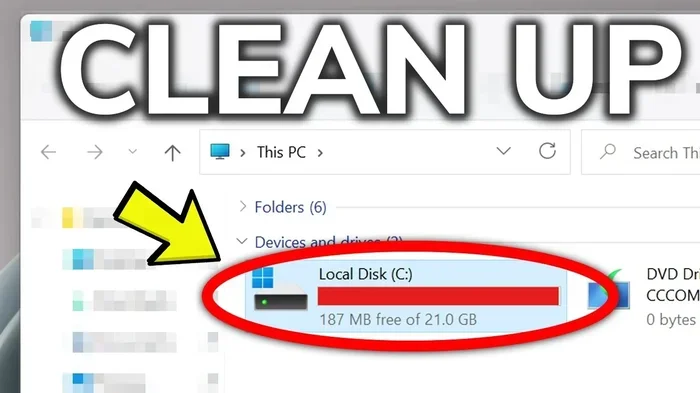
Why does this matter? Because a full storage drive directly impacts performance. When your hard drive reaches 90% capacity, everything slows down. Your computer struggles to find room for new data. Even basic tasks become sluggish. Disk cleanup solves this problem at the root. It frees up space and keeps your system running the way it should.
How Disk Cleanup Works Behind the Scenes
When you run the cleanup tool, it categorizes files by type. You can review each category before deleting anything. The tool shows you exactly how much space each category uses. This transparency gives you full control over what gets removed.
Some files are safe to delete immediately. Others might require a system restart. The tool handles all of this for you. You simply click through the options and let it do the work. It is one of the easiest forms of storage optimization available to any user.
Advantage 1: Frees Up Significant Storage Space Fast
The most obvious benefit of disk cleanup is the space you recover. Over weeks and months, unnecessary files accumulate silently. You might not even notice they are there. But they add up fast. Temporary files alone can consume several gigabytes on an average system.
Here are the types of files that disk cleanup removes to help you free up space fast:
- Temporary Internet Files: These are cached versions of websites you have visited. They save bandwidth but take up space.
- Recycle Bin Contents: Deleted files sit here until you empty it. They still occupy valuable storage.
- Windows Update Cleanup: Old update files from previous installations linger on your drive.
- Delivery Optimization Files: Peer-to-peer download cache used by Windows.
- Device Driver Packages: Old driver versions that are no longer needed.
- System Error Memory Dump Files: Logs created during system crashes.
- Temporary Files: Files created by apps during normal use but never cleaned up.
On a typical system, these categories can easily account for 10 to 50 gigabytes of wasted space. If you have a smaller drive, that number is even more significant. Running disk cleanup regularly can recover that space and give your system room to breathe.
Real-World Example: How Much Space Can You Actually Recover?
Consider this scenario. You have a laptop with a 256GB SSD. You have had it for two years without ever running cleanup. Your system is running slowly. You check your storage and find only 15GB of free space left. That is dangerously low.
You run disk cleanup and discover the following:
- Temporary internet files: 8GB
- Recycle bin: 12GB
- Windows update cleanup: 15GB
- Temporary files: 5GB
- Delivery optimization files: 3GB
That is 43 gigabytes recovered in one session. Your free space jumps from 15GB to 58GB. Your computer immediately feels faster. This is the power of storage space management through regular cleanup.
Advantage 2: Boosts Computer Speed and Performance
A cluttered hard drive slows down your entire system. When your storage drive is nearly full, your computer has to work harder. It spends more time searching for available space to write new data. This affects every operation, from booting up to opening apps.
Disk cleanup directly addresses this bottleneck. By removing unnecessary files, it gives your system room to operate efficiently. The result is a noticeable speed improvement. Users often report faster boot times, quicker file transfers, and smoother multitasking after a cleanup session.
Why Free Space Equals Faster Performance
Your operating system needs free space to function properly. It uses that space for virtual memory and temporary data processing. When space runs low, these operations slow down. The system starts swapping data between RAM and the hard drive more frequently.
This swapping process, known as paging, is much slower than using physical memory. By keeping your drive at least 20% free through regular disk cleanup, you ensure that paging happens less often. Your computer runs faster and responds more quickly to your commands.
Quick Tips for Maximum Speed Gains
- Run disk cleanup at least once a week for best results.
- Combine cleanup with storage optimization tools for deeper cleaning.
- Clear your browser cache regularly to recover additional space.
- Uninstall programs you no longer use to free up even more room.
- Move large files like videos and photos to external storage or cloud services.
Advantage 3: Improves System Stability and Reduces Errors
Corrupted files and outdated system data can cause crashes and errors. Over time, these problems accumulate and make your PC unreliable. You might experience blue screens, app freezes, or unexpected shutdowns. Disk cleanup helps prevent many of these issues.
The tool removes old system logs and error dump files that could be causing conflicts. It also clears out outdated Windows update remnants that sometimes interfere with new installations. By keeping your system clean, you reduce the chances of encountering frustrating errors.
Common System Errors Caused by Cluttered Storage
- Blue Screen of Death (BSOD): Often triggered by corrupted system files left behind after failed updates.
- App Crashes: Temporary files can interfere with how applications access data.
- Slow Startup: A nearly full drive delays the loading of essential system files.
- Update Failures: Windows updates may fail when there is not enough free space available.
- File Corruption: Low storage increases the risk of files becoming corrupted during write operations.
Regular system maintenance through disk cleanup addresses all of these problems. It keeps your operating system clean and stable. You spend less time troubleshooting and more time being productive.
Advantage 4: Enhances Privacy and Security
Every time you browse the web, your computer stores temporary files related to your activity. These include cached images, cookies, and browsing history. While they make websites load faster on return visits, they also leave a digital trail.
Disk cleanup removes these traces effectively. It clears your browser cache and deletes temporary internet files. This means fewer records of your online activity remain on your hard drive. For privacy-conscious users, this is a significant benefit.
What Privacy Data Does Disk Cleanup Remove?
- Browser Cache: Cached images and scripts from websites you have visited.
- Temporary Internet Files: Data stored to speed up page loading.
- Form Data and Password Residue: Partial records of information you have entered online.
- Recycle Bin: Deleted documents, photos, and files that could still be recovered.
While disk cleanup alone is not a complete security solution, it is an important layer of data protection. Combined with other security practices, it helps keep your personal information safer.
Advantage 5: Saves Money and Extends Hardware Life
When your computer runs out of storage, the obvious solution seems to be buying a new hard drive or upgrading to a larger SSD. But regular disk cleanup can delay or even eliminate that need. Freeing up existing space is free. Upgrading hardware costs money.
A well-maintained system also lasts longer. When your storage drive is not constantly working at full capacity, it experiences less wear and tear. This extends the overall lifespan of your hardware. Over time, the savings from avoiding upgrades can be substantial.
Cost Comparison: Cleanup vs. Hardware Upgrade
| Factor | Regular Disk Cleanup | Hardware Upgrade |
|---|---|---|
| Cost | Free | $50 to $200+ |
| Time Required | 10-30 minutes | 1-3 hours |
| Skill Level | Beginner-friendly | Intermediate |
| Risk | Very low | Moderate |
| Frequency | Weekly or monthly | One-time expense |
| Long-Term Benefit | Ongoing performance boost | One-time space increase |
As you can see, disk cleanup offers a better return on investment in most cases. It costs nothing and takes almost no time. The benefits compound over weeks and months of regular use.
Advantage 6: Makes System Updates and New Installations Easier
Windows updates require a certain amount of free space to download and install properly. When your drive is nearly full, updates may fail or stall. This leaves your system vulnerable to security threats and missing important features.
Disk cleanup ensures you always have enough room for updates. It clears out the old update files that are no longer needed and frees up space for new ones. This keeps your system secure and up to date without any extra effort.
How Disk Cleanup Supports Software Installation
Installing new software also requires free space. Whether it is a productivity tool, a game, or a creative application, every program needs room to unpack and install its files. A cluttered drive can prevent installations from completing successfully.
By running disk cleanup before major installations, you avoid common errors and ensure smooth setup processes. It is a simple habit that saves time and frustration. Think of it as preparing your system before any significant change.
Common Mistakes People Make with Disk Cleanup
Even though disk cleanup is straightforward, some mistakes can reduce its effectiveness or cause problems. Here are the most common errors to avoid:
- Skipping the Recycle Bin: Many users forget to empty the recycle bin after deleting files. Those files still take up space until the bin is emptied.
- Ignoring System Files: The cleanup tool has an option to clean up system files. Skipping this means missing out on large amounts of recoverable space.
- Deleting Files Without Reviewing: Always review what the tool plans to remove before confirming. While most items are safe, you should double-check.
- Relying Only on Disk Cleanup: Disk cleanup handles specific file types. For comprehensive cleaning, combine it with other tools like storage sense or third-party optimizers.
- Never Scheduling Cleanup: One-time cleanups help but do not prevent future buildup. Set up automatic cleanup schedules for ongoing maintenance.
Avoiding these mistakes ensures that every cleanup session is as effective as possible. You get maximum benefit with minimum risk.
Expert Insights on Long-Term Storage Health
According to IT professionals, regular disk maintenance is one of the simplest things users can do to extend their computer’s life. Most experts recommend a weekly cleanup routine for heavy users and a monthly routine for casual users.
“A full hard drive is the number one cause of slow PC performance,” says Mark Stevens, a certified systems administrator with over 15 years of experience. “Most of my clients see immediate improvements after their first cleanup. It is remarkable how much faster a computer runs when it has breathing room.”
Another key insight from experts is to combine disk cleanup with other maintenance tasks. Run disk cleanup alongside defragmentation (for HDDs), malware scans, and driver updates. Together, these practices form a comprehensive PC optimization strategy that keeps your system running at its best.
Building a Sustainable Cleanup Routine
The best cleanup routine is one you can stick to. Here is a simple weekly schedule that works for most users:
- Monday: Run disk cleanup and empty the recycle bin.
- Wednesday: Clear browser cache and temporary files manually.
- Friday: Review storage usage and identify large files to remove or move.
- Monthly: Run a full system cleanup including system file options.
This routine takes less than 30 minutes per week. The long-term benefits far outweigh the small time investment. Your computer stays fast, stable, and secure with minimal effort.
How to Get Started with Disk Cleanup Today
Getting started with disk cleanup is incredibly simple. Here is a step-by-step guide for Windows users:
- Click the Start menu and type “Disk Cleanup” in the search bar.
- Select the drive you want to clean (usually C:).
- Click “Clean up system files” for a deeper scan.
- Review the categories of files to delete.
- Check the boxes for items you want to remove.
- Click “OK” and confirm the deletion.
That is it. In just a few minutes, you have recovered valuable space and improved your system’s performance. Make it a habit and you will notice the difference every day.
Final Thoughts on the Advantages of Disk Cleanup
The benefits of disk cleanup go far beyond just freeing up space. From faster performance and fewer errors to better privacy and cost savings, this simple tool delivers results across every aspect of your computing experience. It costs nothing, takes minimal time, and requires no technical expertise.
If you have not run a cleanup in a while, now is the perfect time to start. Your computer will thank you. A little maintenance goes a long way toward keeping your system healthy and responsive. Make disk cleanup a regular part of your routine and enjoy the difference it makes every single day.
Frequently Asked Questions
How often should I run disk cleanup?
For most users, running disk cleanup once a week is ideal. Heavy users who download files frequently or install many apps may benefit from running it every few days. Even a monthly cleanup makes a noticeable difference in performance and available storage.
Is it safe to delete all files shown in disk cleanup?
Yes, the files that disk cleanup identifies are generally safe to remove. These include temporary files, cached data, and old system logs that your computer no longer needs. However, it is always wise to review the list before confirming deletion, just to be cautious.
Will disk cleanup delete my personal files like photos and documents?
No, disk cleanup only targets system-generated temporary and unnecessary files. It does not touch your personal documents, photos, or other user files. Your personal data remains completely safe during the cleanup process.
Can disk cleanup fix a slow computer?
Disk cleanup can significantly improve slow computer performance, especially when the issue is caused by a nearly full hard drive. By freeing up space, it allows your system to operate more efficiently. However, if slowness persists after cleanup, other issues like malware or hardware problems may be involved.
Does disk cleanup work on solid-state drives (SSDs)?h3>
Yes, disk cleanup works on both traditional hard drives and SSDs. In fact, keeping an SSD from filling up is especially important for maintaining its speed and longevity. SSDs perform best when they have at least 20% free space available.
What is the difference between disk cleanup and disk defragmentation?
Disk cleanup removes unnecessary files to free up space, while disk defragmentation reorganizes existing data to improve access speed. They serve different purposes but complement each other. For HDDs, running both regularly provides the best results. For SSDs, defragmentation is generally not needed, but cleanup still helps.
=== CONCLUSION ===
Disk cleanup is one of the simplest yet most powerful tools for maintaining a healthy computer. It frees up space fast, boosts performance, improves stability, and even enhances your privacy. The advantages are clear and the effort required is minimal.
By making disk cleanup a regular habit, you protect your investment and get more life out of your system. You avoid costly upgrades, reduce frustrating slowdowns, and keep your computer running at its best. Start today and experience the difference that a little routine maintenance can make.