Do I Really Need To Install Drivers For My Wifi Adapter
You might not always need to manually install drivers for your wifi adapter. Modern operating systems like Windows 10 and Windows 11 often handle driver installation automatically. However, some adapters still require manual driver setup to get proper wireless connectivity and the best performance.
You just bought a new wifi adapter, plugged it in, and waited. But nothing happened. No internet. No connection. No popup asking if you want to install anything. So the question hits you right away: do I need to install drivers for my wifi adapter? The answer is not as simple as yes or no. It depends on your operating system, the adapter you bought, and even the age of your computer.
In this guide, I will walk you through everything you need to know about wifi adapter driver installation. We will cover when drivers are needed, when they are not, and how to handle the process yourself. By the end, you will know exactly what to do every time you set up a new wireless adapter.
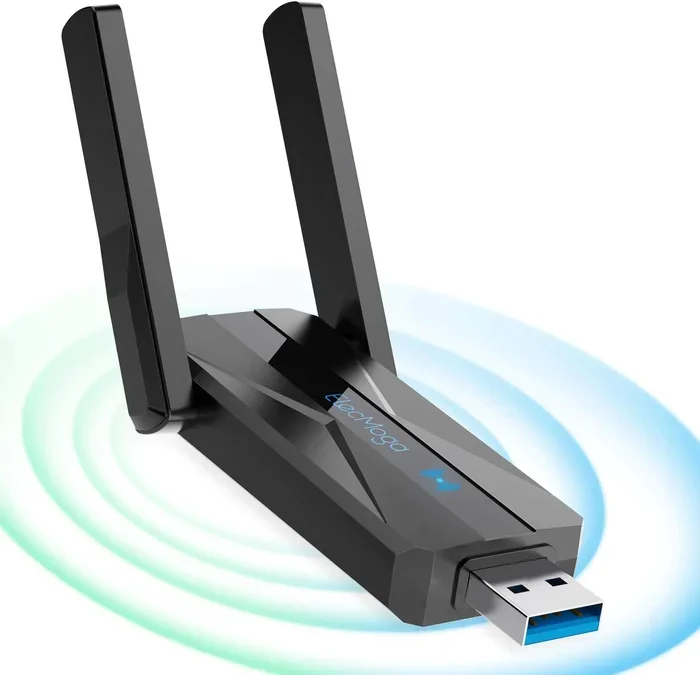
Let us start with the basics. A wifi adapter is a small hardware device that allows your computer to connect to a wireless network. Some adapters are built right into your motherboard. Others come as external USB sticks or internal PCIe cards. Regardless of the type, the adapter needs software to communicate with your operating system. That software is the driver.
Key Takeaways
- Automatic Driver Installation: Most modern wifi adapters work right out of the box on Windows 10 and 11 without manual setup.
- Older Adapters Need Drivers: Legacy or older wireless adapters often require you to manually install the correct driver for proper function.
- Device Manager Is Your Best Friend: You can check if your adapter needs a driver by looking at Device Manager for any warning signs.
- USB vs Internal Adapters: USB wifi adapters and internal PCIe wireless cards may have different driver installation processes.
- Manufacturer Websites Matter: Downloading drivers directly from the manufacturer ensures you get the latest and most compatible version.
- Wrong Drivers Cause Problems: Installing the wrong driver can lead to wifi connection issues, slow speeds, and adapter not recognized errors.
- Linux and Mac Systems Differ: Driver needs vary across operating systems, so your approach should match your platform.
📑 Table of Contents
- What Is A Wifi Adapter Driver And Why Does It Matter?
- When Do You NOT Need To Install Drivers?
- When Do You Need To Install Drivers Manually?
- How To Install Wifi Adapter Drivers Step By Step
- Common Mistakes People Make With Wifi Adapter Drivers
- Quick Tips For Smooth Wifi Adapter Setup
- Do I Need To Install Drivers For Wifi Adapter On Different Operating Systems?
- Expert Insights On Wifi Adapter Driver Management
- Final Thoughts
What Is A Wifi Adapter Driver And Why Does It Matter?
A driver is a small program that acts as a translator between your computer and the hardware. Without the right driver, your computer cannot talk to the network adapter. Think of it like trying to have a conversation with someone who speaks a completely different language. The driver bridges that gap.
When you plug in a USB wifi adapter, your operating system tries to find a matching driver. If it finds one, you get instant wireless connectivity. If it does not, the adapter sits there doing nothing. You might see a yellow warning icon in Device Manager, or nothing at all.
How Drivers Work Behind The Scenes
Every piece of hardware in your computer needs a driver. Your keyboard, mouse, monitor, and printer all rely on drivers to function. A wireless card driver works the same way. It tells your operating system how to send and receive wireless signals. It also controls speed, frequency bands, and security settings.
Modern operating systems come with a large library of pre-installed drivers. Windows 10 and Windows 11 include thousands of drivers out of the box. This is why most people never think about driver installation anymore. But older adapters or brand-new models may not be in that library yet.
Here is a quick look at what a driver actually does for your wifi adapter:
- It registers the hardware with your operating system.
- It enables the adapter to scan for available networks.
- It handles encryption and authentication for secure connections.
- It manages data transfer speeds and signal strength.
- It allows your computer to switch between frequency bands like 2.4GHz and 5GHz.
Without the driver, none of these functions work. That is why understanding when and how to install one matters so much.
When Do You NOT Need To Install Drivers?
Here is the good news. In most cases, you do not need to manually install drivers anymore. Modern systems are smart enough to handle this on their own. Let me walk you through the situations where automatic driver installation kicks in.
Windows 10 And Windows 11 Built-In Support
If you are running Windows 10 or Windows 11, there is a strong chance your wifi adapter will work immediately. Microsoft maintains a massive driver database that updates regularly through Windows Update. When you plug in a new wireless adapter, Windows searches this database and installs the matching driver automatically.
This process usually takes less than a minute. You plug in the adapter, wait a few seconds, and a notification pops up saying the device is ready. That is it. No downloading. No searching. No fuss.
Plug And Play USB Adapters
Most modern USB wifi adapters follow the Plug and Play standard. This means the operating system recognizes the device and installs the driver without any user input. Brands like TP-Link, Netgear, and ASUS have made great strides in making their adapters work seamlessly with Windows.
If you bought your adapter in the last two or three years, the chances of it working plug and play are very high. Just pop it into a USB port and let Windows do its thing.
Mac Operating System Compatibility
Mac computers handle wifi adapter drivers differently. Apple includes driver support for most third-party adapters directly in macOS. If you buy a compatible USB wifi adapter for a Mac, it often works right away. However, some adapters designed specifically for Windows may not be recognized by macOS at all.
Always check the manufacturer’s compatibility list before buying an adapter for your Mac. This saves you a lot of frustration later.
Linux Systems And Built-In Drivers
Linux distributions like Ubuntu include a vast collection of open-source drivers. Many wireless adapters work on Linux without any additional installation. However, some proprietary adapters require you to install drivers manually through the terminal or package manager.
If you use Linux, check the manufacturer’s website for Linux-compatible driver options before purchasing an adapter.
When Do You Need To Install Drivers Manually?
Now let us talk about the times when automatic installation does not work. These are situations where you need to take matters into your own hands and install wifi driver manually.
Older Operating Systems
If you are still running Windows 7, Windows 8, or an older version of Linux, automatic driver support is limited. These systems do not have the same large driver databases as Windows 10 or 11. You will likely need to download the driver from the manufacturer’s website.
Here is a quick checklist of when you should expect to install drivers manually:
- You are using Windows 7 or Windows 8.
- Your adapter is more than three years old.
- You are using a less common Linux distribution.
- Your operating system is not the latest version.
Brand New Adapter Models
Sometimes, brand-new adapters use chipsets that have not yet been added to the operating system’s driver library. This is especially common with cutting-edge wifi 6 or wifi 6E adapters. If you just bought the latest model, check the manufacturer’s website for a dedicated driver download.
Manufacturers often release drivers before Windows Update catches up. So visiting their website first can save you time.
Adapter Not Recognized By Your Computer
If you plug in your network adapter and nothing happens, the driver is likely missing. Open Device Manager and look for the adapter under “Network Adapters.” If you see a yellow triangle with an exclamation mark, Windows could not find a working driver.
This is a clear sign that you need to install the driver yourself. Do not ignore this warning. Without the correct driver, your adapter will not function at all.
Performance Issues After Automatic Installation
Sometimes Windows installs a generic or outdated driver automatically. This can cause slow speeds, frequent disconnects, or the adapter not supporting the latest wireless standards. In these cases, you should manually install the latest driver from the manufacturer’s website.
A generic driver might get you online, but it will not give you the best performance. The manufacturer-specific driver unlocks features like beamforming, MU-MIMO, and higher speed tiers.
How To Install Wifi Adapter Drivers Step By Step
If you have determined that you need to install a driver manually, the process is straightforward. Let me walk you through it step by step.
Step 1: Identify Your Adapter Model
First, you need to know exactly what adapter you have. If it is a USB adapter, check the label on the device itself. If it is an internal card, open your computer case and look at the card. You can also check Device Manager under “Network Adapters” to find the model name and chipset information.
Write down the exact model number. You will need it to download the correct driver.
Step 2: Visit The Manufacturer Website
Go to the manufacturer’s official website. Do not download drivers from third-party sites. These sites can bundle malware or offer outdated versions. Head directly to the source.
Look for a “Support” or “Downloads” section on the website. Enter your adapter model number and select your operating system. The website will then show you the correct driver file to download.
Step 3: Download And Run The Installer
Once the driver file is downloaded, run the installer. Follow the on-screen prompts. Most driver installers are very simple. They ask you where to install the files and then do the rest automatically.
After installation, restart your computer. This ensures the new driver is properly loaded into the system.
Step 4: Verify The Installation
After restarting, open Device Manager again. Look for your wireless adapter under Network Adapters. If there is no yellow warning icon, the driver installed correctly. Try connecting to a wifi network and check if your speeds are good.
If you still see issues, try uninstalling the driver and reinstalling it. Sometimes a fresh installation fixes stubborn problems.
Common Mistakes People Make With Wifi Adapter Drivers
Installing drivers seems simple, but people make mistakes that cause real headaches. Let me share the most common ones so you can avoid them.
Downloading The Wrong Driver Version
Always match the driver version to your operating system. A Windows 10 driver will not work on Windows 11, and vice versa. Also pay attention to whether you need the 32-bit or 64-bit version. Downloading the wrong one will not work and can cause errors.
Skipping Windows Updates
Sometimes the driver you need is already included in a Windows Update. Before you go hunting for a driver manually, run Windows Update first. It might solve the problem without any extra work.
Using Outdated Drivers
Even after you install a driver, it does not mean you are done. Manufacturers release driver updates regularly to fix bugs and improve performance. Check for updates every few months, especially if you experience wifi connection issues.
Ignoring Antivirus Interference
Sometimes your antivirus software blocks driver installation. If the installer fails or seems to hang, temporarily disable your antivirus, run the installer, and then re-enable it. This is a quick fix that many people overlook.
Not Restarting After Installation
This sounds obvious, but many people skip it. A driver installation is not complete until you restart. Skipping the restart can leave your system in an unstable state where the adapter works intermittently.
Quick Tips For Smooth Wifi Adapter Setup
Here are some quick tips that will make your adapter setup easier and faster.
- Always check compatibility first. Make sure the adapter supports your operating system before you buy it.
- Keep your adapter plugged into a USB 3.0 port. USB 2.0 ports can limit speed and cause overheating on some models.
- Use a USB extension cable. This helps with signal strength and prevents the adapter from overheating when plugged directly into the computer.
- Update Windows before installing any driver. A fully updated system has the best chance of recognizing new hardware automatically.
- Save your driver files in a dedicated folder. This makes it easy to find and reinstall them later if needed.
These small habits save a lot of time and frustration in the long run. They apply whether you are setting up a new adapter or troubleshooting an existing one.
Do I Need To Install Drivers For Wifi Adapter On Different Operating Systems?
Let us put it all together with a side-by-side comparison of how different operating systems handle wifi adapter drivers.
| Operating System | Automatic Driver Support | Manual Installation Needed? | Driver Source |
|---|---|---|---|
| Windows 11 | Yes, for most adapters | Rarely | Windows Update or manufacturer site |
| Windows 10 | Yes, for most adapters | Sometimes for older models | Windows Update or manufacturer site |
| Windows 7 / 8 | Limited support | Often required | Manufacturer website only |
| macOS | Good for compatible adapters | Sometimes | Apple updates or manufacturer site |
| Linux (Ubuntu) | Good for most adapters | Sometimes for proprietary models | Built-in repositories or manufacturer site |
As you can see, the need for manual driver installation depends heavily on your operating system. If you are on a modern version of Windows, you will rarely need to do anything manually. But if you are on an older system or a niche operating system, be prepared to install drivers yourself.
Expert Insights On Wifi Adapter Driver Management
Many users assume that because their adapter worked on one computer, it will work the same way on another. This is not always true. Driver availability varies between operating systems and even between different versions of the same operating system.
Keep your drivers updated regularly. Just like you update your apps and software, your network adapter drivers benefit from regular updates. These updates often include security patches, performance improvements, and support for new wifi standards.
Use the manufacturer’s driver update tool when available. Some brands like TP-Link and Netgear offer their own software utilities that automatically check for and install driver updates. These tools take the guesswork out of the process.
Do not ignore driver conflicts. If you recently installed a new adapter and your internet started acting weird, a driver conflict might be the cause. Uninstall the conflicting driver, restart, and reinstall the correct version.
Virtual machines need special attention. If you run a virtual machine, the wifi adapter driver situation is different. The virtual machine uses a virtual network adapter, and the host operating system controls the actual hardware. You may need to configure network bridging or use a virtual wifi adapter driver.
These expert tips help you stay ahead of driver-related problems and keep your wireless connection running smoothly.
Final Thoughts
So, do I need to install drivers for my wifi adapter? In most modern setups, the answer is no. Windows 10 and Windows 11 handle driver installation automatically for the vast majority of adapters. You plug it in, it works, and you get online within minutes.
But that is not the whole story. Older systems, brand-new chipsets, and certain operating systems still require manual driver installation. And even when automatic installation works, keeping your driver updated can improve your speed, stability, and security.
The key takeaway is simple. Know your adapter model, know your operating system, and check the manufacturer’s website when in doubt. With this knowledge, you will never be stuck wondering why your wireless connectivity is not working.
Take a few minutes today to check your current adapter drivers. If they are outdated, update them. If you just bought a new adapter, try plugging it in first and let Windows handle it. Either way, you are now equipped with the knowledge to handle any wifi adapter driver situation that comes your way.
Wireless technology keeps evolving. New adapters support faster speeds, better range, and improved security. Staying on top of your driver updates ensures you get the most out of your hardware. Happy browsing.
Frequently Asked Questions
Can I use my wifi adapter without installing any drivers at all?
In most cases, yes. Modern operating systems like Windows 10 and Windows 11 include built-in drivers for many popular wifi adapters. Simply plug in the adapter, and the system will automatically find and install the correct driver within a minute or two.
What happens if I install the wrong driver for my wifi adapter?
Installing the wrong driver can cause your adapter to malfunction. You may experience slow speeds, frequent disconnects, or the adapter may not be recognized at all. Always download drivers from the official manufacturer website and match them to your specific operating system version.
How often should I update my wifi adapter driver?
You should check for driver updates every two to three months. Manufacturers release updates to fix bugs, improve performance, and patch security vulnerabilities. If you notice wifi connection issues, updating the driver should be one of your first troubleshooting steps.
Do USB wifi adapters need different drivers than internal PCIe wifi cards?
The type of adapter does not change the driver requirement. Both USB and PCIe adapters need drivers to function. However, the installation process may differ slightly. USB adapters are generally easier to set up because they are plug and play on most modern systems.
Why does my wifi adapter keep losing its driver after a system update?
This happens when a Windows Update overwrites or removes the existing driver. To fix this, visit the manufacturer’s website and reinstall the latest driver. You can also prevent this by pausing major Windows updates until you have checked for adapter compatibility.
Is it safe to use third-party driver update tools for my wifi adapter?
It is best to avoid third-party driver update tools. Many of these programs bundle unwanted software or provide outdated drivers. Always download drivers directly from the manufacturer’s official website to ensure safety, compatibility, and the latest version.
=== CONCLUSION ===
Do I need to install drivers for my wifi adapter? The short answer is usually no for modern systems, but the full answer depends on your setup. Most people using Windows 10 or Windows 11 will find that their adapter works right out of the box. However, knowing how to manually install a driver gives you a valuable skill for troubleshooting and optimization.
Keep your drivers updated, download from official sources, and always check compatibility before purchasing a new adapter. With these habits, your wireless connectivity will stay fast, stable, and secure.