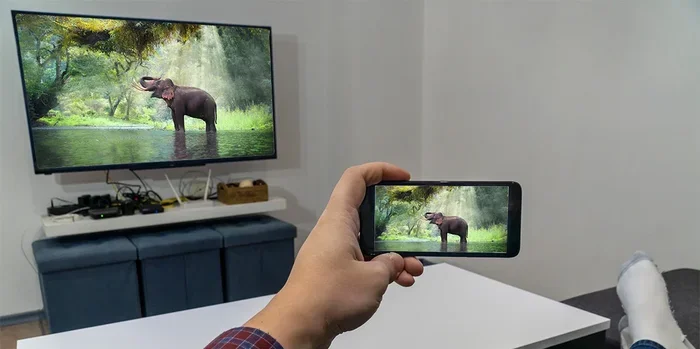
How Do I Play Videos From My Phone To My Tv Wirelessly
How Do I Play Videos From My Phone To My Tv Wirelessly is a question many people ask, and the answer is simpler than you think. You can use Chromecast, AirPlay, Roku, or Fire TV Stick to stream content from your phone to your TV without any cables. This guide covers every wireless method so you can pick the best option for your setup and start watching on the big screen today.
Streaming videos on a small phone screen can feel limiting. You want to share memories, watch movies, or show someone something, but the screen is just too small. Playing videos from phone to TV wirelessly solves this problem instantly.
Thanks to modern technology, you no longer need messy cables or expensive equipment. Whether you have an Android phone or an iPhone, there is a simple way to get your content on the big screen. Let us walk through every option available to you.
Key Takeaways
- Multiple wireless methods exist: Chromecast, AirPlay, Roku, Fire TV Stick, and DLNA all let you play videos from phone to TV wirelessly with ease.
- Wi-Fi quality is critical: A strong and stable Wi-Fi connection is the foundation of smooth, buffer-free wireless streaming.
- Use built-in cast buttons: They provide better picture quality than full screen mirroring in most cases.
- Keep devices updated: Firmware and app updates fix bugs and improve wireless display performance between your phone and TV.
- Match your method to your devices: iPhone users should lean toward AirPlay, while Android users benefit most from Chromecast.
- Restart when in doubt: A simple restart of your phone, TV, or router often fixes streaming issues instantly.
- You do not need expensive gear: Many streaming devices cost under $50 and work with any smart TV.
📑 Table of Contents
- Why Playing Videos From Phone to TV Wirelessly Is So Popular
- What You Need to Get Started
- How Do I Play Videos From My Phone To My Tv Wirelessly Using Chromecast
- How to Use AirPlay If You Have an iPhone
- Using Roku, Fire TV Stick, and Other Streaming Devices
- Troubleshooting Tips and Best Practices for Wireless Video Playback
- Conclusion
Why Playing Videos From Phone to TV Wirelessly Is So Popular
The Rise of Wireless Streaming
Wireless media streaming has changed how we watch content. Just a few years ago, you needed cables and adapters to connect your devices. Today, most smart TVs come with built-in casting features. You can video cast directly from your phone without any extra hardware.
The demand for wireless display technology has grown enormously. People want to share photos, watch YouTube videos, and stream Netflix on their TVs. The good news is that most of these methods are free and easy to set up. You do not need to be a tech expert to get started.
Streaming has become the dominant way people consume video content. According to recent data, over 80 percent of households now own at least one streaming device. The convenience of wireless streaming fits perfectly into how modern families watch and share media together.
Benefits of Going Cable-Free
- No tangled wires: You can move around your room freely while watching your favorite shows.
- Multiple device support: One TV can connect to many phones throughout the day without any hassle.
- Easy setup: Most wireless methods take less than five minutes to configure and start using.
- Better picture quality: Modern wireless streaming supports HD and even 4K resolution for crisp visuals.
- Share with others: Pass the phone around and let everyone choose what to watch together.
- Portability: You can set up your streaming anywhere with a TV and a Wi-Fi network.
Quick Tips for Getting Started
Before you begin, make sure your phone and TV are on the same Wi-Fi connection. A stable network makes all the difference. Also, keep your phone charged or plug it in during long viewing sessions.
Quick Tip: Restart your router if you experience lag. A fresh connection often fixes minor streaming issues instantly. This simple step solves more problems than people realize.
What You Need to Get Started
Not every method requires the same equipment. Some need a specific dongle, while others work right out of the box. Let us break down what you need for each approach so you can plan ahead.
Devices and Apps You Will Need
For most wireless methods, you need three things. First, a smartphone running either Android or iOS. Second, a smart TV or a streaming device like Chromecast or Fire TV Stick. Third, a reliable Wi-Fi network that both devices can access.
Some methods also require specific apps. Google Home works with Chromecast. The native Photos or YouTube app handles AirPlay for iPhone users. Most casting apps are free to download from your app store. You may also want to install a media server app if you plan to stream files stored on your phone.
If your TV does not have built-in casting support, a dedicated streaming device is your best bet. These small plugs or boxes connect to your TV and add smart features. They are affordable and work with virtually any television that has an HDMI port.
Checking Your Wi-Fi Connection
A weak Wi-Fi connection is the number one cause of streaming problems. Run a speed test on your phone before you start. You want at least 10 Mbps for smooth HD video playback. For 4K content, aim for 25 Mbps or higher.
If your Wi-Fi signal is weak in the room where your TV sits, consider moving your router closer. A Wi-Fi extender can also help boost the signal across your home. Alternatively, a wireless HDMI adapter can transmit video without relying on your network at all.
Common Mistakes People Make
One of the biggest mistakes is not checking if your TV supports the casting protocol you want to use. Not every smart TV has built-in Chromecast or DLNA support. Another mistake is trying to stream over a crowded network. If too many devices are connected, your stream may buffer or lag.
Expert Insight: Always update your TV firmware and phone software before attempting wireless connections. Updates often fix bugs and improve wireless display compatibility between devices. This one step prevents most common connection issues.
How Do I Play Videos From My Phone To My Tv Wirelessly Using Chromecast
Chromecast is one of the most popular ways to play videos from phone to TV wirelessly. It is affordable, easy to use, and works with both Android and iPhone devices. Google designed it to make video casting simple for everyone, regardless of technical skill.
Setting Up Chromecast for the First Time
Plug your Chromecast device into the HDMI port on your TV. Connect the USB cable to a power source. Download the Google Home app on your phone. Follow the on-screen prompts to connect the Chromecast to your Wi-Fi network. The entire setup takes about three minutes.
Once setup is complete, your TV will show a casting icon. This icon looks like a small rectangle with Wi-Fi waves in the corner. You will see this icon in supported apps like YouTube, Netflix, Spotify, and many more. When you tap it, your phone will search for available Chromecast devices on the same network.
Using Google Home to Stream Content
Open any supported app on your phone. Tap the casting icon in the top right corner. Select your Chromecast device from the list. The video will start playing on your TV immediately while your phone acts as a remote control.
You can also use the Google Home app to mirror your entire screen. This method works for any video or app, even ones without a built-in cast button. Just tap Cast Screen in the Google Home app. Your entire phone display will appear on the TV.
Quick Tip: Use the app’s cast button instead of full screen mirroring when possible. It gives better picture quality and uses less battery on your phone. The app sends a link to the TV rather than streaming the entire screen.
Common Mistakes with Chromecast
Do not try to mirror your screen while downloading large files. This can slow down your wireless streaming and cause stuttering. Also, avoid using Chromecast on a 2.4 GHz network if your router supports 5 GHz. The 5 GHz band provides faster and more stable connections for media streaming.
Another mistake is placing the Chromecast too far from the router. If the signal is weak, your video will buffer frequently. Keep the Chromecast dongle close to your router or use a Wi-Fi extender to strengthen the connection.
How to Use AirPlay If You Have an iPhone
If you own an iPhone or iPad, AirPlay is your best option for wireless video streaming. Apple built this feature into every iOS device. It lets you cast videos from phone to TV with just a few taps. No extra apps are needed for most tasks.
Enabling AirPlay on Your Apple Devices
Make sure your iPhone and your TV are on the same Wi-Fi network. Open the Control Center by swiping down from the top right of your screen. Tap the Screen Mirroring icon. Select your TV or AirPlay-compatible device from the list that appears.
Your phone screen will now appear on your TV. Any video you play will show up on the big screen. This works for Photos, Safari, YouTube, and virtually any app installed on your device. The experience is seamless and requires zero configuration in most cases.
Best Apps for AirPlay Video Streaming
- YouTube: Tap the AirPlay icon within the app for the best viewing experience on your TV.
- Netflix: AirPlay works natively. Just look for the screen mirroring icon inside the app.
- Photos: Share any video from your camera roll directly to your TV in seconds.
- Apple TV app: The native app offers the smoothest media streaming on Apple devices.
- VLC: This free app supports DLNA and lets you play any video file format from your phone.
Quick Tips for AirPlay Users
Quick Tip: If AirPlay does not show your TV, restart both devices. This fixes 90 percent of connection issues. Also, make sure your smart TV has the latest software update installed. Outdated firmware is a common cause of AirPlay problems.
Expert Insight: For the best quality, use an Apple TV box rather than relying on a TV’s built-in AirPlay support. Apple TV boxes tend to have faster processors and smoother wireless display performance. The difference is especially noticeable when streaming 4K content.
Common Mistakes with AirPlay
One common mistake is trying to AirPlay to a TV that does not support it. Not all smart TVs have native AirPlay. You may need an Apple TV or an AirPlay-compatible streaming stick. Another mistake is ignoring network settings. If your phone uses a different band or network name than your TV, content sharing will fail.
Also, do not forget to lock your phone screen during AirPlay playback. Some users accidentally stop the stream by tapping the screen. Locking the screen prevents accidental interruptions while you watch.
Using Roku, Fire TV Stick, and Other Streaming Devices
Not everyone wants to buy a Chromecast or Apple TV. Many people already own a streaming device sitting under their TV. Roku, Amazon Fire TV Stick, and similar devices all support wireless streaming from phones. These devices add smart features to any TV with an HDMI port.
Roku and the Built-In Casting Feature
Roku devices have a built-in feature called Screen Mirroring. Open the Roku app on your phone. Tap the Remote icon and then select Screen Mirroring. Your phone screen will appear on your TV almost instantly.
Roku also supports DLNA protocol. This means you can use apps like Plex or VLC to stream videos from your phone to your TV. These apps act as a media server, sending content over your local network without needing an internet connection. This is great for watching videos stored on your phone without using your data plan.
Quick Tip: Roku devices work best with the Roku mobile app. It turns your phone into a powerful remote and gives you access to a private media server for your personal video files.
Amazon Fire TV Stick Setup Guide
Plug the Fire TV Stick into your TV’s HDMI port. Connect it to your Wi-Fi network. Download the Amazon Fire TV app on your phone. This app lets you cast videos from phone to TV and even control your TV with your phone as a remote.
Fire TV Stick also supports screen mirroring for Android devices. Go to Settings on your Fire TV, select Display & Sounds, and enable Screen Mirroring. Your Android phone should then detect the Fire TV device. iPhone users can use the Fire TV app to stream content through supported apps.
Comparison Table of Popular Streaming Devices
| Device | Price Range | Phone Compatibility | Best For |
|---|---|---|---|
| Chromecast with Google TV | $30 – $50 | Android & iPhone | Budget-friendly casting and smart features |
| Apple TV 4K | $129 – $149 | iPhone & iPad | Apple ecosystem users who want top quality |
| Amazon Fire TV Stick 4K | $25 – $40 | Android & iPhone | Amazon Prime subscribers |
| Roku Express 4K | $30 – $50 | Android & iPhone | Wide app selection and easy setup |
| Xbox Wireless Display Adapter | $60 – $70 | Android only | Xbox owners who want screen mirroring |
Quick Tips for Streaming Device Users
- Restart your streaming device once a week to keep performance smooth and responsive.
- Use an HDMI extender cable if your router signal is weak near the TV location.
- Check for firmware updates regularly. These often improve wireless streaming quality and add new features.
- Keep your device plugged in with the original power adapter for best performance.
Troubleshooting Tips and Best Practices for Wireless Video Playback
Even with the best setup, you may run into issues sometimes. Wireless video playback can be finicky. Network interference, outdated software, and crowded Wi-Fi bands can all cause problems. Here is how to fix the most common issues and keep your streams running smoothly.
Fixing Common Connection Issues
If your video keeps buffering, your Wi-Fi connection may be too slow. Move closer to your router or reduce the number of devices using the network. A wireless HDMI adapter can also help if your Wi-Fi is simply not strong enough for your needs.
If your phone does not detect the TV, try turning off and back on both devices. Make sure Bluetooth and Wi-Fi are both enabled on your phone. Sometimes toggling Airplane Mode on and off resets your network connection and fixes the problem. This simple trick works more often than you might expect.
Another effective fix is forgetting the Wi-Fi network on both devices and reconnecting. This clears any stored configuration errors and forces a fresh connection. It takes less than a minute and often solves persistent streaming problems.
Expert Tips for Smooth Streaming
Expert Insight: For the smoothest experience, dedicate your 5 GHz Wi-Fi band to streaming. Most modern routers let you split your network into 2.4 GHz and 5 GHz bands. Use the 5 GHz band for your TV and phone to reduce interference from other devices. The 2.4 GHz band has longer range but slower speeds, which is not ideal for video.
Another pro tip is to close background apps on your phone before casting. This frees up memory and processing power for media streaming. Your videos will load faster and play more smoothly when your phone is not juggling multiple tasks.
Quick Tip: Lower the video quality setting in your streaming app if you experience buffering. Switching from 4K to 1080p reduces the bandwidth needed and often eliminates playback issues entirely.
When to Use a Wired Connection Instead
Sometimes wireless is just not enough. If you need zero-lag gameplay or ultra-stable video playback, consider a wired option. A USB-C to HDMI adapter works well for most Android phones. Lightning to HDMI adapters work for older iPhones. These wired solutions give you a direct, reliable connection every time.
However, for 95 percent of casual viewing, wireless methods work perfectly. The convenience of going cable-free far outweighs the occasional minor buffering issue. Most people find that once they set up wireless streaming, they never go back to cables.
Common Mistakes to Avoid
- Do not stream on a public Wi-Fi network. These networks often block content sharing between devices for security reasons.
- Do not ignore app permissions. Some casting apps need permission to access your media files. Check your phone settings if casting fails.
- Do not use outdated apps. Old versions of casting apps may not work with newer TV firmware. Keep everything updated.
- Do not overload your network. Too many devices streaming at once will slow everything down for everyone.
- Do not place your router in a closed cabinet. Walls and enclosed spaces weaken your Wi-Fi signal significantly.
Key Takeaways
- Multiple methods exist: Chromecast, AirPlay, Roku, Fire TV Stick, and DLNA all let you play videos from phone to TV wirelessly with ease.
- Wi-Fi quality matters: A strong and stable Wi-Fi connection is the foundation of smooth, buffer-free wireless streaming.
- Use built-in cast buttons: They provide better picture quality than full screen mirroring in most cases.
- Keep devices updated: Firmware and app updates fix bugs and improve wireless display performance between your phone and TV.
- Match your method to your devices: iPhone users should lean toward AirPlay, while Android users benefit most from Chromecast.
- Restart when in doubt: A simple restart of your phone, TV, or router often fixes streaming issues instantly.
- You do not need expensive gear: Many streaming devices cost under $50 and work with any smart TV that has an HDMI port.
Conclusion
How Do I Play Videos From My Phone To My Tv Wirelessly is a question with many great answers. You have Chromecast for Android and budget-friendly setups. You have AirPlay for iPhone users who want a seamless Apple experience. You have Roku, Fire TV Stick, and other streaming devices for those who already own them. Every method is simple, affordable, and effective.
The key is choosing the right method for your devices and your Wi-Fi network. Once you set up your preferred option, you will wonder how you ever watched videos on a small screen. Wireless streaming opens up a whole new way to enjoy your favorite content with family and friends.
Start with the method that matches your phone and TV. Follow the setup steps in this guide. If you run into any issues, check the troubleshooting section for quick fixes. Soon you will be casting videos from phone to TV like a pro. Enjoy the big screen experience without any cables holding you back.
Frequently Asked Questions
Can I play videos from my phone to my TV without Wi-Fi?
Yes, you can use a wireless HDMI adapter or a Bluetooth TV connection in some cases. However, most wireless methods like Chromecast and AirPlay require a Wi-Fi connection for the best experience. A wired HDMI adapter is the best option if you have no Wi-Fi available.
Is screen mirroring the same as casting videos?
No, they are different. Screen mirroring copies your entire phone display to the TV. Casting sends a link to the TV, and the TV plays the video directly. Casting usually gives better picture quality and uses less battery on your phone. Use casting when the app supports it.
Why does my video keep buffering when I cast from my phone?
Buffering usually happens because of a weak Wi-Fi connection. Try moving closer to your router, reducing the number of connected devices, or switching to the 5 GHz band. Also, check that your streaming device firmware and phone software are up to date.
Do I need a smart TV to play videos from my phone wirelessly?
No, you do not. A regular TV with an HDMI port works fine when paired with a streaming device like Chromecast, Fire TV Stick, or Roku. These devices add wireless media streaming capabilities to any TV. They are affordable and easy to set up.
Can I use AirPlay on an Android phone?
No, AirPlay is an Apple-specific protocol. Android users should use Chromecast, DLNA, or a streaming device like Roku or Fire TV Stick instead. Some third-party apps also enable content sharing from Android to AirPlay-compatible TVs, but native support is only available on Apple devices.
What is the best free app for casting videos from phone to TV?
For Android, the Google Home app is the best free option for video casting. For iPhone, the built-in Control Center handles AirPlay without any extra downloads. Apps like VLC and Plex are also free and support DLNA streaming to most smart TVs and streaming devices.