Can You Upgrade PC Wifi Card Heres Everything You Need
Yes, you can upgrade your PC WiFi card, and it is one of the easiest ways to improve your wireless speed and signal strength. Whether you have a desktop or laptop, adding a better wireless network card can transform your internet experience. This guide covers every option, from internal PCIe cards to USB WiFi adapters, so you can choose the best upgrade for your needs.
Are you tired of slow wireless speeds or dropped connections on your computer? If so, you are not alone. Many people deal with weak internet signals every day, especially in larger homes or buildings with thick walls. The good news is that upgrading your wireless adapter can make a huge difference. A better PC WiFi card can deliver faster speeds, stronger signals, and more reliable connections.
You might be wondering whether your computer even supports an upgrade. The answer is almost always yes. Most desktop computers have room inside the case for a new card. Many laptops also allow you to swap out the old wireless card or use a USB adapter instead. In this article, we will walk you through everything you need to know about upgrading your wireless network card. We will cover the different types of cards, how to install them, and which one is best for your needs.
Whether you are a casual internet user or a serious gamer, a better wireless connection can change your experience completely. Let us dive in and explore your options.
Key Takeaways
- Upgrading is possible: Most desktops and many laptops allow you to replace or add a new WiFi card for better performance.
- Two main options exist: You can choose internal PCIe WiFi cards or external USB WiFi adapters depending on your setup.
- WiFi 6 and WiFi 6E cards offer major speed gains: These newer wireless standards deliver faster speeds and handle more devices.
- Installation is straightforward: Swapping out a PC WiFi card takes about 15 minutes and requires no advanced technical skills.
- Driver software matters: Always install the latest drivers after upgrading to unlock full performance and stability.
- USB adapters are great for laptops: They offer a plug-and-play solution without opening your computer.
- Signal strength improves with better hardware: A quality wireless adapter with good antenna design can significantly boost your range.
📑 Table of Contents
- What Is a PC WiFi Card and Why Does It Matter?
- Can You Upgrade Your PCs WiFi Card? Yes, Heres How
- Types of WiFi Cards You Can Install
- Step-by-Step Guide to Upgrading Your WiFi Card
- WiFi 6 vs WiFi 5: Which Card Should You Choose?
- Common Mistakes to Avoid When Upgrading
- Expert Tips for Maximizing Your Wireless Performance
- Key Takeaways
- Frequently Asked Questions
- Final Thoughts
What Is a PC WiFi Card and Why Does It Matter?
A WiFi card is a small piece of hardware inside your computer that connects you to a wireless network. Think of it as the bridge between your PC and your router. Without it, you would need a cable to access the internet. Most computers come with a basic WiFi card already installed. These built-in cards work fine for simple tasks like browsing the web or checking email. But they often struggle with heavy tasks like streaming 4K video or online gaming.
Your wireless network card affects three main things. First, it controls your wireless speed. A better card can handle faster internet plans. Second, it affects your signal strength. A quality card with strong antennas can pick up signals from farther away. Third, it determines compatibility with newer wireless standards. Older cards may not support the latest WiFi technologies, which means you miss out on speed improvements.
When you upgrade your wireless adapter, you are essentially giving your computer a better antenna and a faster processor for handling wireless data. The difference can be dramatic. Many users report much faster download speeds and fewer connection drops after making the switch.
Can You Upgrade Your PCs WiFi Card? Yes, Heres How
The short answer is yes. Most computers allow you to upgrade the wireless card. But the process depends on your computer type and the kind of card you want to install. Let us look at the two main paths: internal cards and external adapters.
Internal WiFi Cards for Desktops
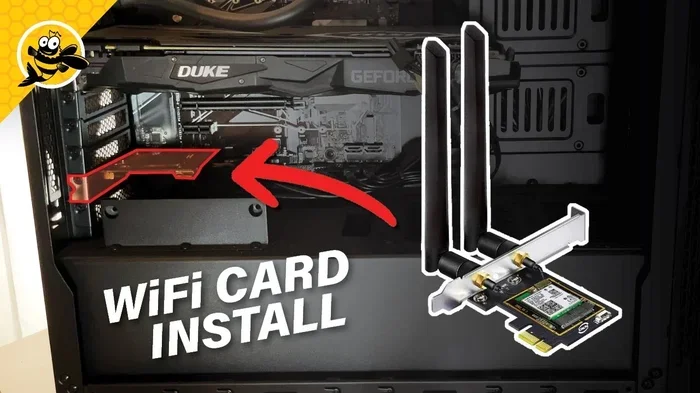
If you have a desktop computer, upgrading your internal wireless card is usually very simple. Desktop cases have open spaces inside, often called expansion slots. The most common slot for a wireless card is the PCIe slot. This is a small horizontal slot on your motherboard. You simply remove the old card, plug in the new one, and secure it with a screw.
Internal cards offer the best performance. They connect directly to the motherboard, which means a more stable connection and lower latency. They also tend to have better antenna designs, which improves your wireless range. If you want the best possible wireless performance, an internal PCIe card is the way to go.
External USB WiFi Adapters for Laptops
Laptops can be trickier to upgrade internally. Many modern laptops have the WiFi card soldered onto the motherboard. This means you cannot swap it out easily. But all is not lost. You can use a USB WiFi adapter instead. These small devices plug directly into a USB port on your laptop. They work just like an internal card but sit outside the computer.
USB adapters are incredibly convenient. You plug them in, install the driver, and you are done. They are also portable, so you can take them with you when you travel. The trade-off is that they are slightly more prone to interference since they sit outside the computer case. But for most users, the convenience far outweighs this small downside.
Types of WiFi Cards You Can Install
Not all wireless adapters are the same. They come in different standards, speeds, and designs. Understanding the types available will help you make the best choice.
WiFi 5 (802.11ac) Cards
WiFi 5 cards are the most common type you will find. They support speeds up to 1.3 Gbps under ideal conditions. These cards work well for most everyday tasks. If your internet plan is under 500 Mbps, a WiFi 5 card will likely handle it just fine. They are also affordable, with many options available under $50.
WiFi 6 (802.11ax) Cards
WiFi 6 is the latest mainstream standard. It offers much faster speeds than WiFi 5, with theoretical speeds up to 9.6 Gbps. But the real benefit is not just raw speed. WiFi 6 handles multiple devices much better. If you have a smart home with many connected devices, a WiFi 6 card will keep your connection stable. These cards also use less power, which is great for laptops.
WiFi 6E Cards
WiFi 6E is the newest option available. It adds support for the 6 GHz band, which is a completely new frequency range. This means less interference from other devices and faster speeds. WiFi 6E cards are still relatively new and a bit pricier. But if you want future-proof hardware, they are worth considering.
Dual-Band vs Tri-Band Cards
Most wireless cards support two or three frequency bands. Dual-band cards work on the 2.4 GHz and 5 GHz bands. The 2.4 GHz band offers longer range but slower speeds. The 5 GHz band gives you faster speeds but shorter range. Tri-band cards add a second 5 GHz band, which helps when many devices are competing for bandwidth.
| Feature | WiFi 5 | WiFi 6 | WiFi 6E |
|---|---|---|---|
| Max Speed | 1.3 Gbps | 9.6 Gbps | 9.6 Gbps |
| Frequency Bands | Dual-band | Dual-band | Tri-band |
| Best For | Basic use | Smart homes | Heavy use |
| Price Range | $20-$50 | $40-$100 | $80-$150 |
Step-by-Step Guide to Upgrading Your WiFi Card
Upgrading your wireless network card is easier than you might think. Here is a simple walkthrough for both internal and external options.
Installing an Internal PCIe WiFi Card
Follow these steps to install an internal card in your desktop:
- Turn off your computer and unplug it from the wall. Never open your case while the computer is powered on.
- Open the side panel of your desktop case. Most cases have screws or thumb screws holding the panel in place.
- Locate an available PCIe slot on your motherboard. It looks like a long, thin slot with a small latch on one end.
- Remove the old WiFi card by unscrewing it from the back of the case and gently pulling it out of the slot.
- Insert the new card into the PCIe slot at a slight angle. Press it down firmly until it clicks into place.
- Secure the card with a screw through the back bracket.
- Close the case and plug your computer back in.
- Turn on your computer and install the driver software that came with the card.
That is it! You should see your new wireless connection appear in your network settings within a few minutes.
Setting Up a USB WiFi Adapter
Using a USB adapter is even simpler:
- Plug the adapter into any available USB port on your computer.
- Wait for Windows to recognize the device. It may take a few moments.
- Install the driver from the manufacturer website or the included CD.
- Restart your computer if prompted.
- Connect to your wireless network through the WiFi settings menu.
USB adapters are truly plug-and-play. You do not need to open your computer at all, which makes them perfect for laptop users.
WiFi 6 vs WiFi 5: Which Card Should You Choose?
This is one of the most common questions people ask when upgrading. The answer depends on your needs and your budget.
If you have a basic internet plan and only use your computer for light tasks, a WiFi 5 card is perfectly fine. It is affordable and reliable. You will not notice a big difference in everyday browsing.
But if you have a faster internet plan or share your connection with many devices, WiFi 6 is the better choice. It handles congestion much better, which means fewer slowdowns when everyone is streaming at once. The price difference has also shrunk significantly in recent years. You can now find excellent WiFi 6 cards for under $60.
For hardcore gamers or professionals who need the absolute best connection, WiFi 6E is the top pick. It offers the least interference and the fastest speeds available today. Just make sure your router also supports WiFi 6E, or you will not see the full benefits.
Here is a quick comparison to help you decide:
- WiFi 5: Best budget option, great for basic use, widely supported.
- WiFi 6: Best overall value, excellent for multi-device homes, future-proof.
- WiFi 6E: Best performance, least interference, ideal for power users.
Common Mistakes to Avoid When Upgrading
Upgrading your wireless adapter is usually smooth, but a few common mistakes can cause problems. Here are some pitfalls to watch out for.
Skipping driver updates. This is the number one mistake. A new WiFi card will not perform well without the latest drivers. Always download the newest driver from the manufacturers website, not just the one that comes on the CD.
Buying the wrong card for your slot. Not all PCIe slots are the same. Make sure your card matches your available slot. Most modern cards use PCIe x1 slots, but some older computers may have different configurations. Check your motherboard manual if you are unsure.
Ignoring antenna placement. If your new card comes with external antennas, do not just leave them lying flat. Position them vertically for the best signal coverage. Antenna placement makes a bigger difference than most people realize.
Choosing a card that exceeds your internet speed. If your internet plan only delivers 100 Mbps, buying a WiFi 6 card that handles 9 Gbps is a waste of money. Match your card to your actual internet speed for the best value.
Forgetting to check router compatibility. A new wireless card will only work as well as your router supports. If you buy a WiFi 6 card but your router is only WiFi 5, you will only get WiFi 5 speeds. Always upgrade your router and card together for the best results.
Expert Tips for Maximizing Your Wireless Performance
Once you have upgraded your PC WiFi card, there are a few extra steps you can take to get the most out of it.
Update your wireless drivers regularly. Manufacturers often release driver updates that improve performance and fix bugs. Set a reminder to check for updates every few months.
Position your router wisely. Even the best wireless adapter cannot overcome a poorly placed router. Keep your router in a central location, away from walls and metal objects. Elevating it on a shelf can also help.
Use the 5 GHz band when possible. The 5 GHz band is faster and less crowded than the 2.4 GHz band. If your device is close enough to the router, switch to 5 GHz for the best speeds.
Consider a WiFi mesh system. If you have a large home, a single router may not reach every room. A mesh system uses multiple nodes to blanket your home with strong wireless coverage. Pair it with a good WiFi card for the best experience.
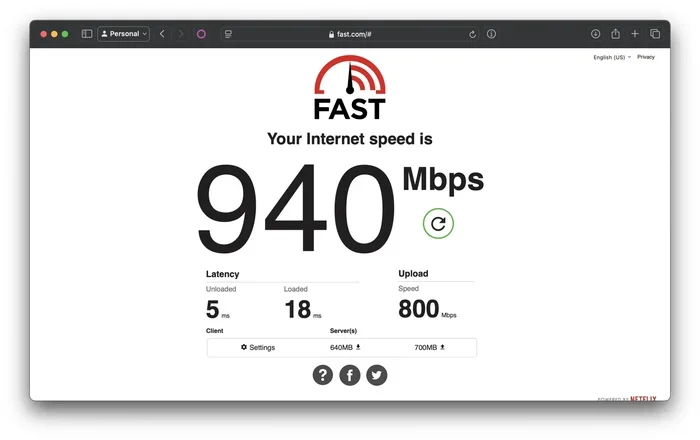
Run a speed test after upgrading. Use a free online tool to test your wireless speed before and after the upgrade. This will give you concrete proof of the improvement and help you fine-tune your setup.
Key Takeaways
- Upgrading is possible: Most desktops and many laptops allow you to replace or add a new WiFi card for better performance.
- Two main options exist: You can choose internal PCIe WiFi cards or external USB WiFi adapters depending on your setup.
- WiFi 6 and WiFi 6E cards offer major speed gains: These newer wireless standards deliver faster speeds and handle more devices.
- Installation is straightforward: Swapping out a PC WiFi card takes about 15 minutes and requires no advanced technical skills.
- Driver software matters: Always install the latest drivers after upgrading to unlock full performance and stability.
- USB adapters are great for laptops: They offer a plug-and-play solution without opening your computer.
- Signal strength improves with better hardware: A quality wireless adapter with good antenna design can significantly boost your range.
Frequently Asked Questions
Can I upgrade the WiFi card in my laptop?
Yes, in most cases you can. Some laptops have an accessible WiFi card slot that you can access from the bottom panel. If your laptop does not have an internal slot, you can use a USB WiFi adapter instead. Check your laptop manual or the manufacturers website to confirm your options.
How much does a WiFi card upgrade cost?
Prices vary depending on the standard. WiFi 5 cards start around $20, WiFi 6 cards typically range from $40 to $100, and WiFi 6E cards can cost $80 to $150. The cost is small compared to the performance improvement you will notice.
Do I need to be technical to install a new WiFi card?
No, you do not. Installing an internal PCIe card is straightforward and takes about 15 minutes. USB adapters are even easier since they are plug-and-play. You just need to follow a few simple steps and install the correct drivers.
Will upgrading my WiFi card improve my internet speed?
Yes, it can. A better wireless adapter allows your computer to take full advantage of faster internet speeds and newer WiFi standards. However, your actual speed also depends on your internet plan, your router, and your distance from the router.
What is the difference between WiFi 5 and WiFi 6?
WiFi 6 is significantly faster than WiFi 5 and handles multiple devices much better. It also uses less power, which is great for laptops. WiFi 6 supports speeds up to 9.6 Gbps compared to WiFi 5’s 1.3 Gbps. If you have a modern router, a WiFi 6 card will let you use its full features.
Can I use a WiFi card from a different brand?
Yes, you can use a WiFi card from any brand as long as it is compatible with your computer. Make sure the card matches your available slot type (PCIe or M.2) and that drivers are available for your operating system. Most major brands like Intel, TP-Link, and ASUS offer well-supported cards.
Final Thoughts
Upgrading your PC WiFi card is one of the simplest and most effective ways to improve your wireless experience. Whether you choose an internal PCIe card or a USB adapter, the results can be impressive. Faster speeds, stronger signals, and fewer dropped connections are all within reach.
Take some time to evaluate your needs and choose the right card for your situation. Consider your internet speed, the number of devices you use, and your budget. A small investment in better wireless hardware can pay off for years to come.
Do not settle for slow, unreliable WiFi when a simple upgrade can fix the problem. Upgrade your PC WiFi card today and enjoy the difference. Your internet connection will thank you.