Do All Thunderbolt 4 Ports Support Display Monitors
Yes, all Thunderbolt 4 ports support display output. Every certified Thunderbolt 4 port can drive at least one external monitor, and many support dual displays. Understanding the specs helps you choose the right cable, adapter, and docking station for your setup.
If you own a laptop or desktop with a Thunderbolt 4 port, you have probably wondered whether it can connect to an external monitor. Maybe you are setting up a home office and want a second screen. Or perhaps you need to hook up a high-resolution display for creative work. The question Do All Thunderbolt 4 Ports Support Display comes up a lot, and the answer is not as simple as a yes or no.
Thunderbolt 4 is Intel’s latest connectivity standard, and it brings serious power to your desk. It combines data transfer, charging, and video output into a single cable. But the details of how it handles display connections can vary depending on your device, your monitor, and the accessories you use. This guide walks through everything you need to know.
We will cover the official Intel specifications, real-world setup scenarios, common mistakes to avoid, and expert tips for getting the best picture from your Thunderbolt 4 port. By the end, you will feel confident about connecting your monitors and choosing the right accessories.
Key Takeaways
- All Thunderbolt 4 ports support display output: Intel requires every certified Thunderbolt 4 port to handle at least one external monitor.
- Dual display is standard: Most Thunderbolt 4 ports can drive two 4K monitors or one 8K display simultaneously.
- USB4 ports vary: Not all USB4 ports guarantee the same display support as Thunderbolt 4.
- Docking stations matter: A quality Thunderbolt dock expands your display options and simplifies connectivity.
- Cable quality affects performance: Using the right Thunderbolt 4 cable ensures full bandwidth and stable video output.
- Check your device specs: Always verify your laptop or PC supports the resolution and refresh rate you need.
📑 Table of Contents
What Is Thunderbolt 4?
The Basics of Thunderbolt 4
Thunderbolt 4 is a hardware interface developed by Intel. It uses the USB-C connector and combines several technologies into one port. A single Thunderbolt 4 cable can transfer data, deliver power, and carry video signals to external displays. This makes it incredibly convenient for users who want a clean, clutter-free workspace.
Thunderbolt 4 was introduced in 2020 as an upgrade to Thunderbolt 3. It offers faster and more reliable performance across the board. Every Thunderbolt 4 port must meet strict Intel certification requirements. This certification ensures consistent performance no matter which brand you buy.
How Thunderbolt 4 Differs from Thunderbolt 3
Thunderbolt 3 and Thunderbolt 4 share the same USB-C connector. However, Thunderbolt 4 raises the bar in several key areas. For display support, Thunderbolt 4 requires dual-monitor capability on at least one port. Thunderbolt 3 only required a single external display.
Here is a quick side-by-side look at the two standards:
- Thunderbolt 3: Supports one 4K display or two 1080p displays. Minimum data transfer speed of 40 Gbps.
- Thunderbolt 4: Supports two 4K displays or one 8K display. Minimum data transfer speed of 40 Gbps with stricter certification.
- Sleep and Wake: Thunderbolt 4 guarantees the ability to wake from sleep using a connected peripheral, which Thunderbolt 3 does not always support.
- Security: Thunderbolt 4 includes Intel VT-D-based direct memory access protection, adding a layer of security against DMA attacks.
These differences may seem small, but they matter when you are setting up a professional workstation or connecting multiple high-resolution monitors.
Do All Thunderbolt 4 Ports Support Display Monitors?
The Official Intel Specification
The answer to Do All Thunderbolt 4 Ports Support Display is yes, with one important caveat. Intel requires every Thunderbolt 4-certified port to support display output. This is not optional. Any device that carries the Thunderbolt 4 logo must be able to drive at least one external monitor.
Specifically, Intel mandates that a Thunderbolt 4 port must support these video capabilities:
- Dual 4K displays at 60 Hz: This is the minimum display requirement for Thunderbolt 4 certification.
- Single 8K display at 60 Hz: Some Thunderbolt 4 implementations can handle even higher resolutions.
- DP Alt Mode support: Thunderbolt 4 uses DisplayPort Alternate Mode to carry video signals over the USB-C cable.
- HDMI output via adapter: You can connect to HDMI monitors using a compatible Thunderbolt 4 to HDMI adapter.
So when you buy a device with a Thunderbolt 4 port, you are guaranteed display support. But the number of monitors and the resolution you can achieve depend on your specific hardware and configuration.
What Thunderbolt 4 Can Drive
Let us look at the practical display options a Thunderbolt 4 port can handle. The Intel specification sets a floor, but many devices exceed it. Here are the most common setups you will encounter:
- One 4K monitor at 144 Hz: Great for gamers and creative professionals who need smooth motion and sharp detail.
- Two 4K monitors at 60 Hz: The standard dual-display setup for productivity and multitasking.
- One 5K monitor: Supported by many MacBooks and high-end Windows laptops with Thunderbolt 4.
- One 8K monitor at 60 Hz: Available on some premium workstations and creative machines.
- Daisy-chained displays: Thunderbolt 4 supports DisplayPort daisy chaining, so you can connect multiple monitors through a single port using a Thunderbolt dock or a compatible monitor.
The key takeaway is that Thunderbolt 4 gives you flexible display options. You are not limited to just one monitor or a low resolution. The standard is designed to handle demanding visual workloads.
Thunderbolt 4 vs. USB4 Display Support
How USB4 Handles Displays
USB4 is a related standard that also uses the USB-C connector. It was developed by the USB Implementers Forum (USB-IF) and shares some DNA with Thunderbolt technology. However, USB4 and Thunderbolt 4 are not the same thing, and their display support differs.
USB4 comes in two tiers: USB4 20 Gbps and USB4 40 Gbps. The display support depends on which tier your device uses:
- USB4 20 Gbps: May support only a single 4K display at 60 Hz or two 1080p displays. Display support is not guaranteed in all implementations.
- USB4 40 Gbps: Can support dual 4K displays or a single 8K display, similar to Thunderbolt 4.
Notice that USB4 does not mandate dual-display support the way Thunderbolt 4 does. This is a crucial difference. If you are shopping for a device and display support matters to you, check whether the port is Thunderbolt 4 or just USB4.
Key Differences in Video Output
Here is a quick comparison of how Thunderbolt 4 and USB4 handle video output:
- Certification: Thunderbolt 4 requires Intel certification and always supports dual 4K displays. USB4 does not require the same level of certification, and display support can vary by manufacturer.
- Bandwidth allocation: Thunderbolt 4 guarantees a minimum bandwidth for video output. USB4 may allocate bandwidth differently, potentially limiting display performance.
- Compatibility: Thunderbolt 4 is backward compatible with Thunderbolt 3, USB4, and USB 3.x. USB4 is backward compatible with USB 3.x and Thunderbolt 3 but may not offer the same display features.
- eGPU support: Thunderbolt 4 provides more reliable external GPU support, which also affects display output when using an eGPU enclosure.
If you need guaranteed display performance, Thunderbolt 4 is the safer choice. USB4 is fine for basic tasks, but it may not deliver the same consistency for multi-monitor setups.
Common Display Setup Scenarios
Single Monitor Setup
A single monitor setup is the simplest way to use a Thunderbolt 4 port for display output. You just plug one end of a Thunderbolt 4 cable into your laptop and the other end into your monitor. Most modern monitors with USB-C inputs will work directly. If your monitor only has HDMI or DisplayPort inputs, you will need a Thunderbolt 4 to HDMI or Thunderbolt 4 to DisplayPort adapter.
This setup works great for everyday tasks, video editing, and casual gaming. You get a clean workspace with a single high-quality display and a single cable for data, power, and video.
Dual Monitor Setup
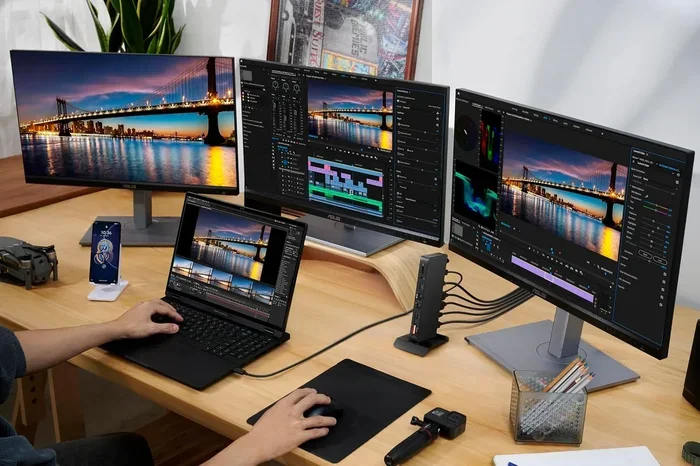
Dual monitors are where Thunderbolt 4 really shines. Because every Thunderbolt 4 port supports two 4K displays at 60 Hz, you can connect two external monitors without any extra hardware in most cases. Simply plug both monitors into your laptop’s Thunderbolt 4 ports or use a Thunderbolt docking station.
Here are a few tips for a smooth dual-monitor experience:
- Use the same monitor model: Matching monitors reduce color and brightness inconsistencies across screens.
- Check your laptop’s GPU: Even with Thunderbolt 4, your laptop’s graphics processor must be powerful enough to drive two 4K displays smoothly.
- Use a Thunderbolt dock: A quality Thunderbolt dock simplifies dual-monitor connections and often includes extra USB ports and Ethernet.
Docking Station Configurations
A Thunderbolt docking station is one of the best investments you can make for your workspace. It expands a single Thunderbolt 4 port into multiple connections, including several display outputs, USB-A ports, Ethernet, and SD card readers. With a good dock, you can connect two, three, or even four monitors to a single laptop.
When choosing a docking station, look for these features:
- Thunderbolt 4 certification: This ensures the dock meets Intel’s standards for performance and reliability.
- Multiple video outputs: HDMI, DisplayPort, and USB-C video outputs give you flexibility for different monitor types.
- Power delivery: A good dock charges your laptop while also handling data and video, so you only need one cable from your desk to your laptop.
- Daisy chaining: Some docks support daisy chaining, where you connect multiple devices in a line through a single Thunderbolt port.
Quick Tips and Common Mistakes
Quick Tips for Best Display Performance
- Use certified Thunderbolt 4 cables: Cheap or uncertified cables can limit bandwidth and cause display flickering or dropped signals. Look for the Thunderbolt 4 logo on the cable.
- Update your drivers: Keep your GPU drivers and Thunderbolt firmware up to date. Updates often improve display compatibility and performance.
- Check your monitor’s input: Make sure your monitor supports the resolution and refresh rate you want to use over USB-C or Thunderbolt.
- Use adapters from trusted brands: Not all adapters are created equal. Cheap adapters may not support the full bandwidth needed for 4K or dual displays.
- Test your setup before committing: If possible, test your Thunderbolt 4 connection with your specific monitor before buying a long-term setup.
Common Mistakes to Avoid
Even experienced users make mistakes when setting up Thunderbolt 4 displays. Here are the most common ones:
- Assuming USB-C means Thunderbolt 4: Not every USB-C port supports Thunderbolt. A standard USB-C port may not carry video at all, or it may only support a single low-resolution display.
- Using the wrong cable: A USB 3.0 or USB 3.1 cable will not deliver Thunderbolt 4 performance. You need a cable specifically certified for Thunderbolt 4.
- Overlooking power delivery: Some Thunderbolt docks do not provide enough power to charge your laptop while driving multiple displays. Check the wattage before buying.
- Ignoring thermal limits: Some laptops throttle Thunderbolt performance when they get hot. This can affect display output, especially with demanding multi-monitor setups.
- Not checking daisy chain compatibility: Not all monitors support daisy chaining. Check your monitor’s specs before relying on this feature.
Expert Insights
Industry experts consistently highlight Thunderbolt 4 as the gold standard for connectivity and display support. According to Intel, Thunderbolt 4 was designed with the goal of providing a universal, reliable connection for professionals, creatives, and everyday users alike.
One expert tip from IT professionals is to always verify your device’s Thunderbolt controller. The host controller chip inside your laptop or PC determines what Thunderbolt 4 can deliver. Even if the port is Thunderbolt 4 certified, the controller’s capabilities can affect how many displays and at what resolution you can run them.
Another important insight is about peripheral compatibility. Not all external devices work perfectly with every Thunderbolt 4 port. Some older Thunderbolt 3 docks work fine, but you may experience reduced performance or missing features. When possible, choose Thunderbolt 4-certified docks and accessories to ensure the best experience.
For those considering an eGPU setup, Thunderbolt 4 provides excellent support. An external GPU connected through a Thunderbolt 4 port can dramatically boost graphics performance for gaming or professional rendering. The video output from the eGPU can then be sent to one or more external monitors, giving you desktop-class graphics in a portable package.
Connectivity expert reviews also point out that the bandwidth of Thunderbolt 4 (40 Gbps) is shared between all functions on the port. If you are transferring large files at full speed while streaming video to a 4K monitor, the total bandwidth is divided between these tasks. In most real-world scenarios, this does not cause noticeable issues, but it is worth keeping in mind for extremely demanding workflows.
Final Thoughts
The answer to Do All Thunderbolt 4 Ports Support Display is a clear yes. Every Thunderbolt 4-certified port supports at least one external display and typically handles dual 4K monitors or a single high-resolution display. This makes Thunderbolt 4 one of the most versatile connectivity standards available today.
Whether you are setting up a simple single-monitor workspace or a complex multi-display creative station, Thunderbolt 4 gives you the tools to get it done. The key is to use certified cables, compatible accessories, and a solid understanding of your device’s capabilities.
Take the time to check your device specs, choose the right docking station, and invest in quality cables and adapters. Your Thunderbolt 4 port will reward you with a seamless, high-performance display setup that simplifies your workflow and boosts your productivity.
With Thunderbolt 4, you are not just connecting a monitor. You are connecting a complete ecosystem of devices that work together through a single, elegant standard. That is the real power of this technology, and it is available to anyone with a Thunderbolt 4 port on their device.
Frequently Asked Questions
Can I connect a 4K monitor to a Thunderbolt 4 port?
Yes, every Thunderbolt 4 port supports at least one 4K display at 60 Hz. Most Thunderbolt 4 implementations can drive two 4K monitors simultaneously, making it ideal for productivity and creative work.
What is the difference between USB-C and Thunderbolt 4 for display output?
USB-C is just a connector type, while Thunderbolt 4 is a full standard that includes guaranteed display support. A standard USB-C port may not support video output at all, or it may only handle a single low-resolution display. Thunderbolt 4 always supports at least one external monitor and typically handles dual 4K displays.
Do I need a special cable for Thunderbolt 4 display output?
You need a Thunderbolt 4 certified cable for the best performance. Regular USB-C cables may work for basic display tasks, but they might not support the full 40 Gbps bandwidth needed for high-resolution or dual-monitor setups.
Can I use a Thunderbolt 4 docking station to connect multiple monitors?
Absolutely. A Thunderbolt 4 docking station can expand a single port into multiple display outputs. Many docks support two or more monitors simultaneously, and some allow daisy chaining, where you connect several monitors in a line from one Thunderbolt port.
Does Thunderbolt 4 support HDMI monitors?
Yes, you can connect an HDMI monitor using a Thunderbolt 4 to HDMI adapter. Thunderbolt 4 supports DP Alt Mode natively, and adapters allow you to connect to HDMI, DisplayPort, and VGA monitors depending on your needs.
Will a Thunderbolt 3 monitor work with a Thunderbolt 4 port?
Yes, Thunderbolt 4 is backward compatible with Thunderbolt 3 devices. You can connect a Thunderbolt 3 monitor to a Thunderbolt 4 port and it will work. However, you may not access all Thunderbolt 4 features, such as dual 4K output, if the monitor itself only supports Thunderbolt 3 capabilities.
=== CONCLUSION ===
Thunderbolt 4 is a game-changer for anyone who needs reliable, high-performance display connectivity. Every Thunderbolt 4 port supports display output, and most can handle dual 4K monitors or even a single 8K display. Understanding the differences between Thunderbolt 4, USB4, and standard USB-C helps you make informed decisions about your setup.
Use certified cables, invest in a quality Thunderbolt dock, and always check your device specifications before purchasing accessories. With the right setup, your Thunderbolt 4 port will deliver a seamless and powerful display experience for work, play, and everything in between.