Can You Use Usb C To Connect To Hdmi Without Any Adapters
Yes, you can use USB C to connect to HDMI without any adapters, but only if your device supports USB-C Alternate Mode or Thunderbolt 3. This direct connection lets you mirror your screen to a TV or monitor in seconds. We break down which devices work, what to watch out for, and how to get the best results.
You have a USB C cable in your hand. You plug it into your laptop. You connect the other end to your TV. And nothing happens. Sound familiar? You are not alone. Many people assume that USB C to HDMI works the same way on every device. It does not. Some devices let you go direct. Others need a little help. In this guide, we walk through everything you need to know about using USB C to connect to HDMI without any adapters. We keep it simple, practical, and straight to the point.
The good news is that modern technology has made this easier than ever. USB C has become the go-to port for charging, data transfer, and even video output. If your device supports it, you can skip the adapters entirely. But the key question remains: does your specific device support this? Let us find out together.
Key Takeaways
- Direct USB C to HDMI is possible: Many modern laptops and phones send video signals through USB C without extra gear.
- Check your device first: Not every USB C port supports video output. Look for Thunderbolt 3 or DisplayPort Alternate Mode.
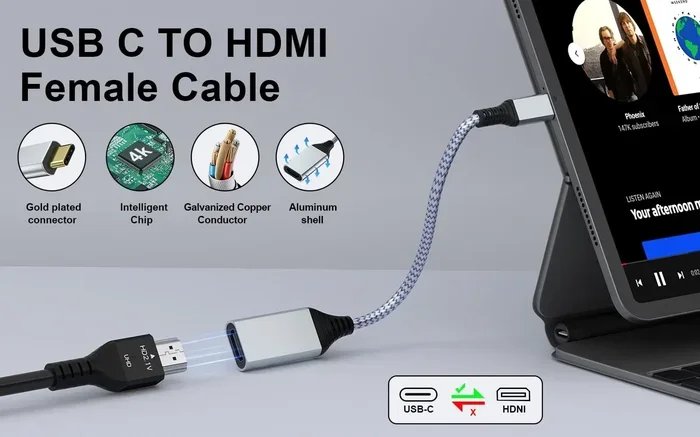
- No adapters needed in many cases: A simple USB C to HDMI cable can do the job on compatible devices.
- Resolution and refresh rate matter: Direct connections can support 4K and even higher depending on your hardware.
- Common problems are easy to fix: Driver updates and cable quality solve most issues.
- Wireless alternatives exist: If your device lacks direct support, Wi-Fi casting is a backup option.
📑 Table of Contents
- How USB C to HDMI Works Without Adapters
- Which Devices Support Direct USB C to HDMI
- Benefits of a Direct USB C to HDMI Connection
- Common Problems and How to Fix Them
- USB C to HDMI vs. Using an Adapter
- Quick Tips for the Best USB C to HDMI Experience
- Expert Insights on USB C to HDMI Connectivity
- Common Mistakes People Make with USB C to HDMI
- Key Takeaways
- Conclusion
How USB C to HDMI Works Without Adapters
Understanding how USB C to HDMI works without an adapter starts with one important feature called Alternate Mode. This is a built-in capability in the USB C standard. When your device supports Alternate Mode, it can send a video signal through the same port used for charging and data.
What Is Alternate Mode?
Alternate Mode is a protocol built into the USB C specification. It allows the port to carry different types of signals. For example, a USB C port can carry DisplayPort or HDMI signals alongside regular data and power. This means one single port can do multiple jobs at once.
Not all USB C ports are created equal, though. Some only handle power and data. Others handle power, data, and video. This is why checking your device matters so much before you try a direct USB C to HDMI connection.
Thunderbolt 3 and Thunderbolt 4
Thunderbolt 3 and Thunderbolt 4 are game changers. These ports always support video output. They use the same USB C connector but carry much more power and data. If your laptop has a Thunderbolt logo next to the port, you can almost certainly connect it to an HDMI display without an adapter. Thunderbolt ports support up to 4K at 60Hz and sometimes even higher resolutions.
Many people confuse regular USB C with Thunderbolt. They look the same physically. But Thunderbolt adds video output capability and much faster data speeds. If you are unsure, check your device specs or look for the small lightning bolt icon.
Which Devices Support Direct USB C to HDMI
Not every gadget on your desk can go straight from USB C to HDMI. Here is a breakdown of common devices and their capabilities.
Laptops and Computers
Most modern laptops from Apple, Dell, HP, Lenovo, and others now come with USB C ports that support video output. Apple MacBooks are a great example. They use Thunderbolt 3 or Thunderbolt 4 USB C ports that handle HDMI output natively. Many Windows laptops follow the same pattern.
However, budget laptops or older models may have USB C ports that only charge the battery and transfer files. Always double-check the specs before assuming your port supports video.
Smartphones and Tablets
Some Android phones and tablets now feature USB C ports that support video output. Samsung Galaxy phones, Google Pixel devices, and others can connect directly to a TV or monitor. You simply use a USB C to HDMI cable and your screen mirrors to the bigger display.
iPads with USB C also support this. The iPad Pro and iPad Air models can output video through their USB C port. This makes them great portable monitors for presentations or streaming.
Gaming Consoles and Other Devices
Some handheld gaming devices like the Steam Deck and Nintendo Switch (with the USB C dock) also support direct video output. The Steam Deck, for example, has a full USB C port that can send a 4K signal to a monitor or TV.
Benefits of a Direct USB C to HDMI Connection
Going adapter-free has several real advantages. Here is why a direct USB C to HDMI setup is worth considering.
Simplicity and Convenience
The biggest benefit is simplicity. You grab one cable. You plug it in. Done. No dongles, no extra boxes, no fumbling with multiple pieces of hardware. A direct connection saves time and keeps your workspace clean.
Think about how often you need to connect your laptop to a projector or TV. With a single cable, you are ready in seconds. This is especially helpful for professionals who present frequently or students who share screens in class.
Better Signal Quality
Every adapter you add between your device and the display can slightly degrade the signal. A direct USB C to HDMI cable removes that middleman. You get the cleanest possible video output from your device. This matters most at higher resolutions like 4K or when you need smooth motion for gaming or video editing.
Cost Savings
Adapters and docking stations can be expensive. A quality USB C to HDMI cable costs much less. You also avoid the hassle of carrying extra accessories when you travel. One cable does the job.
Faster Setup
When you skip adapters, you also skip potential compatibility headaches. Plug and play works the way it should. Your device recognizes the display and you start using it right away. This is especially true for devices that support DisplayPort Alternate Mode over USB C.
Common Problems and How to Fix Them
Even with a direct connection, things can go wrong. Here are the most common issues and how to solve them.
No Signal on the TV or Monitor
This is the most common problem. If you plug in a USB C to HDMI cable and see nothing, try these steps:
- Check that your device is set to output video through USB C. Go to your display settings and look for an external display option.
- Make sure the cable is fully seated in both ports.
- Try a different USB C port if your device has more than one.
- Restart both your device and the display.
Sometimes the issue is as simple as the display being set to the wrong input source. Use your TV remote to switch to the correct HDMI port.
Low Resolution or Flickering
If your screen works but looks blurry or flickers, your cable or port might not support the resolution you are trying. Lower the resolution in your display settings and see if it improves. Also, make sure you are using a high-quality USB C to HDMI cable that supports the resolution and refresh rate you need.
Audio Not Working
Sometimes video comes through but there is no sound. This usually happens because your device is not set to output audio through the HDMI connection. Go to your sound settings and select the HDMI display as your audio output device.
Device Does Not Recognize the Cable
If your device does not recognize the cable at all, the port may not support video output. Check your device manual or the manufacturer website. Look for terms like “video output,” “display output,” or “Alternate Mode support.”
Wireless Alternatives When Direct Connection Fails
If your device simply does not support direct USB C to HDMI output, you still have options. Wireless screen mirroring through Wi-Fi can work well for many situations. Some devices use Wi-Fi Direct or apps like Miracast to cast your screen to a compatible TV. This is similar to how some wireless baby monitors connect to phones and tablets without any cables at all. You can read more about how wireless device connections work in our article on Are Baby Monitors Connected To Wi Fi. Wireless solutions are not always as reliable for high-quality video, but they work in a pinch.
USB C to HDMI vs. Using an Adapter
When a direct connection is not possible, adapters become your best friend. But how do they compare? Let us look at the key differences.
| Feature | Direct USB C to HDMI | USB C to HDMI Adapter |
|---|---|---|
| Number of cables needed | One | Two or more |
| Signal quality | Best | Slightly reduced |
| Cost | Lower | Higher |
| Setup time | Seconds | Minutes |
| Portability | Excellent | Bulky |
| Compatibility | Limited to supported devices | Works with more devices |
| Risk of signal loss | None | Low |
As you can see, a direct connection wins in most categories. But adapters still have an important role. They expand compatibility to devices that would otherwise not support video output through USB C. If you own a mix of older and newer devices, keeping a quality adapter on hand is a smart move.
Some people also use USB C docking stations that include HDMI ports alongside USB ports, Ethernet, and card readers. These are great for office setups where you need multiple connections at once. However, for simple TV or monitor connections, a direct cable is hard to beat.
Quick Tips for the Best USB C to HDMI Experience
Here are some practical tips to make your USB C to HDMI setup work flawlessly every time.
- Buy a certified cable. Look for cables that are certified by USB-IF or carry Thunderbolt certification. Cheap uncertified cables often cause problems.
- Check your device manual. It will tell you exactly which USB C features your device supports. Search for “video output” or “Alternate Mode.”
- Keep your drivers updated. On Windows laptops, outdated display drivers can prevent USB C video output from working. Update them regularly.
- Use the right HDMI port. On your TV or monitor, use the HDMI port that supports the highest resolution. Some TVs have HDMI 2.0 and HDMI 2.1 ports. The latter supports 4K at higher refresh rates.
- Avoid long cable runs. USB C to HDMI cables longer than 6 feet may lose signal quality. Stick to shorter cables for the best results.
- Try a different cable if problems persist. Cables can fail internally without visible damage. Having a backup cable saves time and frustration.
Expert Insights on USB C to HDMI Connectivity
Technology experts agree that USB C is the future of display connections. The industry has largely moved away from older ports like VGA and HDMI-only laptops. Now, most new devices rely on USB C for everything, including video output.
According to the USB Implementers Forum, the USB C standard continues to evolve. Newer versions support higher bandwidth, which means better video quality at higher resolutions. Thunderbolt 5, the latest in the Thunderbolt lineup, promises even more impressive capabilities for professionals and consumers alike.
For entertainment setups, having a direct USB C to HDMI connection is incredibly useful. Whether you are streaming movies, giving presentations, or gaming on a big screen, the simplicity of a single cable connection makes everything smoother. If you are looking for more ways to simplify your entertainment setup, you might also explore options like Alternatives To Dish Network And Directtv for cutting the cord on your TV service.
One thing experts stress is the importance of understanding your device’s capabilities. Not every USB C port is the same. Taking five minutes to check your device specifications can save hours of frustration later. It also helps you choose the right cable for your needs from the start.
Common Mistakes People Make with USB C to HDMI
Avoid these common pitfalls to get the most out of your USB C to HDMI setup.
- Assuming all USB C ports support video: This is the number one mistake. Some ports are power-only. Always verify before you buy a cable.
- Using cheap, uncertified cables: A $5 cable from a random seller may not handle the data or power requirements. Invest in a quality cable.
- Ignoring firmware updates: Device manufacturers sometimes release firmware that improves USB C video output. Keep your device updated.
- Forcing a cable that does not fit: USB C is reversible, but forcing it can damage the port. If it does not fit easily, check the orientation or try a different cable.
- Not checking the HDMI input on your TV: Some older TVs only support 1080p. If you are trying to push 4K through, make sure your TV and HDMI port can handle it.
Key Takeaways
- Direct USB C to HDMI works on many modern devices: Laptops, phones, and tablets with Thunderbolt 3, Thunderbolt 4, or DisplayPort Alternate Mode can connect to HDMI displays without any adapters.
- Always verify your device supports video output: Check the specs, look for Thunderbolt or DisplayPort symbols, or consult the user manual.
- A quality USB C to HDMI cable is all you need: No extra adapters, no docking stations, just one simple cable for a clean setup.
- Signal quality is better with direct connections: Fewer connection points mean fewer chances for signal loss or interference.
- Wireless options exist as a fallback: If your device does not support direct output, Wi-Fi casting or screen mirroring can fill the gap.
- Common issues are usually easy to fix: Driver updates, cable swaps, and display settings adjustments solve most problems.
- The industry is moving toward USB C as the universal standard: More devices are adopting this versatile port every year, making adapter-free connections the new normal.
Conclusion
The answer to whether you can use USB C to connect to HDMI without any adapters is a clear yes for many modern devices. As long as your laptop, phone, or tablet supports USB-C Alternate Mode or Thunderbolt, you can plug directly into an HDMI display and enjoy high-quality video without any extra gear. The experience is simple, fast, and reliable.
Not every device supports this feature, so always check your specifications first. But for those that do, a direct USB C to HDMI cable is the easiest and most affordable way to get your screen on a bigger display. You save money, you save time, and you avoid the clutter of extra adapters.
Technology keeps moving forward, and USB C is leading the way. More devices are adopting this standard every year. The days of carrying multiple cables and adapters for a simple screen connection are fading fast. Embrace the simplicity of a direct USB C to HDMI connection and enjoy a cleaner, faster, and more reliable setup.
Now that you know what to look for and how to set it up, you can confidently connect your device to any HDMI display. Grab the right cable, check your ports, and enjoy the seamless experience that modern USB C technology makes possible.
Frequently Asked Questions
Can all USB C ports connect to HDMI?
No, not all USB C ports support video output. Some USB C ports are designed only for charging and data transfer. You need to check if your device supports DisplayPort Alternate Mode or Thunderbolt to confirm that your USB C port can send a video signal to an HDMI display.
Do I need a special USB C to HDMI cable?
You need a cable that is built to carry video signals. A standard USB C charging cable will not work for HDMI output. Look for cables that are labeled as USB C to HDMI cables and are certified by USB-IF or carry Thunderbolt certification for the best results.
Can I connect a USB C laptop to any HDMI TV?
Yes, in most cases. If your laptop supports USB C video output, you can connect it to any TV or monitor with an HDMI port. The connection is plug and play on most devices. Just make sure your TV is set to the correct HDMI input source.
What resolution can USB C to HDMI support without an adapter?
This depends on your device and cable. Many Thunderbolt 3 and Thunderbolt 4 ports support 4K at 60Hz through a direct USB C to HDMI connection. Some newer devices and cables can even handle 8K resolution. Check your device specifications for exact details.
Why does my USB C to HDMI connection keep disconnecting?
This can happen for several reasons. A loose cable connection, outdated display drivers, or a cable that does not meet the required specifications are common causes. Try reseating the cable, updating your drivers, or using a different certified cable to resolve the issue.
Are wireless alternatives to USB C to HDMI any good?
Wireless options like Miracast or Wi-Fi Direct screen mirroring work well for casual use. However, they usually have more latency and lower image quality compared to a direct USB C to HDMI cable. For gaming, video editing, or presentations, a wired connection is always the better choice.