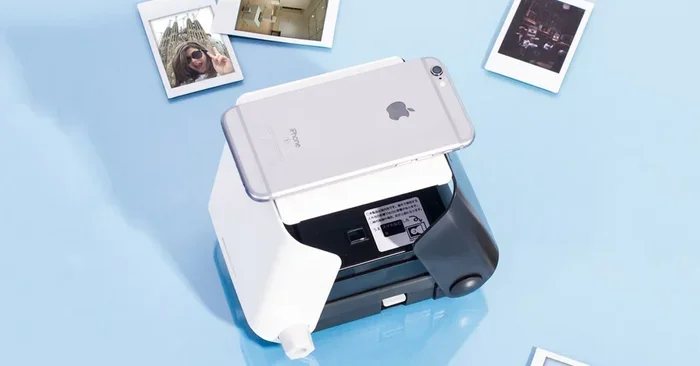
Can You Print Polaroids From Iphone Easily At Home
Yes, you can absolutely print Polaroids from your iPhone at home using wireless printers, dedicated Polaroid devices, and simple photo apps. Printing Polaroid-style photos from iPhone has never been easier, whether you want instant prints or vintage-style keepsakes. With the right portable photo printer and a few simple steps, you can turn your iPhone camera photos into tangible memories in minutes.
There is something magical about holding a physical photo in your hands. In a world dominated by digital screens, printing Polaroids from iPhone brings back that warm, nostalgic feeling. You snap a picture, tap a few buttons, and moments later you hold a tangible memory in your palm.
Can you print Polaroids from iPhone? The short answer is yes. The longer answer is even more exciting. You have more options than ever before. Whether you want to print one photo or an entire album, your iPhone can connect to printers that produce stunning Polaroid-style prints at home. This guide walks you through every method, tool, and tip you need to know.
People love the convenience of mobile photo printing. It saves trips to the store. It saves money. And it gives you complete creative freedom. You control the size, the style, and the timing. Let us dive into how you can start printing Polaroid photos from iPhone today.
Key Takeaways
- Easy Home Printing: You can print Polaroid-style photos from your iPhone using wireless printers and dedicated Polaroid devices right from your living room.
- Multiple Printer Options: Devices like the Polaroid Hi-Link, Instax Mini Link, and portable Bluetooth printers all support iPhone connectivity.
- Free and Paid Apps: Apps like Polaroid Originals, HP Sprocket, and Canva help you edit and print directly from your phone.
- Polaroid Paper Matters: Using the correct Polaroid paper and ink ensures vibrant, long-lasting prints that match the classic Polaroid look.
- Cost-Effective: Home printing saves money compared to drugstore prints and gives you creative control over every photo.
- Quick Process: Most prints take under a minute from selection to finished product.
📑 Table of Contents
- Why Print Polaroids From Your iPhone?
- Best Printers for Printing Polaroids From iPhone
- How to Print Polaroids From iPhone Step by Step
- Best Apps for Printing Polaroids From iPhone
- Polaroid Paper and Supplies Guide
- Common Mistakes to Avoid When Printing Polaroids From iPhone
- Expert Tips for Perfect Polaroid Prints From iPhone
- Quick Comparison Table: Top iPhone Polaroid Printers
- Frequently Asked Questions
- Conclusion
Why Print Polaroids From Your iPhone?
You might wonder why you should bother printing photos at all. After all, your phone stores thousands of images. But there is a real difference between scrolling through a gallery and holding a physical print. Here is why printing Polaroid photos from iPhone has become so popular.
First, physical prints create emotional connections. Studies show that holding a photo triggers stronger memories than viewing it on a screen. You feel something different when you touch the paper and see the colors up close. Polaroid-style prints add an extra layer of charm with their iconic white borders and vintage aesthetic.
Second, printing at home is incredibly convenient. You do not need to wait for shipping or drive to a store. Your iPhone photo printer sits on your desk or shelf. You print whenever inspiration strikes. A friend sends you a funny screenshot? Print it. Your dog does something adorable? Print it. The moment is fresh, and the print captures that energy perfectly.
Third, home printing is surprisingly affordable. When you factor in the cost of ink and paper, printing at home often costs less than professional services. You also avoid the markup that stores add for instant photo printing. Over time, the savings add up significantly.
The Nostalgia Factor
Polaroid cameras defined an era. They gave people the power to capture and hold a moment instantly. That magic has not faded. In fact, print Polaroid style photos from iPhone has become a trend among younger generations who love the retro vibe. The white border, the square format, the slightly faded colors, it all feels special and intentional.
Best Printers for Printing Polaroids From iPhone
Choosing the right printer makes all the difference. Not every printer can produce true Polaroid-style prints. Some create standard rectangular photos. Others use special paper that mimics the classic Polaroid look. Let us explore the best options available right now.
Polaroid Hi-Link Printer
The Polaroid Hi-Link is a dedicated Polaroid printer for iPhone. It connects via Bluetooth and uses genuine Polaroid ZINK paper. The prints come out with the classic white border and square format. You simply pair your iPhone, select your photo, and print. The whole process takes about sixty seconds.
This printer is compact and portable. You can carry it in a bag and print photos anywhere. It uses thermal printing technology, which means no ink cartridges. The paper contains special dye crystals that activate when heated. This makes the printer mess-free and easy to maintain.
Instax Mini Link 2
Fujifilm’s Instax Mini Link 2 is another excellent choice for iPhone Polaroid printing. It connects to your phone through the Instax Mini Link app. The prints use Instax Mini film, which produces credit-card-sized photos with the classic Instax border.
While not technically a Polaroid, the Instax Mini Link 2 produces very similar results. The square format, white border, and vintage look are nearly identical. Many people use this printer interchangeably with actual Polaroid cameras. It prints in about fifteen seconds, making it one of the fastest options available.
HP Sprocket Studio
The HP Sprocket Studio offers a different take on mobile photo printing. It uses HP ZINK paper and connects to your iPhone via Bluetooth. The prints are sticker-sized and have a peel-and-stick backing. This makes them perfect for decorating journals, laptops, and phone cases.
While the format is smaller than traditional Polaroids, the print quality is excellent. The colors are vibrant, and the paper is water-resistant. You can print directly from the HP Sprocket app or use AirPrint for quick jobs.
Portable Bluetooth Printers
If you want flexibility, a portable Bluetooth printer is worth considering. Brands like Canon, Epson, and Cissin make compact printers that connect wirelessly to your iPhone. These printers use standard photo paper or adhesive paper, and many offer Polaroid-style templates in their companion apps.
The advantage of portable printers is size and price. They are often smaller and cheaper than dedicated Polaroid printers. The trade-off is that you need to supply your own paper and sometimes ink. But for casual printing, they work wonderfully.
How to Print Polaroids From iPhone Step by Step
Now that you know which printer to choose, let us walk through the actual process. Printing Polaroid photos from iPhone is straightforward once you know the steps. Here is a detailed guide that works for most printers.
Step 1: Choose Your Photo
Open your iPhone camera roll and select the photo you want to print. For best results, choose high-resolution images. Photos taken with your iPhone camera in good lighting produce the sharpest prints. Avoid heavily edited or compressed images, as they may look blurry on paper.
Tip: Tap the photo and check the resolution in the info section. Photos taken with newer iPhone models have excellent resolution for printing. A photo that looks great on your small screen will often print beautifully at a small size.
Step 2: Connect Your Printer
Turn on your Polaroid printer and make sure Bluetooth is enabled on your iPhone. Open the printer’s companion app. Most printers will appear automatically in the app’s device list. Tap to pair and wait for the connection to establish.
Some printers also support Wi-Fi printing. If your printer connects through your home network, you can print from anywhere in your house. This is handy when you are printing multiple photos or sharing the printer with family members.
Step 3: Edit and Customize
Most printing apps offer built-in editing tools. You can crop your photo, adjust brightness, add filters, and apply Polaroid-style frames. This is where the fun begins. You can make your iPhone photos look like authentic Polaroids right on your screen.
Popular editing features include:
- Crop to square format for classic Polaroid proportions
- Apply vintage filters that mimic old Polaroid film
- Add text or dates to personalize your prints
- Adjust color tones for warmer or cooler looks
- Choose border styles including white, colored, and patterned edges
Step 4: Load Paper and Print
Insert the correct paper into your printer. For Polaroid printers, this means ZINK paper or Instax film depending on your device. Make sure the paper is loaded correctly with the printable side facing the right direction.
Tap the print button in your app. The printer will warm up and start producing your photo. Most prints take between fifteen and sixty seconds. Once the print finishes, let it sit for a few moments. The colors will continue to develop as the paper cools.
Step 5: Enjoy Your Print
Hold your finished Polaroid print and admire it. The colors should be vibrant and the image sharp. If you are using ZINK paper, the print is ready to handle immediately. Instax film prints may take a few minutes to fully develop, and the image will darken slightly over the next hour.
Best Apps for Printing Polaroids From iPhone
The right app can transform your iPhone printing experience. Different apps offer different features, from basic printing to advanced editing. Here are the best options for printing Polaroid-style photos from your phone.
Polaroid Originals App
The Polaroid Originals app is the official app for Polaroid printers. It works with the Polaroid Hi-Link and other Polaroid ZINK printers. The app offers a clean, simple interface that makes printing a breeze. You can browse your photo library, apply filters, and print directly to your Polaroid printer.
The app also includes a feature called “Print Recipes.” These are preset combinations of filters, crops, and borders designed to make your photos look their best. They are inspired by classic Polaroid photography and save you time on editing.
HP Smart App
If you own an HP Sprocket printer, the HP Smart app is your go-to tool. It handles printing, editing, and even ordering replacement paper. The app supports AirPrint, which means you can print directly from your iPhone photo library without opening the app first.
The HP Smart app also lets you create collages and photo strips. You can arrange multiple photos on a single sheet of paper, which is great for sharing prints with friends or creating mini albums.
Canva
Canva is a versatile design app that works well for photo printing. While not a dedicated printing app, Canva offers Polaroid-style templates that you can customize with your iPhone photos. You can add text, stickers, and backgrounds before printing.
Canva is perfect for creating photo cards, gift tags, and decorative prints. The free version includes plenty of templates, and the app is compatible with AirPrint for direct printing to supported printers.
Instagram Print Integration
Did you know you can print directly from Instagram? Some printer apps, including HP Sprocket and Canon PRINT, integrate with Instagram. You can select a photo from your Instagram feed and send it straight to your printer. This is a fun way to print memorable posts and stories.
Polaroid Paper and Supplies Guide
The quality of your prints depends heavily on the paper you use. Not all Polaroid paper is created equal. Understanding your options helps you get the best results from your iPhone printing setup.
ZINK Paper
ZINK paper is the most common choice for Polaroid-style printing from iPhone. ZINK stands for Zero Ink, which means the paper contains its own dye crystals. No ink cartridges are needed. You simply print and the image appears on the paper through heat activation.
ZINK paper comes in several sizes. The most popular for Polaroid prints is the 2×3 inch format, which mimics classic Polaroid dimensions. You can also find 3×4 inch and square formats. The paper is adhesive-backed in some versions, making it perfect for decorating and crafting.
Instax Film
Instax film is Fujifilm’s answer to Polaroid-style printing. It is a small-format film that develops after exposure. The Instax Mini Link 2 printer uses this film to produce prints with a classic vintage look. The colors have a slightly warm tone that many people find appealing.
Instax film is available in color, black and white, and sepia tones. You can also find wide-format Instax Wide film for a different aspect ratio. Each film pack contains ten exposures, which is perfect for a small printing session.
Thermal Paper
Some portable printers use thermal paper instead of ZINK or Instax. Thermal paper relies on heat-sensitive coating to produce images. It is similar to what you find in receipt printers but much higher quality for photos. Thermal paper prints are durable and water-resistant, making them great for keepsakes.
Common Mistakes to Avoid When Printing Polaroids From iPhone
Even with the best printer and app, mistakes happen. Knowing what to avoid saves you time, paper, and frustration. Here are the most common errors people make when printing Polaroid photos from iPhone.
Using the Wrong Paper
This is the number one mistake. Every printer requires specific paper. Using the wrong type can damage your printer or produce poor-quality prints. Always check your printer’s manual and purchase the recommended Polaroid paper or compatible alternatives.
Ignoring Photo Resolution
Not all iPhone photos are equal in terms of resolution. Photos taken in low light or with digital zoom often have lower resolution. When you print these, they may appear blurry or pixelated. Stick to photos taken with good lighting and at the highest resolution your iPhone camera supports.
Skipping the Edit Step
Many people skip editing and send photos straight to the printer. This is a missed opportunity. A few minutes of editing can dramatically improve your print quality. Crop to the right aspect ratio, adjust brightness, and apply a filter that suits the Polaroid aesthetic.
Overloading the Printer
Some printers have a maximum number of prints they can handle in one session. Printing too many consecutive photos can cause the printer to overheat. Give your printer breaks between batches, especially if you are printing a large number of Polaroid-style photos.
Forgetting to Update Apps
Printer apps receive updates that fix bugs and add features. Running an outdated app can cause connection issues or printing errors. Keep your photo printing app updated to ensure smooth performance with your iPhone.
Expert Tips for Perfect Polaroid Prints From iPhone
Getting professional-quality Polaroid prints from iPhone is easier than you think. A few expert tips can elevate your prints from good to great. Here is what the pros recommend.
First, print in a cool environment. Thermal printing works best when the paper is at room temperature. Hot or humid conditions can affect how the dye develops. If your home is warm, print in an air-conditioned room for the best results.
Second, experiment with filters. The right filter can transform a regular iPhone photo into something that looks authentically Polaroid. Vintage, warm-tone, and slightly desaturated filters work especially well. Try different combinations until you find your signature style.
Third, organize your prints. Create a binder, a box, or a wall display for your Polaroid prints. There is something special about flipping through a collection of printed memories. You can also give printed Polaroids as gifts. They make thoughtful, personal presents that stand out from digital files.
Fourth, keep spare paper and supplies on hand. Running out of Polaroid paper mid-project is frustrating. Stock up on paper packs and keep your printer charged. A portable battery pack is handy for printing on the go.
Quick Comparison Table: Top iPhone Polaroid Printers
| Printer | Paper Type | Print Size | Print Time | Price Range |
|---|---|---|---|---|
| Polaroid Hi-Link | ZINK Paper | 2×3 inches | 60 seconds | $60-$80 |
| Instax Mini Link 2 | Instax Mini Film | Credit card size | 15 seconds | $70-$100 |
| HP Sprocket Studio | HP ZINK Sticker Paper | 2×3 inches | 45 seconds | $50-$70 |
| Canon SELPHY CP1500 | DSLN Photo Paper | 2.4×3.4 inches | 47 seconds | $100-$130 |
| Cissin Portable Printer | ZINK Adhesive Paper | 2×3 inches | 60 seconds | $30-$50 |
Each printer has its strengths. The Polaroid Hi-Link offers the most authentic Polaroid experience. The Instax Mini Link 2 is the fastest. The HP Sprocket Studio is the most affordable. Choose based on your needs and budget.
Frequently Asked Questions
Can I print Polaroids directly from my iPhone without a computer?
Absolutely. Most modern Polaroid printers connect directly to your iPhone via Bluetooth or Wi-Fi. You do not need a computer at all. Download the printer’s app, select your photo, and print. The entire process happens on your phone.
How much does it cost to print Polaroids from an iPhone at home?
The cost depends on your printer and paper. ZINK paper typically costs $10 to $15 for a pack of twenty sheets. Instax film costs around $12 to $15 for a pack of ten. Overall, printing at home costs about $0.50 to $1.00 per print, which is much cheaper than store-bought prints.
Do I need special paper to print Polaroids from iPhone?
Yes, you need paper compatible with your specific printer. Polaroid printers use ZINK paper, while Instax printers use Instax film. Some portable Bluetooth printers use standard ZINK adhesive paper. Always check your printer’s requirements before purchasing paper.
Can I print Polaroid-style photos from any iPhone model?
Yes, all iPhone models from iPhone 8 onward support Bluetooth and Wi-Fi printing. Older models may also work depending on the printer app. The iPhone camera quality varies by model, but even older iPhones produce excellent prints for small-format Polaroid photos.
How long do printed Polaroid photos last?
ZINK prints are designed to last for years without fading. They are water-resistant and smudge-proof once the print cools. Instax film prints can last even longer when stored properly. Keep prints away from direct sunlight and moisture for the best longevity.
Can I print Polaroid photos from social media apps on my iPhone?
Yes, many photo printing apps allow you to print directly from social media. Apps like HP Sprocket and Canon PRINT let you save images from Instagram or other platforms and print them as Polaroid-style keepsakes. Just make sure the image quality is sufficient for good print results.
Conclusion
Printing Polaroids from iPhone is easier, more affordable, and more fun than most people realize. Whether you choose a dedicated Polaroid printer or a versatile portable Bluetooth printer, you can create beautiful instant photos from the comfort of your home. The process is simple, the results are rewarding, and the memories are tangible.
Start with a reliable printer and the right paper. Use a quality app to edit and customize your prints. Experiment with filters and frames to develop your own style. Before long, you will have a collection of Polaroid prints that bring joy every time you hold them.
The beauty of home photo printing is that it is yours. You decide what to print, when to print it, and how it looks. Your iPhone becomes a creative tool that goes far beyond the screen. So grab your phone, pick your favorite photo, and start printing today. The memories deserve to be held in your hands.