Can You Plug A USB Into A Tablet And What Happens Next
Yes, you can plug a USB into a tablet, and it opens up a world of possibilities. Whether you want to transfer files, connect peripherals, or charge your device, understanding how USB works on tablets is essential. This guide walks you through everything you need to know about USB connections, adapters, and compatibility in simple, practical terms.
Have you ever sat down with your tablet and a USB flash drive, wondering if they would even work together? You are not alone. Can you plug a USB into a tablet is one of the most searched questions about tablet accessories. The short answer is yes. But what happens next? That is where things get interesting.
Tablets have become essential tools for work, entertainment, and creativity. We use them to read, stream, edit documents, and store precious memories. But tablets have limited internal storage. That is where USB connections come in handy. Plugging in a USB device can expand your tablet’s capabilities in ways you might not expect.
This guide covers everything you need to know. We will talk about different USB types, what happens when you plug in a flash drive, how adapters work, and which tablets support USB connections best. By the end, you will feel confident connecting any USB device to your tablet without confusion.
Key Takeaways
- USB compatibility depends on your tablet type: Android tablets and iPads handle USB connections differently.
- OTG adapters are often required: Most tablets need an On-The-Go adapter to connect standard USB devices.
- USB-C is the new standard: Modern tablets increasingly use USB-C ports for faster data transfer and charging.
- You can connect flash drives, keyboards, and more: Tablets support a wide range of USB peripherals with the right setup.
- File transfer is straightforward: Plugging in a USB drive lets you move photos, documents, and media easily.
- Common mistakes can cause issues: Using the wrong cable or adapter often leads to connection failures.
- Always check your tablet specs: Knowing your tablet’s USB capabilities prevents frustration and saves time.
📑 Table of Contents
- Understanding USB Ports on Tablets
- What Happens When You Plug in a USB Drive
- The Role of OTG Adapters
- Common Uses for USB on Tablets
- Tablets That Support USB Connections Best
- Common Mistakes When Connecting USB to Tablets
- Expert Tips for Better USB Performance on Tablets
- The Future of USB on Tablets
- Final Thoughts
Understanding USB Ports on Tablets
Not all tablets are created equal when it comes to USB ports. The type of port your tablet has determines what you can connect and how well it works. Let us break down the most common options.
USB-C: The Modern Standard
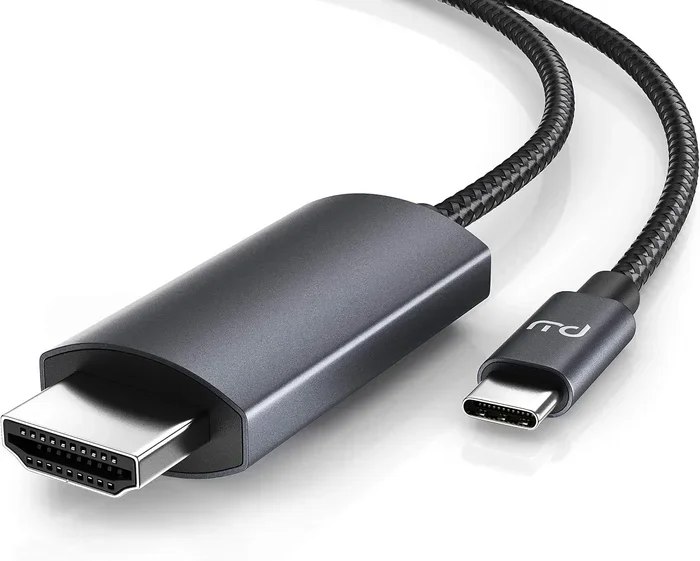
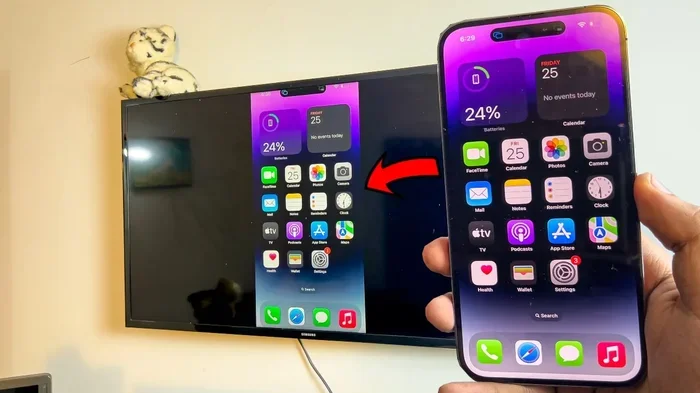
USB-C is the newest and most versatile port type. Most modern tablets now feature USB-C ports. These small, oval-shaped connectors support fast data transfer and quick charging. USB-C tablets can handle external hard drives, keyboards, mice, and even monitors.
The beauty of USB-C is its reversibility. You never have to flip the cable around trying to find the right orientation. It also supports USB mass storage mode, which means your tablet recognizes a connected drive almost instantly.
Micro-USB: The Older but Still Common Option
Many budget tablets and older models still use micro-USB ports. These are the small, rectangular connectors you have seen on phones and tablets for years. They work fine for charging, but data transfer can be slower.
If your tablet has a micro-USB port, you will likely need a USB adapter to connect standard USB devices. The good news is that micro-USB to USB adapters are inexpensive and widely available.
Lightning: Apple’s Proprietary Connector
Apple iPads used the Lightning connector for years. However, newer iPad models have switched to USB-C. If you own an older iPad with a Lightning port, you will need a Lightning to USB adapter for most external connections.
Apple’s approach to USB connectivity can feel restrictive at times. But with the right adapter, you can still connect USB peripherals like keyboards, cameras, and storage drives to your iPad.
What Happens When You Plug in a USB Drive
So you have your tablet and a flash drive. You plug them together. Now what? The experience depends on your tablet’s operating system and hardware.
Android Tablets and USB Drives
Most Android tablets support USB host mode. This feature allows your tablet to act as the host device and control connected USB peripherals. When you plug in a flash drive, your tablet should recognize it automatically.
You will usually see a notification pop up. Tapping it opens a file manager where you can browse the contents of your drive. From there, you can copy files back and forth between your tablet and the external storage device.
Some Android tablets may ask you to grant permission before accessing the drive. This is a security feature. Simply tap “Allow” or “OK” to proceed. The process is quick and intuitive.
iPads and USB Drives
iPads running iPadOS also support external drives. Apple introduced robust file transfer capabilities with the Files app. When you connect a USB drive to an iPad, the Files app opens automatically.
You can browse, copy, and move files between your iPad and the drive. However, iPads work best with certain file systems. Format your USB drive as exFAT or FAT32 for the smoothest experience with an iPad.
One thing to keep in mind: iPads can be pickier about compatible devices. Not every USB drive will work seamlessly. Drives that require more power than the iPad can supply may not be recognized.
File Transfer Speeds and What to Expect
Speed matters when you are moving files. USB 3.0 and USB 3.1 connections offer much faster transfer rates than older USB 2.0 standards. If your tablet and drive both support USB 3.0, you will notice significantly quicker file transfers.
For everyday tasks like moving photos or documents, even USB 2.0 speeds are acceptable. But if you are transferring large video files, a faster connection makes a big difference.
The Role of OTG Adapters
OTG stands for On-The-Go. An OTG cable or adapter is often the key to making USB connections work on tablets. Many tablets have smaller ports that cannot accept a standard USB plug directly.
When You Need an Adapter
If your tablet has a USB-C or micro-USB port, you need an adapter to connect a standard USB-A device like a flash drive or external hard drive. The adapter bridges the gap between the two connector types.
OTG adapters are small, cheap, and incredibly useful. You can find them online or at most electronics stores for just a few dollars. They are one of the most essential tablet accessories you can own.
Types of OTG Adapters Available
There are several types of OTG adapters to choose from:
- USB-C to USB-A adapter: The most common type for modern tablets.
- Micro-USB to USB-A adapter: For older Android tablets.
- Lightning to USB-A adapter: For older iPads.
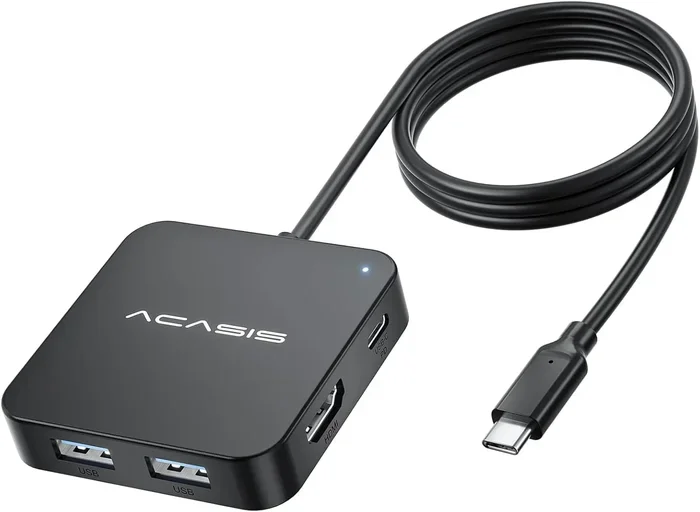
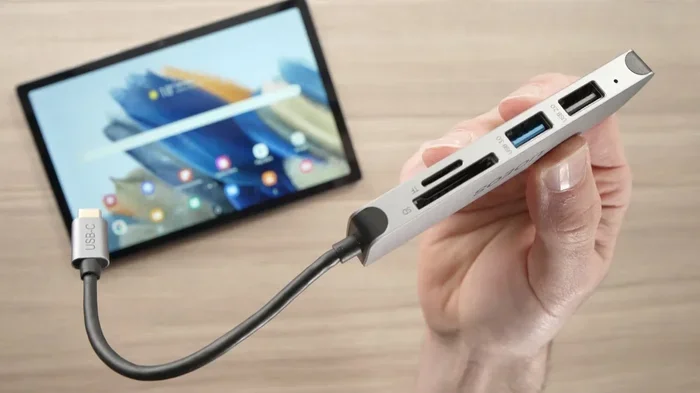
- USB-C hub: Adds multiple ports including USB-A, HDMI, and SD card slots.
- OTG adapter with card reader: Combines USB connectivity with memory card support.
Choose the adapter that matches your tablet’s port type. Using the wrong adapter will not work and could potentially damage your port.
Common Uses for USB on Tablets
Plugging a USB device into your tablet serves many practical purposes. Here are the most common and useful applications.
Expanding Storage Space
Tablets often come with limited storage. A USB flash drive or external hard drive gives you extra space for photos, videos, and documents. This is especially helpful for tablets with 32GB or 64GB of internal storage.
You can offload files you do not need immediately and free up space on your tablet. Then transfer them back when you need them. It is a simple but effective way to manage storage.
Connecting Keyboards and Mice
Using a USB keyboard or mouse with your tablet can boost productivity dramatically. Whether you are typing a long email or editing a spreadsheet, a physical keyboard feels much better than typing on a touchscreen.
Wireless keyboards that use a USB receiver also work through OTG adapters. This gives you the freedom of wireless connectivity with the reliability of a wired connection.
Transferring Photos and Videos from Cameras
Photographers and videographers often need to move files from cameras to tablets for editing. A USB cable or card reader connected through an OTG adapter makes this process seamless.
Some tablets even support direct connection to cameras via USB. Check your tablet’s specifications to see if it supports camera connectivity.
Charging While Connected
When you plug in a USB device that draws power, your tablet may lose battery faster. Some OTG adapters and hubs include passthrough charging. This lets you connect your tablet to a power source while using USB peripherals.
Passthrough charging is a great feature if you plan to use your tablet for extended periods with multiple USB devices connected.
Tablets That Support USB Connections Best
Not every tablet handles USB connections equally. Some are designed with USB compatibility in mind, while others are more limited.
Android Tablets
Most Android tablets offer excellent USB support. Brands like Samsung, Lenovo, and Google design their tablets with USB host mode enabled by default. Samsung tablets, in particular, are known for their strong USB connectivity options.
Samsung tablets often support a wide range of USB devices out of the box. You can connect flash drives, printers, game controllers, and even MIDI keyboards without needing extra software.
iPads
Apple’s newer iPads with USB-C ports offer strong USB support. The iPad Pro and iPad Air models are especially good at handling external devices. The Files app on iPadOS makes navigating connected drives simple and intuitive.
Older iPads with Lightning ports can still connect to USB devices, but you will need Apple’s official adapter or a certified third-party alternative. Compatibility is generally good but slightly more limited than with Android tablets.
Windows Tablets
Windows tablets like the Surface Pro offer the most complete USB experience. They run full desktop operating systems and support virtually any USB device without special adapters or configurations.
If full USB compatibility is your top priority, a Windows tablet might be the best choice. However, they tend to be more expensive and heavier than Android or iPad tablets.
Comparison Table: USB Support Across Tablet Types
| Tablet Type | USB Port | Host Mode Support | Adapter Needed | Overall USB Compatibility |
|---|---|---|---|---|
| Modern Android | USB-C | Yes | Sometimes | Excellent |
| Older Android | Micro-USB | Yes | Yes | Good |
| iPad Pro / Air (USB-C) | USB-C | Yes | Sometimes | Very Good |
| Older iPad (Lightning) | Lightning | Limited | Yes | Moderate |
| Windows Tablet | USB-C / USB-A | Yes | Rarely | Excellent |
Common Mistakes When Connecting USB to Tablets
Even with the right setup, people make mistakes that cause USB connection problems. Here are the most common ones and how to avoid them.
Using the Wrong Adapter
Not all adapters are created equal. Using a cheap, uncertified adapter can lead to connection issues or even damage your tablet. Always buy adapters from reputable brands or your tablet manufacturer.
Ignoring File System Compatibility
Some USB drives use file systems that tablets cannot read. NTFS drives, for example, are not natively supported on most Android tablets or iPads. Format your drive as exFAT or FAT32 for broad compatibility.
Overloading the USB Port
Connecting multiple power-hungry devices through a single adapter can overwhelm your tablet’s port. If a device is not recognized, try connecting it directly without a hub first.
Forgetting to Enable OTG Mode
Some Android tablets require you to enable OTG mode in settings before connecting USB devices. Check your tablet’s user manual or settings menu if a connected drive does not appear.
Expert Tips for Better USB Performance on Tablets
Get the most out of your USB connections with these practical tips from experienced tablet users.
- Use short, high-quality cables. Longer cables can reduce data transfer speeds and power delivery.
- Keep your tablet software updated. OS updates often improve USB compatibility and fix known bugs.
- Invest in a good USB hub. A powered USB hub gives you more ports and better power distribution.
- Format your drives properly. exFAT works best for cross-platform compatibility between tablets and computers.
- Eject devices safely. Always use the safe removal option before unplugging USB devices to prevent data corruption.
- Clean your tablet’s port regularly. Dust and lint can accumulate in USB ports and cause connection problems.
These small habits make a big difference over time. Your USB connections will be more reliable, and your data transfer speeds will stay consistent.
The Future of USB on Tablets
USB technology continues to evolve. The latest standard, USB4, offers even faster speeds and better power delivery. As tablets adopt newer USB standards, connecting external devices will become even more seamless.
We are also seeing more tablets drop proprietary ports entirely in favor of universal USB-C. This trend benefits consumers by making tablet accessories more interchangeable and versatile.
The rise of cloud storage has not made USB connections obsolete. Physical USB drives still offer advantages in speed, privacy, and offline access. Many professionals prefer having a physical backup drive they can plug directly into their tablet.
Final Thoughts
So, can you plug a USB into a tablet? Absolutely. Whether you want to transfer files, expand storage, connect peripherals, or charge your device, USB connectivity opens up powerful possibilities for your tablet.
The key is understanding your tablet’s port type, having the right adapter, and knowing how your device handles external connections. With the right setup, your tablet becomes a versatile workspace that rivals a laptop in many ways.
Start experimenting with USB connections today. Grab a flash drive, an OTG adapter, and see what happens. You might be surprised at how much more your tablet can do with a simple USB connection. The world of tablet accessories is vast, and USB connectivity is one of the most practical and underrated features your tablet has to offer.
Take a few minutes to check your tablet’s specifications. Learn what USB types it supports and what adapters you might need. Once you understand the basics, you will wonder how you ever managed without USB connectivity on your tablet.
Happy connecting, and enjoy the added flexibility that USB brings to your tablet experience!
Frequently Asked Questions
Can I plug any USB flash drive into my tablet?
Most USB flash drives work with tablets that support USB host mode. However, the drive should be formatted as exFAT or FAT32 for the best compatibility. NTFS-formatted drives may not be recognized on some tablets, especially iPads and older Android devices.
Do I need an OTG adapter to connect USB to my tablet?
It depends on your tablet’s port type. If your tablet has a USB-C port, some flash drives with USB-C connectors will plug in directly. For standard USB-A flash drives, you will need a USB-C to USB-A or micro-USB to USB-A adapter. Always check your tablet’s port type before purchasing an adapter.
Can I connect an external hard drive to my tablet?
Yes, you can connect an external hard drive to most tablets using an OTG adapter. However, keep in mind that some external drives require more power than a tablet can supply. If your drive has its own power source, it will work more reliably. Solid-state drives (SSDs) are a great option because they need less power and are more durable.
Will plugging a USB device into my tablet drain the battery faster?
Yes, connecting a USB device can draw power from your tablet, which may drain the battery faster. To avoid this, you can use a powered USB hub or connect your tablet to a charger while using USB peripherals. Some OTG adapters also support passthrough charging to help manage power usage.
Can I use a USB keyboard and mouse with my tablet?
Absolutely. Most Android tablets and iPads with USB-C support external keyboards and mice through an OTG adapter. This setup is excellent for productivity and makes typing and navigation much more comfortable. Wireless keyboards with USB receivers also work through OTG adapters.
What is the difference between USB 2.0 and USB 3.0 on tablets?
USB 3.0 offers significantly faster data transfer speeds than USB 2.0. USB 2.0 can transfer data at up to 480 Mbps, while USB 3.0 can reach speeds of 5 Gbps or more. If you frequently transfer large files like videos or backups, a USB 3.0 connection will save you considerable time. Check your tablet and adapter specs to confirm which version they support.
=== CONCLUSION ===
Can you plug a USB into a tablet and what happens next? Now you know the full answer. Your tablet can connect to flash drives, external storage, keyboards, and much more with the right setup. Understanding your tablet’s USB capabilities and having the correct adapter makes all the difference.
Start with the basics. Check your tablet’s port type, grab a compatible OTG adapter, and experiment with different USB devices. The more you practice, the more comfortable you will become with tablet USB connectivity.
Share this guide with friends who are curious about expanding their tablet’s capabilities. The more people know about USB connections on tablets, the more they can take advantage of this powerful feature. Your tablet is more capable than you think, and a simple USB cable can unlock a whole new level of versatility.