Can You Output Video Through Usb With These Simple Tips
Yes, you can output video through USB using adapters, USB-C cables, or docking stations. This guide covers every method, setup step, and common mistake so you can connect any external display with confidence. Whether you use a laptop, desktop, or TV, these simple tips will get your screen working fast.
Have you ever looked at your USB port and wondered if it could carry a video signal? Maybe you need an extra screen for work. Or perhaps your HDMI port is broken and you need a quick fix. The good news is that you can output video through USB in many situations. This guide walks you through every method, every tip, and every mistake to avoid. By the end, you will know exactly how to get video flowing through a USB connection.
The world of USB video output has grown fast. Newer laptops come with USB-C ports that handle video easily. Older computers can still send video through USB with the right adapter. Whether you want a single external monitor or a full dual monitor setup, USB can make it happen. Let us dive into how this works and what you need to get started.
Key Takeaways
- USB video output is possible: You can send video signals through USB ports using the right adapter or cable.
- USB-C and USB 3.0 are the most common: These ports support video output with the correct hardware.
- USB to HDMI adapters are affordable: They offer a simple plug-and-play way to connect external monitors.
- DisplayLink technology enables multi-monitor setups: This software-based solution works with most USB ports.
- Not all USB ports support video: Check your port type and device specs before buying an adapter.
- Quick tips prevent common issues: Update drivers, use certified cables, and match resolution settings for best results.
📑 Table of Contents
- What Does It Mean to Output Video Through USB?
- Types of USB Video Output Methods
- Can Every USB Port Output Video?
- How to Set Up Video Output Through USB
- Common Mistakes to Avoid When Outputting Video Through USB
- Quick Tips for the Best USB Video Output Experience
- USB Video Output vs. Traditional Video Ports
- Final Thoughts on Outputting Video Through USB
What Does It Mean to Output Video Through USB?
Outputting video through USB means sending a visual signal from your computer to a display using a USB connection. Normally, video travels through ports like HDMI, DisplayPort, or VGA. But USB technology has evolved to carry video data too. This is especially useful when your device lacks a traditional video port.
The USB port on your computer handles many tasks. It connects keyboards, mice, external drives, and more. But with the right hardware, it can also carry a video signal to an external screen. This opens up new possibilities for home offices, streaming setups, and travel laptops.
There are a few key terms you should know. USB-C is the small, oval-shaped port found on most modern laptops. USB 3.0 and USB 3.1 are older rectangular ports that can also support video with an adapter. DisplayLink is a technology that uses USB to create video output through software. Each of these methods works differently, but all achieve the same goal: getting a picture on a second screen.
Types of USB Video Output Methods
Not all USB video setups are the same. Different methods work better for different devices and needs. Here are the most common ways to output video through USB.
USB to HDMI Adapters
A USB to HDMI adapter is the simplest way to get video on an external display. You plug the adapter into your USB port. Then you connect an HDMI cable from the adapter to your monitor or TV. It is a plug-and-play solution that works with most computers.
These adapters come in two main forms. One type uses a standard USB-A port. The other type uses a USB-C port. The USB-C version is smaller and fits modern laptops. Both types are widely available and affordable. You can find them online or at any electronics store for under $30.
Quick Tip: Always buy a adapter that matches your USB port type. A USB-A adapter will not fit into a USB-C port without a cable. Check your laptop or computer manual if you are unsure.
USB-C Video Output
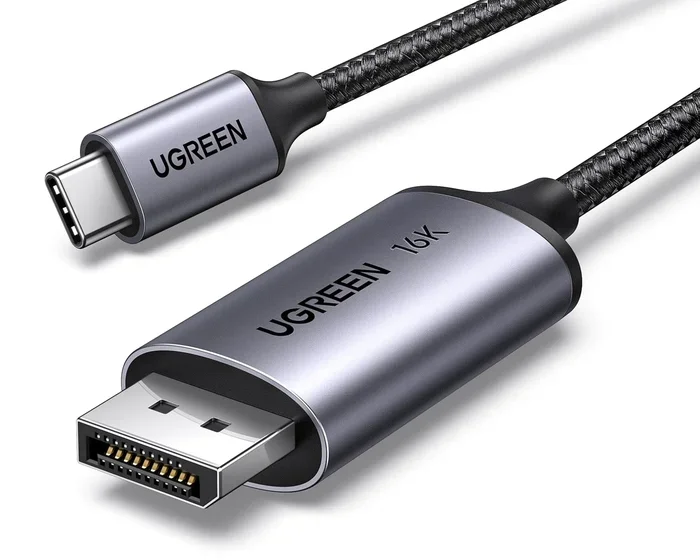
USB-C has changed the game for video output. Many modern laptops and tablets use USB-C as their main port. This small port can carry data, power, and video all at once. This means one cable can charge your device and send video to a monitor.
There are two ways USB-C handles video. The first is through Alternate Mode, also called Alt Mode. This lets the USB-C port directly output video without extra software. The second is through a USB-C docking station. The dock connects to your laptop and provides multiple ports, including HDMI and DisplayPort outputs.
If your device supports USB-C Alt Mode, you get the best performance. The video signal stays digital and crisp. You can often drive a 4K display at 60Hz with the right cable. This makes USB-C a powerful choice for professionals and casual users alike.
USB Docking Stations
A USB docking station is a hub that connects to your computer and adds multiple ports. Most docks include HDMI or DisplayPort outputs for video. They also add USB ports, Ethernet, and audio jacks. This makes them a great all-in-one solution for a home office.
Docking stations come in two categories. Passive docks rely on your computer’s built-in video capabilities. Active docks use a chip, like DisplayLink, to create a video signal through USB. Active docks are more flexible because they work with any USB port. However, they may need driver software installed.
Expert Insight: When choosing a dock, look for one that supports your desired resolution. A 1080p dock is fine for everyday tasks. A 4K dock is better for video editing and design work. Also check how many displays the dock can support at once.
USB Video Grabbers and Capture Devices
A USB video grabber is a different tool for a different need. It captures video from an external source, like a camera or VCR, and sends it into your computer. While this is not exactly outputting video from your PC, it is a related use of USB for video.
These devices are popular with streamers and content creators. You plug a camera into the grabber. The graber sends the video to your computer via USB. Then you can record or stream the footage. Brands like Elgato and AverMedia make reliable grabbers at various price points.
Can Every USB Port Output Video?
The short answer is no. Not every USB port can output video. The ability depends on your hardware, your port type, and your device specs. Here is what you need to know before you buy any adapter.
First, check your USB port type. A USB-A port on an older computer may or may not support video. It depends on whether your graphics card or motherboard supports it. USB-C ports on newer devices are more likely to support video through Alt Mode.
Second, check your device specifications. Look up your laptop or desktop model online. The manufacturer will list which ports support video output. If USB-C is listed as a display output, you are good to go. If not, you may need a docking station with DisplayLink support.
Third, consider your graphics card. Most modern graphics cards handle multiple outputs easily. But some budget or older cards may limit the number of displays. A USB-based video output adds a new display without relying on your graphics card. This is a big advantage for users with limited video ports.
Common Mistake: Do not assume all USB-C ports support video. Some USB-C ports on certain devices are charge-only. They provide power but no data or video. Always verify the port capabilities before you rely on it.
USB Version and Video Performance
The USB version also matters for video quality. Here is a quick look at how different versions compare.
| USB Version | Max Bandwidth | Video Support | Best For |
|---|---|---|---|
| USB 2.0 | 480 Mbps | Limited, 1080p max | Basic display, text tasks |
| USB 3.0 | 5 Gbps | 1080p and 4K | Office work, media playback |
| USB 3.1 Gen 2 | 10 Gbps | 4K at 60Hz | Creative professionals |
| USB-C (Alt Mode) | Up to 40 Gbps | 4K at 60Hz or 8K | High-end displays, docking |
As you can see, the newer the USB version, the better the video performance. USB 2.0 can handle a basic display, but it may struggle with video playback or fast motion. USB 3.0 and above offer smooth experiences for most users. USB-C with Alt Mode provides the best quality available today.
How to Set Up Video Output Through USB
Setting up video output through USB is easier than you might think. Follow these steps for a smooth setup every time.
- Identify your USB port type. Check if you have USB-A or USB-C. This determines which adapter you need.
- Choose the right adapter or dock. Pick a USB to HDMI adapter for a single monitor. Choose a docking station for multiple displays or extra ports.
- Plug in the adapter. Insert it firmly into your USB port. If using USB-C, make sure it clicks into place.
- Connect your display. Use an HDMI cable to link the adapter to your monitor or TV. Plug the other end into the display.
- Install drivers if needed. Some adapters, especially DisplayLink models, need software. Visit the manufacturer’s website and download the latest driver.
- Configure your display settings. On Windows, go to Settings > Display. On Mac, go to System Settings > Displays. Arrange your screens and set the resolution.
- Test the connection. Open a video or drag a window across screens. Make sure everything works smoothly.
Quick Tip: Always update your graphics drivers before setting up a new display. Old drivers can cause flickering, black screens, or poor performance. A quick update often solves these issues instantly.
Setting Up on Windows
Windows makes it easy to manage multiple displays. Once your USB adapter is connected, right-click on your desktop and select Display Settings. You will see a diagram of your screens. Click Identify to number each display. Then choose how you want them to work: Extend for a bigger workspace, Duplicate for the same image on both screens, or Show Only on one display.
Setting Up on Mac
Mac users have a similar experience. Go to System Settings and click Displays. Your USB-connected monitor should appear automatically. Click the Arrangement tab to drag and position your screens. You can also set the primary display and choose whether to mirror or extend your desktop.
Expert Insight: On both Windows and Mac, you can adjust the refresh rate of your external display. A higher refresh rate, like 75Hz or 120Hz, makes the screen feel smoother. Go to your display settings and look for the refresh rate option. Not all USB adapters support high refresh rates, so check your adapter specs first.
Common Mistakes to Avoid When Outputting Video Through USB
Even with the right gear, mistakes can cause frustration. Here are the most common errors and how to avoid them.
Mistake 1: Buying the wrong adapter type. A USB-A to HDMI adapter will not work in a USB-C port without a compatible cable. Always match your adapter to your port type. When in doubt, buy a universal adapter that supports both.
Mistake 2: Skipping driver installation. Some USB video adapters need drivers to work. Plugging in the device is not enough. Visit the manufacturer’s website and install the software before you connect the adapter.
Mistake 3: Using a low-quality cable. Cheap HDMI cables can cause signal loss, flickering, or no signal at all. Invest in a certified cable from a reputable brand. A $10 cable from a trusted company is better than a $3 cable from an unknown seller.
Mistake 4: Ignoring bandwidth limits. USB 2.0 has very limited bandwidth. Trying to push 4K video through USB 2.0 will result in a poor experience. Stick to USB 3.0 or higher for video output, especially at higher resolutions.
Mistake 5: Not updating firmware. Some docking stations and adapters receive firmware updates that fix bugs and improve performance. Check the manufacturer’s website periodically for updates.
Quick Tips for the Best USB Video Output Experience
Want the smoothest, clearest video through USB? Follow these quick tips.
- Use USB 3.0 or higher whenever possible. The extra bandwidth means better video quality and smoother playback.
- Keep your drivers updated. Outdated drivers are the number one cause of display issues with USB adapters.
- Use a powered USB hub for docking stations. Some docks draw too much power from a single port. A powered hub ensures stable performance.
- Match your resolution settings. Set your external display to its native resolution for the sharpest image.
- Avoid long USB cables for video. Keep the cable between your adapter and computer under 6 feet for best signal quality.
- Restart your computer after setup. A fresh restart helps your system recognize the new display properly.
- Test with a known-good cable first. If you have issues, swap the HDMI cable to rule out a bad connection.
Quick Tip: If your external display shows a black screen, try unplugging the adapter, waiting 10 seconds, and plugging it back in. This simple reset fixes many connection issues without any troubleshooting.
USB Video Output vs. Traditional Video Ports
How does USB video output compare to HDMI or DisplayPort? Let us look at the pros and cons.
- Convenience: USB adapters are small and portable. You can carry one in your laptop bag and set up a second screen anywhere. Traditional ports are fixed to your device.
- Flexibility: USB video output works with almost any computer, even ones without HDMI ports. You are not limited by your device’s built-in video options.
- Performance: Traditional ports like HDMI 2.1 and DisplayPort 2.1 offer higher bandwidth and better performance. USB video output is good but may not match dedicated ports for high refresh rate or high resolution.
- Cost: USB adapters and docks are often cheaper than upgrading a graphics card or buying a new monitor with multiple ports.
- Setup ease: Most USB adapters are plug-and-play. Traditional ports require no extra hardware, but they also offer no flexibility.
For most users, USB video output is a practical and affordable solution. It is not meant to replace HDMI or DisplayPort in professional setups. But for everyday use, travel, or quick fixes, it works remarkably well.
One technology worth mentioning is DisplayLink. This chipset uses USB to create a virtual display. It works with almost any USB port and does not need Alt Mode support. DisplayLink docks are popular in corporate environments and for users who need three or more displays. The trade-off is slightly higher CPU usage compared to native video ports.
Final Thoughts on Outputting Video Through USB
Outputting video through USB is a practical skill that can save you time and money. Whether you need a second monitor for work, a way to connect to a TV for movie night, or a fix for a broken HDMI port, USB has you covered. The key is choosing the right adapter, matching it to your port type, and following the setup steps correctly.
Remember that not all USB ports support video. Always check your device specs before buying hardware. And never underestimate the power of updated drivers and quality cables. These small details make a big difference in your experience.
With the tips in this guide, you are now equipped to set up USB video output like a pro. Start with a simple USB to HDMI adapter and see how it transforms your workspace. Once you experience the flexibility of an extra screen, you may never go back to a single display again.
The world of USB video output is vast and growing. New technologies like USB4 and Thunderbolt 4 are making it even easier to send high-quality video through a single USB-C cable. Stay curious, keep learning, and enjoy the extra screen real estate.
Frequently Asked Questions
Can I output 4K video through a USB port?
Yes, you can output 4K video through USB, but it depends on your USB version and adapter. USB 3.0 and USB-C ports with Alt Mode support 4K resolution. Make sure your adapter and cable are rated for 4K to get the best results.
Do I need to install drivers for a USB video adapter?
Some USB video adapters work without drivers and are plug-and-play. However, adapters that use DisplayLink technology require driver software. Always check the manufacturer’s website for the latest drivers before setting up your display.
Can I connect two external monitors through USB?
Yes, you can connect two or more external monitors through USB using a docking station or multiple adapters. DisplayLink docks are especially good for multi-monitor setups. Just make sure your computer’s USB ports and graphics card can handle the extra load.
Why is my USB video output blurry or low quality?
Blurry video often happens when the resolution is set incorrectly or when using a low-quality cable. Make sure your external display is set to its native resolution. Also, use a certified HDMI cable and a USB 3.0 or higher adapter for the best quality.
Is USB video output as good as HDMI or DisplayPort?
USB video output is very good for everyday use, but it may not match the performance of dedicated HDMI or DisplayPort connections. USB video can handle most office tasks, media playback, and casual gaming. For professional creative work or high refresh rate gaming, native video ports are still better.
Can I use a USB video adapter with a Chromebook?
Yes, many Chromebooks support USB video output. Check your Chromebook’s specifications to confirm which USB ports support display output. Most modern Chromebooks with USB-C ports can connect to external monitors using a USB-C to HDMI adapter.