Can You Go Hdmi To Usb C Here Is Everything You Need To Know
Yes, you can go HDMI to USB C with the right adapter or cable. This guide covers how HDMI to USB C connections work, which devices support them, and what to look for when buying an adapter. You will learn about USB C alt mode, Thunderbolt compatibility, and common mistakes to avoid.
Can you go HDMI to USB C? The short answer is yes. But the full story is a bit more involved. If you have a laptop, tablet, or phone with a USB C port, you might want to connect it to a monitor, TV, or projector. This is where HDMI to USB C adapters come in. They let you send video and audio from a USB C device to an HDMI display. In this guide, we will walk you through everything you need to know. We will cover how the connection works, which devices support it, what to look for in an adapter, and common mistakes to avoid. By the end, you will feel confident about setting up your own HDMI to USB C connection.
The world of USB C has changed how we connect devices. One small port can handle charging, data transfer, and video output. But not everyone understands how to use it for video. Many people ask, “Can I plug an HDMI cable into a USB C port?” The answer depends on your device and the type of USB C port you have. This guide breaks it all down in simple terms. You do not need to be a tech expert to understand how HDMI to USB C works.
Key Takeaways
- HDMI to USB C is possible: You just need a USB C to HDMI adapter or cable that supports video output.
- Check your device first: Not every USB C port supports video output. Look for USB C Alt Mode or Thunderbolt support.
- Adapters vary widely: Cheap adapters may not support 4K or high refresh rates. Always check specs before buying.
- Streaming setups benefit: USB C to HDMI adapters are great for cord-cutters exploring alternatives to Dish Network and DirectTV.
- Common issues are fixable: Most HDMI to USB C problems come from cable quality, port limitations, or driver issues.
- USB C hubs add more value: A USB C hub gives you HDMI output plus extra ports for data and charging.
📑 Table of Contents
- What Is HDMI to USB C?
- How Does HDMI to USB C Work?
- Devices That Support HDMI to USB C
- Choosing the Right HDMI to USB C Adapter
- Common Problems and How to Fix Them
- HDMI to USB C for Streaming and Entertainment Setups
- Expert Insights on HDMI to USB C
- Common Mistakes to Avoid with HDMI to USB C
- Final Thoughts on HDMI to USB C
What Is HDMI to USB C?
HDMI to USB C refers to a connection that lets you send video from a USB C device to an HDMI display. USB C is a type of connector found on modern laptops, phones, and tablets. HDMI is the standard port on most TVs, monitors, and projectors. An adapter bridges the gap between these two ports.
Here is how it works in simple terms. Your device has a USB C port. You plug in a USB C to HDMI adapter. Then you connect an HDMI cable from the adapter to your TV or monitor. The video signal travels from your device through the adapter and displays on the bigger screen.
Not all USB C ports can do this. Some USB C ports only handle data and charging. Others support something called USB C Alt Mode, which allows video output. This is a key detail to understand before buying any adapter.
USB C Alt Mode Explained
USB C Alt Mode is a feature built into many modern USB C ports. It allows the port to carry video signals alongside data and power. When a USB C port supports Alt Mode, it can output video to an HDMI display using the right adapter. Most laptops and tablets made after 2018 support this feature. You can usually find this information in your device manual or on the manufacturer’s website.
Thunderbolt and HDMI to USB C
Thunderbolt ports are a special type of USB C port. They support video output, data transfer, and charging all at once. If your device has a Thunderbolt 3 or Thunderbolt 4 port, it will almost always support HDMI output. Thunderbolt makes HDMI to USB C connections very reliable. You can drive high-resolution displays with ease.
How Does HDMI to USB C Work?
Understanding how HDMI to USB C works helps you troubleshoot problems later. The process is simpler than it sounds. Your device sends a video signal through the USB C port. The adapter converts that signal into HDMI format. The HDMI cable carries the signal to your display. Your TV or monitor receives it and shows the picture.
The adapter does the heavy lifting here. It takes the digital signal from USB C and translates it for HDMI. Some adapters handle audio too. This means you can send both video and sound to your TV through one cable.
USB C to HDMI Cable vs. Adapter
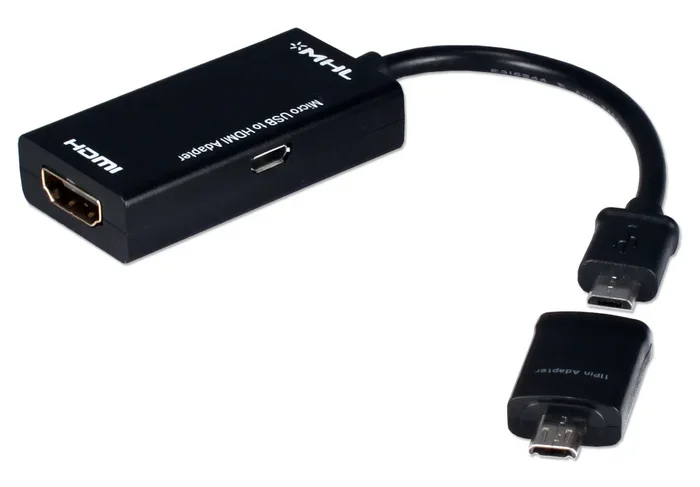
You have two main options for connecting HDMI to USB C. You can use a USB C to HDMI cable or a USB C to HDMI adapter. A cable has the USB C plug on one end and the HDMI plug on the other. An adapter is a small box that you plug into your USB C port and then connect an HDMI cable to.
Both options work well. Cables are more compact and portable. Adapters often offer more ports and better build quality. Your choice depends on your needs and how you plan to use the setup.
What Resolutions Can HDMI to USB C Support?
Most quality HDMI to USB C adapters support 4K resolution at 60Hz. Some budget adapters only support 1080p or 4K at 30Hz. If you need smooth video for gaming or video editing, look for adapters that support 4K at 60Hz or higher. Check the adapter specifications before you buy. The price difference between 1080p and 4K adapters is usually small.
Devices That Support HDMI to USB C
Many modern devices support HDMI to USB C connections. Here is a quick look at the most common ones.
- Laptops: Most modern laptops from Dell, HP, Lenovo, Apple, and Microsoft have USB C ports that support video output.
- Tablets: iPads with USB C, Samsung Galaxy Tab S series, and Microsoft Surface tablets all support HDMI output.
- Phones: Some Android phones with USB C can output video to HDMI. iPhones with USB C (iPhone 15 and newer) also support this.
- Gaming Consoles and Steam Deck: The Steam Deck and some portable gaming devices use USB C for HDMI output.
- Chromebooks: Most Chromebooks with USB C ports support video output through HDMI adapters.
How to Check if Your Device Supports HDMI Output
Not sure if your device can output video through USB C? Here is a simple way to check. Look at your device specifications online. Search for terms like “USB C video output” or “DisplayPort Alt Mode.” If your device supports either of these, you can use an HDMI to USB C adapter. You can also check your device settings. On most laptops, you can find display settings that show external output options.
Choosing the Right HDMI to USB C Adapter
Not all adapters are the same. Picking the right one saves you time and money. Here is what to look for when shopping for an HDMI to USB C adapter.
Check for 4K and 60Hz Support
If you want sharp, smooth video, go for an adapter that supports 4K at 60Hz. This is ideal for streaming movies, editing videos, or gaming. Many adapters on the market only support 1080p or 4K at 30Hz. These work fine for basic tasks but may feel laggy for fast-moving content.
Look for USB C Alt Mode Compatibility
Make sure the adapter supports USB C Alt Mode. This ensures it can carry video signals. Some cheap adapters only support data and charging. They will not work for video output. Always read the product description carefully.
Consider a USB C Hub Instead
A USB C hub gives you more than just HDMI output. Most hubs include HDMI, USB A ports, SD card slots, and charging passthrough. If you need multiple connections, a hub is a better choice than a simple adapter. It adds value and flexibility to your setup.
Build Quality and Cable Length
Cheap adapters may use low-quality materials that break quickly. Look for adapters from trusted brands. A well-built adapter lasts longer and provides a more stable connection. Also, consider cable length. Longer HDMI cables give you more flexibility in where you place your display.
Quick Tips for Buying the Right Adapter
- Always check your device specs before buying.
- Look for adapters that support 4K at 60Hz for the best experience.
- Choose adapters with aluminum housings for better heat dissipation.
- Read customer reviews to spot common issues.
- Buy from reputable sellers to avoid counterfeit products.
Common Problems and How to Fix Them
Even with the right adapter, you might run into issues. Here are the most common problems and how to solve them.
No Signal on the Display
If your TV or monitor shows no signal, try these steps. First, make sure the adapter is fully plugged into your device. Second, check that the HDMI cable is secure on both ends. Third, try a different HDMI port on your TV. Fourth, restart your device and check the display settings. Sometimes a simple reboot fixes the problem.
Low Resolution or Flickering
If the picture looks blurry or flickers, your adapter might not support the resolution you are trying to use. Go to your display settings and lower the resolution. If you are using a 4K TV, try setting it to 1080p first. If that works, your adapter may only support lower resolutions. Consider upgrading to a better HDMI to USB C adapter.
No Audio Through HDMI
Some adapters do not carry audio. If you get video but no sound, check your device audio settings. Make sure HDMI is selected as the audio output. On Windows, go to Sound Settings and choose the HDMI display as your output device. On Mac, go to Sound Preferences and select the HDMI output.
Adapter Overheats
Some adapters get warm during use. This is normal for small electronic devices. However, if the adapter gets too hot to touch, unplug it and let it cool down. Overheating can damage your device or the adapter. Choose adapters with good ventilation and heat-resistant materials.
HDMI to USB C for Streaming and Entertainment Setups
HDMI to USB C adapters are incredibly useful for entertainment setups. If you have cut the cord on traditional cable, you likely use streaming devices or services. Many people who drop satellite TV find creative ways to stream content on bigger screens. A USB C to HDMI connection lets you turn any HDMI display into a streaming hub.
For example, you can plug your laptop into a TV using an HDMI to USB C adapter. Then you can stream from any service on a big screen. This works great for movie nights, gaming sessions, or presenting slideshows. The versatility of HDMI to USB C makes it a must-have accessory for modern entertainment.
If you are exploring alternatives to traditional cable providers like Dish Network and DirectTV, a USB C setup can complement your streaming gear. Many streaming sticks and devices work best when connected to a quality display. Using an HDMI to USB C adapter gives you the flexibility to set up your entertainment system exactly how you want it.
Expert Insights on HDMI to USB C
Tech experts agree that HDMI to USB C is one of the most useful connections in modern computing. The USB C standard has become the universal port for most devices. Its ability to handle video output makes it incredibly versatile. Experts recommend always keeping a USB C to HDMI adapter in your bag. You never know when you will need to connect to a display.
One common expert tip is to avoid the cheapest adapters on the market. Ultra-budget adapters often fail to support higher resolutions or may not work at all with certain devices. Spending a little more on a quality adapter saves frustration in the long run. Look for adapters that are certified and have good user reviews.
Common Mistakes to Avoid with HDMI to USB C
- Assuming all USB C ports support video: Some USB C ports only handle charging and data. Always verify video output support first.
- Buying the wrong adapter type: There are passive and active adapters. Passive adapters work with devices that support Alt Mode. Active adapters include built-in chips for devices that do not. Make sure you get the right type.
- Ignoring cable quality: A cheap HDMI cable can ruin the experience even with a great adapter. Use high-speed HDMI cables rated for 4K.
- Not updating device drivers: On Windows laptops, outdated display drivers can cause HDMI output issues. Keep your drivers up to date.
- Forcing the connection: USB C and HDMI cables should fit snugly but not require force. If something does not fit, check the orientation and try again.
Final Thoughts on HDMI to USB C
Can you go HDMI to USB C? Absolutely. With the right adapter or cable, you can connect almost any modern device to an HDMI display. The key is understanding your device’s capabilities and choosing the right adapter. Look for support of USB C Alt Mode or Thunderbolt. Check for 4K and 60Hz support if you want the best picture quality. And always buy from trusted brands.
HDMI to USB C connections open up a world of possibilities. You can mirror your laptop screen, play games on a big TV, or set up a streaming station in any room. It is one of the most practical and affordable tech accessories you can own. Keep a spare adapter at home and one in your bag. You will be glad you did.
Whether you are a student presenting a project, a professional working on the go, or a cord-cutter building a home entertainment setup, HDMI to USB C adapters make your life easier. The technology is simple, reliable, and widely supported. Embrace the USB C revolution and enjoy seamless connections to any display.
Frequently Asked Questions
Do all USB C ports support HDMI output?
No, not all USB C ports support video output. Some USB C ports only handle charging and data transfer. Look for USB C Alt Mode or Thunderbolt support on your device to confirm it can output video through HDMI.
Can I use a USB C to HDMI adapter with any TV?
Yes, you can use a USB C to HDMI adapter with any TV that has an HDMI input. Most modern TVs have at least one HDMI port. Just plug the adapter into your device, connect an HDMI cable, and select the correct input on your TV.
Does HDMI to USB C support audio?
Most HDMI to USB C adapters support both video and audio. The audio travels through the HDMI cable to your display. If you do not get sound, check your device audio settings and make sure HDMI is selected as the output.
Can I use HDMI to USB C for gaming?
Yes, you can use HDMI to USB C for gaming. Make sure your adapter supports the resolution and refresh rate you need. For smooth gaming, look for adapters that support 4K at 60Hz or 1080p at 144Hz depending on your setup.
Why does my HDMI to USB C adapter show no signal?
A no-signal issue is usually caused by a loose connection, an incompatible adapter, or incorrect display settings. Try unplugging and replugging the adapter, restarting your device, and checking your display output settings. If the problem persists, the adapter may not be compatible with your device.
Is Thunderbolt the same as USB C for HDMI output?
Thunderbolt uses the USB C connector but is more advanced. Thunderbolt 3 and Thunderbolt 4 ports always support video output. Standard USB C ports may or may not support video output depending on whether they have USB C Alt Mode.
=== CONCLUSION ===
HDMI to USB C connections are simple, practical, and incredibly useful. With the right adapter, you can connect any USB C device to an HDMI display in seconds. The key is knowing your device’s capabilities and choosing a quality adapter. Avoid the cheapest options and look for 4K support, Alt Mode compatibility, and solid build quality. Whether you are streaming movies, gaming, or presenting at work, HDMI to USB C makes it all possible. Keep this guide handy for your next setup, and you will never have trouble connecting your devices again.