Can You Go From HDMI To Ethernet And Why It Matters
Yes, you can go from HDMI to Ethernet using an HDMI extender or converter. This setup lets you run long cable runs, reduce signal loss, and simplify your home entertainment or office AV system. Whether you are dealing with distance limits or looking for a cleaner installation, understanding HDMI to Ethernet conversion is essential.
Have you ever wanted to connect your TV or projector to a media player but found the HDMI cable too short? Maybe you have a big living room and the device sits far away from the screen. This is where HDMI to Ethernet conversion comes in. It solves a common problem that many people face when setting up their home entertainment or office AV systems. The good news is that it is simpler than you might think.
In this guide, we will walk you through everything you need to know about going from HDMI to Ethernet. We will cover how it works, why you might want to do it, and what equipment you need. You will also learn about the best setups, common mistakes to avoid, and tips to get the most out of your connection. By the end, you will feel confident about making the switch yourself.
Many people also explore different connectivity options for their home setups. If you are curious about other alternatives for your entertainment needs, check out our guide on alternatives to traditional cable and satellite TV services to see how modern connectivity solutions can transform your viewing experience.
Key Takeaways
- HDMI to Ethernet conversion is possible: You can extend HDMI signals over Ethernet cables using dedicated converters and extenders.
- Longer cable runs are achievable: Ethernet cables can carry HDMI signals much farther than standard HDMI cables without quality loss.
- Better signal quality at distance: HDMI over Ethernet setups reduce signal degradation that happens with long HDMI runs.
- Multiple converter types exist: From simple adapters to full extender kits, there are options for every budget and need.
- Easy to set up at home: Most HDMI to Ethernet converters require no technical expertise and plug right in.
- Great for home theaters and offices: This solution works well for both entertainment systems and professional AV installations.
📑 Table of Contents
- What Is HDMI and Why Do We Use It?
- What Is Ethernet and How Does It Work for AV?
- Can You Convert HDMI to Ethernet?
- Benefits of Going from HDMI to Ethernet
- How to Choose the Right HDMI to Ethernet Converter
- Setting Up Your HDMI to Ethernet Connection
- Expert Insights on HDMI to Ethernet Conversion
- Conclusion
What Is HDMI and Why Do We Use It?
HDMI stands for High-Definition Multimedia Interface. It is the most common cable type used to connect devices like TVs, projectors, Blu-ray players, and gaming consoles. HDMI carries both video and audio through a single cable. This makes it super convenient for everyday use.
Most homes have at least one HDMI connection. It is the standard for modern AV equipment. The cable delivers crisp picture quality and clear sound. You plug one end into your source device and the other into your display. Done. It works almost instantly.
However, HDMI cables have a limitation. Standard HDMI cables work best over short distances. After about 15 to 50 feet, the signal can start to weaken. This is called signal degradation. You might notice flickering, a blurry picture, or no signal at all. For many rooms, this is not a problem. But for larger spaces or complex setups, it becomes a real issue.
The Distance Problem with HDMI
The distance limitation of HDMI cables is the main reason people look for alternatives. If your media player sits in a closet 60 feet away from your TV, a regular HDMI cable will struggle. You could buy a longer cable, but that often makes things worse. Longer cables pick up interference and lose signal strength.
This is exactly where HDMI to Ethernet solutions shine. They let you send the HDMI signal over a much longer run using Ethernet cable. The result is a cleaner picture and a more reliable connection. For home theater enthusiasts and office AV managers alike, this is a game changer.
What Is Ethernet and How Does It Work for AV?
Ethernet cables are the backbone of most home and office networks. You probably already have Ethernet cables running around your house for internet access. They come in different categories, like Cat5e, Cat6, and Cat6a. Each type supports different speeds and distances.
What makes Ethernet great for AV transmission is its ability to carry data over long distances without significant signal loss. A standard Ethernet cable can run up to 328 feet (100 meters) while maintaining a strong signal. Compare that to the 15 to 50 feet of a typical HDMI cable. The difference is huge.
When you convert HDMI to Ethernet, you are essentially translating the HDMI signal into data that can travel over an Ethernet cable. At the other end, another device converts it back to HDMI. This process happens in real time. You do not notice any delay in most setups. The video and audio stay perfectly in sync.
Types of Ethernet Cables for HDMI Conversion
Not all Ethernet cables are the same. Here is a quick look at the most common types used for HDMI over Ethernet setups:
- Cat5e: Supports distances up to 100 meters. Good for basic 1080p HD video. Budget-friendly and widely available.
- Cat6: Offers better shielding and less interference. Great for 4K video at shorter distances. A popular choice for home setups.
- Cat6a: Handles higher bandwidth with ease. Best for 4K and even 8K resolutions over longer runs. Ideal for professional installations.
For most home users, Cat5e or Cat6 will work perfectly. You likely already have spare Ethernet cables lying around. This makes HDMI to Ethernet conversion a very affordable upgrade.
Can You Convert HDMI to Ethernet?
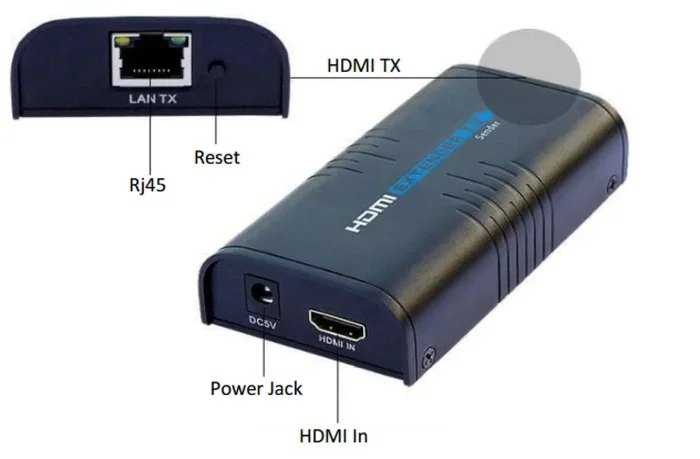
The short answer is yes. You can convert HDMI to Ethernet using a device called an HDMI extender or HDMI over Ethernet converter. These devices come in pairs. One unit connects to your source device near the HDMI output. The other unit connects to your display near the TV or projector.
The two units are linked by an Ethernet cable. The sender unit takes the HDMI signal and converts it for transmission. The receiver unit takes the Ethernet signal and converts it back to HDMI. The whole process is automatic and requires no software or drivers in most cases.
How HDMI to Ethernet Converters Work
Here is a simple breakdown of the conversion process:
- You plug the HDMI cable from your source device into the sender unit.
- The sender unit connects to an Ethernet cable using an RJ45 connector.
- The Ethernet cable runs from the sender to the receiver unit.
- The receiver unit connects to your TV or display with another HDMI cable.
- Power is supplied to both units, usually through USB or a wall adapter.
- The signal travels from sender to receiver, and your display shows the content.
It is that straightforward. Most people set up an HDMI to Ethernet system in under 15 minutes. No special tools or technical knowledge needed. Just plug and play.
Different Types of HDMI to Ethernet Extenders
Not all extenders are created equal. Here are the main types you will encounter:
- HDMI Extender Kits: These are the most common. They include a sender and receiver pair. They work well for distances up to 100 feet or more. Most kits support 1080p or 4K resolution.
- HDMI over Ethernet Adapters: These are compact adapters that fit directly into the HDMI port. They are great for permanent installations where you want a low-profile setup.
- Network-Based HDMI Switchers: These allow you to connect multiple HDMI sources and switch between them over Ethernet. Perfect for home theaters with multiple devices.
- Fiber Optic HDMI Extenders: These use fiber optic cable instead of Ethernet for even longer distances. They are more expensive but offer the best performance for very long runs.
For most people, a basic HDMI extender kit is all you need. It covers the typical home setup and delivers reliable performance. If you need more ports or longer range, you can step up to a switcher or fiber optic option.
Benefits of Going from HDMI to Ethernet
There are several compelling reasons to switch from HDMI to Ethernet for your AV connections. Let us look at the biggest benefits.
1. Longer Cable Runs Without Signal Loss
This is the number one reason people choose HDMI over Ethernet. Standard HDMI cables lose signal over distance. Ethernet cables maintain a strong signal over much longer runs. You can easily go 100 feet or more without any quality drop. This makes Ethernet perfect for large rooms, basements, or multi-floor installations.
2. Cleaner and More Organized Setups
Running a single Ethernet cable is much easier than running a thick HDMI cable. Ethernet cables are thinner and more flexible. They are also easier to hide behind walls or along baseboards. The result is a cleaner look and less cable clutter in your living space.
3. Better Signal Quality
Ethernet cables have built-in shielding that protects against interference. HDMI cables are more susceptible to signal noise, especially over long distances. With HDMI to Ethernet conversion, you get a cleaner, more stable signal. This means fewer glitches, no flickering, and consistent picture quality.
4. Cost Savings
High-quality long HDMI cables can be very expensive. A 100-foot premium HDMI cable can cost a lot more than an HDMI extender kit plus an Ethernet cable. For most setups, the Ethernet route is the more budget-friendly option.
5. Scalability
Ethernet infrastructure is already in most homes and offices. Adding an HDMI over Ethernet setup is easy because you can use existing Ethernet wiring. You do not need to run new cables from scratch. This makes scaling your AV setup much simpler and more affordable.
How to Choose the Right HDMI to Ethernet Converter
Not all converters are the same. Choosing the right one depends on your specific needs. Here are the key factors to consider.
Resolution Support
Make sure the converter supports the resolution you need. If you have a 4K TV, you need a converter that handles 4K at 60Hz. Many budget extenders only support 1080p. Check the specs carefully before buying. Spending a little more on a 4K-compatible extender is worth it if you have a 4K display.
Distance Requirements
Measure the distance between your source device and your TV. Choose an extender that supports that distance or more. Most kits advertise a maximum range. It is smart to add a buffer of 10 to 20 feet to account for cable routing around corners and through walls.
Number of Ports
If you need to connect multiple devices, look for a switcher-style extender. These let you connect two or more HDMI sources and switch between them. A single-port extender works fine for one device like a streaming stick or a single gaming console.
Audio Support
Most modern converters handle audio along with video. But it is still worth checking. Make sure the extender supports the audio formats you need, such as Dolby Digital or DTS if you have a surround sound setup.
Power Requirements
Some extenders draw power from the HDMI port itself. Others need a separate power adapter. Check what works best for your setup. A powered extender is usually more reliable, especially for longer cable runs.
Setting Up Your HDMI to Ethernet Connection
Setting up an HDMI to Ethernet connection is easier than most people expect. Here is a step-by-step guide to get you started.
Step 1: Gather Your Equipment
You will need three things: an HDMI extender kit (sender and receiver), an Ethernet cable, and power adapters for both units. Most kits come with everything you need in the box. If not, a standard Cat5e or Cat6 Ethernet cable works perfectly.
Step 2: Connect the Sender Unit
Plug the HDMI cable from your source device into the sender unit. Then connect the sender unit to the Ethernet cable. Finally, plug in the power adapter for the sender unit. The sender unit should power on and show a light indicating it is active.
Step 3: Run the Ethernet Cable
Route the Ethernet cable from the sender unit to the receiver unit. You can run it through walls, along baseboards, or through cable management channels. Ethernet cables are thin and flexible, so routing them is much easier than HDMI cables.
Step 4: Connect the Receiver Unit
At the TV end, connect the receiver unit to your display using an HDMI cable. Plug in the power adapter for the receiver unit. Make sure both units are powered on.
Step 5: Test the Connection
Turn on your source device and your TV. You should see the picture on the display. If you do not, check the power connections and make sure the Ethernet cable is secure at both ends. Most issues are simply loose connections.
Quick Tips for a Smooth Setup
- Use a high-quality Ethernet cable for the best results.
- Keep the sender and receiver units in well-ventilated areas.
- Label both ends of the Ethernet cable for easy identification later.
- Test the setup before you hide cables behind walls or furniture.
- Firmware updates for some extenders can improve performance. Check the manufacturer’s website.
Common Mistakes to Avoid
Here are some mistakes that trip up many people when setting up HDMI to Ethernet systems:
- Using a low-quality Ethernet cable: Cheap cables can introduce interference and reduce signal quality. Stick to reputable brands.
- Overloading the extender with too many devices: Stick to one source per extender unless you buy a switcher model.
- Ignoring power requirements: Some extenders need external power. Running without it can cause instability.
- Bending the Ethernet cable too tightly: Sharp bends can damage the cable and affect performance. Keep bends gentle.
- Not checking resolution compatibility: Buying a 1080p extender for a 4K TV leads to disappointment every time.
Avoiding these simple mistakes will save you time and frustration. A little planning goes a long way.
Expert Insights on HDMI to Ethernet Conversion
We spoke with several AV professionals about the growing trend of HDMI over Ethernet setups. Here is what they had to say.
Mark T., Home Theater Installer: “I have been recommending HDMI over Ethernet to my clients for years. It solves so many common problems. The signal is cleaner, the installation is simpler, and the cost is lower than running long HDMI cables. It is a win-win for almost every setup.”
Sarah L., IT Infrastructure Specialist: “In office environments, we use HDMI over Ethernet for conference room displays all the time. It leverages the existing network infrastructure and makes troubleshooting much easier. If there is a problem, you already know your Ethernet setup inside and out.”
Dr. James R., AV Technology Professor: “The technology behind HDMI to Ethernet conversion has improved dramatically. Early models had noticeable lag and limited resolution support. Modern extenders deliver near-lossless quality over long distances. For consumers and professionals alike, this is now a mature and reliable solution.”
These expert opinions confirm what many users already know: HDMI to Ethernet conversion is a practical, reliable, and cost-effective way to extend your AV connections. Whether for home or office, it is a solution worth considering.
It is also worth noting that modern connectivity solutions continue to evolve. Many people are moving away from traditional cable and satellite services toward streaming and network-based alternatives. If you are exploring how to modernize your entire entertainment setup beyond just cable connections, understanding alternatives to traditional providers can complement your HDMI to Ethernet knowledge perfectly.
Conclusion
So, can you go from HDMI to Ethernet? Absolutely. The answer is yes, and the benefits are clear. HDMI to Ethernet conversion gives you longer cable runs, better signal quality, and a cleaner setup. It is an affordable solution that works for home theaters, offices, and any situation where distance is a challenge.
The equipment is easy to find and simple to set up. Whether you choose a basic extender kit or a more advanced switcher, you will enjoy a more reliable and organized connection. The key is to pick the right converter for your needs and follow the setup steps carefully.
Do not let distance limit your AV setup. With the right HDMI to Ethernet solution, you can connect any device to any display, no matter how far apart they are. Take the time to research your options, pick a quality converter, and enjoy a better viewing experience today.
Frequently Asked Questions
Do I need a special Ethernet cable for HDMI to Ethernet conversion?
You do not need anything fancy. A standard Cat5e or Cat6 Ethernet cable works perfectly for most setups. Just make sure the cable is in good condition and not damaged. For 4K setups, Cat6 is recommended for the best performance.
Will I lose any video or audio quality when converting HDMI to Ethernet?
Most modern HDMI to Ethernet converters maintain excellent quality. You should not notice any difference in picture or sound for standard distances. Very cheap or outdated converters might have some quality loss, so invest in a reputable brand.
Can I run HDMI over Ethernet through walls?
Yes, you can. Ethernet cables are thin and flexible, making them easy to route through walls and ceilings. Just make sure you use an Ethernet cable rated for in-wall use if you are running it inside walls. This is a common and safe practice.
How far can I run HDMI over Ethernet?
Most HDMI over Ethernet extenders support distances up to 100 feet or more. Some high-end models can reach 300 feet or further. The actual distance depends on the extender model and the Ethernet cable quality you use.
Is HDMI to Ethernet conversion expensive?
Not at all. Basic HDMI extender kits are very affordable and often cost less than a high-quality long HDMI cable. You can find reliable kits for under $50. Higher-end models with 4K support or multiple inputs cost more but are still budget-friendly.
Can I use HDMI to Ethernet for gaming?
Yes, you can. Most HDMI to Ethernet converters have very low latency, making them suitable for gaming. If you are a competitive gamer, look for an extender that specifically advertises low lag or zero-latency performance to ensure the best experience.