Can You Have Both HDMI and Displayport At The Same Time
Yes, you can absolutely use both HDMI and DisplayPort at the same time. Most modern computers and graphics cards support multiple video outputs, letting you connect displays through different ports simultaneously. This guide covers everything you need to know about setting up a dual connection for gaming, work, or home entertainment.
Can you have both HDMI and DisplayPort at the same time? The short answer is yes. Most modern computers, laptops, and graphics cards allow you to connect multiple displays using different port types simultaneously. Whether you want to run a dual monitor setup for productivity or hook up your gaming PC to a TV while keeping a monitor on your desk, understanding how these two connection types work together is essential.
Many people assume they need to pick one port over the other. That is simply not true. Your device can handle multiple video outputs at once. The key is knowing how to set it up correctly and what limitations might exist. This article breaks down everything you need to know about running both HDMI and DisplayPort connections on a single system.
## What HDMI and DisplayPort Actually Are
Before diving into dual connections, it helps to understand what each port does and why they exist.
### Understanding HDMI
HDMI stands for High-Definition Multimedia Interface. It is one of the most common display connectors in the world. You will find HDMI ports on TVs, monitors, laptops, gaming consoles, and even some smartphones.
HDMI carries both video and audio signals through a single cable. This makes it incredibly convenient. You plug in one cable, and you get picture and sound without any extra effort. HDMI has gone through several versions over the years. Each new version brings higher bandwidth, better resolution support, and improved features.
The most common versions you will encounter are HDMI 1.4, HDMI 2.0, and HDMI 2.1. HDMI 2.1 supports 4K at 120Hz and even 8K resolution. This makes it a popular choice for modern gaming and high-end displays.
### Understanding DisplayPort
DisplayPort is a display interface developed by VESA, a standards organization. It is widely used on computer monitors and professional graphics cards. DisplayPort was designed specifically for computer displays, so it often delivers better performance for PC use than HDMI.
DisplayPort also carries both video and audio, but it excels in areas like high refresh rates and multi-monitor support. DisplayPort 1.4 and DisplayPort 2.1 are the latest versions. They offer massive bandwidth for pushing high resolutions and fast refresh rates.
One major advantage of DisplayPort is daisy chaining. You can connect multiple monitors in a chain from a single DisplayPort output. This is not possible with HDMI without extra hardware.
## Can You Use Both HDMI and DisplayPort Simultaneously?
Now let us get to the heart of the matter. Can you plug in an HDMI cable and a DisplayPort cable at the same time and expect both monitors to work?
### How Dual Display Connections Work
Most modern graphics cards and integrated GPUs support multiple display outputs. This means you can connect an HDMI monitor and a DisplayPort monitor to the same computer and use both at the same time. The operating system treats each output as a separate display.
Windows, macOS, and Linux all support multi-monitor configurations through different port types. You do not need both cables to be the same type. The system recognizes each connected display and lets you arrange them however you like.
To set this up, you simply plug in both cables, go to your display settings, and choose how you want to use the screens. You can extend your desktop, mirror the displays, or set one as the primary screen. It is straightforward and works without any special software.
### Graphics Card Compatibility
Not all graphics cards are created equal. Some budget GPUs may only support a limited number of active displays. For example, a card might have three outputs but only support two active monitors at a time.
Before setting up a dual connection, check your GPU specifications. Look for the maximum number of simultaneous displays it supports. High-end cards from NVIDIA and AMD typically support four or more active displays. Integrated graphics on modern processors also handle dual output well in most cases.
If you are unsure, check the manufacturer’s website or your computer’s manual. The information is usually listed under the graphics card specifications.
## Benefits of Having Both HDMI and DisplayPort
Running both HDMI and DisplayPort on the same system offers several real-world advantages.
### Flexibility for Multiple Monitors
Having both ports gives you flexibility when connecting different types of displays. Maybe your primary monitor uses DisplayPort for its high refresh rate, and your secondary monitor only has an HDMI input. No problem. You can connect both and use them side by side.
This is especially useful in office setups where different monitors may have been purchased at different times. You do not need to buy adapters or replace monitors just to match port types.
### Better Performance and Quality
DisplayPort often delivers better performance for PC monitors, especially at higher resolutions and refresh rates. HDMI is great for TVs and consumer displays. By using both, you can optimize each connection for its intended display.
For example, you might connect your gaming monitor via DisplayPort to take advantage of adaptive sync and high refresh rates. Then you can use HDMI to connect a TV in another room for media streaming. Both displays work independently and simultaneously.
## Common Use Cases for Dual Connections
### Gaming Setups
Gamers often benefit from having both HDMI and DisplayPort available. A high-refresh gaming monitor connected via DisplayPort gives you the smoothest gameplay experience. Meanwhile, an HDMI connection to a TV lets you play console-style games on a big screen.
Some gamers also use dual monitors for streaming. One monitor runs the game at full quality through DisplayPort. The second monitor, connected via HDMI, displays chat, streaming software, or a web browser.
### Professional Workstations
Professionals who work with video editing, graphic design, or data analysis often need multiple screens. Using both HDMI and DisplayPort allows them to connect different displays without being limited by port availability.
A video editor might use a high-quality DisplayPort monitor for color-accurate work and an HDMI monitor for reference playback. Both connections run simultaneously without any conflicts.
### Home Entertainment
Setting up a home entertainment system often involves multiple display types. You might have a computer connected to a projector via HDMI while also running a monitor through DisplayPort for everyday tasks.
For those looking to expand their home viewing options, checking out alternatives to Dish Network and DirectTV can help you find the best streaming and display solutions for your setup. Many of these services work beautifully on a PC connected to a TV through HDMI while you keep your monitor running through DisplayPort.
## How to Set Up Both HDMI and DisplayPort on Your System
Setting up dual connections is easier than most people think. Here is a step-by-step guide.
### Step 1: Check Your Ports
Look at the back of your computer or graphics card. Identify the HDMI and DisplayPort outputs. Make sure both are physically available and not blocked by other components or cables.
### Step 2: Connect Your Displays
Plug the HDMI cable into your first monitor and the DisplayPort cable into your second monitor. Connect the other ends to your computer’s corresponding ports.
### Step 3: Configure Display Settings
On Windows, right-click the desktop and select Display Settings. You should see both displays listed. Choose Extend These Displays to use both screens as separate workspaces. On macOS, go to System Settings and select Displays to arrange your screens.
### Step 4: Adjust Resolution and Orientation
Set the resolution for each display individually. You can also arrange them to match their physical position on your desk. This ensures your mouse moves naturally between screens.
### Quick Tips for Optimal Performance
– Use high-quality cables rated for the resolution and refresh rate you need.
– Update your graphics card drivers before setting up a dual display.
– Match the refresh rate of each display to its cable capability.
– Avoid using long cables unless they are specifically rated for high bandwidth.
– Test each display individually before connecting both to troubleshoot issues faster.
## Common Mistakes to Avoid
### Using Cheap or Incompatible Cables
Not all HDMI or DisplayPort cables are the same. A cheap cable might not support the bandwidth needed for 4K at 60Hz or higher refresh rates. Always buy cables from reputable brands and check their specifications.
### Ignoring Adapter Quality
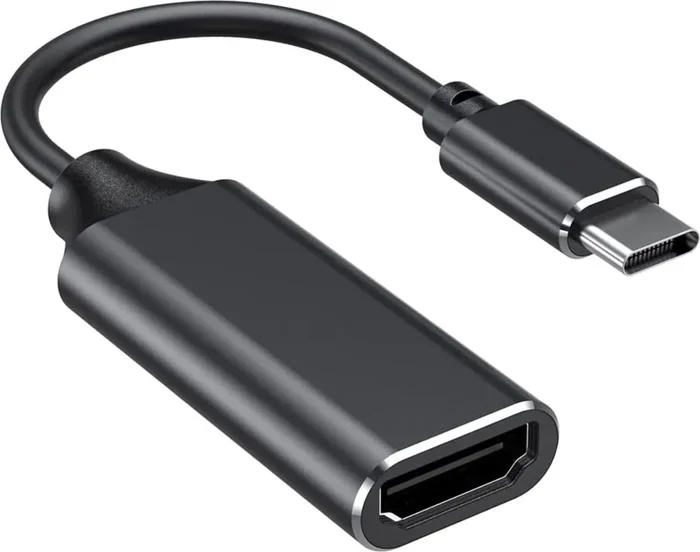
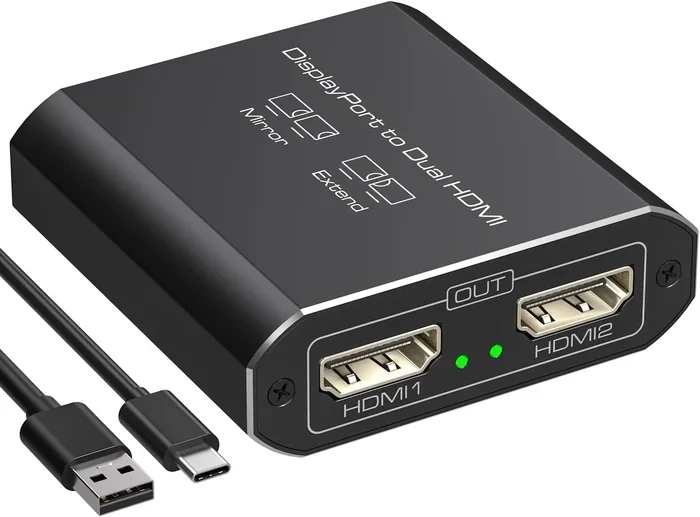
If you need to use an adapter, the quality matters a lot. A poor-quality HDMI-to-DisplayPort adapter can cause signal degradation, flickering, or no signal at all. Invest in adapters from trusted manufacturers to avoid these issues.
### Overlooking Power and Bandwidth Limits
Some graphics cards have limits on total bandwidth across all outputs. Running two high-resolution displays at high refresh rates might exceed this limit. Check your GPU specs to ensure it can handle the load.
## Expert Insights on Dual Display Connections
Industry experts agree that using both HDMI and DisplayPort simultaneously is one of the simplest ways to boost productivity and gaming performance. According to hardware reviewers, the key is to match each port to its best use case. Use DisplayPort for PC monitors that demand high refresh rates and low input lag. Use HDMI for TVs and consumer displays where convenience and audio integration matter most.
Many professionals also recommend using DisplayPort 1.4 or newer for monitors and HDMI 2.1 for TVs. This ensures you get the best possible performance from each connection type.
## Key Considerations Before You Buy
Before purchasing cables or adapters for a dual setup, consider these factors.
– What resolution and refresh rate does each display support?
– How many video outputs does your graphics card have?
– Do you need active or passive adapters?
– Are your cables long enough for your desk or room layout?
– Does your operating system support the number of displays you want to use?
Answering these questions will help you build a setup that works seamlessly without frustration.
## Final Thoughts
Having both HDMI and DisplayPort at the same time is not only possible but also highly practical. Whether you are a gamer, a professional, or someone who simply wants a bigger and better display setup, dual connections give you the flexibility to get the most out of your hardware. The setup process is simple, and the benefits are immediate.
Take a few minutes to check your hardware, get the right cables, and configure your display settings. You will be surprised how much smoother your workflow or gaming experience becomes when you use both ports together.
## Frequently Asked Questions
Can I run two different monitors using HDMI and DisplayPort at the same time?
Yes, you can. Most modern computers and graphics cards support running multiple displays through different port types simultaneously. Simply connect one monitor via HDMI and another via DisplayPort, then configure your display settings to extend the desktop across both screens.
Do I need special adapters to use both HDMI and DisplayPort together?
No, you do not need adapters if both your monitors and your computer have matching ports. However, if one monitor only has HDMI and your computer only has DisplayPort, you will need an active DisplayPort-to-HDMI adapter to make the connection work.
Will using both HDMI and DisplayPort reduce performance?
Using both ports does not significantly reduce performance in most cases. However, running two high-resolution, high-refresh-rate displays simultaneously can strain your GPU. Make sure your graphics card can handle the combined workload before setting up a demanding dual display configuration.
Can I use HDMI and DisplayPort for different tasks on the same computer?
Absolutely. Many users connect a DisplayPort monitor for their main work or gaming screen and use an HDMI connection for a secondary display or a TV. Each output can run at different resolutions and refresh rates independently.
What is the maximum number of displays I can connect using HDMI and DisplayPort?
This depends on your graphics card. Most modern GPUs support three to four simultaneous displays across a mix of HDMI and DisplayPort outputs. Check your specific GPU model to confirm its maximum supported display count.
Does the order of connecting HDMI and DisplayPort cables matter?
No, the order does not matter. You can plug in either cable first. The operating system will detect both displays and let you arrange them in your display settings regardless of which connection you made first.
Key Takeaways
- Dual Connections Are Supported: Most PCs and laptops can run both HDMI and DisplayPort outputs at the same time without issues.
- Check Your Graphics Card: Not all GPUs support multiple active displays, so verify your hardware before buying cables or adapters.
- Resolution and Refresh Rate Vary: Each port may deliver different performance levels depending on the version and bandwidth.
- Adapters Work Well: You can use HDMI-to-DisplayPort adapters or vice versa when you need to bridge different connections.
- Setup Is Simple: Plugging in both cables and configuring display settings in Windows or macOS takes just a few minutes.
- Avoid Common Pitfalls: Using cheap cables or outdated adapters can cause signal loss, flickering, or reduced quality.
Frequently Asked Questions
What is Can You Have Both Hdmi And Displayport At The Same Time?
Can You Have Both Hdmi And Displayport At The Same Time is an important topic with many practical applications.