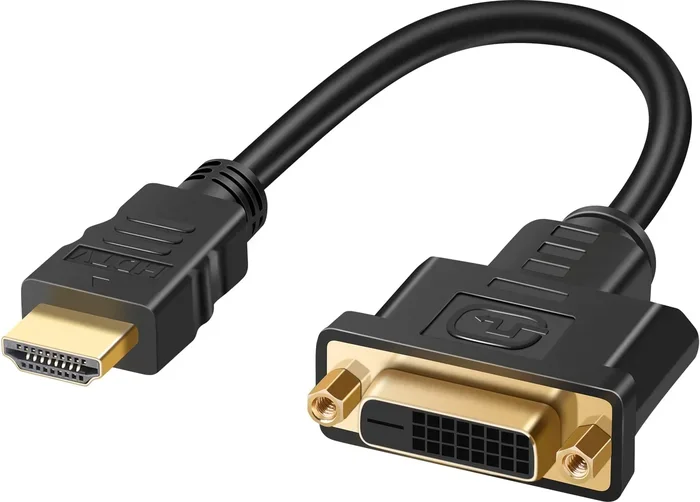
Can You Convert Hdmi To Dvi Full Guide To Get It Right
Converting HDMI to DVI is simple and doable with the right adapter or cable. Whether you need to connect a modern device to an older monitor or vice versa, this guide covers everything you need to know. You will learn about active and passive adapters, step-by-step setup, common problems, and expert tips to get the best results.
Key Takeaways
- HDMI to DVI conversion is possible using adapters, cables, or converters that bridge the two connection types.
- Passive adapters work for video-only needs, while active adapters are required when audio must also be transmitted.
- Check your device ports first to determine whether you need a male-to-female adapter or a full cable converter.
- Resolution quality is maintained in most cases, but always verify compatibility between your source and display.
- Common issues like no signal or no audio can usually be fixed with simple troubleshooting steps.
- Home entertainment setups benefit greatly from knowing how to convert between these two standard connections. If you are also exploring other ways to set up your home entertainment, you might want to explore alternatives to Dish Network and DirectTV for more options.
📑 Table of Contents
- Can You Convert HDMI to DVI? The Complete Guide
- How HDMI to DVI Conversion Works
- Step-by-Step Guide to Converting HDMI to DVI
- Active vs Passive Adapters: Which One Do You Need?
- Common Problems and How to Fix Them
- Expert Tips for the Best HDMI to DVI Setup
- When Should You NOT Convert HDMI to DVI?
- Final Thoughts
Can You Convert HDMI to DVI? The Complete Guide
Yes, you can convert HDMI to DVI. It is one of the most common connection tasks people face when setting up displays, monitors, or projectors. The process is straightforward, and you do not need to be a tech expert to pull it off. Whether you are connecting a laptop to an older monitor or hooking up a new gaming console to a display that only has DVI ports, this guide has you covered.
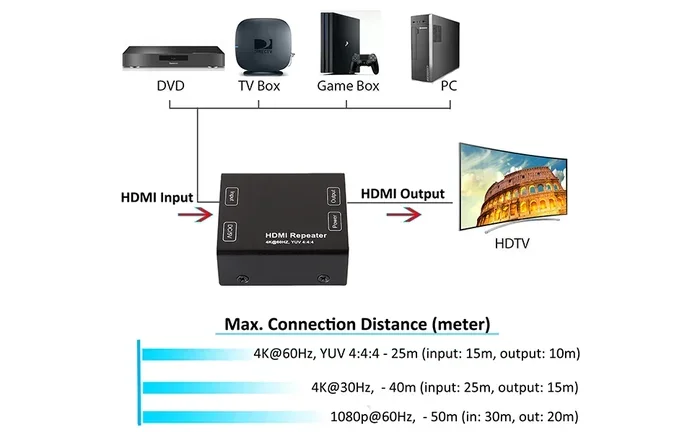
The HDMI to DVI conversion process relies on adapters, cables, or active converters that bridge the gap between these two standards. HDMI carries both audio and video signals, while DVI handles video only. This difference is the single most important thing to understand before you buy any adapter. Once you know what you need, the rest is easy.
In this guide, we walk you through every step. You will learn what each connection type does, which adapter to buy, how to set things up, and how to fix the most common problems. By the end, you will feel confident making any HDMI to DVI connection in your home or office.
What Is HDMI?
HDMI stands for High Definition Multimedia Interface. It is the most widely used digital connection for audio and video. Almost every modern TV, laptop, gaming console, and streaming device uses HDMI. The cable carries both picture and sound through a single connection. This makes it incredibly convenient. You plug in one cable, and you get high-quality video and audio at the same time.
HDMI has evolved over the years. Newer versions support higher resolutions, faster refresh rates, and better color depth. HDMI 2.0 and HDMI 2.1 are the latest standards, supporting 4K and even 8K resolution. But here is the catch. Many older displays, especially computer monitors, do not have HDMI ports. They use DVI instead. That is where conversion comes in.
What Is DVI?
DVI stands for Digital Visual Interface. It was introduced in the late 1990s and became very popular on desktop monitors and projectors. DVI was designed to carry digital video signals, and it does a great job at that. However, DVI does not carry audio. If you are using a DVI connection, you will need a separate cable for sound.
There are three types of DVI connectors:
- DVI-D (Digital only) — carries a purely digital signal
- DVI-A (Analog only) — carries an analog signal
- DVI-I (Integrated) — carries both digital and analog signals
For most HDMI to DVI conversions, DVI-D is what you will be dealing with. It is the most common type found on modern monitors and displays. Understanding which DVI type you have is the first step in choosing the right adapter.
How HDMI to DVI Conversion Works
The core idea behind HDMI to DVI conversion is simple. Both HDMI and DVI-D use the same digital signal format for video. The pin layout is nearly identical. This means a passive adapter can often do the job without any power or electronics. The adapter simply reroutes the signal from one connector shape to another.
However, because HDMI also carries audio and DVI does not, you need to be careful about what kind of adapter you choose. If you need sound, a passive adapter alone will not work. You will need an active converter that extracts the audio from the HDMI signal and sends it to a separate output.
Passive Adapters
A passive HDMI to DVI adapter is the simplest and cheapest option. It does not require any external power. You plug the HDMI cable into one end and the DVI cable into the other. The adapter just changes the physical shape of the connector. Video signals pass through without any loss in quality.
Passive adapters work best when:
- Your source device has HDMI output
- Your display has DVI input
- You do not need audio through the DVI connection
- You are okay using separate speakers or a sound system
These adapters are widely available and cost between $5 and $15. They are a great choice for simple setups where audio is not a concern.
Active Converters
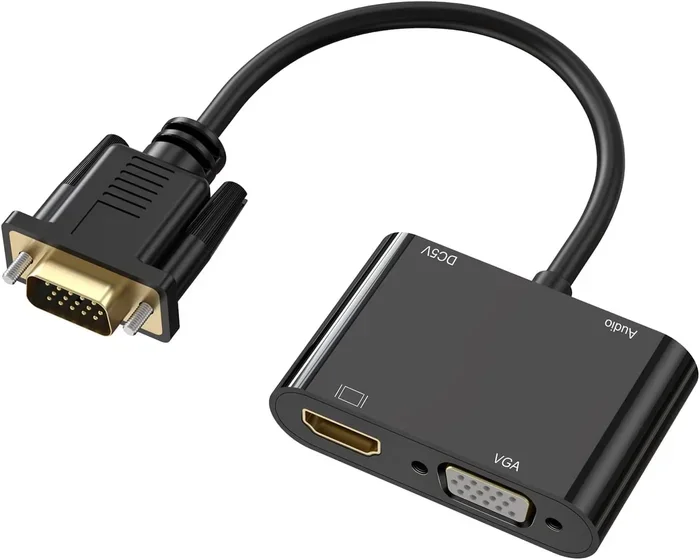
An active HDMI to DVI converter is a more advanced device. It contains built-in electronics that process the HDMI signal and split the audio from the video. The video signal is converted to DVI, and the audio is sent to a separate output, usually a 3.5mm headphone jack or optical audio out.
Active converters are necessary when:
- You need audio along with video
- Your source device does not support DVI natively
- You are converting signals over longer cable runs
- You are dealing with EDID handshake issues (more on this later)
Active converters cost more, typically between $30 and $100, but they offer much more flexibility. They are especially useful in home theater setups and professional environments.
Step-by-Step Guide to Converting HDMI to DVI
Setting up an HDMI to DVI connection is easier than most people think. Follow these steps and you will be up and running in minutes.
Step 1: Check Your Ports
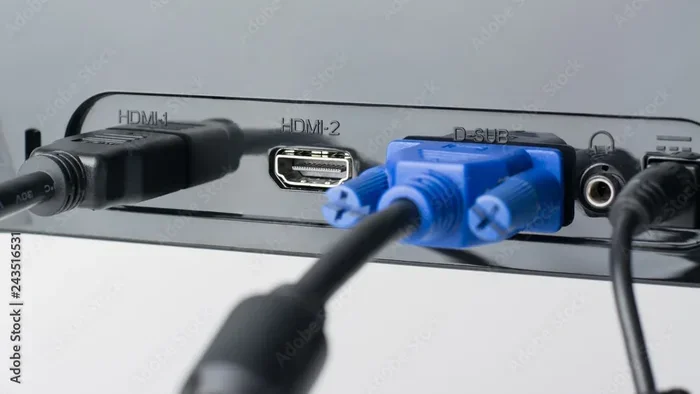
Look at both your source device and your display. Identify whether they have HDMI or DVI ports. Note the type of DVI port (DVI-D, DVI-A, or DVI-I). This determines which adapter you need. If both devices have HDMI, you do not need any adapter at all. Just use a standard HDMI cable.
Step 2: Choose the Right Adapter or Cable
Based on your port check, select the appropriate adapter. For a simple video-only setup, a passive HDMI to DVI adapter works perfectly. For audio support, go with an active converter. Make sure the adapter matches the gender of your ports (male-to-female, female-to-male, or cable-to-cable).
Step 3: Connect the Cables
Plug the HDMI cable into your source device. Connect the other end to the adapter or converter. Then plug the DVI cable from the adapter into your display. If you are using an active converter, also connect the audio output to your speakers or sound system.
Step 4: Power On and Test
Turn on both devices. Your display should show the video signal. If you are using an active converter, test the audio output as well. If you see no signal, move on to the troubleshooting section below.
Step 5: Adjust Display Settings
On your source device, go to the display settings. Make sure the resolution matches what your DVI display supports. Most DVI connections handle up to 1080p. If you are using an older DVI standard, the maximum resolution may be lower. Adjust the output settings until you get a clear picture.
Active vs Passive Adapters: Which One Do You Need?
Choosing between an active and passive adapter is the most important decision you will make. The wrong choice can lead to frustration and wasted money. Here is a simple comparison to help you decide.
| Feature | Passive Adapter | Active Converter |
|---|---|---|
| Price | $5 to $15 | $30 to $100 |
| Power Required | No | Yes (USB or wall outlet) |
| Carries Audio | No | Yes |
| Video Quality | Full digital, no loss | Full digital, no loss |
| Best For | Simple video-only setups | Home theater, audio needed |
| Setup Complexity | Very simple | Moderate |
In most cases, a passive adapter is all you need for basic computer monitor connections. But if you are building a home theater setup or connecting a device where audio matters, invest in an active converter. The extra cost is worth the convenience.
Common Problems and How to Fix Them
Even with the right adapter, you may run into issues. Here are the most common problems and their solutions.
No Signal on the Display
This is the most frequent issue. It usually happens because the display and source device cannot agree on a resolution or refresh rate. Try these fixes:
- Unplug the adapter and reconnect it firmly
- Check that the DVI cable is fully seated in both ports
- Lower the output resolution on your source device
- Try a different HDMI cable
- Restart both devices and try again
No Audio Through DVI
Remember that DVI does not carry audio. If you are using a passive adapter, you will not get sound through the DVI cable. You need to either use an active converter or connect separate audio cables from your source device to your speakers.
Flickering or Distorted Image
A flickering image often points to a loose connection or a low-quality cable. Try tightening the connections or replacing the DVI cable. If the problem persists, the adapter itself may be faulty. Swap it out with a different one to confirm.
EDID Handshake Failures
EDID (Extended Display Identification Data) is how devices communicate their capabilities. Sometimes the HDMI to DVI conversion process interrupts this handshake. An active converter handles this more reliably than a passive adapter. If you keep getting handshake errors, an active converter is your best bet.
Expert Tips for the Best HDMI to DVI Setup
Getting the best results from your HDMI to DVI conversion comes down to a few smart choices. Here are expert tips that make a real difference.
Buy quality adapters. Cheap adapters from unknown brands often cause signal problems. Stick with well-known brands or buy from reputable sellers. A $10 adapter from a trusted brand will outperform a $3 no-name adapter every time.
Keep cable runs short. The longer the cable run, the more signal degradation you risk. Try to keep HDMI and DVI cables under 6 feet for the best results. If you need longer runs, use a high-quality cable or an active signal booster.
Check your DVI version. Not all DVI ports support the same resolutions. Single-link DVI maxes out at 1920×1200. Dual-link DVI supports higher resolutions. Check your monitor specs to make sure your setup will work at the resolution you want.
Use separate audio when needed. Since DVI does not carry audio, plan your audio setup separately. A simple 3.5mm aux cable or an optical audio connection from your source device to your speakers works perfectly.
Update your graphics drivers. Sometimes display issues come from outdated drivers on your computer. Update your GPU drivers before troubleshooting the adapter. This simple step fixes many connection problems.
Consider your whole setup. If you are building a home entertainment or streaming setup, you may want to explore other connection options too. For instance, if you are looking at different ways to deliver content to your TV, check out alternatives to Dish Network and DirectTV for ideas on how to optimize your entire viewing experience. Knowing all your options helps you make smarter decisions about cables, adapters, and services.
Label your cables. Once everything is set up, label your HDMI and DVI cables. It saves a lot of confusion later, especially if you have multiple devices connected to the same display.
When Should You NOT Convert HDMI to DVI?
There are times when converting HDMI to DVI is not the best solution. Understanding these situations saves you time and money.
If your display supports HDMI, just use an HDMI cable. Converting to DVI adds unnecessary complexity and may introduce audio issues. If you need to connect multiple devices to one display, consider a switch or a receiver with multiple inputs instead of chaining adapters together.
Also, if you need to transmit audio and video over a single cable to a distant display, HDMI is the better choice. DVI is a video-only standard, and working around that limitation adds extra steps and equipment. In professional or commercial settings, HDMI or DisplayPort are usually the better long-term solutions.
Final Thoughts
Converting HDMI to DVI is a practical skill that solves a very common problem. Whether you are connecting an old monitor to a new laptop or setting up a secondary display, the right adapter makes it work. Passive adapters handle simple video needs, while active converters cover situations where audio matters too.
The key is knowing your devices, choosing the right adapter, and following the setup steps carefully. With the tips and troubleshooting advice in this guide, you are well equipped to handle any HDMI to DVI connection challenge. Take your time, check your ports, and enjoy a great picture on your display.
Frequently Asked Questions
Do I need a special cable to convert HDMI to DVI?
Not necessarily. A passive HDMI to DVI adapter works with a standard HDMI cable and a standard DVI cable. You do not need any special or expensive cables. Just make sure the cables are in good condition and fully seated in the ports. For most setups, a basic adapter and two regular cables are all you need.
Will I lose video quality when converting HDMI to DVI?
No. Both HDMI and DVI-D carry the same digital video signal. A quality passive adapter does not compress or degrade the signal. The video quality stays exactly the same as it would be on a direct HDMI connection. The only thing that could affect quality is a cheap or damaged adapter or cable.
Can I get audio through a DVI connection?
No. DVI does not carry audio. If you need sound, you must use an active converter with a separate audio output, or connect audio cables directly from your source device to your speakers. This is the biggest difference between HDMI and DVI that you need to plan for.
What is the maximum resolution supported by HDMI to DVI conversion?
It depends on your DVI port. Single-link DVI supports up to 1920×1200 at 60Hz. Dual-link DVI supports up to 2560×1600 at 60Hz. Most HDMI to DVI conversions work at 1080p without any issues. Check your monitor specifications to confirm its maximum supported resolution.
Can I use an HDMI to DVI adapter with a gaming console?
Yes, but with a caveat. Most gaming consoles output both video and audio through HDMI. A passive adapter will give you video on a DVI monitor, but you will need separate audio. Some gamers use the console’s HDMI output for video and the console’s optical or 3.5mm output for sound. Check your specific console model for audio output options.
Are USB-C to DVI adapters the same as HDMI to DVI adapters?
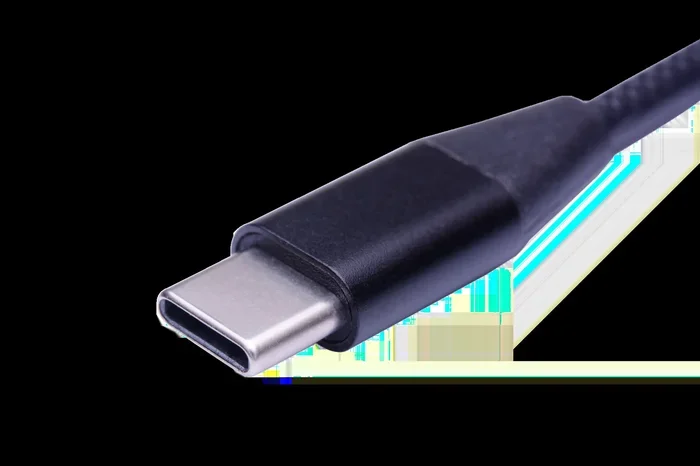
Not exactly. USB-C to DVI adapters often use DisplayPort Alt Mode or a built-in converter chip. They work differently from a direct HDMI to DVI adapter. If your device only has USB-C, you may need a USB-C to DVI adapter specifically. Make sure the adapter supports the video output standard your device uses.
=== CONCLUSION ===
HDMI to DVI conversion is a simple, affordable solution for connecting modern devices to older displays. With the right adapter, a few basic cables, and the knowledge in this guide, you can set up any connection in minutes. Remember to choose passive adapters for video-only needs and active converters when audio is part of the equation. Avoid common pitfalls like loose connections and mismatched resolutions. With these tips, your HDMI to DVI setup will deliver clear, reliable video every time.