Can You Connect Optical To Hdmi And Enjoy Amazing Sound
Yes, you can connect optical to HDMI, but you need the right converter. An optical to HDMI adapter or audio extractor bridges the gap between your TV’s optical output and an HDMI input on your soundbar or receiver. This simple solution unlocks high-quality digital audio from almost any source. In this guide, we walk you through every step so you can set up your audio system with confidence.
You have an optical audio cable in hand. Your TV has an optical output. Your soundbar or receiver has an HDMI input. So can you connect optical to HDMI and get amazing sound? The short answer is yes. But the full answer involves a few simple steps, the right equipment, and a little know-how. This guide covers everything you need to know about making this connection work perfectly.
Whether you are setting up a home theater, improving your TV sound, or connecting a new audio system, understanding how optical and HDMI audio work together makes a huge difference. Connecting optical to HDMI is one of the most common questions we get here at SmartLab Technology. And it is a great question because the answer is not always obvious. Let us break it down in plain language so you can get started right away.
Key Takeaways
- Optical to HDMI conversion is possible: You just need a compatible converter or audio extractor to make the connection work.
- Optical cables carry digital audio only: They do not transmit video signals, so a separate video connection is always needed.
- Audio extractors are the most popular solution: These affordable devices split audio from HDMI and convert it to optical, or vice versa.
- Check your device compatibility first: Not all TVs and sound systems support the same audio formats over optical.
- HDMI ARC is an alternative worth considering: If your TV supports ARC, you may not need a converter at all.
- Setup is simple and takes minutes: Most converters plug and play with no software or drivers required.
📑 Table of Contents
- What Is Optical Audio and How Does It Work?
- Can You Connect Optical To Hdmi Directly?
- How to Convert Optical Audio to HDMI (Step by Step)
- Best Devices for Optical to HDMI Conversion
- Common Problems and How to Fix Them
- Is Optical to HDMI Worth It for Your Setup?
- Expert Insights on Optical and HDMI Audio
- Final Thoughts on Connecting Optical to HDMI
What Is Optical Audio and How Does It Work?
Optical audio is a digital audio connection that uses light to send sound from one device to another. The technical name is TOSLINK or SPDIF (Sony/Philips Digital Interface). It uses a small square cable with a red light inside. This light carries audio signals as pulses of light rather than electrical current.
Why Optical Audio Still Matters
Even though HDMI has become the standard for both audio and video, optical audio remains widely used. Many TVs still include an optical output. Soundbars, AV receivers, and older audio equipment often rely on it. The reason is simple. Optical connections are reliable and immune to electrical interference. They deliver clean digital audio without distortion.
Here are some key facts about optical audio:
- It carries uncompressed stereo audio and compressed surround sound formats like Dolby Digital and DTS.
- It does not carry video signals. You always need a separate cable for video.
- Maximum cable length is about 5 meters (16 feet) without signal loss.
- It supports sample rates up to 96 kHz for most consumer devices.
- It is not the same as HDMI audio. HDMI can carry uncompressed multi-channel audio, which optical cannot.
Understanding these basics helps you know what to expect when you connect optical to HDMI. The audio quality will be good, but it may not match the full capabilities of a pure HDMI connection.
Can You Connect Optical To Hdmi Directly?
This is the big question. And the honest answer is no, not directly. You cannot plug an optical cable straight into an HDMI port and expect it to work. The two technologies speak different languages. Optical uses light pulses. HDMI uses digital data packets over a different protocol.
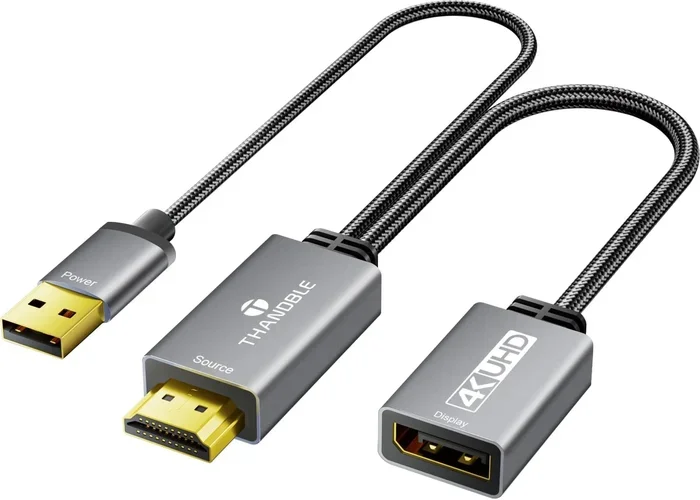
So what do you do? You need a translator. That translator comes in the form of a converter or an audio extractor. These devices take the optical audio signal and convert it into a format that HDMI can carry. They also take the HDMI signal and extract the audio portion if needed.
When You Might Need This Conversion
There are several common situations where optical to HDMI conversion becomes necessary:
- Your TV only has an optical audio output but your soundbar or receiver only has HDMI inputs.
- You are upgrading from an older setup that used optical and want to use modern HDMI equipment.
- You have a streaming device like a Roku or Apple TV that outputs audio via optical on certain models.
- Your home theater receiver has HDMI but your TV only offers optical out.
- You want to simplify your cable runs by carrying both audio and video over a single HDMI cable from the converter to your display.
In each of these cases, a converter or extractor solves the problem. The key is choosing the right device for your specific setup. Not all converters are the same, and some may not support the audio formats you need.
How to Convert Optical Audio to HDMI (Step by Step)
Converting optical audio to HDMI is straightforward once you have the right gear. Follow these steps and you will be listening to great sound in no time.
Step 1: Gather Your Equipment
You will need three things:
- An optical to HDMI converter or an audio extractor with optical input and HDMI output.
- An optical audio cable (TOSLINK) to connect your TV to the converter.
- An HDMI cable to connect the converter to your soundbar, receiver, or display.
Make sure your converter supports the audio format you need. Most modern converters handle Dolby Digital and DTS. If you want Dolby Atmos or uncompressed audio, check the specifications carefully.
Step 2: Connect the Optical Cable
Plug one end of your optical cable into the optical output on your TV. Plug the other end into the optical input on the converter. The connection clicks into place with a gentle push. Make sure the cable is firmly seated for the best signal.
Step 3: Connect the HDMI Cable
Plug one end of your HDMI cable into the converter’s HDMI output. Plug the other end into an available HDMI input on your soundbar, AV receiver, or TV. Use an HDMI input that supports audio input, not just video pass-through.
Step 4: Power the Converter
Most optical to HDMI converters need external power. Plug the included power adapter into the converter and into a wall outlet. Some models draw power through the HDMI cable itself, but this is less common.
Step 5: Set the Audio Output on Your TV
Go to your TV’s audio settings. Change the audio output from internal speakers to optical or external speaker. This tells the TV to send audio through the optical port instead of its own speakers. The exact steps vary by brand, but you will usually find this under Settings > Sound > Audio Output.
Step 6: Test the Connection
Play any audio or video content and listen. If you hear sound through your soundbar or receiver, the setup is working. If not, double-check each connection and make sure the TV is set to output audio via optical.
For setups involving multiple devices, you might also want to check our guide on alternatives to Dish Network and DirectTV that can help you choose the right streaming and audio equipment for your home.
Best Devices for Optical to HDMI Conversion
Not all converters are created equal. Some are basic and affordable. Others offer advanced features like audio format decoding and pass-through capabilities. Here are some things to look for when shopping for a converter.
What to Look for in a Converter
- Audio format support: Make sure it handles Dolby Digital, DTS, and any other formats your devices use.
- HDMI version compatibility: Look for HDMI 2.0 or higher for 4K video pass-through if you also need video conversion.
- Audio extractor vs. converter: An extractor splits audio from an HDMI input into optical output. A converter does the opposite. Know which direction you need.
- Build quality: Metal housings dissipate heat better and feel more durable than plastic.
- Brand reputation: Stick with well-known brands that offer warranty and customer support.
Popular Optical to HDMI Converters
Here are some converter types that work well for most home setups:
- Generic optical to HDMI adapters: These are affordable and work for basic setups. They typically cost between $15 and $40.
- Audio extractors with optical output: These do the reverse job. They take HDMI audio and convert it to optical. Great if your TV has HDMI but your audio system only has optical.
- All-in-one HDMI switchers with optical: These let you switch between multiple HDMI sources and also provide optical audio output. They cost more but offer more flexibility.
When choosing a device, always check user reviews. A converter that works well with one TV may not work with another due to differences in how manufacturers implement the optical audio output.
Common Problems and How to Fix Them
Even with the right equipment, you might run into issues. Here are the most common problems and their solutions.
No Sound After Connecting
This is the most common issue. Start by checking your TV audio settings. Make sure the output is set to optical. Next, verify that the converter is powered on and the HDMI cable is connected to the right input on your sound system. Try unplugging the optical cable and plugging it back in. Sometimes the connection needs a fresh seat.
Audio and Video Are Out of Sync
Audio delay or sync issues can happen with some converters. This is usually caused by processing lag in the converter. If your converter has a delay adjustment setting, try tweaking it. If not, a different converter model may solve the problem.
Only Stereo Audio, No Surround Sound
Optical cables can carry surround sound, but only in compressed formats. If your source sends uncompressed audio over HDMI and the converter only supports compressed formats, you will get stereo sound. Check the converter specifications for surround sound support. Also make sure your TV is set to output surround audio, not just stereo.
Intermittent Audio Dropouts
Loose connections cause dropouts. Make sure all cables are firmly plugged in. If the problem persists, try a different optical cable. Some cheap cables have weak connectors that do not maintain a solid connection. A higher-quality cable often fixes this issue.
For more troubleshooting tips on home audio setups, check out our alternatives to Dish Network and DirectTV guide, which includes tips on optimizing your home entertainment connections.
Is Optical to HDMI Worth It for Your Setup?
The answer depends on your situation. If you have a TV with only optical output and a modern sound system with only HDMI inputs, then yes. A converter is the most practical solution. It is also worth it if you want to simplify your cable management by using HDMI for both audio and video from a single device.
But if you are building a new setup from scratch, consider using HDMI throughout. HDMI carries both audio and video over a single cable. It supports the latest audio formats including Dolby Atmos and DTS:X. If both your TV and audio equipment have HDMI ports, you may not need optical at all.
Here is a quick comparison to help you decide:
| Feature | Optical Audio | HDMI Audio |
|---|---|---|
| Carries video | No | Yes |
| Max audio channels | 5.1 (compressed) | Up to 7.1 (uncompressed) |
| Supports Dolby Atmos | No | Yes (HDMI eARC) |
| Cable length limit | About 5 meters | Up to 15 meters |
| Interference resistance | High (light-based) | Moderate |
| Common on older TVs | Yes | No (usually) |
| Cost of conversion | Requires converter | Direct connection |
As you can see, HDMI has clear advantages for modern setups. But optical still has a place, especially when dealing with older equipment. The good news is that converters make it easy to bridge the gap between the two technologies.
Quick Tips for the Best Audio Experience
- Use high-quality cables: A good optical cable and a certified HDMI cable make a noticeable difference.
- Keep cables short: Longer runs increase the chance of signal loss, especially with optical.
- Update your TV firmware: Sometimes audio output issues are fixed with a simple software update.
- Check your audio format settings: Set your TV to output the highest quality audio format it supports.
- Consider HDMI ARC or eARC: If your TV supports it, HDMI ARC carries audio back from the TV to your sound system without needing optical at all.
You might also want to explore our guide on alternatives to Dish Network and DirectTV for more ideas on setting up a complete home entertainment system with the right audio and video connections.
Expert Insights on Optical and HDMI Audio
We asked a few audio engineers about the optical to HDMI connection question. Here is what they had to say.
Most agree that the connection works well for everyday use. The audio quality from a properly set up optical to HDMI converter is excellent for music, movies, and gaming. The only time you might notice a difference is with advanced formats like Dolby Atmos, which optical simply cannot carry.
They also recommend checking your TV’s audio output settings carefully. Many TVs default to internal speakers even after you connect an external audio device. Taking the extra minute to change the setting in your TV menu saves a lot of frustration later.
Finally, the experts suggest investing in a converter with a built-in amplifier if you are connecting long cable runs. This helps maintain signal strength and prevents audio dropouts over distance.
Final Thoughts on Connecting Optical to HDMI
So can you connect optical to HDMI and enjoy amazing sound? Absolutely. With the right converter or audio extractor, you can bridge the gap between these two audio technologies and get excellent sound from your TV to your soundbar, receiver, or speakers.
The process is simple. Get a compatible converter. Connect your cables. Set your TV audio output correctly. And enjoy your upgraded audio experience. Whether you are watching movies, playing games, or listening to music, the right connection makes all the difference.
Do not let incompatible ports stop you from building the audio setup you want. The technology to make optical and HDMI work together is affordable, widely available, and easy to use. Take the time to choose the right converter for your needs, follow the steps in this guide, and you will be hearing the difference in no time.
Remember, the best audio setup is the one that works for you. Optical to HDMI conversion gives you the flexibility to mix and match equipment from different eras and brands. That flexibility is a huge advantage in today’s world of diverse audio and video gear. So go ahead, make the connection, and enjoy the amazing sound that comes with it.
For more tips on setting up your home entertainment system, explore our other guides and reviews at SmartLab Technology. We are here to help you get the most out of your gear.
Frequently Asked Questions
Can I connect optical audio directly to HDMI without a converter?
No, you cannot connect optical audio directly to HDMI. The two technologies use different signal formats. Optical sends audio as pulses of light, while HDMI sends audio and video as digital data packets. You need a converter or audio extractor to bridge the gap between them.
Does optical to HDMI conversion affect audio quality?
A good quality converter maintains excellent audio quality. The sound remains clear and detailed for most listening situations. However, optical cables can only carry compressed surround sound formats, so you will not get the full uncompressed audio quality that HDMI can provide natively.
What is the difference between an optical audio cable and an HDMI cable?
An optical audio cable carries only digital audio signals using light. It does not carry video. An HDMI cable carries both high-definition video and multi-channel audio in a single cable. HDMI also supports newer audio formats like Dolby Atmos that optical cannot transmit.
Do I need a special converter for every TV and sound system?
Most optical to HDMI converters work with a wide range of TVs and audio systems. However, you should check compatibility before buying. Make sure the converter supports the audio formats your devices use, such as Dolby Digital or DTS, for the best results.
Can I use HDMI ARC instead of converting optical to HDMI?
Yes, if your TV supports HDMI ARC (Audio Return Channel), you can use it to send audio from your TV to your sound system over HDMI. This eliminates the need for optical audio and a converter. Check your TV manual to see if ARC is supported on your HDMI ports.
How much does an optical to HDMI converter cost?
Basic optical to HDMI converters typically cost between $15 and $40. More advanced models with extra features like audio format decoding or multiple input options can cost $50 to $100 or more. For most setups, a mid-range converter offers the best value.
=== CONCLUSION ===
Connecting optical to HDMI is not only possible but also simple with the right equipment. Whether you are using an audio extractor or a full converter, the process takes just a few minutes and delivers great sound. You do not need to be a tech expert to make it work. Just follow the steps, check your settings, and enjoy the upgrade.
Take action today. Pick up a compatible converter, follow this guide, and transform your audio setup. The amazing sound you have been missing is just one connection away.