Can You Connect A Monitor Through Usb Without A Cable
Yes, you can connect a monitor through USB without a traditional cable using USB-C, DisplayLink technology, or a USB display adapter. This method lets you extend your screen, boost productivity, and simplify your workspace without needing extra ports or power outlets. Whether you use a laptop, desktop, or portable monitor, USB-based display connections are simpler than most people think.
Have you ever stared at your laptop screen and wished you had more space? Maybe you are working from home, editing photos, or just trying to multitask without constantly alt-tabbing between windows. The good news is that you do not always need an HDMI cable or a DisplayPort connection to add a second screen. You can connect a monitor through USB and ditch the clutter of extra cables altogether.
This guide walks you through every method, every adapter, and every thing you need to know about using a USB connection for your monitor. We will cover USB-C video output, DisplayLink technology, docking stations, and even wireless options. By the end, you will know exactly how to set up an external monitor via USB in your own workspace.
Whether you are a student, a remote worker, or a creative professional, adding a second screen through a USB port can transform how you work. Let us dive in and explore how this works, what you need, and what to watch out for.
Key Takeaways
- USB Monitor Connection Is Possible: You can connect a monitor through USB using USB-C, DisplayLink, or a USB display adapter without needing a traditional video cable.
- DisplayLink Technology Makes It Work: This software-based protocol turns any USB port into a video output, letting you run a second monitor or even a third display.
- USB-C Supports Direct Video Output: Modern USB-C ports can carry video signals natively, making USB-C monitor connection fast and cable-free in many cases.
- A USB Hub for Monitor Use Simplifies Setup: A docking station or USB hub can power your monitor, transfer data, and charge your device all at once.
- Check Compatibility First: Not all USB ports support video output. Always verify your device and adapter support USB display protocol before buying.
- Wireless USB Display Options Exist: You can also go fully wireless using USB-based Wi-Fi display adapters for a clean, clutter-free desk setup.
📑 Table of Contents
- Can You Connect A Monitor Through USB Without A Cable
- How USB-C Monitor Connection Works
- Using DisplayLink Technology For USB Monitor Setup
- USB Hub For Monitor Use And Docking Stations
- USB To HDMI Adapter And Other Adapter Options
- Portable Monitor USB Setup And Wireless Options
- Common Mistakes And What To Avoid
- Expert Insights On USB Monitor Connectivity
- Final Thoughts
Can You Connect A Monitor Through USB Without A Cable
The short answer is yes. You can connect a monitor through USB without a traditional video cable in most cases. But the way it works depends on the type of USB port you have and the kind of monitor you want to use.
Older USB-A ports were never designed for video. They only carried data and power. But modern USB-C ports and USB display adapters changed the game completely. Today, you can send a video signal through a USB connection using a few different methods.
What Makes USB Capable Of Carrying Video
USB was originally built for data transfer and charging. But over time, engineers figured out how to squeeze video signals through USB cables too. This is possible because of two key developments:
- USB-C Alt Mode: This lets a USB-C port send video directly to a display without any extra software. It works like a native video output, similar to HDMI or DisplayPort.
- DisplayLink Technology: This is a software-based protocol that compresses video data and sends it over a standard USB connection. It works with almost any USB port, including older USB-A.
Both methods let you set up an external monitor via USB without needing a dedicated video cable. The experience is smooth, and most people cannot tell the difference between a USB-connected monitor and a traditionally connected one.
How USB-C Monitor Connection Works
USB-C is the most common way to connect a monitor through USB today. If your laptop, tablet, or desktop has a USB-C port, there is a good chance it supports video output. Here is how it works.
Direct USB-C to Monitor Connection
Many modern monitors come with a built-in USB-C port. You simply plug one end of a USB-C cable into your laptop and the other end into the monitor. The monitor acts as a display and sometimes even charges your laptop at the same time.
This is called a USB-C monitor connection and it is the cleanest setup you can get. One cable handles video, data, and power all at once. No adapters, no extra dongles, no mess.
Here is what you need for a direct USB-C setup:
- A laptop or device with a USB-C port that supports video output
- A monitor with a USB-C input
- A single USB-C cable
That is it. Plug it in, and your second screen is ready. Most USB-C connections support resolutions up to 4K at 60Hz, which is more than enough for everyday work and even creative tasks.
When USB-C Alt Mode Is Not Available
Not every USB-C port supports video output. Some ports are designed only for data transfer and charging. These are sometimes called “charging-only” USB-C ports. You can spot them by checking your device specifications or looking for a DisplayPort or Thunderbolt symbol next to the port.
If your USB-C port does not support Alt Mode, you will need a different approach. This is where DisplayLink adapters come in handy, which we will cover next.
Using DisplayLink Technology For USB Monitor Setup
DisplayLink is a brilliant piece of technology that makes it possible to connect a monitor through USB even when your port does not support native video output. It works by using your computer’s CPU to process the video signal and then sending it over USB to a special adapter connected to your monitor.
How DisplayLink Adapters Work
A DisplayLink USB display adapter plugs into your computer’s USB port. The adapter then connects to your monitor using HDMI, DisplayPort, or VGA. You install a small driver on your computer, and that is all it takes.
Once set up, the adapter creates a virtual display that your computer treats like any other monitor. You can extend your desktop, mirror your screen, or use it as a primary display.
Here is what makes DisplayLink a popular choice:
- Works with older USB-A ports, not just USB-C
- Supports multiple monitors from a single USB connection
- Does not require a dedicated GPU for basic tasks
- Affordable compared to other adapter options
Limitations To Keep In Mind
DisplayLink is not perfect. Because it relies on software compression, there can be a slight delay during fast-moving content like videos or gaming. For office work, web browsing, and document editing, this delay is barely noticeable. But if you are a gamer or a video editor, a native USB-C connection or a dedicated HDMI cable will give you a better experience.
Also, DisplayLink adapters use some of your computer’s processing power. On older or lower-end machines, running multiple DisplayLink displays at once might cause slight sluggishness. For most everyday tasks, this is not an issue at all.
USB Hub For Monitor Use And Docking Stations
If you want more than just a second screen, a USB hub for monitor use is a great option. A docking station connects to your laptop through a single USB-C or USB-A cable and gives you multiple ports, including video output, USB ports, Ethernet, and audio.
Why A Docking Station Makes Sense
A docking station turns one USB connection into a full workstation. You plug in your laptop once, and suddenly you have a monitor, keyboard, mouse, internet connection, and charging all set up. It is incredibly convenient for people who switch between working at a desk and working on the go.
Here are the main benefits of using a docking station for your external monitor via USB setup:
- Single cable connection: One USB-C cable connects your laptop to the dock
- Multiple display support: Many docks support two or three monitors at once
- Power delivery: Most docks can charge your laptop while you work
- Extra ports: You get USB ports, Ethernet, SD card readers, and audio jacks
- Clean desk setup: Fewer cables means less clutter and a nicer workspace
Choosing The Right Docking Station
Not all docking stations are the same. When shopping for one to connect a monitor through USB, look for these features:
- Support for your monitor’s resolution (4K, 1080p, etc.)
- Number of video outputs (HDMI, DisplayPort, or USB-C)
- Power delivery wattage (at least 60W for most laptops)
- USB-A and USB-C ports for peripherals
- Compatibility with your operating system (Windows, Mac, or ChromeOS)
Popular brands like CalDigit, Anker, and Dell make reliable docking stations that work well with a wide range of laptops and monitors. Check your laptop’s specifications to make sure the dock supports video output through its USB-C port.
USB To HDMI Adapter And Other Adapter Options
If you already have a monitor with HDMI or DisplayPort input, you can use a USB to HDMI adapter to connect it through USB. These small adapters plug into your computer’s USB port and provide a standard video output that you can connect to your monitor with a regular HDMI cable.
Types Of Adapters Available
The adapter market is huge, and there are options for every need. Here are the most common types you will come across:
- USB-A to HDMI adapter: Best for older computers with standard USB-A ports. Plug and play on most Windows machines.
- USB-C to HDMI adapter: Works with modern laptops and tablets that have USB-C ports. Supports high resolutions up to 4K.
- USB-C to DisplayPort adapter: Great for monitors with DisplayPort input. Offers excellent image quality and refresh rates.
- USB-C to VGA adapter: An older option for legacy projectors or monitors. Lower quality but still useful in some situations.
- Multi-port adapter: Combines HDMI output with USB ports and SD card readers in one compact device.
Most of these adapters use DisplayLink technology internally. They are affordable, easy to set up, and work with virtually any monitor that has a standard video input.
Quick Tips For Adapter Buyers
Before you buy an adapter, keep these tips in mind:
- Check if your operating system needs a driver. Most Windows and ChromeOS devices work out of the box, but Mac users may need to install DisplayLink software.
- Make sure the adapter supports your desired resolution. A 1080p adapter will not give you 4K quality.
- Buy from a reputable brand. Cheap no-name adapters can cause flickering, overheating, or poor color accuracy.
- Consider a powered USB hub if you are connecting multiple devices. Some adapters struggle when drawing power from a single USB port.
Portable Monitor USB Setup And Wireless Options
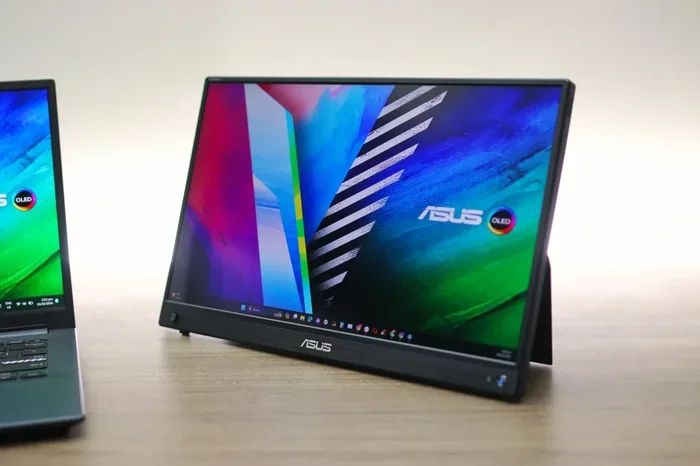
Not everyone wants a big desktop monitor. Many people prefer a portable monitor USB setup that they can take anywhere. Portable monitors are thin, lightweight, and often connect through USB-C, making them perfect for travel and remote work.
Setting Up A Portable Monitor
Most portable monitors connect directly through USB-C without any adapter. You plug the cable into your laptop, and the portable monitor turns on instantly. Some models even draw power from the USB connection, so you do not need a separate power cable.
Here is what to look for in a portable USB monitor:
- USB-C connectivity with video input support
- Lightweight and slim design for easy transport
- Touchscreen capability (optional but handy)
- Built-in kickstand or mount for flexible positioning
- Battery backup for use without a laptop (on some models)
Going Wireless With USB Display Adapters
If cables drive you crazy, you can also go wireless. Some USB display adapters connect to a small wireless receiver that plugs into your monitor. Your computer sends the video signal over Wi-Fi, eliminating the need for any physical cable between your device and the display.
Wireless USB display options are great for presentations, shared workspaces, or anyone who wants a clean desk. The image quality is usually good, and latency has improved significantly in recent years. However, wireless connections can be affected by Wi-Fi interference, so they work best in environments with strong, stable internet.
Common Mistakes And What To Avoid
Setting up a monitor through USB is usually straightforward, but people do make mistakes. Here are the most common ones and how to avoid them.
Buying The Wrong Adapter
The biggest mistake is buying an adapter that does not match your port type or your monitor’s input. Always check what kind of USB port your computer has and what video input your monitor supports before making a purchase.
Ignoring Driver Requirements
Many USB display adapters need a driver to work properly. Some will function without one, but you may experience flickering, low resolution, or no signal at all. Always check the manufacturer’s website for the latest driver before setting up your display.
Overloading A Single USB Port
USB ports have power limits. If you connect a power-hungry adapter and multiple USB devices to the same port, you may experience disconnects or poor performance. Use a powered USB hub or connect your adapter to a different port when possible.
Expecting Gaming-Level Performance
USB-based display connections are fantastic for productivity, but they are not ideal for high-end gaming or 4K video editing at high frame rates. If you need the best possible performance for gaming, stick with a direct HDMI, DisplayPort, or native USB-C connection.
Expert Insights On USB Monitor Connectivity
According to display technology experts, USB-based monitor connections have improved dramatically in the last few years. DisplayLink’s latest chips offer near-native performance for office tasks, and USB-C Alt Mode has become the standard for modern laptops and monitors.
Industry professionals recommend the following approach when setting up a USB monitor:
- Start with a USB-C connection if your device supports it. It is the simplest and most reliable method.
- Use DisplayLink adapters for older devices or USB-A-only computers.
- Invest in a quality docking station if you need multiple ports and a clean setup.
- Always update your graphics drivers and DisplayLink software for the best performance.
- Test your setup with your most demanding tasks before committing to a full workspace configuration.
The bottom line is that connecting a monitor through USB is no longer a workaround. It is a legitimate, widely supported, and increasingly preferred method for extending your display. As USB technology continues to evolve, we can expect even faster, higher-quality USB-based display connections in the future.
Final Thoughts
So, can you connect a monitor through USB without a cable? Absolutely. Whether you use a direct USB-C connection, a DisplayLink adapter, a USB hub for monitor use, or even a wireless USB display solution, there is a method that fits almost every setup and budget.
The key is understanding what your devices support and choosing the right approach for your needs. A USB-C monitor connection gives you the simplest, cleanest experience. A USB display adapter opens up options for older computers. A docking station turns one USB port into a full workstation. And a portable monitor USB setup gives you flexibility on the go.
Take a few minutes to check your device specs, pick the right adapter or dock, and you will be enjoying a dual-screen workspace in no time. The days of being limited by the number of video ports on your laptop are over. USB has got you covered.
Frequently Asked Questions
Can I Connect A Monitor Through USB Without Any Adapter?
If your laptop and monitor both have USB-C ports that support video output, you can connect them directly with a USB-C cable and no adapter needed. This is the simplest and cleanest method for a USB monitor connection. Check your device specs to confirm video output support before trying this.
Is A USB Monitor Connection As Good As HDMI Or DisplayPort?
For most everyday tasks like office work, web browsing, and media consumption, a USB monitor connection delivers a nearly identical experience to HDMI or DisplayPort. However, for high-refresh-rate gaming or professional video editing, a direct HDMI or DisplayPort connection may offer slightly better performance and lower latency.
Does DisplayLink Work On Mac Computers?
Yes, DisplayLink adapters work on Mac computers, but you will need to install the DisplayLink driver from the official website. macOS does not natively support DisplayLink, so the driver is essential. Once installed, you can connect an external monitor via USB and extend your display just like on Windows.
Can I Connect Two Monitors Through A Single USB Port?
Yes, you can connect two monitors through a single USB port using a DisplayLink docking station or a multi-port USB adapter. The docking station processes the video signals and sends them to both monitors. However, running two USB-connected monitors may use more CPU resources than a single one.
What Resolution Can I Get With A USB Display Adapter?
Most USB display adapters support resolutions up to 4K at 30Hz or 1080p at 60Hz. The exact resolution depends on the adapter model, the USB version (USB 3.0 or USB-C), and the DisplayLink chip version. Newer adapters and USB 3.1/3.2 connections deliver the best results.
Do Portable Monitors Work With USB-C Only?
Most modern portable monitors use USB-C for both video input and power. Some older or budget models may require a separate power cable even when connected via USB-C. Always check the portable monitor’s specifications to confirm whether it draws power from the USB connection or needs an external power source.
=== CONCLUSION ===
Connecting a monitor through USB without a cable is not only possible, it is easier than most people realize. With USB-C Alt Mode, DisplayLink technology, USB hubs, and portable monitors, you have more options than ever to extend your display without reaching for an HDMI or DisplayPort cable.
Start by checking what USB ports your device has, then choose the method that best fits your needs. Whether you want a simple direct connection, a full docking station setup, or a portable wireless display, USB-based monitor connectivity has you covered. Try it out, and you will wonder how you ever worked with just one screen.