Can Usb C Be Used As Hdmi Output Everything You Need
Can Usb C Be Used As Hdmi Output is a straightforward yes for most modern devices. With the right USB-C Alt Mode adapter or docking station, you can send high-definition video to any HDMI display. This guide covers active vs passive adapters, 4K resolution support, setup steps, and troubleshooting tips for laptops, monitors, and projectors.
You’ve got a laptop with a USB-C port and a big HDMI monitor sitting on your desk. You want to hook them up, but you’re not sure if it’ll work. The good news is that Can Usb C Be Used As Hdmi Output is a resounding yes for most modern devices. USB-C isn’t just for charging anymore. It can carry video, audio, and data all at once.
This guide will walk you through exactly how it works. You’ll learn about USB-C Alt Mode, the difference between active and passive adapters, and which docking stations give you the best results. By the end, you’ll know exactly what to buy and how to set it up without any headaches.
I’ll also share real-world tips and common mistakes to avoid. So let’s dive in and get your display connected.
Key Takeaways
- USB-C can output HDMI video via Alt Mode, but you need the right adapter or cable.
- Active adapters are required for some devices, while passive adapters work with Thunderbolt 3/4.
- 4K at 60Hz is possible with USB-C to HDMI 2.0 cables and compatible hardware.
- Docking stations offer more ports and power delivery than simple adapters.
- Check your device’s USB-C capabilities before buying to avoid compatibility issues.
- Troubleshooting steps like updating drivers and trying a different cable can fix most problems.
📑 Table of Contents
What Is USB-C Alt Mode and Why Does It Matter?
How Alt Mode Enables Video Signals
USB-C Alt Mode is a feature built into the USB-C standard. It allows the port to carry non-USB signals like HDMI, DisplayPort, or VGA. Without Alt Mode, a USB-C port can only charge your device or transfer data. With Alt Mode, it becomes a video output port. This is the key to using USB-C as an HDMI source.
When your device supports Alt Mode, the video signal travels through the same cable that provides power. You just need the right adapter. The adapter takes the USB-C signal and converts it to a standard HDMI signal. Your TV or monitor sees it as a normal HDMI input.
USB-C vs Thunderbolt for HDMI Output
Thunderbolt 3 and Thunderbolt 4 use the USB-C connector. They always support Alt Mode and can carry video. Many laptops with Thunderbolt ports can output 4K at 60Hz without any extra power. Standard USB-C ports may or may not support Alt Mode. Always check your device’s specs to confirm.
Here is a quick comparison of the two:
- Standard USB-C: Supports Alt Mode on many devices. Can output 4K at 30Hz with a basic adapter. Power delivery is up to 100W.
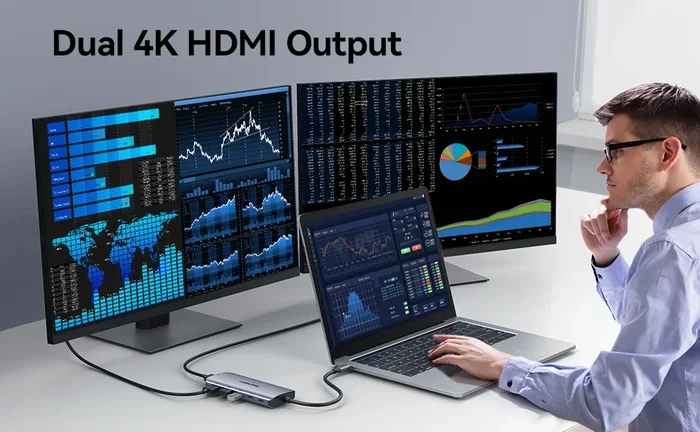
- Thunderbolt 3/4: Always supports Alt Mode. Can output 4K at 60Hz or even dual 4K displays. Power delivery is up to 100W. Compatible with more advanced docking stations.
Can You Use USB-C as HDMI Output?
The Difference Between Active and Passive Adapters
Yes, you can use USB-C as HDMI output, but the adapter you choose matters. There are two main types: active and passive. A passive adapter simply changes the connector shape. It does not boost or convert the signal. It works only when your device’s USB-C port supports Alt Mode and can send a native HDMI signal.
An active adapter has a chip inside that converts the signal. It is needed when your device does not support Alt Mode or when you need to convert a DisplayPort signal to HDMI. Active adapters often require their own power source, usually through a USB-C cable that connects to a power brick or the laptop’s port.
Which Devices Support USB-C HDMI Output?
Most modern laptops support USB-C HDMI output. This includes many Windows laptops, MacBooks, and Chromebooks. Some Android phones and tablets can also output video through USB-C. Even gaming consoles like the Nintendo Switch use USB-C for video, though they require a specific capture card or dock.
Before you buy anything, check your device’s manual or look up its specifications online. Search for “USB-C Alt Mode” or “HDMI output.” If it’s listed, you’re good to go. If not, you’ll need an active adapter that handles the conversion for you.
USB-C to HDMI Adapters vs. Docking Stations
When to Choose a Simple Adapter
A simple USB-C to HDMI adapter is perfect for occasional use. You just need to connect your laptop to a TV for a movie night or a quick presentation. These adapters are small, cheap, and easy to carry. They plug directly into your laptop’s USB-C port and into the HDMI cable on your display.
Look for an adapter that supports 4K at 60Hz if you want sharp, smooth video. Many budget adapters only support 1080p or 4K at 30Hz, which can feel laggy. Always check the product description for the resolution and refresh rate.
When a Docking Station Makes Sense
A docking station is a better choice if you work at a desk all day. It connects to your laptop with one USB-C cable and gives you multiple ports. You get HDMI output, USB-A ports for your mouse and keyboard, an Ethernet jack, and often power delivery to charge your laptop. It turns your laptop into a full desktop setup.
Here is a quick comparison to help you decide:
| Feature | USB-C to HDMI Adapter | USB-C Docking Station |
|---|---|---|
| Primary Use | Quick, single-display connections | Permanent desk setup with multiple peripherals |
| Ports | Just HDMI and USB-C | HDMI, USB-A, USB-C, Ethernet, SD card, audio |
| Power Delivery | Usually none | Often 60W to 100W to charge your laptop |
| Price Range | $10 to $30 | $50 to $200 |
| Best For | Travelers, occasional use | Office workers, multi-device setups |
Quick Tips for Choosing the Right Product
- Check the HDMI version. HDMI 2.0 is needed for 4K at 60Hz. HDMI 1.4 is fine for 1080p.
- Make sure the adapter or dock supports your laptop’s power needs if you want to charge through it.
- Read reviews for signal reliability. Some cheap adapters cause flickering or no audio.
- Choose a cable length that suits your desk setup. A 6-foot cable gives you flexibility.
Step-by-Step Guide to Connecting USB-C to HDMI
What You’ll Need
Getting started is simple. You only need three things:
- A laptop or device with a USB-C port that supports video output.
- A USB-C to HDMI adapter or docking station.
- An HDMI cable that matches your display.
If you’re using a passive adapter, no drivers are needed. Just plug it in. If you’re using an active adapter or dock, you might need to install a driver or firmware update. Check the manufacturer’s website for instructions.
Setup for Windows Laptops
Plug the USB-C adapter into your laptop. Connect the HDMI cable from the adapter to your monitor or TV. Switch your display to the correct HDMI input. Windows should automatically detect the new display. If it doesn’t, press the Windows key plus P to open the projection menu. Choose “Extend” or “Duplicate” to see your desktop on the second screen.
If you get a black screen, try unplugging the adapter and plugging it back in. Sometimes Windows needs a moment to recognize the HDMI output. You can also go to Settings > System > Display and click “Detect” to force it to find the monitor.
Setup for Mac and Chromebooks
MacBooks with USB-C or Thunderbolt ports work the same way. Plug in the adapter and HDMI cable. macOS should automatically mirror or extend your display. You can adjust settings in System Preferences > Displays.
Chromebooks also support USB-C HDMI output on most models. Plug in the adapter and cable. The display should appear automatically. If not, go to Settings > Device > Displays and click “Detect.” Some Chromebooks require you to enable “Displays” in the quick settings panel first.
Quick Tips for a Smooth Setup
- Always use a high-quality HDMI cable. A bad cable causes flickering or no signal.
- Plug the adapter into a powered USB-C port if your laptop has one. Unpowered ports can cause issues.
- If you use a docking station, connect the power cable first, then the USB-C cable to your laptop.
- Restart your laptop if the display doesn’t show up after a few minutes.
Troubleshooting Common USB-C HDMI Connection Issues
No Signal or Black Screen
A black screen is the most common problem. It usually happens because the adapter isn’t being recognized. First, try a different USB-C port on your laptop. Some ports only support data and charging, not video. Look for a port with a lightning bolt or display icon. That’s a Thunderbolt or video-capable port.
If you’re using a passive adapter, your device might not support Alt Mode. In that case, you need an active adapter with a conversion chip. Also, make sure your HDMI cable is fully inserted into both the adapter and the display. A loose connection is an easy fix.
Poor Video Quality or No Audio
If your video is blurry or has artifacts, your adapter might not support the resolution you’re trying. Check the adapter’s specs. A basic adapter might only handle 1080p. For 4K, you need a USB-C to HDMI 2.0 adapter. Also, check your display settings. Right-click on the desktop on Windows and select “Display settings” to change the resolution.
No audio is another frequent issue. By default, Windows might keep sound on the laptop speakers. Click the speaker icon in the taskbar and select your HDMI display as the audio output device. On a Mac, go to System Preferences > Sound and choose the HDMI output under the Output tab.
Common Mistakes That Cause Problems
- Using a USB-C hub instead of an adapter: Hubs split the signal and often can’t pass video. Use a dedicated adapter or dock.
- Buying a passive adapter for a non-Alt Mode device: This won’t work. Check your device specs first.
- Using a long, cheap HDMI cable: Cables longer than 6 feet can degrade the signal. Use a high-speed certified cable.
- Ignoring firmware updates: Some docking stations need a firmware update to work with new operating systems. Check the manufacturer’s app.
- Plugging the adapter into a hub: Always plug the adapter directly into the laptop’s USB-C port for the best results.
Top USB-C to HDMI Solutions for Every Need
Best Budget Adapter
For under $20, you can get a reliable USB-C to HDMI adapter that supports 4K at 30Hz. The Cable Matters USB-C to HDMI Adapter is a great choice. It’s small, plug-and-play, and works with most Windows laptops and Chromebooks. It’s perfect for students or anyone who just needs a quick connection.
Best Premium Docking Station
If you want a full-featured setup, the CalDigit TS4 Thunderbolt Dock is a standout. It supports dual 4K displays, delivers 87W of power, and has a wide range of ports. It’s ideal for professionals who use a laptop as their main computer. The dock is expensive, but it’s built to last and works flawlessly with both Mac and Windows.
Expert Insight on Long-Term Reliability
According to many tech reviewers, the most reliable setups use a Thunderbolt docking station with a dedicated Thunderbolt cable. Passive adapters work fine for casual use, but they can be finicky. If you connect and disconnect your cable every day, a docking station with a fixed cable will last longer and give you a more stable signal. Avoid adapters that get very hot, as heat can damage the internal chip over time.
When you’re shopping, look for adapters that are USB-IF certified. This means they’ve passed strict tests for compatibility and safety. Brands like Anker, Belkin, and Satechi are known for quality products. Don’t just go for the cheapest option on Amazon. A $15 adapter that fails after a month costs more in the long run.
Can Usb C Be Used As Hdmi Output is a simple reality once you have the right gear. Whether you choose a basic adapter or a full docking station, the key is matching the product to your device’s capabilities. Check your specs, pick the right type of adapter, and follow the setup steps. You’ll be enjoying a big screen in no time.
Remember to keep your cables in good condition and update your drivers when needed. With the right USB-C to HDMI connection, you can turn any room into a home office, a movie theater, or a gaming setup. The versatility of USB-C makes it one of the most useful ports you’ll ever own. Embrace it and simplify your digital life.
Frequently Asked Questions
Do I need a special cable for USB-C to HDMI?
You need a standard HDMI cable for the display side. The adapter or dock handles the USB-C to HDMI conversion. Use a high-speed HDMI cable rated for 4K if you want the best picture quality. A cheap or old cable can limit your resolution.
Can I charge my laptop while using USB-C HDMI output?
Yes, if you use a docking station or an adapter that supports power delivery. Many USB-C docks can charge your laptop at the same time they send video to your monitor. Check the wattage to make sure it matches your laptop’s charging needs.
Why does my USB-C to HDMI adapter say “no signal”?
This usually means the adapter isn’t compatible with your device’s USB-C port. Your laptop might not support Alt Mode, or you might be using a passive adapter with a device that needs an active one. Try a different adapter or plug into a different USB-C port.
Is USB-C to HDMI output the same as a USB-C to DisplayPort adapter?
No, they are different. HDMI and DisplayPort are separate video standards. A USB-C to HDMI adapter outputs an HDMI signal. A USB-C to DisplayPort adapter outputs a DisplayPort signal. You need the one that matches your display’s input. Some adapters can convert between the two, but they are less common.
Can I use a USB-C hub with an HDMI port for video?
Some USB-C hubs include an HDMI port and can output video. However, hubs are designed for multiple connections and may not support the same bandwidth as a dedicated adapter. For reliable 4K video, a dedicated USB-C to HDMI adapter or dock is usually better.
What resolution can I expect from USB-C HDMI output?
It depends on your device and adapter. Many setups support 4K at 30Hz with a basic adapter. With a USB-C to HDMI 2.0 adapter or a Thunderbolt connection, you can get 4K at 60Hz. Always check the adapter’s specifications to confirm the supported resolution and refresh rate.