Can Thunderbolt 3 Connect To Hdmi And How To Set It Up
Yes, Thunderbolt 3 can connect to HDMI using the right adapter or cable. This guide covers setup steps, compatible devices, and common issues. You will learn how to mirror or extend your display with reliable high-speed connections.
Have you ever sat down at your desk with a Thunderbolt 3 laptop and an HDMI monitor, only to realize you do not know if the two will work together? You are not alone. Many people wonder whether Thunderbolt 3 can connect to HDMI without buying extra gear or running into compatibility headaches. The good news is that it absolutely can. With the right adapter or cable, you can plug your laptop into an HDMI display and get crystal-clear video and audio in seconds.
This guide walks you through everything you need to know. We will cover how the connection works, what adapters you need, how to set things up step by step, and what common problems to watch out for. Whether you are a student, a remote worker, or a home entertainment user, you will find practical advice here. By the end, you will feel confident setting up your Thunderbolt 3 to HDMI connection like a pro.
Thunderbolt 3 is one of the most versatile connection technologies available today. It combines data transfer, video output, and power delivery into a single USB-C cable. That means fewer cables on your desk and more flexibility in how you use your devices. But the question of whether it works with HDMI displays is one that comes up constantly. Let us clear that up right now.
Key Takeaways
- Thunderbolt 3 supports HDMI output through adapters and docking stations for external displays.
- You need a USB-C to HDMI adapter or active cable to make the connection work properly.
- 4K resolution is fully supported on most Thunderbolt 3 to HDMI setups at 60Hz.
- Not all adapters are equal — active adapters handle higher resolutions better than passive ones.
- Thunderbolt 3 also delivers power and data while sending video to an HDMI display simultaneously.
- Setup is simple and plug-and-play on most modern laptops and desktops.
📑 Table of Contents
- What Is Thunderbolt 3 And Why Does It Matter?
- Can Thunderbolt 3 Connect To Hdmi?
- How To Set Up Thunderbolt 3 To Hdmi
- Best Adapters And Cables For Thunderbolt 3 To Hdmi
- Common Issues And How To Fix Them
- Thunderbolt 3 Vs Usb-C For Hdmi Connections
- Tips For Getting The Best Thunderbolt 3 To Hdmi Experience
- Conclusion
What Is Thunderbolt 3 And Why Does It Matter?
Thunderbolt 3 is a hardware interface developed by Intel in partnership with Apple. It uses the USB-C connector shape but offers much faster speeds and more capabilities than standard USB-C. The Thunderbolt 3 protocol supports data transfer rates of up to 40 gigabits per second. It also supports video output, external displays, and charging up to 100 watts through a single cable.
What makes Thunderbolt 3 special is its display port alternate mode. This feature allows the USB-C port to carry video signals directly to external monitors. When you add an adapter, that video signal can be converted to HDMI, DisplayPort, or VGA formats. This is why Thunderbolt 3 has become such a popular choice for people who need to connect laptops to TVs, projectors, or desktop monitors.
Key Features Of Thunderbolt 3
- 40 Gbps data transfer speed — much faster than standard USB 3.0.
- Video output support for external displays up to 4K resolution.
- Power delivery of up to 100W — charges most laptops quickly.
- Daisy chaining capability — connect multiple devices through one port.
- Backward compatible with USB-C devices, though not all USB-C ports support Thunderbolt.
Understanding these features helps you make better decisions about which adapter to buy. Not every USB-C cable or adapter supports Thunderbolt speeds or video output. Always check that your cable or adapter is Thunderbolt-certified for the best results.
Can Thunderbolt 3 Connect To Hdmi?
The short answer is yes, Thunderbolt 3 can connect to HDMI. Thunderbolt 3 uses the USB-C form factor, and USB-C supports video output through DisplayPort alternate mode. An adapter or active cable converts that signal into HDMI, allowing you to connect your Thunderbolt 3 device to any HDMI-compatible display. This includes TVs, monitors, projectors, and even some older display setups.
Thunderbolt 3 to HDMI connections are widely supported across many devices. Apple MacBooks, Dell XPS laptops, Lenovo ThinkPads, and other modern computers with Thunderbolt 3 ports can all output video to HDMI displays. You just need the correct adapter or cable to bridge the gap between the USB-C connector and the HDMI port on your monitor or TV.
How The Signal Conversion Works
When you plug a Thunderbolt 3 device into an HDMI display, the adapter handles the signal conversion. The Thunderbolt 3 port sends a digital video signal through the USB-C cable. The adapter then converts that signal into the HDMI format that your display understands. This process happens in real time, so you do not experience any noticeable delay or lag in most cases.
Here is what happens behind the scenes:
- The Thunderbolt 3 port sends a video signal through the USB-C cable.
- The adapter receives the signal and converts it to HDMI format.
- The HDMI cable carries the converted signal to your display.
- The display renders the video and audio output on screen.
This entire process is plug-and-play on most modern operating systems. Windows, macOS, and ChromeOS all recognize HDMI displays connected through Thunderbolt 3 adapters automatically. You usually do not need to install any special drivers or software.
How To Set Up Thunderbolt 3 To Hdmi
Setting up a Thunderbolt 3 to HDMI connection is straightforward. You do not need advanced technical skills or expensive equipment. Follow these simple steps and you will have your external display running in no time.
Step 1: Check Your Devices
Before buying any adapter, confirm that your laptop or device has a Thunderbolt 3 port. Look for the lightning bolt icon next to the USB-C port. Not all USB-C ports are Thunderbolt 3 ports. Some USB-C ports only support data and charging, not video output. If you are unsure, check your device specifications online or in the user manual.
Also check your HDMI display. Most modern TVs and monitors have standard HDMI ports. Make sure you know which HDMI version your display supports. HDMI 2.0 and above support 4K resolution at 60Hz, which is ideal for high-quality video output.
Step 2: Choose The Right Adapter Or Cable
You have two main options for connecting Thunderbolt 3 to HDMI:
- USB-C to HDMI adapter — a small dongle that plugs into your Thunderbolt 3 port and has an HDMI output.
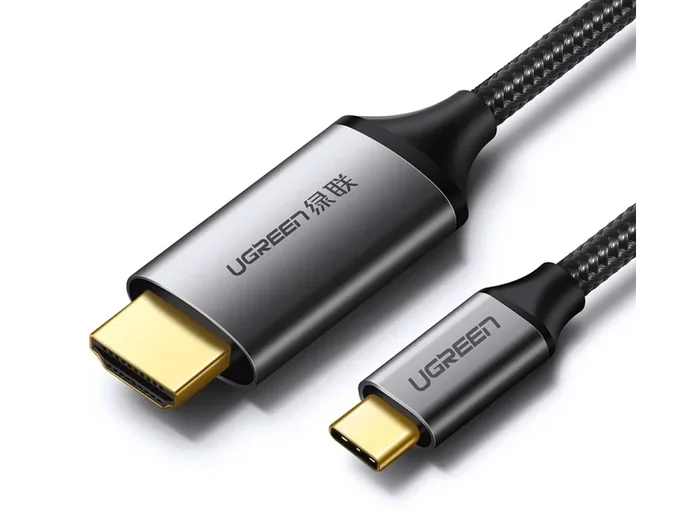
- Thunderbolt 3 to HDMI cable — an all-in-one cable with USB-C on one end and HDMI on the other.
For most users, a simple adapter works great. If you want a cleaner desk setup with fewer devices, go for an active Thunderbolt 3 to HDMI cable. Just make sure the adapter or cable supports the resolution you need.
Step 3: Plug In And Configure
Once you have your adapter or cable, follow these steps:
- Plug the Thunderbolt 3 adapter into your laptop’s USB-C port.
- Connect an HDMI cable from the adapter to your display.
- Turn on your display and select the correct HDMI input source.
- Your computer should automatically detect the external display.
On Windows, go to Display Settings to choose between mirroring or extending your screen. On macOS, open System Preferences and select Displays. You can adjust resolution, refresh rate, and display arrangement from these settings menus.
Quick Tip: If your display does not show up right away, try unplugging the adapter and plugging it back in. Sometimes the connection needs a fresh start to be recognized.
Best Adapters And Cables For Thunderbolt 3 To Hdmi
Not all adapters are created equal. Some support 4K resolution while others max out at 1080p. Some handle audio and video together, while others only carry the video signal. Choosing the right adapter makes a big difference in your experience.
What To Look For In A Thunderbolt 3 HDMI Adapter
When shopping for an adapter, keep these factors in mind:
- Resolution support — look for 4K at 60Hz for the sharpest picture.
- Active vs. passive — active adapters have built-in chips that handle signal conversion better.
- Audio support — make sure the adapter carries both video and audio if you need sound.
- Thunderbolt certification — choose adapters that are Thunderbolt-certified for reliability.
- Build quality — metal housings and braided cables last longer than plastic ones.
Popular brands like CalDigit, Anker, Belkin, and Cable Matters make reliable Thunderbolt 3 to HDMI adapters. These brands have been tested across many devices and deliver consistent performance. If you want a simple and affordable option, a basic USB-C to HDMI adapter from a trusted brand usually works well for everyday use.
Comparison Table: Thunderbolt 3 HDMI Adapters
| Adapter | Max Resolution | Active/Passive | Audio Support | Price Range |
|---|---|---|---|---|
| CalDigit TS3 Plus Dock | 4K at 60Hz | Active | Yes | $$$ |
| Anker USB-C to HDMI Adapter | 4K at 30Hz | Passive | Yes | $ |
| Cable Matters Thunderbolt 3 to HDMI | 4K at 60Hz | Active | Yes | $$ |
| Belkin Thunderbolt 3 Express Dock | 4K at 60Hz | Active | Yes | $$$ |
For most home users, a mid-range active adapter offers the best balance of price and performance. If you need 4K at 60Hz for creative work or gaming, invest in a higher-end option from a reputable brand.
Common Issues And How To Fix Them
Even with the right adapter, you might run into occasional issues when connecting Thunderbolt 3 to HDMI. Most problems are easy to fix with simple troubleshooting steps.
No Signal On The Display
If your HDMI display shows no signal, try these fixes:
- Unplug the adapter and plug it back in firmly.
- Make sure the HDMI cable is securely connected on both ends.
- Check that your display is set to the correct input source.
- Restart your computer and let it re-detect the display.
- Try a different USB-C port if your device has more than one.
Low Resolution Or Flickering Screen
If your display looks blurry or flickers, the adapter might not support your desired resolution. Passive adapters sometimes struggle with 4K output. Switch to an active Thunderbolt 3 to HDMI adapter for better results. You can also lower the resolution in your display settings to see if that stabilizes the picture.
No Audio Through HDMI
Some adapters only carry video and not audio. If you need sound through your HDMI display, check your audio output settings. On Windows, right-click the speaker icon and select your HDMI display as the audio output device. On macOS, go to Sound Preferences and choose the HDMI output under the Output tab.
Expert Insight: Always use adapters from trusted brands. Cheap, uncertified adapters often cause signal issues, audio problems, or even damage your device. Spending a little more on quality upfront saves you frustration later.
Thunderbolt 3 Vs Usb-C For Hdmi Connections
It is important to understand the difference between Thunderbolt 3 and standard USB-C when it comes to HDMI connections. Both use the same USB-C connector, but they are not the same technology.
Thunderbolt 3 ports support video output, data transfer, and power delivery at their full speeds. Standard USB-C ports may or may not support video output depending on the device. Some USB-C ports only handle charging and data, with no ability to connect to external displays.
If your laptop has a Thunderbolt 3 port, you get the full range of capabilities. If it only has a standard USB-C port, you might still be able to connect to HDMI, but the experience depends on whether your device supports DisplayPort alternate mode over USB-C. Check your device specifications to be sure.
For users exploring connectivity options beyond Thunderbolt, you might also want to look into alternatives to Dish Network and DirectTV if you are considering different ways to access content on your external displays. While that topic covers satellite and streaming options, it shares the same goal of getting great content on your screen through the right connection setup.
Tips For Getting The Best Thunderbolt 3 To Hdmi Experience
Follow these practical tips to ensure your Thunderbolt 3 to HDMI setup works flawlessly every time.
Use High-Quality Cables
The cable matters just as much as the adapter. Cheap HDMI cables can cause signal degradation, especially at higher resolutions. Invest in HDMI 2.0 or HDMI 2.1 certified cables for the best picture quality. These cables handle 4K and even 8K resolutions without problems.
Keep Your Drivers Updated
Even though most connections are plug-and-play, keeping your display drivers updated helps prevent compatibility issues. On Windows, use Device Manager to check for display adapter updates. On macOS, system updates usually include the latest driver improvements automatically.
Use A Docking Station For Multiple Devices
If you connect to external displays often, consider a Thunderbolt 3 docking station. These hubs let you connect HDMI monitors, USB devices, Ethernet, and charging cables all through one Thunderbolt 3 port. They keep your workspace tidy and make switching between setups effortless.
Test Different Resolutions
Not every display plays nice with every adapter at every resolution. If you experience issues, try lowering the resolution in your display settings. Sometimes 4K at 60Hz does not work with certain adapters, but 4K at 30Hz or 1080p at 60Hz works perfectly fine.
Conclusion
Thunderbolt 3 can absolutely connect to HDMI, and the setup process is simpler than most people think. With the right adapter or cable, you can turn any HDMI display into an extension of your Thunderbolt 3 device. Whether you are working from home, giving a presentation, or enjoying movies on a big screen, this connection gives you the flexibility you need.
Remember to choose a high-quality adapter, check your device compatibility, and keep your drivers updated. These small steps make a big difference in your daily experience. Now that you know how Thunderbolt 3 to HDMI connections work, you can set up your external display with confidence and enjoy seamless video output every time.
Take a few minutes today to test your setup. You might be surprised at how easy it is to get your Thunderbolt 3 device connected to an HDMI display. Once you see the results, you will wonder why you did not do it sooner.
Frequently Asked Questions
Do I Need A Special Adapter To Connect Thunderbolt 3 To Hdmi?
Yes, you need a USB-C to HDMI adapter or a Thunderbolt 3 to HDMI cable. Standard HDMI cables cannot plug directly into a Thunderbolt 3 port because the connector shapes are different. Make sure your adapter is Thunderbolt-certified for the best performance and compatibility.
Can Thunderbolt 3 Output 4K Resolution To An Hdmi Display?
Yes, Thunderbolt 3 supports 4K resolution output to HDMI displays. With an active adapter or Thunderbolt 3 to HDMI cable, you can achieve 4K at 60Hz. Passive adapters may only support 4K at 30Hz, so choose an active option for smoother video performance.
Is Thunderbolt 3 The Same As Usb-C?
No, Thunderbolt 3 uses the USB-C connector shape but offers much faster speeds and more features. All Thunderbolt 3 ports are USB-C, but not all USB-C ports are Thunderbolt 3. Look for the lightning bolt icon next to the port to confirm it is Thunderbolt 3.
Why Does My Hdmi Display Not Show A Signal When Connected To Thunderbolt 3?
This is usually caused by a loose connection, an incompatible adapter, or the display being on the wrong input source. Try unplugging and replugging the adapter, switching to the correct HDMI input on your display, or restarting your computer. Using a certified Thunderbolt 3 adapter often resolves this issue.
Can I Use A Thunderbolt 3 Dock To Connect To Hdmi?
Yes, Thunderbolt 3 docking stations are an excellent way to connect to HDMI displays. Docks typically offer multiple ports including HDMI, USB, Ethernet, and charging. They are ideal for users who frequently connect and disconnect external displays and peripherals.
Does Thunderbolt 3 To Hdmi Support Audio?
Most Thunderbolt 3 to HDMI adapters support both video and audio. The HDMI connection carries audio alongside video to your display. If you do not get sound, check your operating system audio settings and make sure the HDMI display is selected as the audio output device.