Can I Use Thunderbolt As Video Input On My Display
Yes, you can use Thunderbolt as video input on your display, but it depends on your monitor’s hardware and design. Thunderbolt 3 and Thunderbolt 4 both support bidirectional video through USB-C using DisplayPort Alternate Mode. This guide covers compatible monitors, setup steps, common problems, and expert tips to help you get the most out of your Thunderbolt video connection.
Have you ever wondered if you can use a Thunderbolt port as a video input on your display? The short answer is yes, but there are some important details you need to know first.
Many people assume Thunderbolt is only for data transfer or charging their devices. But the truth is, Thunderbolt technology handles video signals too. Whether you are connecting a laptop to an external monitor or setting up a dual-screen workstation, understanding how Thunderbolt works with video input can save you time, money, and frustration.
In this guide, we will break down everything you need to know about using Thunderbolt as video input. We will cover how it works, which monitors support it, how to set it up, and what to do when things go wrong. By the end, you will have a clear picture of whether your display can accept video through a Thunderbolt connection.
Key Takeaways
- Thunderbolt supports video input: Both Thunderbolt 3 and Thunderbolt 4 can accept video signals through USB-C thanks to DisplayPort Alternate Mode.
- Not all monitors support it: You must verify that your specific display accepts USB-C video input before expecting it to work.
- Use certified Thunderbolt cables: Standard USB-C cables may not carry Thunderbolt video signals properly.
- Thunderbolt 4 offers better consistency: It has stricter certification requirements that make video input support more reliable across devices.
- Docks and hubs expand your options: A Thunderbolt docking station lets you connect monitors that lack USB-C video input using HDMI or DisplayPort.
- Daisy chaining is a major benefit: You can connect up to six Thunderbolt devices in a chain from a single port.
- Check drivers and firmware: Outdated software is one of the most common reasons Thunderbolt video input fails.
📑 Table of Contents
Understanding Thunderbolt and Video Signals
Before we dive into the details, let us take a quick look at what Thunderbolt actually is and how it relates to video signals. This foundation will make the rest of the article much easier to follow.
What Is Thunderbolt?
Thunderbolt is a hardware interface developed by Intel in partnership with Apple. It combines data, video, and power into a single cable. The most common connector today is USB-C, though earlier versions used a Mini DisplayPort connector.
There are currently two main versions in widespread use:
- Thunderbolt 3: Uses the USB-C connector. Supports up to 40 Gbps data transfer and can drive one 4K display at 60Hz or two 4K displays at 30Hz.
- Thunderbolt 4: Also uses USB-C connector. Maintains 40 Gbps bandwidth but adds stricter requirements for video support, wake-from-sleep functionality, and security features.
Both versions can carry video signals, but the way they handle video input is where things get interesting. The Thunderbolt bandwidth is the same for both versions, but Thunderbolt 4 provides more consistent guarantees for video performance across different devices.
How Thunderbolt Handles Video
Thunderbolt uses something called DisplayPort Alternate Mode to transmit video. This means the Thunderbolt protocol can carry a DisplayPort signal alongside data and power over the same USB-C cable.
Here is the key part: DisplayPort over USB-C is bidirectional. This means it can send video out and receive video in. However, whether a specific device actually supports video input depends on the device’s design and firmware.
Think of it like a highway. Thunderbolt builds the road. But each device, your laptop, your monitor, your dock, decides which lanes are open for traffic. Some devices only allow traffic in one direction, while others allow two-way flow.
So when you ask, can I use Thunderbolt as video input, the answer is technically yes, the protocol supports it. But whether your specific display accepts that input depends on the hardware and software built into your monitor or display.
The DisplayPort alternate mode is what makes this all possible. It is an industry standard that allows USB-C ports to carry DisplayPort video signals. Because Thunderbolt uses the same USB-C connector and leverages DisplayPort Alt Mode, it inherits this bidirectional capability. This is why you can sometimes plug a laptop into a monitor and have the monitor display the laptop’s screen, and other times plug a device into a Thunderbolt-enabled display and have the display show the device’s output.
Can Thunderbolt Ports Accept Video Input?
The short answer depends on the device. Let us break down what you need to know about using Thunderbolt ports for video input on different types of displays.
Thunderbolt 3 vs Thunderbolt 4 for Video Input
Both Thunderbolt 3 and Thunderbolt 4 support video input through USB-C. However, Thunderbolt 4 has stricter certification requirements, which means better compatibility and more reliable video input support across devices.
Here is a quick comparison of the two generations:
| Feature | Thunderbolt 3 | Thunderbolt 4 |
|---|---|---|
| Max Bandwidth | 40 Gbps | 40 Gbps |
| Video Input Support | Yes (device-dependent) | Yes (more consistently supported) |
| Min Video Bandwidth Guarantee | Not specified | 32 Gbps for PCIe, DisplayPort support required |
| Daisy Chain Support | Yes (up to 6 devices) | Yes (up to 6 devices) |
| Sleep/Wake Support | Basic | Enhanced |
| Security Features | Basic | Intel VT-D based DMA protection |
As you can see, both versions can handle video input. But Thunderbolt 4 provides a more consistent experience when you are using Thunderbolt as video input on an external monitor. If you are shopping for new equipment, Thunderbolt 4 is the safer choice for future-proofing your setup.
DisplayPort Alt Mode and Bidirectional Support
The reason Thunderbolt can accept video input comes down to DisplayPort Alternate Mode. This is a standard that allows USB-C ports to carry DisplayPort video signals.
DisplayPort Alt Mode is inherently bidirectional. This means:
- A device can output video through USB-C, like your laptop sending video to a monitor.
- A device can receive video through USB-C, like a monitor accepting video from a laptop.
When a monitor has a USB-C port with video input capability, it is essentially using DisplayPort Alt Mode to accept a video signal. Thunderbolt leverages this same capability because it uses the USB-C connector and protocol.
However, there is an important distinction. Not every USB-C port on a monitor supports video input. Some USB-C ports on monitors are output-only, designed for connecting a downstream USB-C device or for data transfer only. You need to check your monitor’s specifications to confirm it accepts video input via USB-C or Thunderbolt.
This is also true for USB-C video output ports. Many monitors have a USB-C port that only sends video out to a connected display, like a USB-C monitor acting as a hub. These output-only ports cannot receive video input from another device. Always double-check the port’s capabilities before you plug in your cable.
Which Monitors Support Thunderbolt Video Input?
Not all monitors can accept video through a Thunderbolt connection. Let us look at the types of displays that do support this feature and what to look for when shopping.
USB-C Monitors That Accept Video Input
Many modern USB-C monitors come with video input capability. These monitors typically have a USB-C port labeled with a “DP” symbol or a note that says “video input supported” in the product listing.
Popular examples include:
- Dell UltraSharp series: Many models like the U2723QE accept video input via USB-C and work well with Thunderbolt-enabled laptops.
- LG UltraFine displays: These are designed to work seamlessly with Thunderbolt-enabled MacBooks and other laptops.
- BenQ PD series: Professional displays that often support USB-C video input for creative workflows.
- ASUS ProArt displays: Creative-focused monitors with Thunderbolt and USB-C video input support built in.
When shopping for a Thunderbolt compatible display, always check the product specifications for “USB-C video input” or “DisplayPort over USB-C” support. If the manufacturer does not explicitly list video input support, assume the USB-C port is output-only or data-only.
Thunderbolt Docks and Hubs as Video Input Intermediaries
Not all monitors have built-in Thunderbolt ports. But you can still use Thunderbolt as video input through a Thunderbolt docking station or a Thunderbolt hub.
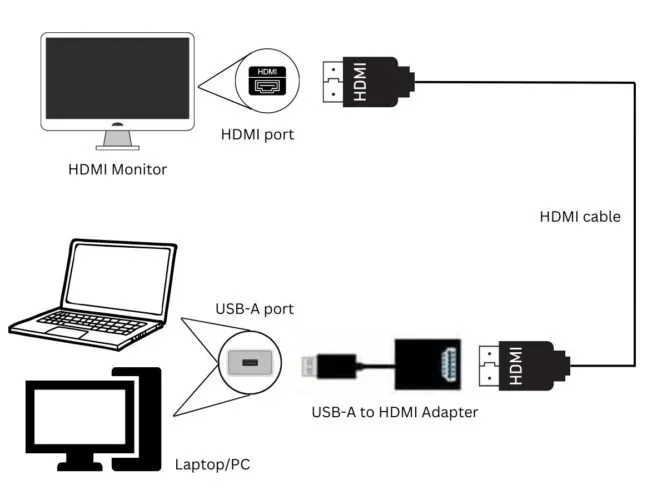
A Thunderbolt dock connects your laptop to the monitor using standard video cables like HDMI or DisplayPort. The dock receives the Thunderbolt signal from your laptop and converts it to the appropriate output for your monitor. This is a form of video signal conversion that happens inside the dock.
This approach is especially useful if:
- Your monitor only has HDMI or DisplayPort inputs and lacks USB-C video input.
- You want to connect multiple devices through a single Thunderbolt cable.
- You are using a Thunderbolt hub to daisy chain multiple displays and other peripherals.
Keep in mind that in this setup, the Thunderbolt port on your laptop is acting as a USB-C video output, not as a direct video input on the monitor. The dock handles the conversion between Thunderbolt and the monitor’s native input type.
Comparison: Direct Thunderbolt Input vs Dock-Mediated Input
| Aspect | Direct Thunderbolt Video Input | Dock-Mediated Video Input |
|---|---|---|
| Cables Needed | One Thunderbolt cable | Thunderbolt cable plus HDMI or DisplayPort cable |
| Monitor Requirement | Monitor must have USB-C video input | Monitor can have any standard input |
| Setup Complexity | Simple plug-and-play | Slightly more complex |
| Video Quality | Maximum (no conversion loss) | Depends on dock quality |
| Cost | Higher (requires compatible monitor) | Lower (uses existing monitor) |
| Best For | Clean, minimal setups | Flexible multi-device setups |
How to Set Up Thunderbolt as Video Input
Now that you know which monitors support it, let us walk through the actual setup process. Getting Thunderbolt working as video input is straightforward once you have the right equipment.
What You Need to Get Started
Before you begin, make sure you have these items ready:
- A Thunderbolt-enabled laptop or source device: This is the device sending the video signal. Most modern MacBooks and many Windows laptops support Thunderbolt 3 or Thunderbolt 4.
- A monitor with USB-C video input: The monitor must specifically support receiving video through its USB-C port. Check the manual or product page for confirmation.
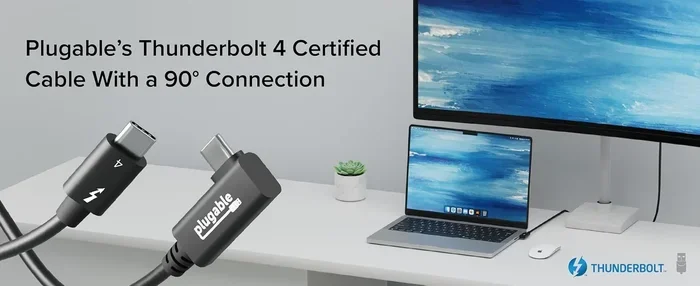
- A Thunderbolt cable: Use a certified Thunderbolt cable for best results. Not all USB-C cables support Thunderbolt speeds or video input capabilities.
Quick Tip: If you are unsure whether your cable supports Thunderbolt, look for the Thunderbolt logo on the connector or packaging. A standard USB-C cable will not work for Thunderbolt video input. Using the wrong cable is one of the most common reasons people think their setup does not work.
Step-by-Step Connection Guide
Follow these steps to connect your device and set up video input:
- Power on your monitor and set it to the correct input source. Many USB-C monitors auto-detect the input, but some require you to manually select USB-C or DisplayPort mode using the monitor’s on-screen menu.
- Connect the Thunderbolt cable from your laptop to the monitor’s USB-C port. Make sure the connection is firm and secure.
- Wait for the connection to establish. Most monitors will display a “No Signal” or “Searching” message briefly before showing the video feed from your laptop.
- Adjust display settings on your laptop. On Windows, go to Settings > Display > Detect. On macOS, go to System Settings > Displays and look for the external display option.
- Configure the display arrangement if you are using multiple screens. You can choose to extend your desktop across both displays or mirror the same image on both.
That is it. In most cases, the setup takes less than a minute once you have the right gear. The beauty of Thunderbolt is that it handles data, video, and power through a single cable, so you get a clean, clutter-free desk setup.
Quick Tips for Best Results
Here are some extra tips to make sure your Thunderbolt video input setup works flawlessly:
- Use a Thunderbolt-certified cable: Cheap or uncertified cables may not support the full bandwidth needed for video input. Look for the Thunderbolt logo on the cable.
- Update your display drivers: Outdated graphics drivers can cause connection issues or prevent video input from working properly.
- Check the monitor’s firmware: Some monitors need a firmware update to enable USB-C video input properly. Visit the manufacturer’s website for updates.
- Try a different port: If the USB-C port on your monitor has both data and video capabilities, make sure you are plugging into the correct one.
- Use an active cable for longer runs: Thunderbolt cables longer than 2 meters may need to be active (powered) to maintain signal quality for video input.
- Disable sleep mode temporarily: If your laptop goes to sleep and does not wake the external display, try disabling sleep mode during troubleshooting.
Troubleshooting and Common Issues
Even with the right equipment, you might run into problems when trying to use Thunderbolt as video input. Here are the most common issues and how to fix them.
Why Your Video Input Might Not Work
If your monitor does not display video when connected via Thunderbolt, here are the most likely culprits:
- The monitor does not support video input via USB-C: This is the most common reason. Many monitors have USB-C ports that only support data transfer or downstream charging, not video input. Always check the specifications before assuming it will work.
- You are using a non-Thunderbolt USB-C cable: Standard USB-C cables may not carry Thunderbolt video signals. Always use a certified Thunderbolt cable for the best results.
- The source device is not outputting video via Thunderbolt: Some laptops require you to change the display output settings before they send video through Thunderbolt. Check your display settings on the laptop.
- Driver or firmware issues: Outdated drivers or firmware can prevent proper communication between the devices. Update both your laptop graphics drivers and your monitor firmware.
- Power delivery conflicts: In some cases, the monitor trying to charge the laptop can interfere with video input. Try disconnecting the power source temporarily to see if that resolves the issue.
Common Mistakes to Avoid
Here are some mistakes that trip up many users when setting up Thunderbolt video input:
- Assuming all USB-C ports are the same: A USB-C port on a monitor might be for data only, video output only, or video input. Always check the specifications before plugging in.
- Using a USB 3.0 or USB 3.1 cable instead of Thunderbolt: These cables look identical but do not support Thunderbolt’s video input capabilities. They simply will not work for this purpose.
- Forgetting to select the correct input source on the monitor: Some monitors need you to manually switch to the USB-C input channel using the monitor’s built-in controls.
- Using a passive cable longer than 2 meters: Passive Thunderbolt cables beyond 2 meters may lose signal strength, causing video input to fail or display poorly.
- Not checking for firmware updates: Both your laptop and monitor may need updates for Thunderbolt video input to work correctly. Manufacturers regularly release patches that improve compatibility.
Common Mistake: One mistake many people make is buying a Thunderbolt compatible display without checking whether it supports video input. Some Thunderbolt monitors are designed primarily as Thunderbolt hubs with built-in peripherals, and their USB-C port may only function as a downstream port, not a video input. Always read the fine print.
Expert Insights
According to display technology experts, the biggest factor in successful Thunderbolt video input is ensuring both devices support the feature. Many users buy a Thunderbolt cable assuming it will work with any USB-C monitor, but that is not always the case.
Expert Tip: Before purchasing any equipment, visit the manufacturer’s website and search for “USB-C video input” or “Thunderbolt video input” in the product specifications. If it is not explicitly listed, the monitor likely does not support it. Do not rely on marketing buzzwords alone.
Another expert recommendation is to always keep your device drivers updated. Thunderbolt technology evolves quickly, and manufacturers frequently release updates that improve compatibility with video input features. A simple driver update can often resolve connection issues that seem complicated at first glance.
Experts also suggest testing your setup with a known-good Thunderbolt cable before troubleshooting further. A faulty or incompatible cable can mimic many of the symptoms of a deeper problem, saving you hours of frustration if you swap it out first.
Maximizing Your Thunderbolt Video Setup
Once you have your Thunderbolt video input working, you can take your setup to the next level with a few extra steps. The versatility of Thunderbolt goes far beyond a single cable connection.
Daisy Chaining Multiple Displays
One of the greatest advantages of Thunderbolt is daisy chaining displays. This means you can connect multiple monitors in a chain using a single Thunderbolt port on your laptop.
To daisy chain displays:
- Connect your laptop to the first monitor using a Thunderbolt cable.
- Connect the first monitor to the second monitor using another Thunderbolt cable, using the monitor’s Thunderbolt or USB-C output port.
- Continue adding monitors as needed, up to six devices in the chain.
This is a fantastic way to reduce cable clutter on your desk. Just make sure each monitor in the chain supports Thunderbolt and can pass the signal through to the next device. Not all USB-C monitors support daisy chaining, so check the specifications carefully.
Using Thunderbolt with Docking Stations for Flexible Setups
A Thunderbolt docking station adds incredible flexibility to your video input setup. You can connect your laptop to the dock with one Thunderbolt cable and then use the dock’s various video outputs to connect to different monitors.
This is especially useful in office environments where you might switch between a desktop monitor and a projector or secondary display throughout the day. Instead of unplugging and replugging cables, you simply disconnect the single Thunderbolt cable from your laptop and reconnect it at your next location.
Some popular Thunderbolt dock options include:
- CalDigit TS4: A premium dock with multiple video outputs and full Thunderbolt 3 bandwidth support.
- Anker 777 Thunderbolt Dock: A well-rounded option with good value and reliable video output support.
- OWC Thunderbolt 3 Dock: A solid choice for Mac users looking for seamless Thunderbolt integration.
Video Quality Considerations
When using Thunderbolt as video input, you can expect excellent video quality. Thunderbolt 3 and Thunderbolt 4 support 4K resolution at 60Hz and even 8K at lower refresh rates through appropriate connections.
Here are a few things to keep in mind for the best visual experience:
- Resolution and refresh rate: Make sure your monitor supports the resolution and refresh rate you want. A 4K monitor at 60Hz requires sufficient Thunderbolt bandwidth, which both Thunderbolt 3 and Thunderbolt 4 provide.
- Color accuracy: Professional monitors with Thunderbolt support often offer better color accuracy for creative work like photo editing and video production.
- Cable quality: A high-quality Thunderbolt cable ensures minimal signal loss and the best possible video quality. Cheap cables can introduce artifacts or reduce resolution.
Final Thoughts
So, can you use Thunderbolt as video input on your display? The answer is a qualified yes. Thunderbolt technology fully supports video input through USB-C, and many modern monitors take advantage of this capability. The key is to verify that your specific monitor supports USB-C video input before you expect it to work. Check the specifications, use the right cable, and keep your drivers updated.
With the right setup, you can enjoy a clean, cable-minimal workspace with excellent video quality. Whether you are a professional designer, a gamer, or someone who simply wants a cleaner desk, understanding how to use Thunderbolt as video input opens up new possibilities for your setup. The technology is there, and with the right equipment, it works beautifully.
Take the time to check your devices, invest in quality cables and docks, and enjoy the flexibility that Thunderbolt video input brings to your workflow. A little preparation goes a long way toward a seamless and reliable display setup.
Frequently Asked Questions
Can any USB-C monitor accept Thunderbolt video input?
No, not all USB-C monitors support video input. Some USB-C ports on monitors are output-only or data-only. You must check the monitor’s specifications to confirm it explicitly supports USB-C video input or Thunderbolt video input before purchasing.
Do I need a special cable for Thunderbolt video input?
Yes, you need a certified Thunderbolt cable. Standard USB-C cables look identical but do not support Thunderbolt’s full bandwidth or video input capabilities. Always look for the Thunderbolt logo on the cable and packaging.
Can I use Thunderbolt 3 and Thunderbolt 4 interchangeably for video input?
Yes, Thunderbolt 3 and Thunderbolt 4 are backward compatible. You can use a Thunderbolt 4 cable with a Thunderbolt 3 port and vice versa. Both support video input, though Thunderbolt 4 offers more consistent performance guarantees.
Does using Thunderbolt as video input affect charging?
Not necessarily. Thunderbolt cables can carry both video and power simultaneously. However, if your monitor is not passing through enough power, your laptop may charge slowly or not at all. Check the power delivery specifications of your monitor and cable.
Can I daisy chain monitors using Thunderbolt video input?
Yes, Thunderbolt supports daisy chaining up to six devices. You can connect multiple monitors in a chain from a single Thunderbolt port, provided each monitor in the chain supports Thunderbolt and can pass the signal through to the next device.
Why does my monitor say no signal when I connect via Thunderbolt?
This is usually caused by one of a few issues: the monitor does not support USB-C video input, you are using a non-Thunderbolt cable, your display drivers are outdated, or the monitor’s input source is not set correctly. Check each of these before troubleshooting further.
=== CONCLUSION ===
Can I use Thunderbolt as video input on my display? Yes, you can, as long as your monitor supports USB-C video input and you use the right equipment. Thunderbolt 3 and Thunderbolt 4 both offer excellent video input capabilities through their USB-C connectors, leveraging DisplayPort Alternate Mode for bidirectional video support.
The most important step is verifying your monitor’s specifications. Do not assume a USB-C port means video input is supported. Check the product details, use certified Thunderbolt cables, keep your drivers updated, and consider a Thunderbolt docking station if your monitor lacks native USB-C video input.
With the right setup, you get a clean, efficient workspace with top-notch video quality. Thunderbolt video input is a powerful tool that can simplify your connections and elevate your productivity. Take advantage of it today.