Can I Connect My Macbook To Hdmi Everything You Need
Yes, you can connect your MacBook to HDMI using the right adapter or cable, and it is simpler than most people think. Whether you own a MacBook Pro or MacBook Air, this guide walks you through every step, from picking the right USB-C to HDMI adapter to fixing common connection issues. You will learn how to set up your Mac external display, adjust settings, and get the best HDMI resolution for your needs.
So you want to hook your MacBook up to a big screen. Maybe it is your living room TV, a conference room projector, or an external monitor for your desk. Whatever the reason, the question Can I Connect My Macbook To Hdmi comes up a lot. The short answer is yes. The slightly longer answer is that it depends on your MacBook model and the right adapter. This guide covers everything you need to know, from picking the right gear to fixing problems when things do not work.
Connecting a MacBook to an HDMI display opens up a world of possibilities. You can present slideshows without fumbling with cables. You can watch movies on a bigger screen. You can even extend your workspace across two or more displays. But the process is not always obvious, especially with Apple switching from traditional ports to USB-C and Thunderbolt. Let us break it all down so you can get it right the first time.
Key Takeaways
- Multiple connection options exist: You can use USB-C to HDMI adapters, Thunderbolt docks, or native HDMI ports depending on your MacBook model.
- Adapter compatibility matters: Not all adapters work the same way, so choosing the right one for your MacBook year and model is essential.
- Setting up your display is straightforward: macOS has built-in tools to mirror or extend your screen to an HDMI-connected TV or monitor.
- Common problems have simple fixes: Most HDMI connection issues on a MacBook can be resolved with a quick reset or adapter swap.
- Resolution and audio settings are customizable: You can adjust both video quality and sound output when using HDMI with your Mac.
- Docking stations add versatility: A good Mac docking station gives you HDMI plus USB ports, ethernet, and charging in one hub.
- Older Macs need different adapters: If you have a MacBook with a Mini DisplayPort, your path to HDMI looks different than newer models.
📑 Table of Contents
- Why Connect Your MacBook to HDMI?
- Which MacBook Models Support HDMI?
- How to Connect Your MacBook to HDMI Step by Step
- Best Adapters and Hubs for Connecting MacBook to HDMI
- Troubleshooting Common HDMI Connection Issues
- Expert Tips for the Best HDMI Experience with Your MacBook
- Common Mistakes People Make When Connecting MacBook to HDMI
- Can I Connect My Macbook To Hdmi for Different Use Cases?
- Conclusion
Why Connect Your MacBook to HDMI?
There are many reasons people want to connect their MacBook to an HDMI display. Some need it for work. Others just want a better viewing experience at home. Here are the most common reasons:
- Screen mirroring: Show your MacBook screen on a TV during presentations or movie nights.
- Extended display: Use a second monitor to boost productivity with more screen space.
- Gaming on a bigger screen: Play Mac games on your TV for a more immersive experience.
- Streaming content: Watch Netflix or YouTube on a larger display with better sound.
- Business presentations: Connect to projectors or TVs in meeting rooms with confidence.
No matter your reason, the process starts with understanding how your MacBook connects to HDMI. And that depends on what kind of MacBook you own.
Which MacBook Models Support HDMI?
Not all MacBooks are created equal when it comes to HDMI. Apple has used different ports over the years, and your connection method depends on your specific model.
MacBook Pro Models with Native HDMI
Some MacBook Pro models come with a built-in HDMI port MacBook users can plug directly into. If you have a 14-inch or 16-inch MacBook Pro from 2021 or newer, you are in luck. These models include three Thunderbolt 4 ports and one dedicated HDMI port. You can take any standard HDMI cable for Mac and plug it right in. No adapter needed. This makes the whole process incredibly simple.
The same goes for the 13-inch MacBook Pro M1 and M2 models from 2020 through 2023. These also include an HDMI port alongside Thunderbolt and USB-A ports. If you own one of these, you already have native HDMI input on Mac support.
MacBook Air Models and Older MacBook Pros
Most MacBook Air models do not have a native HDMI port. They rely entirely on USB-C or Thunderbolt ports. This means you need an adapter to connect to HDMI. The same is true for older MacBook Pro models that used Thunderbolt 2 or Mini DisplayPort connectors.
If you have a MacBook Air M1, M2, or M3, you will need a USB-C to HDMI adapter. If you have an older MacBook from 2015 or earlier, you might need a different adapter altogether. Always check your model before buying anything.
| MacBook Model | HDMI Port? | Adapter Needed? |
|---|---|---|
| MacBook Pro 14-inch (2021+) | Yes | No |
| MacBook Pro 16-inch (2021+) | Yes | No |
| MacBook Pro 13-inch M1/M2 | Yes | No |
| MacBook Air M1/M2/M3 | No | USB-C to HDMI adapter |
| MacBook Pro (2016-2020) | No | USB-C to HDMI adapter |
| MacBook (2015 and older) | No | Mini DisplayPort to HDMI adapter |
How to Connect Your MacBook to HDMI Step by Step
Now that you know which path to take, let us walk through the actual connection process. It is easier than you might think.
Step 1: Gather Your Equipment
Before you start, make sure you have everything you need. Here is a quick checklist:
- Your MacBook, fully charged or plugged in
- The right adapter or cable (USB-C to HDMI or native HDMI cable)
- An HDMI-enabled display, TV, or monitor
- The HDMI cable that comes with your display or a high-quality one you trust
Quick Tip: Buy a reputable brand for your adapter. Cheap adapters can cause signal drops, no sound, or low resolution. Spending a little extra here saves headaches later.
Step 2: Plug In the Adapter and Cable
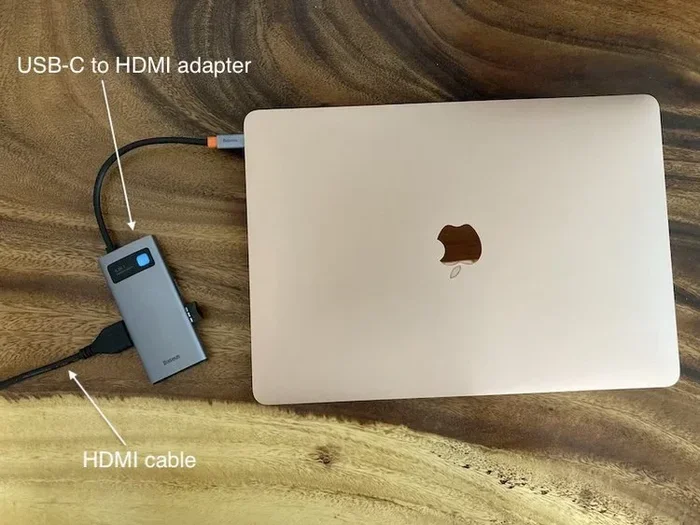
If your MacBook has a native HDMI port, simply connect the HDMI cable directly. If you need an adapter, plug the adapter into your MacBook USB-C or Thunderbolt port first. Then connect the HDMI cable from the adapter to your TV or monitor.
Make sure both connections are firm. A loose cable is the number one cause of no-display issues.
Step 3: Select the Right Input on Your Display
Once connected, use your TV remote or monitor buttons to select the correct HDMI input. Most TVs label inputs as HDMI 1, HDMI 2, and so on. Pick the port where you plugged in the cable.
Step 4: Configure Display Settings on Your Mac
Your MacBook should recognize the external display automatically. If it does not, go to System Settings and click Displays. You can choose to mirror your screen or extend it. You can also adjust resolution and refresh rate here.
Best Adapters and Hubs for Connecting MacBook to HDMI
Not all adapters are created equal. The market is flooded with options, and choosing the right one can feel overwhelming. Here are the types of adapters that work best for MacBook to monitor HDMI setups.
USB-C to HDMI Adapters
These are the most popular option for newer MacBooks. They are small, portable, and plug directly into your MacBook USB-C port. Look for adapters that support 4K at 60Hz for the best picture quality. Brands like Anker, Belkin, and Satechi make reliable options.
Thunderbolt Docking Stations
If you want more than just HDMI, a Mac docking station is the way to go. These hubs give you HDMI output plus USB ports, ethernet, SD card slots, and charging passthrough. They are perfect for desk setups where you connect and disconnect your MacBook daily.
HDMI-Compatible Multiport Hubs
Multiport hubs combine several connection types into one device. You get HDMI, USB-A, USB-C, and sometimes even ethernet. These are great for people who need multiple connections without carrying several adapters.
What to Look for When Buying
- Resolution support: Make sure the adapter supports 4K if your display does.
- Audio support: Some cheap adapters only carry video and skip audio.
- Build quality: Metal housings tend to be more durable than plastic.
- Mac compatibility: Look for adapters specifically tested with macOS.
- Brand reputation: Stick with well-known brands to avoid compatibility headaches.
Troubleshooting Common HDMI Connection Issues
Even with the right gear, things can go wrong. Here are the most common problems and how to fix them.
No Signal on Your External Display
This is the most frustrating issue. If your external monitor or TV shows no signal, try these steps:
- Unplug the HDMI cable and adapter from your MacBook.
- Wait 10 seconds.
- Plug everything back in firmly.
- Check that your TV or monitor is on the correct input.
- Restart your MacBook if the problem persists.
Often, a simple reset of the connection fixes the issue immediately.
No Sound Through HDMI
Sometimes the video works but you get no sound. This happens because macOS does not always switch audio output automatically. To fix this:
- Go to System Settings and click Sound.
- Under Output, select your HDMI display.
- The sound should now come through your TV or monitor speakers.
Low Resolution or Fuzzy Picture
If your external display looks blurry, your resolution settings might be off. Go to System Settings, click Displays, and select the external monitor. Choose the recommended resolution for the best results. Also, make sure your adapter supports the resolution your display is capable of.
Flickering or Intermittent Signal
A flickering screen usually means a loose connection or a low-quality cable. Try a different HDMI cable first. If that does not work, try a different adapter. Damaged cables and cheap adapters are the usual culprits here.
Expert Tips for the Best HDMI Experience with Your MacBook
Getting your MacBook connected to HDMI is only half the battle. These expert tips help you get the best possible experience every time.
Use high-speed HDMI cables. Standard HDMI cables work fine for 1080p, but if you want 4K, you need a High Speed HDMI cable or an Ultra High Speed HDMI cable. This is especially important for the HDMI resolution MacBook users who want crisp, clear images on their external display.
Keep your macOS updated. Apple regularly improves display compatibility through software updates. Running the latest version of macOS ensures the best support for external monitors and TVs.
Use cable management for desk setups. If you use your MacBook as a desktop with an external HDMI monitor, a cable management solution keeps things tidy. Velcro ties or cable clips prevent accidental disconnections.
Disconnect safely. Always eject external displays before unplugging them. Go to System Settings, Displays, and remove the external display. This prevents signal glitches and protects your hardware.
Consider a USB-C display instead. If your external monitor has USB-C input, you can connect directly without any adapter. This gives you a cleaner connection and sometimes better performance than going through an HDMI adapter.
Close your MacBook lid carefully. If you use your MacBook with an external display and want to close the lid, make sure you have your power adapter connected. macOS supports closed-display mode, but only when the MacBook is plugged in.
Common Mistakes People Make When Connecting MacBook to HDMI
Avoid these mistakes to save time and frustration:
- Buying the wrong adapter: Not all USB-C adapters support video output. Check the product description carefully.
- Using a damaged cable: Frayed or bent cables cause signal issues. Replace them when they show wear.
- Forgetting to select the HDMI input: Your TV or monitor will not show anything until you switch to the right input source.
- Ignoring audio settings: If sound is not working, macOS might still be sending audio to your MacBook speakers instead of the HDMI display.
- Using an old adapter with a new MacBook: Older adapters may not support the speeds and protocols used by newer MacBooks.
- Not checking resolution compatibility: Some adapters only support 1080p or 4K at 30Hz, which looks less smooth than 60Hz.
Can I Connect My Macbook To Hdmi for Different Use Cases?
The beauty of connecting your MacBook to HDMI is how versatile it is. Here are a few use cases and what you need for each.
Home Theater Setup
Want to use your TV as a MacBook monitor for movies and shows? A simple USB-C to HDMI adapter and a quality HDMI cable will do the job. Make sure your TV supports at least 1080p for a sharp picture. For 4K content, use an adapter that supports 4K output and an Ultra High Speed HDMI cable.
Office and Workspace
If you use your MacBook as a desktop replacement, a Thunderbolt docking station with HDMI output is ideal. It gives you a permanent connection to your external monitor plus easy access to other peripherals like keyboards, mice, and external drives.
Classroom and Conference Room
Presenting in a classroom or conference room often means connecting to a projector or large TV. A USB-C to HDMI adapter is all you need. Keep a spare adapter in your bag so you are always prepared.
Gaming
Mac gaming on a big screen is a great experience. Use a low-latency HDMI cable and make sure your adapter supports the refresh rate you need. For the smoothest gameplay, look for adapters that support 4K at 60Hz or 1080p at 120Hz.
Conclusion
So, can I connect my MacBook to HDMI? Absolutely. Whether you have a brand-new MacBook Pro with a native HDMI port or an older MacBook Air that needs an adapter, the process is straightforward and well within reach. The key is knowing which path your specific MacBook takes. Pick the right adapter or cable, follow the setup steps, and you will be enjoying your content on a bigger screen in minutes.
Remember to troubleshoot with the tips shared here if anything goes wrong. And invest in quality adapters and cables to avoid frustration down the road. With the right setup, your MacBook and an HDMI display work together beautifully. Now go ahead and connect that big screen. You have everything you need to get it done right.
Frequently Asked Questions
Do all MacBooks support HDMI output?
Not all MacBooks have a native HDMI port. Newer MacBook Pro models from 2021 onward include a built-in HDMI port. MacBook Air models and older MacBook Pro models require a USB-C to HDMI adapter or a different type of adapter depending on the year and model.
Can I connect my MacBook to a TV using HDMI?
Yes, you can connect your MacBook to a TV using HDMI. Simply use a USB-C to HDMI adapter if your MacBook lacks a native HDMI port, plug in an HDMI cable, and select the correct input on your TV. macOS will recognize the TV as an external display automatically.
Why is there no sound when I connect my MacBook to HDMI?
This usually happens because macOS does not switch audio output automatically. Go to System Settings, click Sound, and select your HDMI display under the Output section. Your audio should then play through the connected TV or monitor speakers.
What adapter do I need for a MacBook Air to connect to HDMI?
You need a USB-C to HDMI adapter for MacBook Air models. These are widely available and affordable. Make sure to choose one that supports the resolution you need, such as 4K at 60Hz for the best picture quality.
Can I use a USB-C hub instead of a dedicated HDMI adapter?
Yes, USB-C hubs with HDMI output work great for connecting your MacBook to an external display. They offer the added benefit of multiple ports like USB-A, ethernet, and SD card slots. Just make sure the hub supports video output and the resolution you need.
How do I fix a flickering screen when my MacBook is connected to HDMI?
Flickering is usually caused by a loose connection or a low-quality cable. Start by unplugging and replugging all connections firmly. If that does not work, try a different HDMI cable or a different adapter. Updating your macOS can also resolve display flickering issues.