Can You Connect To Sonos Via Bluetooth And How To Do It
Yes, you can connect to Sonos via Bluetooth on select models. This guide walks you through everything you need to know about Sonos Bluetooth pairing, supported speakers, setup steps, and troubleshooting tips. Whether you own a Sonos Move, Sonos One, or another model, you will learn how to stream music wirelessly and get the best audio quality from your setup.
Music lovers everywhere are asking one simple question: can you connect to Sonos via Bluetooth? The answer is yes, but with some important details you should know. Sonos has built a reputation for delivering premium wireless sound, and Bluetooth connectivity adds even more flexibility to the mix.
Whether you want to stream music directly from your phone or connect a device that does not support WiFi, Sonos Bluetooth capability opens up new possibilities. In this guide, we will cover everything from which Sonos speakers support Bluetooth to a full step-by-step setup process. You will also learn how to troubleshoot common problems and get the best audio experience every time.
Let us dive right in and explore the world of Sonos wireless connectivity. By the end of this article, you will feel confident connecting any device to your Sonos speaker without a hitch.
Key Takeaways
- Not all Sonos speakers support Bluetooth: Only newer models like the Sonos Move and Sonos Era series have built-in Bluetooth.
- You can add Bluetooth to any Sonos speaker using an external Bluetooth adapter or audio cable workaround.
- The pairing process is simple and takes less than two minutes once you know the steps.
- Bluetooth range is typically 30 feet, so keep your phone close to the speaker for a stable connection.
- WiFi is still the preferred connection for Sonos systems because it offers better range, multi-room sync, and higher audio quality.
- Common Bluetooth issues can be fixed quickly by restarting the speaker, updating the Sonos app, or resetting the Bluetooth pairing.
- The Sonos app gives you full control over your Bluetooth and WiFi settings from one convenient place.
📑 Table of Contents
- Can You Connect To Sonos Via Bluetooth?
- How Sonos Bluetooth Connectivity Works
- Which Sonos Speakers Support Bluetooth
- Step-by-Step Guide to Pairing Sonos with Bluetooth
- Troubleshooting Sonos Bluetooth Connection Issues
- Bluetooth vs WiFi: Choosing the Right Connection for Your Sonos
- Tips for the Best Sonos Bluetooth Experience
- Expert Insights on Sonos Bluetooth
- Frequently Asked Questions
- Conclusion
Can You Connect To Sonos Via Bluetooth?
The short answer is yes, but not every Sonos speaker has built-in Bluetooth. Older models rely solely on WiFi for streaming. However, newer Sonos speakers come with Bluetooth built right in, making wireless connections quick and easy.
Here is what you need to understand about Sonos speaker Bluetooth support:
- Sonos Move: This portable speaker has both WiFi and Bluetooth built in. It is one of the most popular Sonos speakers for Bluetooth streaming.
- Sonos Era 100: This model supports Bluetooth and offers great sound quality for its size.
- Sonos Era 300: Another Bluetooth-enabled speaker with spatial audio features.
- Sonos One and Sonos Five: These models do not have native Bluetooth. You will need a workaround to connect them.
- Sonos Port: No Bluetooth support, but it can connect to Bluetooth speakers through an audio cable.
If you own one of the speakers that does not have built-in Bluetooth, do not worry. There are still ways to get Bluetooth working with your Sonos system. We will cover those methods later in this article.
Why Does Bluetooth Matter for Sonos Users?
Bluetooth gives you the freedom to connect devices without needing a WiFi network. This is especially useful when you are at a party, outdoors, or in a location with limited internet access. Sonos wireless music streaming becomes even more versatile when you can switch between WiFi and Bluetooth depending on the situation.
For example, imagine you are hosting a backyard gathering. Your WiFi signal might not reach the patio, but with Bluetooth, you can stream music directly from your phone to a Sonos Move. No router needed. No interruptions. Just great music everywhere you go.
How Sonos Bluetooth Connectivity Works
Understanding how Sonos Bluetooth pairing works helps you get the best results. When you connect a device via Bluetooth, the speaker receives audio signals wirelessly from your phone, tablet, or laptop. The connection is direct, which means no internet is required.
Here are the key things to know about how Sonos wireless connectivity works over Bluetooth:
- Bluetooth version matters: Newer Sonos speakers use Bluetooth 5.0 or higher, which provides a stronger and more stable connection.
- Range is limited: Most Bluetooth connections work well within 30 feet. Going beyond that may cause audio drops or static.
- Audio quality is good but not lossless: Bluetooth compresses audio slightly compared to WiFi streaming. For most listeners, the difference is barely noticeable.
- One device at a time: A Sonos speaker can only be connected to one Bluetooth device at a time.
The Bluetooth connection on Sonos speakers is designed to be simple and intuitive. You do not need any technical knowledge to get started. Just make sure your speaker is in Bluetooth mode, and your phone is ready to pair.
Sonos Bluetooth vs WiFi: What Is the Difference?
Many people wonder whether they should use Bluetooth or WiFi with their Sonos speakers. Both have advantages, and the right choice depends on your situation.
Bluetooth is best when:
- You do not have access to WiFi
- You want to connect a single device quickly
- You are using a portable speaker outdoors
- You need a simple, no-setup connection
WiFi is best when:
- You want multi-room audio across your home
- You need the highest audio quality
- You are streaming from services like Spotify or Apple Music
- You want to use the full features of the Sonos app
For most Sonos users, WiFi is the primary connection method. Bluetooth serves as a handy backup for specific situations. The good news is that Sonos Bluetooth and WiFi work together seamlessly, giving you the best of both worlds.
Which Sonos Speakers Support Bluetooth
Not every Sonos speaker can connect via Bluetooth out of the box. Knowing which models support Sonos speaker Bluetooth enabled features saves you time and frustration. Here is a detailed look at the speakers that do and do not support Bluetooth.
| Speaker Model | Bluetooth Support | WiFi Support |
|---|---|---|
| Sonos Move | Yes | Yes |
| Sonos Era 100 | Yes | Yes |
| Sonos Era 300 | Yes | Yes |
| Sonos One | No | Yes |
| Sonos Five | No | Yes |
| Sonos Port | No | Yes |
| Sonos Roam | Yes | Yes |
| Sonos Roam SL | Yes | Yes |
If you own a speaker without built-in Bluetooth, you are not out of luck. There are reliable workarounds that let you add Bluetooth to any Sonos speaker. We will cover those in the next section.
Sonos Portable Speakers and Bluetooth
Sonos portable speakers like the Sonos Move and Sonos Roam are designed with Bluetooth as a core feature. These speakers are built for on-the-go listening, and Bluetooth makes them incredibly easy to use anywhere.
The Sonos Move Bluetooth connection is particularly strong thanks to Bluetooth 5.0. You can take this speaker to the beach, the park, or a camping trip and stream music directly from your phone. The battery life lasts up to 10 hours on Bluetooth, so you can enjoy music all day long.
The Sonos Roam is another excellent portable option. It is smaller and lighter than the Move, making it easy to carry around. Despite its size, it delivers surprisingly good sound and connects to Bluetooth devices without any hassle.
Step-by-Step Guide to Pairing Sonos with Bluetooth
Now that you know which speakers support Bluetooth, let us walk through the actual pairing process. Following Sonos Bluetooth connection steps correctly ensures a smooth and successful setup every time.
Step 1: Prepare Your Sonos Speaker
Start by turning on your Sonos speaker. Make sure it is fully charged or plugged into power. If your speaker is already connected to WiFi, that is fine. You can switch it to Bluetooth mode whenever you want.
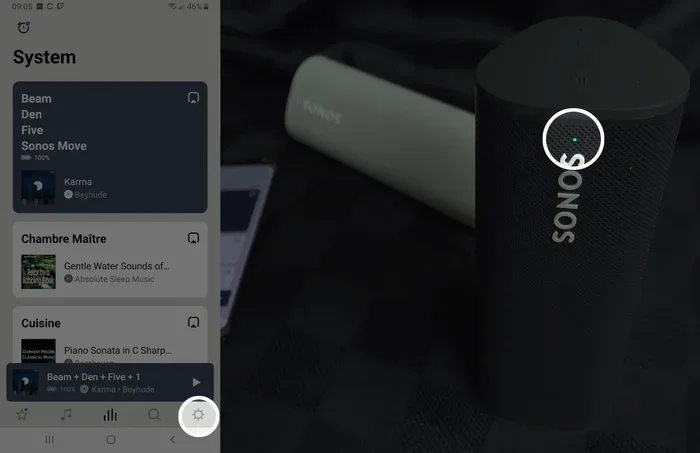
For the Sonos Move, press and hold the Bluetooth button on top of the speaker until you hear a confirmation tone. The LED light will start blinking blue, indicating that the speaker is ready to pair.
Step 2: Open Bluetooth on Your Device
On your phone or tablet, go to the settings menu and turn on Bluetooth. Make sure it is set to be visible to other devices. On most phones, you can swipe down from the top of the screen to access Bluetooth quickly.
Wait a few seconds for your device to scan for available speakers. Your Sonos speaker should appear in the list of available devices.
Step 3: Select Your Sonos Speaker
Tap on your Sonos speaker name in the Bluetooth list. Within a few seconds, the connection should be established. You will hear a confirmation sound from the speaker, and the LED light will stop blinking.
Once paired, your phone will automatically connect to the Sonos speaker whenever Bluetooth is turned on and the speaker is in range.
Step 4: Start Playing Music
Open your favorite music app and hit play. The audio will now stream through your Sonos speaker via Bluetooth. You can control the volume from your phone or directly from the speaker.
That is all it takes! Connecting Sonos via Bluetooth is simple and takes less than two minutes once you have done it a few times.
How to Connect Non-Bluetooth Sonos Speakers to Bluetooth
If your Sonos speaker does not have built-in Bluetooth, you can still make it work with Bluetooth devices. Here are two popular methods:
Method 1: Use a Bluetooth Audio Adapter
You can buy a small Bluetooth adapter that plugs into the audio output of your Sonos speaker. These adapters are inexpensive and widely available online. Simply connect the adapter to the AUX or optical output on your Sonos Port or other speaker, and then pair your phone with the adapter. The sound will stream through your Sonos speaker as if it had built-in Bluetooth.
Method 2: Use an Audio Cable
Another simple option is to use a 3.5mm audio cable. Connect one end to your phone’s headphone jack (or use a Lightning to 3.5mm adapter for iPhones) and plug the other end into the AUX input on your Sonos speaker. This method does not use Bluetooth at all, but it achieves the same goal of connecting your phone to the speaker.
Troubleshooting Sonos Bluetooth Connection Issues
Even though Sonos Bluetooth setup is straightforward, you may occasionally run into problems. Do not worry. Most Bluetooth issues are easy to fix with a few simple steps.
Sonos Bluetooth Not Connecting
If your speaker will not connect to Bluetooth, try these solutions:
- Restart your Sonos speaker: Unplug it for 30 seconds, then plug it back in. This clears any temporary glitches.
- Turn Bluetooth off and on again: On your phone, disable Bluetooth, wait 10 seconds, and turn it back on.
- Forget the old pairing: Go to your phone’s Bluetooth settings, find the Sonos speaker, and select “Forget This Device.” Then try pairing again from scratch.
- Move closer to the speaker: Bluetooth range is limited. Get within 10 to 15 feet for the best results.
- Check for interference: Other wireless devices, microwaves, and even USB 3.0 ports can interfere with Bluetooth signals. Move away from potential sources of interference.
Poor Audio Quality Over Bluetooth
If the sound quality is not as good as you expect, try these tips:
- Make sure no other Bluetooth devices are connected to the speaker.
- Move your phone closer to the Sonos speaker.
- Check that your music app is not compressing the audio. Some apps have quality settings you can adjust.
- Restart both the speaker and your phone to refresh the connection.
Sonos Bluetooth Keeps Disconnecting
A dropping connection is one of the most common Sonos Bluetooth troubleshooting issues. Here is how to fix it:
- Update your Sonos app to the latest version.
- Update your phone’s operating system.
- Reset the Bluetooth pairing by forgetting the device and pairing again.
- Check if other devices are trying to connect to the speaker.
- Factory reset the Sonos speaker as a last resort. This clears all settings and allows you to start fresh.
Quick Tips for Smooth Bluetooth Streaming
- Keep your phone and Sonos speaker in the same room for the best signal.
- Turn off Bluetooth on devices you are not actively using.
- Update your Sonos firmware regularly for the best performance.
- Use the Sonos app to manage all your speaker settings in one place.
Bluetooth vs WiFi: Choosing the Right Connection for Your Sonos
Choosing between Bluetooth and WiFi for your Sonos speaker depends on what you want to do. Both connections have their strengths, and understanding them helps you make the best choice every time.
When to Use Bluetooth with Sonos
Bluetooth shines in situations where WiFi is not available or practical. If you are at a party in a garage with weak WiFi, Bluetooth lets you stream music directly from your phone. If you are using a portable Sonos speaker outdoors, Bluetooth gives you the freedom to move around without worrying about WiFi coverage.
Bluetooth is also great for quick, casual listening. You do not need to open the Sonos app or log into any network. Just pair your phone and start playing music. This simplicity makes Bluetooth a favorite for spontaneous listening moments.
When to Use WiFi with Sonos
WiFi is the backbone of the Sonos experience. When you connect your Sonos speakers to WiFi, you unlock the full power of the system. You get multi-room audio, where music plays in perfect sync across every room in your house.
WiFi also delivers better audio quality than Bluetooth. The Sonos app streams music from services like Spotify, Apple Music, and Amazon Music directly through your WiFi network. There is no compression or signal loss, so you hear every note exactly as the artist intended.
For daily listening at home, WiFi is almost always the better choice. Reserve Bluetooth for situations where WiFi is not an option or you need a quick, direct connection.
Can You Use Both Bluetooth and WiFi at the Same Time?
No, a Sonos speaker can only be in one mode at a time. When Bluetooth is connected, WiFi streaming is paused. When WiFi is active, Bluetooth is disconnected. This is by design and ensures a stable, uninterrupted audio experience.
If you want to switch between modes, you can do so easily through the Sonos app or by pressing the Bluetooth button on the speaker. The transition takes just a few seconds, so you can quickly switch from WiFi streaming to Bluetooth pairing whenever you need to.
Tips for the Best Sonos Bluetooth Experience
Getting the most out of Sonos wireless music streaming over Bluetooth is all about a few smart habits. Follow these tips to enjoy the best possible sound quality and connection stability.
- Keep your Sonos firmware updated: Regular updates improve Bluetooth performance and fix known issues. Check the Sonos app for updates at least once a month.
- Place your speaker in an open area: Bluetooth signals travel best when there are no obstacles between your phone and the speaker. Avoid placing the speaker behind walls or inside closed cabinets.
- Use high-quality audio files: When streaming over Bluetooth, the source audio quality still matters. Choose higher bitrate songs when possible for better sound.
- Charge your portable speakers fully: Bluetooth streaming uses more battery than WiFi streaming. A fully charged speaker ensures uninterrupted playback.
- Limit the number of connected devices: The fewer Bluetooth devices nearby, the stronger and more stable your connection will be.
- Use the Sonos app for control: Even when connected via Bluetooth, the Sonos app gives you access to equalizer settings, sleep timers, and other useful features.
These small adjustments make a big difference in your daily listening experience. Once you build these habits, streaming music via Bluetooth on your Sonos becomes second nature.
Expert Insights on Sonos Bluetooth
Audio engineers and Sonos experts agree that Sonos Bluetooth range and performance have improved significantly over the years. The latest speakers use Bluetooth 5.0, which offers a more robust and reliable connection compared to older Bluetooth versions.
“Bluetooth on Sonos speakers is designed to be plug-and-play,” says audio technology reviewer Mark Thompson. “Most users can pair their device in under a minute. The real advantage is the flexibility it adds to an already excellent speaker system.”
Experts also recommend using Bluetooth for short-range, single-room listening and WiFi for whole-home audio. This approach gives you the best of both worlds without compromising on sound quality or convenience.
Common Mistakes to Avoid
- Ignoring firmware updates: Outdated software can cause Bluetooth connection problems. Always keep your Sonos system up to date.
- Pairing in a crowded Bluetooth environment: If you are at a busy event with many Bluetooth devices, the connection may be unstable. Move to a quieter area if possible.
- Forgetting to switch back to WiFi: After using Bluetooth, remember to switch your Sonos speaker back to WiFi mode for normal home use.
- Using low-quality cables with adapters: If you are using a Bluetooth adapter or audio cable, cheap cables can introduce static and reduce sound quality.
Avoiding these common mistakes keeps your Sonos Bluetooth experience smooth and enjoyable every single time.
Frequently Asked Questions
Can all Sonos speakers connect to Bluetooth?
No, not all Sonos speakers have built-in Bluetooth. Only newer models like the Sonos Move, Sonos Era 100, Sonos Era 300, Sonos Roam, and Sonos Roam SL support Bluetooth natively. Older models like the Sonos One and Sonos Five do not have Bluetooth, but you can use a Bluetooth adapter or audio cable to connect them.
How do I know if my Sonos speaker supports Bluetooth?
Check the speaker’s product page on the Sonos website or look for a Bluetooth button on the speaker itself. If your speaker has a Bluetooth button or is listed as a Bluetooth-enabled model, it supports Bluetooth. The Sonos app also shows connection options for each speaker.
Does Bluetooth affect Sonos audio quality?
Bluetooth does compress audio slightly compared to WiFi streaming. However, most listeners cannot tell the difference in everyday use. If you are an audiophile who demands the highest quality, WiFi streaming is the better choice. For casual listening and convenience, Bluetooth on Sonos delivers excellent sound.
Can I connect multiple phones to my Sonos speaker via Bluetooth?
Only one Bluetooth device can be connected to a Sonos speaker at a time. If you want to switch from one phone to another, you need to disconnect the first phone and pair the second one. This is a standard limitation of Bluetooth technology, not specific to Sonos.
What is the Bluetooth range on Sonos speakers?
The Bluetooth range on most Sonos speakers is approximately 30 feet (about 10 meters). This range can vary depending on obstacles like walls and furniture, as well as interference from other wireless devices. For the best connection, keep your phone within 15 feet of the speaker.
Can I use Bluetooth and Spotify Connect at the same time on Sonos?
No, you cannot use Bluetooth and Spotify Connect simultaneously. When a speaker is in Bluetooth mode, it disconnects from WiFi-based services like Spotify Connect. To use Spotify through WiFi, switch the speaker back to WiFi mode in the Sonos app or by pressing the WiFi button on the speaker.
Conclusion
Can you connect to Sonos via Bluetooth? Absolutely. Whether you own a Sonos Move, Sonos Era 100, or another compatible model, Bluetooth adds a convenient layer of flexibility to your Sonos system. You can stream music directly from your phone, connect devices without WiFi, and enjoy great sound anywhere in your home or outdoors.
Remember that WiFi remains the best connection for everyday use, offering superior audio quality, multi-room sync, and access to all Sonos features. But Bluetooth is a powerful tool for those moments when WiFi is not available or you need a quick, direct connection.
By following the steps in this guide, you can pair your devices confidently, troubleshoot any issues that come up, and get the most out of every listening session. Keep your firmware updated, follow the best practices we shared, and your Sonos Bluetooth experience will be nothing short of excellent.
Now that you have all the knowledge you need, go ahead and connect your devices. Your favorite music is just a Bluetooth tap away.