Can I Watch Netflix On A Projector For Endless Entertainment
Yes, you can watch Netflix on a projector and it is one of the best ways to enjoy movies and shows on a big screen. Whether you own a smart projector or use a streaming device, setting up Netflix is simple and affordable. This guide covers every method, common problems, and the best projectors for streaming Netflix in high quality.
There is nothing quite like watching your favorite Netflix series on a massive screen. Watching Netflix on a projector turns any room into a personal cinema. Whether you are planning a movie night with friends or want a bigger screen for solo binge-watching, a projector makes it all possible.
The good news is that streaming Netflix on a projector is easier than most people think. You do not need expensive equipment or advanced tech skills. With the right setup, you can enjoy Netflix in stunning quality on a screen that fills your entire wall.
In this guide, we will walk you through every method, every tip, and every solution you need. We will cover smart projectors, streaming devices, wireless casting, and common troubleshooting steps. By the end, you will know exactly how to set up Netflix on your projector and get the best experience possible.
So grab some popcorn, get comfortable, and let us dive into everything you need to know about watching Netflix on a projector for endless entertainment.
Key Takeaways
- Netflix works on projectors through smart built-in apps, HDMI connections, or wireless casting from phones and laptops.
- Smart projectors offer the easiest setup because they run Netflix directly without extra devices.
- A stable WiFi connection is essential for smooth Netflix streaming on your projector without buffering.
- HDMI is the most reliable method for connecting a streaming stick or laptop to your projector.
- Projector brightness and resolution matter a lot for a clear and vibrant Netflix viewing experience.
- Common Netflix errors on projectors are usually easy to fix with simple troubleshooting steps.
📑 Table of Contents
- Understanding How Netflix Works on a Projector
- How to Set Up Netflix on Your Projector
- Best Projectors for Netflix Streaming
- Common Problems When Watching Netflix on a Projector
- Tips for the Best Netflix Viewing Experience on a Projector
- Common Mistakes to Avoid
- Expert Insights on Projector Netflix Setup
- Key Takeaways
- Conclusion
Understanding How Netflix Works on a Projector
Before you start setting things up, it helps to understand how Netflix actually works on a projector. Netflix is a streaming service that delivers video content over the internet. Your projector simply displays that content on a larger screen. The method you use depends on the type of projector you own.
Smart Projectors vs Traditional Projectors
Smart projectors come with built-in apps and WiFi connectivity. They can run Netflix directly, just like a smart TV. You open the Netflix app, log in, and start watching. No extra devices needed.
Traditional projectors do not have built-in smart features. They are essentially display screens that need an external source. For these, you will need a streaming device, a laptop, or a phone connected through HDMI or wireless casting.
Here is a quick comparison of the two types:
- Smart Projector: Runs Netflix natively, needs WiFi, easy setup, built-in speakers
- Traditional Projector: Requires external device, more flexible, often better image quality, needs separate audio
What You Need to Stream Netflix on a Projector
To watch Netflix on your projector, you need a few basics. First, you need a Netflix subscription. Without an active account, you cannot access any content. Second, you need a stable internet connection. Netflix recommends at least 5 Mbps for HD streaming and 15 Mbps for 4K content.
Third, you need a way to connect Netflix to your projector. This could be a built-in app, an HDMI cable, a streaming stick, or a wireless connection. The method you choose depends on your projector model and your personal preferences.
Projector resolution also matters. A projector with at least 1080p Full HD will give you a sharp Netflix picture. If you want the best quality, look for a 4K projector. The higher the resolution, the clearer the image on your big screen.
How to Set Up Netflix on Your Projector
Setting up Netflix on a projector is straightforward once you know the steps. There are several methods to choose from, and each one works well for different situations.
Method 1: Using a Smart Projector with Built-In Netflix
If your projector is a smart model, this is the easiest route. Most smart projectors come with the Netflix app pre-installed. Here is what you do:
- Turn on your projector and connect it to WiFi
- Navigate to the app store or home screen
- Find the Netflix app and open it
- Log in with your Netflix credentials
- Select a show or movie and enjoy
Projector WiFi connectivity is the key here. Make sure your projector is connected to a strong WiFi signal. A weak connection will cause buffering and poor video quality. If your projector is far from your router, consider using a WiFi extender.
Method 2: Using an HDMI Streaming Device
This is one of the most popular ways to stream Netflix on a projector. You plug a small streaming device into your projector’s HDMI port. Popular options include Amazon Fire TV Stick, Google Chromecast, Roku Streaming Stick, and Apple TV.
Here is how it works:
- Plug the streaming device into your projector’s HDMI port
- Connect the device to your WiFi network
- Open the Netflix app on the streaming device
- Log in and start watching
HDMI connection provides the most stable and reliable link between your streaming device and projector. It also supports high-quality audio and video output. Make sure to use a high-speed HDMI cable for the best results.
Method 3: Casting Netflix from Your Phone or Laptop
Screen mirroring and Netflix casting let you send content from your phone or laptop to your projector wirelessly. This method works well if your projector supports WiFi or if you use a wireless HDMI adapter.
To cast from a phone, open the Netflix app and tap the cast icon. Select your projector from the list of available devices. To cast from a laptop, open Netflix in your browser and click the cast icon in the video player.
Wireless streaming to a projector is convenient but can sometimes lag. For the smoothest experience, make sure both your device and projector are on the same WiFi network and close to your router.
Method 4: Connecting a Laptop Directly via HDMI
If you prefer using your laptop, a direct HDMI connection is very reliable. Simply plug one end of the HDMI cable into your laptop and the other into your projector. Open Netflix in your browser and play your content.
This method gives you the most control. You can adjust settings, use external extensions, and switch between content easily. The only downside is that your laptop needs to stay connected and open during your viewing session.
Best Projectors for Netflix Streaming
Not all projectors are created equal when it comes to streaming Netflix. Some models are specifically designed for home entertainment, while others are better suited for business presentations. Here are the key factors to consider.
What Makes a Projector Great for Netflix
Projector brightness is one of the most important factors. For nighttime viewing, a projector with 1,500 to 2,000 lumens is usually enough. If you plan to watch during the day, you will need a brighter model with 3,000 lumens or more.
Projector resolution determines how clear the image looks. Full HD (1080p) projectors deliver sharp Netflix content. 4K projectors offer the best picture quality but cost more. For most Netflix users, 1080p is more than sufficient.
Projector screen size is where projectors really shine. You can easily project Netflix onto a screen that is 100 inches or larger. This creates an immersive experience that no TV can match.
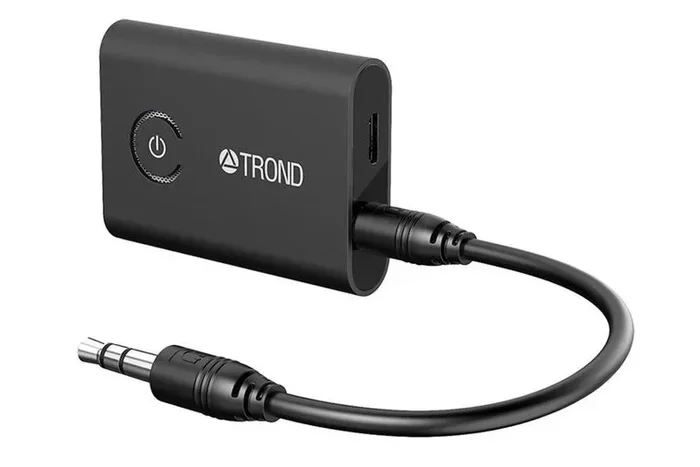
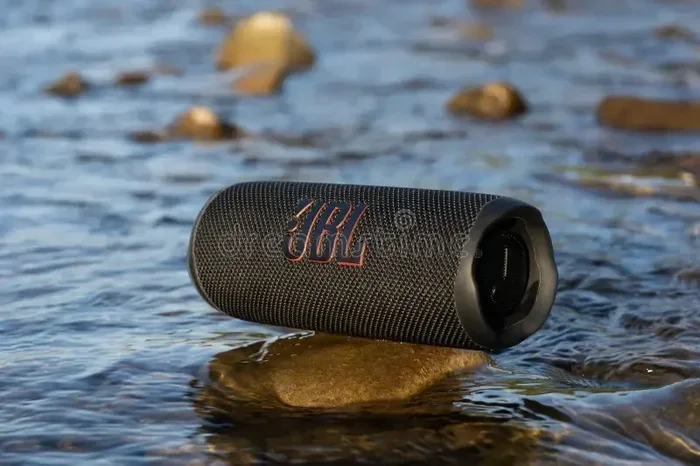
Projector audio quality is often overlooked. Many projectors have weak built-in speakers. Consider adding a soundbar, Bluetooth speaker, or home theater sound system for a richer Netflix experience.
Comparison Table: Top Projectors for Netflix
| Projector | Resolution | Brightness | Smart Features | Best For |
|---|---|---|---|---|
| Epson Home Cinema 2350 | 1080p Full HD | 2,300 lumens | No (needs external device) | Home theater fans |
| BenQ TH585 | 1080p Full HD | 3,500 lumens | No (needs external device) | Daytime viewing |
| Optoma UHD38 | 4K UHD | 4,000 lumens | No (needs external device) | Premium quality |
| Anker Nebula Cosmos | 1080p Full HD | 2,200 lumens | Yes (Android TV built-in) | Easy smart setup |
| XGIMI Elfin | 1080p Full HD | 1,350 lumens | Yes (Android TV built-in) | Portable streaming |
Best projector for streaming Netflix depends on your budget and needs. If you want simplicity, a smart projector like the Anker Nebula Cosmos is a great choice. If you want the best image quality, a dedicated home theater projector paired with a streaming stick works wonderfully.
Common Problems When Watching Netflix on a Projector
Even with the best setup, you may run into some issues. Netflix error on projector is more common than you might think. Here are the most frequent problems and how to fix them.
Netflix Buffering or Stuttering
Buffering happens when your internet connection cannot keep up with the stream. This is the most common issue with streaming on projector setups. To fix it, try these steps:
- Move your router closer to the projector
- Use a wired Ethernet connection instead of WiFi
- Lower the streaming quality in Netflix settings
- Close other apps or devices using bandwidth
- Restart your projector and router
Netflix Not Loading or Showing an Error
If Netflix will not load, the issue might be with the app or your connection. Try clearing the Netflix app cache if your projector is a smart model. Update the app to the latest version. If you are using a streaming device, restart it and try again.
Sometimes the Netflix app is not compatible with older projector models. In this case, use a streaming stick or cast from your phone instead.
Audio and Video Sync Issues
If the sound and video are out of sync, it can be very annoying. This often happens with wireless connections or older HDMI cables. Try switching to a wired HDMI connection. Update your projector firmware. Also, check if your projector audio quality settings need adjustment.
Netflix Says You Are Using a Proxy or Unblocker
This error can appear if you use a VPN or if your projector’s IP address is flagged. Turn off any VPN on your device. Make sure your Netflix account is active and your Netflix subscription plan supports the quality you are trying to stream.
Tips for the Best Netflix Viewing Experience on a Projector
Getting Netflix on your projector is only half the battle. Making it look and sound amazing takes a few extra steps. Here are some expert tips to elevate your setup.
Optimize Your Projector Settings
Adjust your projector brightness based on your room lighting. Dim the room for a cinematic feel. Use the Cinema or Movie mode on your projector for the most accurate colors. Turn off any eco mode that might reduce brightness and image quality.
Set your projector resolution to match your content. Netflix streams in 1080p or 4K depending on your plan. Make sure your projector is set to display at the native resolution for the sharpest picture.
Improve Your Sound Setup
Most projectors have small built-in speakers that do not do justice to Netflix’s rich soundtrack. Connecting external speakers makes a huge difference. A simple Bluetooth speaker or a full home theater system transforms your viewing experience.
For the best sound, use a soundbar with HDMI ARC or connect speakers via Bluetooth. Projector audio quality improves dramatically with even an affordable external speaker setup.
Get the Right Screen or Wall
While you can project Netflix onto any wall, a proper projection screen makes a big difference. A matte white screen provides the best contrast and color accuracy. Consider the projector screen size based on your room size and projector throw distance.
For an outdoor movie night, a portable inflatable screen works great. Outdoor movie projector setups are increasingly popular for backyard gatherings and camping trips.
Quick Tips for Better Netflix on Your Projector
- Always use a high-speed HDMI cable for the best picture
- Keep your projector firmware and Netflix app updated
- Place your projector at the correct throw distance for your screen size
- Use a surge protector to protect your equipment
- Clean your projector lens regularly for a clear image
- Consider the projector lamp life and replace it when brightness fades
- Use a universal remote or smart home integration for easy control
Common Mistakes to Avoid
Even experienced users make mistakes when setting up Netflix on a projector. Avoid these common pitfalls to save time and frustration.
- Using a low-quality HDMI cable: Cheap cables can cause signal loss and poor image quality. Invest in a certified high-speed HDMI cable.
- Ignoring WiFi strength: A weak WiFi signal causes constant buffering. Test your connection speed before you start watching.
- Forgetting about ambient light: Even a bright projector struggles in a well-lit room. Dim the lights or use blackout curtains.
- Skipping software updates: Outdated firmware and apps cause compatibility issues. Keep everything updated.
- Using the wrong Netflix plan: Netflix plans vary in quality. The Standard plan supports HD, while the Premium plan supports 4K.
- Overlooking sound: A great picture means nothing without good sound. Always invest in decent audio for your projector setup.
Expert Insights on Projector Netflix Setup
Home theater projector setups have become more affordable and user-friendly over the years. Experts agree that a projector offers a more immersive Netflix experience than even the largest TVs. A 120-inch screen makes you feel like you are inside the movie.
According to home entertainment specialists, the key to a great Netflix on projector setup is balancing three factors: image quality, sound quality, and ease of use. A smart projector with built-in apps checks all three boxes for most users.
For those who already own a traditional projector, adding a streaming device is the most cost-effective upgrade. A $30 to $50 streaming stick transforms any projector into a Netflix-ready entertainment system. This is the approach most experts recommend for budget-conscious users.
Projector lamp life is another expert consideration. LED projectors last much longer than traditional lamp-based models. If you watch Netflix frequently, an LED projector saves you money on replacements over time.
Key Takeaways
- Watching Netflix on a projector is simple and gives you a cinematic experience at home.
- Smart projectors with built-in apps are the easiest way to stream Netflix without extra devices.
- HDMI connection through a streaming stick or laptop is the most reliable method for traditional projectors.
- Projector brightness and resolution directly impact how clear and vibrant your Netflix picture looks.
- Common problems like buffering and sync issues are usually easy to fix with basic troubleshooting.
- Adding external speakers dramatically improves your Netflix audio experience on a projector.
- Avoiding common setup mistakes saves you time and helps you get the best results from day one.
Conclusion
Watching Netflix on a projector is one of the best ways to enjoy your favorite shows and movies. The big screen, immersive sound, and cinematic feel create an entertainment experience that a regular TV simply cannot match. Whether you use a smart projector or pair a traditional projector with a streaming device, the setup process is straightforward and affordable.
From choosing the right projector screen size to optimizing your WiFi connection and sound setup, every detail matters. Follow the tips in this guide, avoid the common mistakes, and you will be enjoying Netflix on a big screen in no time.
The best projector for streaming Netflix depends on your budget, room setup, and personal preferences. Use the comparison table above to find the model that fits your needs. And remember, the most important thing is to sit back, relax, and enjoy endless entertainment on your projector.
Now that you know how to watch Netflix on a projector, it is time to set up your own home theater. Start with the basics, upgrade as you go, and soon you will wonder how you ever watched Netflix on a small screen again.
Frequently Asked Questions
Can I watch Netflix on any projector?
Yes, you can watch Netflix on almost any projector. Smart projectors run Netflix directly, while traditional projectors need an external device like a streaming stick or a laptop connected via HDMI. The method you choose depends on your projector type.
Do I need a special Netflix plan to stream on a projector?
You need a standard Netflix subscription to stream on a projector. If you want to watch in HD or 4K resolution, you will need the Standard or Premium plan. Basic plans support standard definition streaming, which works fine on most projectors.
Why does Netflix keep buffering on my projector?
Buffering usually happens because of a weak internet connection. Move your router closer to the projector, use a wired connection, or lower the streaming quality in Netflix settings. A stable WiFi connection is essential for smooth Netflix streaming on any projector.
What is the best way to connect Netflix to a projector?
The best way depends on your projector. For smart projectors, use the built-in Netflix app. For traditional projectors, an HDMI streaming stick like Amazon Fire TV Stick or Chromecast is the most reliable and easy-to-use option. It provides stable connectivity and high-quality output.
Can I cast Netflix from my phone to a projector?
Yes, you can cast Netflix from your phone to a projector if both devices are on the same WiFi network. Open the Netflix app on your phone, tap the cast icon, and select your projector. This works well with smart projectors and wireless HDMI adapters.
Is it better to watch Netflix on a projector or a TV?
A projector offers a much larger screen and a more cinematic experience than most TVs. For movie nights and binge-watching, a projector creates a more immersive feel. However, TVs are brighter and better for daytime viewing. The choice depends on your preferences and room setup.