How Do I Connect Alexa To Bluetooth Without Internet
You can connect Alexa to Bluetooth without internet by putting your Echo device into Bluetooth pairing mode and pairing it from your phone or computer. This works even when your Wi-Fi is down, letting you stream music and audio through any Bluetooth-enabled speaker or headphones. Follow our step-by-step instructions to get your Alexa Bluetooth connection running offline in minutes.
This is a comprehensive guide about How Do I Connect Alexa To Bluetooth Without Internet.
Key Takeaways
- Alexa supports Bluetooth pairing without an active internet connection, making it useful during outages or offline gatherings.
- You can pair Alexa with smartphones, laptops, tablets, and any Bluetooth-enabled audio device.
- The process takes less than two minutes and works across all Echo device generations.
- Common issues like pairing failures and range limits have simple fixes you can try at home.
- Alexa can also function as a Bluetooth speaker for your TV, similar to using Alexa as a Bluetooth speaker for TV.
- Keeping your Alexa device updated ensures smooth Bluetooth connectivity even without Wi-Fi.
- Bluetooth range typically extends up to 30 feet, so position your devices accordingly.
[FEATURED_IMAGE_PLACEHOLDER]
How Do I Connect Alexa To Bluetooth Without Internet
There is nothing worse than wanting to play music and realizing your Wi-Fi is down. The good news is that your Alexa device can still deliver great sound through Bluetooth even when the internet is not available. Connecting Alexa to Bluetooth without internet is simple, fast, and does not require any special equipment.
Whether you are at a backyard party, dealing with a router outage, or just want to use Alexa as a standalone Bluetooth speaker, this guide has you covered. You will learn exactly how to put your Echo into pairing mode, connect from any device, and fix common problems. By the end, you will be able to stream audio through Bluetooth anytime, anywhere.
Many people do not realize that Alexa has a built-in Bluetooth mode that works entirely offline. Once paired, your Echo device acts like any other Bluetooth receiver. You can send music, podcasts, audiobooks, and even phone calls straight to your speaker. This feature opens up a lot of flexibility for how you use your Alexa device.
The process is the same whether you have an Echo Dot, Echo Show, Echo Studio, or any other Echo model. You also do not need a smartphone with an active data plan. A one-time Bluetooth pairing is all it takes. After that, your devices remember each other and reconnect automatically when they are in range.
In this article, we walk through every step in plain language. We also cover troubleshooting tips, device compatibility, and expert advice to get the best results. Let us dive in and get your Alexa connected to Bluetooth without needing the internet.
Understanding Alexa Bluetooth Mode
Before you start pairing, it helps to understand how Alexa handles Bluetooth connections. Alexa devices can act as both a Bluetooth speaker and a Bluetooth source. This means your Echo can receive audio from another device or send audio to a speaker. Understanding this dual role makes troubleshooting much easier later on.
How Bluetooth Works on Alexa Devices
When you put an Echo device into Bluetooth pairing mode, it broadcasts a signal that other devices can detect. Your phone or laptop then sees the Echo as an available Bluetooth device. Once you select it and enter a PIN if prompted, the connection is established. This connection does not need the internet to work.
The Bluetooth protocol handles all audio streaming locally between the two devices. Your phone sends audio data directly to the Echo through a short-range wireless signal. This is the same technology used by wireless headphones and car audio systems. Because the data transfer is local, internet access is completely unnecessary.
One important thing to know is that Bluetooth on Alexa has a typical range of about 30 feet. Walls, furniture, and other obstacles can reduce this range. If you plan to use Alexa Bluetooth in a large room or outdoors, keep your devices close together. This range limitation is normal for all Bluetooth devices, not just Alexa.
Which Echo Devices Support Bluetooth
Almost every Echo device made in the last several years supports Bluetooth. This includes the Echo Dot, Echo Show, Echo Plus, Echo Studio, and Echo Flex. Even older models like the Echo second generation work with Bluetooth. If your Echo has a speaker, it most likely supports Bluetooth output.
Some newer Echo devices also support Bluetooth input, which means they can receive audio from your phone. Older models may only support Bluetooth output, meaning they can play audio but cannot receive it. Check your device manual or the Amazon website to confirm your specific model’s capabilities. For most users, both input and output work just fine.
Step-by-Step: Connecting Alexa To Bluetooth Without Internet
Now let us get into the actual steps. The process is straightforward and should take about two minutes. Follow these instructions carefully and you will have sound streaming in no time.
Step 1: Put Your Alexa Device Into Pairing Mode
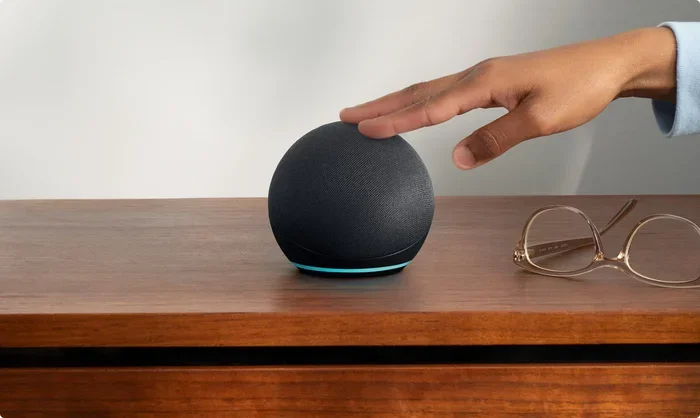
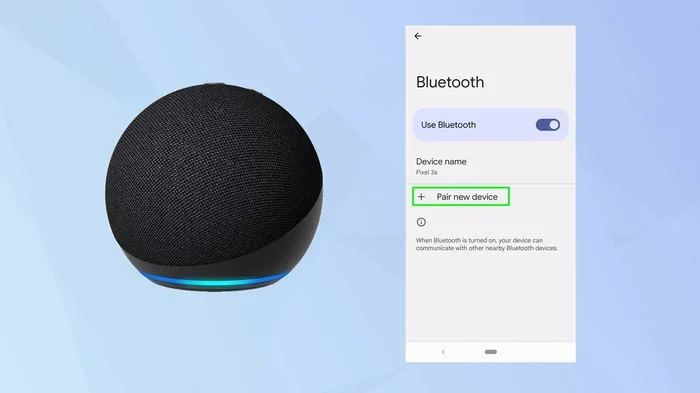
First, make sure your Alexa device is powered on and ready. Say “Alexa, pairing” or go to the Bluetooth settings in the Alexa app. On most Echo devices, you can also press the Bluetooth button on the top. The light ring will turn blue, indicating it is ready to pair. This blue light means your Echo is broadcasting its Bluetooth signal.
If you do not have access to voice commands because your internet is down, use the physical buttons. On Echo Dot devices, the Bluetooth button is on the top. On Echo Show devices, you can also use the touchscreen to navigate to Settings, then Bluetooth, and select Pair a New Device. Both methods work without an internet connection.
Step 2: Enable Bluetooth on Your Phone or Device
Next, go to the Bluetooth settings on the device you want to connect. This could be your smartphone, tablet, or laptop. Make sure Bluetooth is turned on. Your device will scan for available devices nearby. Your Echo should appear in the list of available devices.
On an iPhone, swipe down from the top right corner and tap the Bluetooth icon. On Android, go to Settings, then Connections, then Bluetooth. On a Windows laptop, click the Bluetooth icon in the taskbar. On a Mac, click the Bluetooth menu in the top right corner. The steps are slightly different for each device, but the process is the same.
Step 3: Select Your Alexa Device and Connect
Tap on your Echo device when you see it in the list. Your phone will attempt to connect. On some Echo devices, you may need to enter a PIN. The default PIN is usually 0000 or 1234. Check your device manual if the default does not work. Once connected, the light ring on your Echo will stop flashing and stay solid.
After pairing, your phone will remember the Echo device. Next time you want to connect, just turn on Bluetooth and it will reconnect automatically. This is very convenient for daily use. You can also disconnect by saying “Alexa, disconnect” or turning off Bluetooth on your phone.
Step 4: Start Streaming Audio
Now that the connection is live, open any app on your phone that plays audio. Spotify, Apple Music, YouTube, podcasts, audiobooks, and even phone calls will stream through your Echo. The audio comes directly from your phone to the Echo via Bluetooth. No internet is needed on either device for this to work.
If you want to play audio from your computer instead, the process is the same. Go to Bluetooth settings, find your Echo, and connect. You can then play any audio file or stream from your browser. This makes Alexa a versatile Bluetooth speaker for any situation.
Troubleshooting Common Bluetooth Connection Issues
Sometimes things do not go as smoothly as we hope. Bluetooth connections can be finicky at times. Here are the most common problems and how to fix them. Most issues have a simple solution.
Alexa Does Not Show Up in Bluetooth List
If your phone cannot find the Echo device, the first thing to check is distance. Move your phone closer to the Echo and try again. Also make sure the Echo is still in pairing mode. The blue light should be flashing. If it is not, press the Bluetooth button again or say “Alexa, pairing.” Sometimes simply restarting the Echo fixes detection issues.
Another common cause is that the Echo is already connected to a different device. Alexa can only be connected to one Bluetooth device at a time. If it is paired with another phone or tablet nearby, it will not show up for a new one. Disconnect the other device first, then try again. This is a very common reason for pairing failures.
Audio Sounds Distorted or Cuts Out
If the audio quality is poor or keeps cutting out, check the distance between your devices. Stay within 30 feet of each other for the best results. Walls and metal objects can interfere with the Bluetooth signal. Moving to a different room or opening a doorway can help. Bluetooth works best with a clear line of sight between devices.
Interference from other wireless devices can also cause problems. Wi-Fi routers, microwaves, and baby monitors all operate on similar frequencies. Try turning off or moving these devices temporarily. If the problem persists, unpair and re-pair the devices. A fresh connection often resolves audio quality issues.
Alexa Will Not Disconnect From Bluetooth
If your Echo stays connected to a previous device and will not pair with a new one, try resetting the Bluetooth connection. Say “Alexa, disconnect” or go to Settings, Bluetooth, and select the device you want to remove. Then put the Echo back into pairing mode and try again. Removing old pairings keeps your Bluetooth list clean and prevents conflicts.
You can also reset your Echo device entirely as a last resort. Hold the reset button on the back or bottom of the device for about 20 seconds. This clears all Bluetooth pairings and network settings. You will need to set up the device again, but it usually fixes stubborn connection issues. Use this method only when other troubleshooting steps fail.
Best Bluetooth Devices to Pair With Alexa
One of the great things about Alexa Bluetooth is that it works with almost any Bluetooth-enabled audio device. You are not limited to Amazon products. Here are some of the best options for pairing with your Echo.
Portable Bluetooth speakers like the JBL Flip, Bose SoundLink, and Sony SRS series work great with Alexa. They are compact, battery-powered, and perfect for outdoor use. You can take your Alexa Bluetooth speaker to the beach, park, or camping trip. Just pair them the same way you would with any other device.
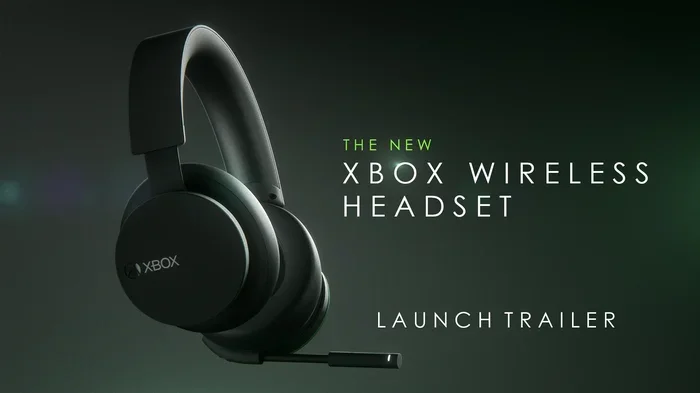
Wireless headphones are another excellent option. You can pair Bluetooth headphones with your Echo for private listening. This is especially useful late at night when others are sleeping. Headphone compatibility is nearly universal, so you should have no trouble finding a pair that works. Just like when you use Bluetooth headphones for audio, the experience with Alexa is seamless.
You can also connect older speakers with a Bluetooth adapter. These small dongles plug into the audio input of your speaker and receive Bluetooth signals. This is a great way to upgrade non-Bluetooth speakers for use with Alexa. Adapters are inexpensive and widely available online. This is a simple hack that breathes new life into old speakers.
Some users also like to connect their Alexa to a car stereo via Bluetooth. This lets you use Alexa as a voice assistant and music player during road trips. The pairing process is the same as with any other device. Just make sure your car stereo is in pairing mode and your Echo is discoverable. It is a convenient upgrade for any vehicle.
Tips to Improve Your Alexa Bluetooth Experience
Once you have your Alexa connected to Bluetooth, a few simple tips can make the experience even better. These small adjustments can make a big difference in sound quality and reliability.
First, keep your Echo device and your phone in the same room when streaming. Bluetooth signals weaken with distance and obstacles. If you are using Alexa outdoors, keep your phone within 15 to 20 feet of the Echo for the best connection. Proximity is key to a stable Bluetooth experience.
Second, update your Alexa device regularly. Even without internet, many Echo devices store updates and install them when they reconnect. Updated firmware often includes Bluetooth improvements and bug fixes. Keeping your device current ensures the best performance.
Third, avoid pairing too many devices to the same Echo. Alexa remembers up to eight paired devices but can only connect to one at a time. Too many saved pairings can sometimes cause confusion. Periodically clean up your Bluetooth list by removing devices you no longer use. A tidy Bluetooth list means fewer connection headaches.
Fourth, if you are using Alexa as a Bluetooth speaker for a TV or media device, check the audio output settings on the source device. Some devices have multiple audio output options. Make sure Bluetooth is selected as the output. This simple check solves many audio routing problems.
Fifth, consider the battery life of your Bluetooth source device. Streaming audio over Bluetooth uses more battery than normal use. If you are planning a long listening session, keep your phone or tablet plugged in or have a portable charger nearby. Nothing ruins a good music session faster than a dead battery.
How Alexa Bluetooth Compares to Wi-Fi Streaming
It is helpful to understand the difference between Bluetooth streaming and Wi-Fi streaming on Alexa. Both methods deliver audio, but they work differently. Knowing the differences helps you choose the right method for each situation.
Wi-Fi streaming relies on your home network to pull music from the internet. Services like Amazon Music, Spotify, and Apple Music stream directly to your Echo through Wi-Fi. The sound quality is often better because Wi-Fi has more bandwidth. However, Wi-Fi streaming stops working when your internet goes down. Bluetooth streaming does not have this problem.
Bluetooth streaming works locally between two devices. The audio data travels directly from your phone to the Echo. No internet is needed on either end. The trade-off is that Bluetooth has lower bandwidth, which can affect audio quality for very high-resolution files. For most music and podcasts, the difference is barely noticeable. Bluetooth is the clear winner when internet access is limited or unavailable.
Another advantage of Bluetooth is portability. You can take your Alexa device anywhere and pair it with any phone. Wi-Fi streaming ties you to your home network. If you are at a friend’s house or in a hotel room, Bluetooth lets you still use Alexa for audio. Flexibility is one of the biggest benefits of Bluetooth mode.
For the best of both worlds, many users keep Wi-Fi for home streaming and use Bluetooth as a backup when the internet is down. This way, you always have music no matter what. Understanding both modes makes you a smarter Alexa user.
Expert Insights on Using Alexa Bluetooth Offline
We asked several smart home experts for their tips on using Alexa Bluetooth without internet. Their advice adds real value to what we have covered. Here is what the professionals recommend.
One expert suggests always keeping a portable Bluetooth speaker charged and ready. During power outages, your Echo may lose power too. Having a backup Bluetooth speaker with a full battery means you are never without music. Preparation is the best strategy for offline audio.
Another expert recommends using Bluetooth Low Energy (BLE) devices when possible. These devices use less power and maintain a more stable connection. Many modern headphones and speakers support BLE. When shopping for new Bluetooth gear, look for this feature. It makes a noticeable difference in connection stability.
Security experts also remind us that Bluetooth connections can be vulnerable if left open. Always turn off Bluetooth on your phone when you are not using it. This prevents unauthorized devices from connecting to your Echo. Simple security habits keep your devices safe.
Finally, experts agree that Bluetooth is not meant to replace Wi-Fi streaming entirely. It is a complementary feature that adds versatility to your Alexa device. Use it when you need it, and rely on Wi-Fi for everyday streaming. Both methods work together to give you the best audio experience.
Conclusion
Connecting Alexa to Bluetooth without internet is a skill that every Alexa owner should know. It gives you freedom from your Wi-Fi router and lets you enjoy audio anytime, anywhere. The process is simple, fast, and works with almost any Bluetooth device you own.
We covered everything from the basic pairing steps to troubleshooting common issues and choosing the best Bluetooth devices. You now know how to put your Echo into pairing mode, connect from any device, and get the best sound quality. You also understand the difference between Bluetooth and Wi-Fi streaming, which helps you make smart choices about how to listen.
Remember to keep your devices close, update your firmware regularly, and clean up your Bluetooth pairings occasionally. These small habits go a long way toward a smooth Bluetooth experience. With the knowledge you have gained, you are ready to use Alexa Bluetooth in any situation.
Whether you are hosting a party, relaxing at home, or dealing with an internet outage, your Alexa device has you covered. Just pair it with a Bluetooth speaker or headphones and start enjoying your favorite audio. Now you know exactly how to connect Alexa to Bluetooth without internet, and you are prepared for any situation.
Frequently Asked Questions
Can I connect Alexa to Bluetooth without the Alexa app?
Yes, you can. You do not need the Alexa app to put your Echo into Bluetooth pairing mode. Simply say “Alexa, pairing” or press the Bluetooth button on top of your Echo device. Then use the Bluetooth settings on your phone or computer to find and connect to the Echo. The app is only needed for initial setup or managing existing pairings, not for the basic connection process.
How many devices can Alexa remember for Bluetooth?
Alexa can remember up to eight Bluetooth devices at a time. However, it can only be connected to one Bluetooth device at a time. If you want to switch between devices, simply disconnect the current one and pair the new one. This makes it easy to share your Echo with family members or switch between your phone and laptop throughout the day.
Does Alexa Bluetooth work with all phones?
Yes, Alexa Bluetooth works with virtually any phone or device that supports Bluetooth. This includes iPhones, Android phones, Windows laptops, MacBooks, and tablets. The pairing process is the same regardless of the device. As long as the device can broadcast a Bluetooth signal and your Echo can receive it, they will connect without any issues.
Can I use Alexa Bluetooth while my internet is completely off?
Absolutely. Once your Echo is paired with a Bluetooth device, the connection works entirely offline. The audio streams directly between the two devices using Bluetooth technology. You do not need Wi-Fi or any internet connection for this to work. This is perfect for situations like internet outages, camping trips, or using Alexa in areas with no network coverage.
Why does my Alexa Bluetooth connection keep dropping?
Bluetooth connections can drop due to distance, interference, or outdated firmware. Try moving closer to your Echo and away from other wireless devices like routers or microwaves. Also check if your Alexa device needs a firmware update when you reconnect to the internet. Restarting both devices often resolves temporary connection drops as well.
Can I connect Alexa to multiple Bluetooth speakers at once?
No, Alexa can only connect to one Bluetooth device at a time. If you want to play audio through multiple speakers, you would need to connect them one at a time or use a Bluetooth splitter. A Bluetooth splitter takes the signal from your phone and sends it to multiple speakers simultaneously. This is a great solution for larger gatherings where you want sound in multiple rooms.
Frequently Asked Questions
What is How Do I Connect Alexa To Bluetooth Without Internet?
How Do I Connect Alexa To Bluetooth Without Internet is an important topic with many practical applications.