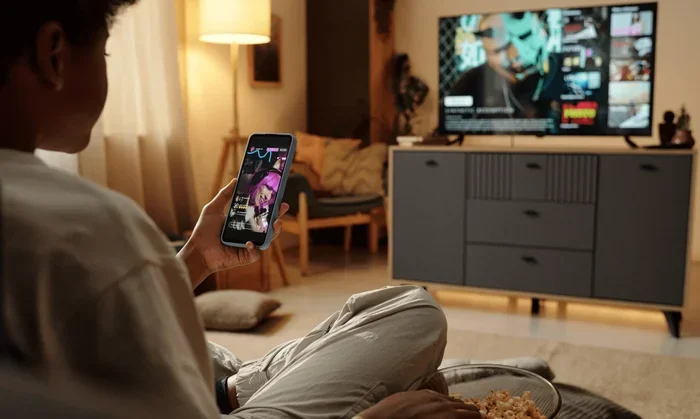
How Can I Easily Watch Tv In Another Room Wirelessly
Watching TV in another room wirelessly is easier than you think. With the right devices and a solid WiFi connection, you can stream your favorite shows from the living room to the bedroom or even the backyard. This guide covers the best wireless TV streaming solutions, setup steps, and tips to help you enjoy wireless TV viewing without any hassle.
Key Takeaways
- Wireless streaming devices like Chromecast, Roku, and Fire Stick make multi-room TV viewing simple and affordable.
- Screen mirroring lets you cast your phone or laptop screen to a TV in another room effortlessly.
- A strong WiFi signal is the foundation of reliable wireless TV streaming across your home.
- Wireless HDMI kits offer a lag-free alternative for high-quality video and audio transmission.
- Bluetooth and WiFi speakers can extend your TV audio to another room without extra wiring.
📑 Table of Contents
Why Watch TV In Another Room Wirelessly?
There are plenty of reasons you might want to watch TV in another room wirelessly. Maybe the living room is crowded, and you want to catch up on your favorite show in the bedroom. Perhaps you are cooking in the kitchen and want to follow a recipe video on the TV above the counter. Or maybe you just prefer watching sports in the comfort of your home office.
Whatever the reason, wireless TV streaming has made it incredibly easy to enjoy content anywhere in your home. You no longer need long HDMI cables or expensive home theater setups. A few affordable devices and a decent WiFi connection are all you need.
The beauty of wireless TV viewing is flexibility. You are not tied to one spot. You can move from room to room and keep watching without interruption. This is especially helpful for families where different people want to watch different things in different spaces.
The Rise Of Multi-Room Entertainment
Smart homes have changed the way we consume media. Multi-room TV viewing is no longer a luxury. It is a daily reality for millions of households. With devices that support wireless display technology, you can send video and audio to any TV in your home from a single source.
This shift has been driven by streaming services like Netflix, Hulu, Disney+, and YouTube. These platforms make it easy to access thousands of hours of content. And now, with wireless streaming tools, you can take that content anywhere.
Best Wireless TV Streaming Solutions
Not all wireless streaming solutions are created equal. Some work better for certain setups than others. Here are the most popular and effective options for wireless TV streaming in 2024.
Chromecast And Google TV Devices
Google’s Chromecast is one of the most popular ways to cast TV to another room. It plugs directly into your TV’s HDMI port and connects to your WiFi network. You can then stream content from your phone, tablet, or laptop right to the TV.
Chromecast works with Android and iOS devices. You simply tap the cast icon in supported apps like YouTube, Netflix, or Spotify. The content streams directly from the internet, not from your device. This means your phone can be used for other things while the TV keeps playing.
The newer Google TV devices also come with a remote control. This makes them a great standalone option. You do not even need your phone to navigate and watch content.
Roku Streaming Devices
Roku is another excellent choice for wireless TV streaming. Roku devices are known for their simple interface and wide app support. Whether you pick the Roku Express, Roku Streaming Stick, or Roku Ultra, you get access to thousands of channels.
Roku supports screen mirroring from both Android and iOS devices. You can also use the Roku mobile app as a remote. This is especially handy when you want to control your TV from another room without getting up.
If you already have a Roku TV, you are in luck. These TVs have built-in streaming capabilities. You just need to connect them to your WiFi network, and you are ready to go.
Amazon Fire TV Stick And Cube
Amazon’s Fire TV lineup offers powerful wireless streaming at budget-friendly prices. The Fire TV Stick 4K supports 4K resolution and HDR content. It also works with Alexa, so you can use voice commands to find and play content.
Fire TV devices integrate well with Amazon’s ecosystem. If you subscribe to Prime Video, you get access to a huge library of movies and shows right out of the box. You can also install Netflix, Disney+, and many other apps.
Screen mirroring is supported on Fire TV as well. You can cast content from your phone or mirror your entire screen. This is useful when you want to display something that does not have a native app on Fire TV.
Wireless HDMI Transmitter Kits
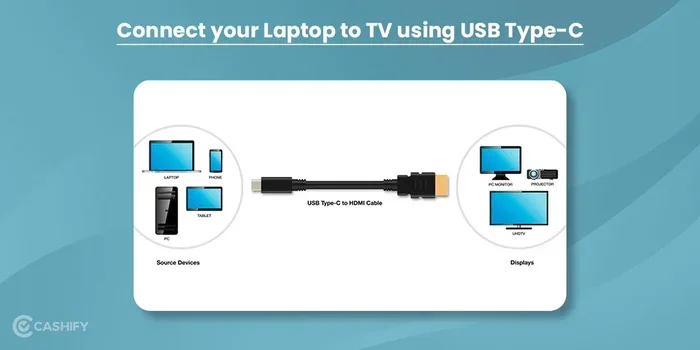
For a more reliable and lag-free experience, consider a wireless HDMI transmitter kit. These kits include a sender and a receiver. You plug the sender into your TV or cable box, and the receiver plugs into the TV in the other room.
Wireless HDMI kits transmit video and audio over a dedicated wireless signal. This means they do not depend on your WiFi network. The result is a stable, high-quality connection with minimal delay. Popular brands include Nyrius, IOGEAR, and Avantree.
These kits are ideal for situations where WiFi is weak or unreliable. They are also great for gaming, where even a small delay can be frustrating. If you want the best quality without buffering, a wireless HDMI kit is worth the investment.
How To Set Up Wireless TV Streaming At Home
Setting up wireless TV streaming is simpler than most people think. Follow these steps to get started with wireless TV viewing in any room of your home.
Step 1: Check Your WiFi Strength
Before you buy any device, check your WiFi signal in the room where you want to watch TV. A weak connection will cause buffering and poor video quality. You can use a WiFi speed test app on your phone to measure the signal.
If your WiFi is weak in that room, consider solutions to boost the signal. You could move your router closer, use a WiFi extender, or set up a mesh network system. A strong connection is the foundation of a good wireless TV streaming experience.
Step 2: Choose Your Streaming Device
Pick a device that fits your needs and budget. If you want simplicity, go with a Chromecast or Fire TV Stick. If you want more features and a built-in interface, a Roku or Google TV device is a great choice.
For those who need a guaranteed lag-free connection, a wireless HDMI kit is the way to go. Just remember that these kits require a power source near both TVs.
Step 3: Connect And Configure
Once you have your device, plug it into the TV and connect it to your WiFi network. Follow the on-screen setup instructions. Most devices guide you through the process step by step.
After setup, download your favorite streaming apps. Sign in with your accounts and start browsing content. If you are using screen mirroring, make sure your phone and TV are on the same WiFi network.
Step 4: Optimize Your Settings
Go into the settings of your streaming device and adjust the video quality. If your WiFi is strong, set the resolution to 4K or 1080p for the best picture. If the connection is weaker, lower the resolution to avoid buffering.
Also, check the audio settings. Make sure the TV or sound system in the other room is set as the audio output. This ensures you get both video and sound without any issues.
Quick Tips For A Smooth Setup
- Always use the 5GHz WiFi band for streaming. It offers faster speeds and less interference than the 2.4GHz band.
- Keep your streaming device firmware updated for the best performance.
- Restart your router regularly to maintain a stable connection.
- Place your router in a central location for the best coverage throughout your home.
Wireless Audio Options For Multi-Room TV
Video is only half the equation. Great audio makes a huge difference in your viewing experience. Fortunately, there are several ways to get wireless TV audio in another room.
Bluetooth Speakers And Soundbars
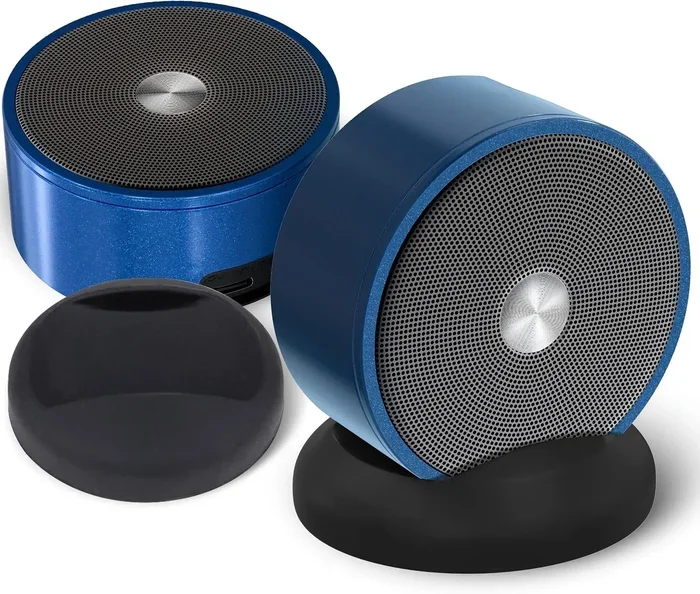
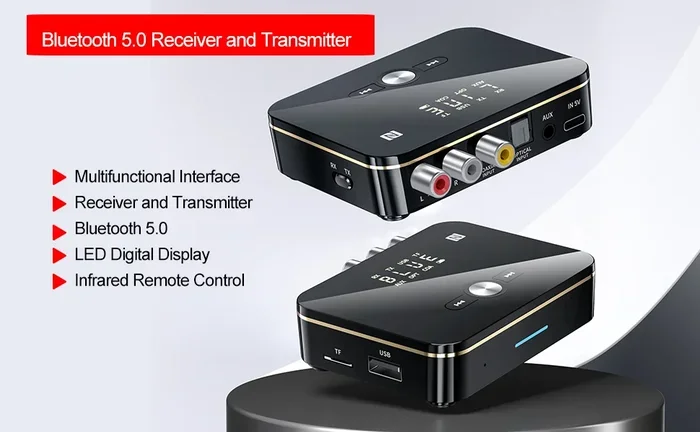
Many modern TVs support Bluetooth audio output. You can pair a Bluetooth speaker or soundbar in another room and stream the TV audio directly to it. This works well for casual viewing and is very easy to set up.
If you have an LG TV, you can even pair Bluetooth headphones to your LG TV for a private listening experience. This is great for late-night viewing without disturbing anyone else in the house.
Using Voice Assistants For TV Audio
Smart speakers like Amazon Echo and Google Nest can also play TV audio wirelessly. Some smart TVs allow you to route audio to compatible smart speakers. This is a convenient option if you already have smart speakers in multiple rooms.
You can also use Alexa as a Bluetooth speaker for your TV. Just pair your TV with an Echo device, and the audio will stream to the speaker in the other room. It is a simple and effective solution for wireless TV audio.
WiFi-Based Multi-Room Audio Systems
For a more advanced setup, consider a WiFi-based multi-room audio system. Products like Sonos, Bose SoundTouch, and Google Nest Audio support multi-room grouping. You can send TV audio to speakers in different rooms simultaneously.
These systems require a bit more setup, but they offer superior sound quality and reliability. They are perfect for households where multiple people want to watch different content in different rooms at the same time.
Common Problems And How To Fix Them
Wireless TV streaming is not always perfect. Here are some common issues and how to solve them.
Buffering And Lag
Buffering is the most common frustration with wireless TV streaming. It usually happens when your WiFi connection is slow or unstable. To fix this, try moving closer to your router or switching to the 5GHz band.
If the problem persists, consider upgrading your internet plan or adding a WiFi extender. A wired backhaul connection can also help boost your WiFi coverage throughout the house. You can learn more about extending your wired connection in our guide on how to extend WiFi range with a wired connection.
Screen Mirroring Not Working
If screen mirroring fails, the first thing to check is that both devices are on the same WiFi network. Also, make sure your phone or laptop supports screen mirroring and that it is turned on in the settings.
For iPhone users, you can mirror iPhone to TV with HDMI using an adapter. This provides a more stable connection than wireless mirroring in some cases. You can find detailed steps in our guide on mirroring iPhone to TV.
Audio And Video Sync Issues
When audio and video are out of sync, it can be very distracting. This often happens with wireless HDMI kits or Bluetooth audio devices. To fix this, try reducing the wireless distance between the sender and receiver.
For Bluetooth audio, check if your TV has an audio delay setting. Adjusting the sync offset in your TV’s audio settings usually resolves the problem.
Poor Video Quality
If your stream looks blurry or pixelated, your WiFi speed may be too low for the resolution you have selected. Lower the streaming quality in the app settings and see if the picture improves.
Also, make sure no other devices are hogging your bandwidth. Large downloads or other streams on the same network can reduce the quality of your wireless TV viewing.
Expert Insights On Wireless TV Viewing
Technology experts agree that wireless TV streaming has come a long way in recent years. The devices available today are faster, more reliable, and easier to use than ever before. Here are some expert tips to get the most out of your setup.
First, invest in a good router. A quality router with WiFi 6 support can handle multiple streams simultaneously without breaking a sweat. This is especially important if your household has several people streaming at once.
Second, keep your devices updated. Manufacturers regularly release firmware updates that improve performance and fix bugs. A simple restart once a week can also help keep things running smoothly.
Third, consider your home layout. Thick walls, large distances, and electronic interference can all weaken your wireless signal. Placing your router in a central, elevated location helps distribute the signal more evenly throughout your home.
Finally, do not be afraid to mix and match devices. You might use a Chromecast in the bedroom, a Roku in the kitchen, and a wireless HDMI kit for the garage TV. Each setup has its strengths, and combining them gives you the best of all worlds.
Final Thoughts On Watching TV In Another Room Wirelessly
Watching TV in another room wirelessly is one of the most convenient features of modern home entertainment. Whether you use a streaming stick, a wireless HDMI kit, or screen mirroring, the options are plentiful and affordable. The key is to find the solution that fits your home layout, budget, and viewing habits.
Start by ensuring your WiFi coverage is strong in every room where you want to watch TV. Then pick a streaming device or wireless kit that matches your needs. With the right setup, you can enjoy your favorite shows, movies, and sports in any room without a single cable in sight.
The world of wireless TV streaming is evolving fast. New devices and technologies are making it even easier to watch content anywhere in your home. Stay curious, keep experimenting, and enjoy the freedom of wireless viewing.
Frequently Asked Questions
What is the best device for wireless TV streaming?
The best device depends on your needs and budget. Chromecast, Roku, and Amazon Fire TV Stick are all excellent choices for most households. If you need a guaranteed lag-free connection, a wireless HDMI kit is the top pick. Each device has its strengths, so consider what matters most to you before deciding.
Can I watch TV in another room without WiFi?
Yes, you can use a wireless HDMI transmitter kit that does not rely on your WiFi network. These kits use a dedicated wireless signal to transmit video and audio between rooms. They are ideal for homes with weak WiFi or for situations where a stable connection is critical.
Does wireless TV streaming have any lag?
Most wireless streaming devices have minimal lag that is barely noticeable for regular viewing. However, wireless HDMI kits offer the lowest latency and are ideal for gaming or fast-action content. Screen mirroring may have slightly more delay compared to native streaming apps.
Can I stream TV to multiple rooms at once?
Yes, many streaming platforms support multi-room streaming. You can use multiple streaming devices in different rooms, each playing different content. Some smart home audio systems also allow you to group speakers and send the same audio to multiple rooms simultaneously.
How can I improve my WiFi signal for wireless TV streaming?
Move your router to a central location, switch to the 5GHz band, and reduce interference from other electronics. You can also use a WiFi extender or mesh network system to boost coverage in weaker areas of your home. A strong signal is essential for smooth wireless TV viewing.
Is screen mirroring the same as casting?
Not exactly. Screen mirroring duplicates your entire device screen on the TV. Casting, on the other hand, sends specific content from an app to the TV while letting you use your device for other things. Casting is generally more efficient and produces better results for streaming.