How Can I Install Bluetooth On My Smart Tv Quickly
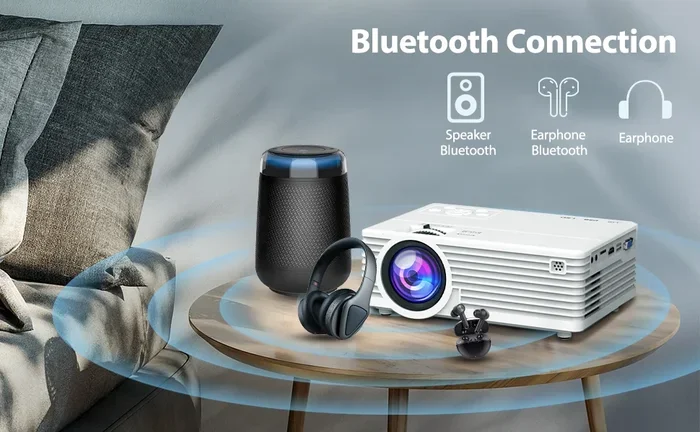
Adding Bluetooth to your Smart TV is easier than you think. Whether your TV has built-in Bluetooth or needs a transmitter, you can stream audio wirelessly to headphones, speakers, and soundbars. This guide walks you through every method so you can install Bluetooth on your Smart TV in minutes and start enjoying wireless audio today.
You just got home after a long day. You want to kick back on the couch, plug in your wireless headphones, and watch your favorite show without disturbing anyone. But when you look at your TV settings, you do not see a Bluetooth option anywhere. Sound familiar?
This is a common problem. Many Smart TVs come with Bluetooth already built in, but others do not. The good news is that you have options. You can install Bluetooth on your Smart TV quickly, regardless of the brand or model you own. In this guide, we will walk you through every step. By the end, you will know exactly what to do and how to get your wireless audio working in no time.
We will cover everything from checking if your TV already supports Bluetooth to buying the right adapter. We will also share tips on pairing devices, fixing common problems, and getting the best audio quality. Let us get started.
Key Takeaways
- Check Bluetooth compatibility first: Many modern Smart TVs already have Bluetooth built in, so you may not need extra hardware.
- Use a Bluetooth transmitter for older TVs: A simple adapter can add wireless capability to any TV with an audio output.
- Pairing is straightforward: Put your device in pairing mode, go to your TV settings, and connect in seconds.
- Reduce audio lag for better sync: Adjust settings or use low-latency Bluetooth codecs for seamless sound.
- Multiple devices can connect: Most Smart TVs support pairing with several Bluetooth devices at once.
- Troubleshooting is simple: Restarting devices, updating firmware, and resetting Bluetooth settings solve most issues.
📑 Table of Contents
- Why You Need Bluetooth On Your Smart TV
- Check If Your Smart TV Already Has Bluetooth
- How To Install Bluetooth On Your Smart TV
- Pairing Your Bluetooth Devices To The TV
- Improving Your Bluetooth Audio Experience
- Common Bluetooth Problems And How To Fix Them
- Comparison Table: Built-In Bluetooth vs Bluetooth Transmitter
- Expert Tips For The Best Bluetooth TV Setup
- Final Thoughts
Why You Need Bluetooth On Your Smart TV
Bluetooth changes the way you interact with your television. Instead of being tethered to built-in speakers, you can send audio anywhere in your home. This opens up a lot of possibilities for how you enjoy your favorite content.
Wireless Freedom For Late-Night Viewing
One of the biggest reasons people want Bluetooth on their Smart TV is late-night watching. Maybe your partner is sleeping. Maybe the kids are upstairs. Either way, you do not want to blast the volume through the living room speakers. With Bluetooth headphones or speakers, you can enjoy crystal-clear audio at any hour without bothering anyone.
Better Audio Quality Than Built-In Speakers
Let us be honest. Most TV built-in speakers are not great. They sound thin and tinny, especially for movies and music. By connecting a Bluetooth speaker or soundbar, you get richer sound with deeper bass and clearer vocals. Your viewing experience improves dramatically.
Flexibility With Multiple Devices
Bluetooth also gives you flexibility. You can connect your phone, tablet, or laptop to your TV for streaming. You can pair a wireless soundbar for movie nights. You can even use Bluetooth headphones for gaming sessions. The possibilities are wide open once Bluetooth is set up.
Check If Your Smart TV Already Has Bluetooth
Before you buy anything, check whether your TV already supports Bluetooth. Many newer Smart TVs come with this feature built right in. You just need to find it in the settings menu.
How To Find Bluetooth On Your TV
Turn on your TV and grab the remote. Navigate to the Settings menu. Look for a section called “Sound,” “Audio,” “Network,” or “Connections.” Different brands organize their settings differently, but Bluetooth is usually easy to find. On Samsung TVs, look under “Sound” then “Sound Output.” On LG TVs, check “Sound” then “Bluetooth.” On Sony TVs, go to “Settings” then “Bluetooth.”
If you see a Bluetooth option there, congratulations. Your TV already has it. You can skip the adapter step and move straight to pairing your devices.
What If Your TV Does Not Have Bluetooth
No worries. Not every Smart TV has Bluetooth. Older models and budget TVs often lack this feature. But that does not mean you are out of luck. You can still add Bluetooth using a transmitter or adapter. We will cover that in detail in the next section.
If you are wondering whether your TV can support Bluetooth at all, check your user manual or visit the manufacturer website. Look for specifications that mention “Bluetooth” or “wireless audio.” If it is not listed, you will need an external solution.
How To Install Bluetooth On Your Smart TV
This is the core of the guide. Here we break down the three main ways to install Bluetooth on your Smart TV. Choose the method that fits your situation best.
Method 1: Use Built-In Bluetooth (If Available)
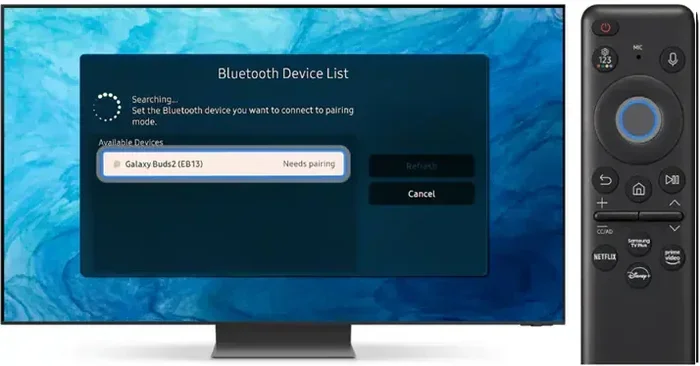
If your TV already has Bluetooth, the setup process is simple. Follow these steps:
- Go to your TV Settings menu.
- Find the Bluetooth or Sound Output section.
- Turn Bluetooth on.
- Put your headphones or speaker in pairing mode.
- Select your device from the list on your TV screen.
- Wait for the connection to complete.
That is it. You should hear audio coming through your Bluetooth device within seconds. Most modern Smart TVs remember paired devices, so you will not need to repeat this process every time.
For Roku TV users, Can I Use Bluetooth Headphones With Roku is a common question, and the answer is yes with the right settings. Roku TVs may require a specific Bluetooth pairing process depending on the model.
Method 2: Use A Bluetooth Transmitter
If your TV does not have built-in Bluetooth, a Bluetooth transmitter is your best friend. This small device plugs into your TV and adds wireless capability. Here is how it works:
- Buy a compatible Bluetooth transmitter. Look for one with a 3.5mm audio jack or RCA connection.
- Plug the transmitter into your TV audio output.
- Charge the transmitter if it has a battery, or plug it into a power source.
- Put your Bluetooth device in pairing mode.
- Press the pairing button on the transmitter.
- Select your device from the transmitter’s list.
Bluetooth transmitters are affordable. You can find reliable ones for under $20. They work with almost any TV, even older models that do not have smart features. This is the most popular way to add wireless audio to any TV.
When shopping for a transmitter, look for these features:
- Low latency support: This reduces audio delay so the sound matches the video.
- Multipoint connection: Lets you pair two devices at the same time.
- Long range: A range of 30 feet or more gives you freedom to move around.
- Built-in battery: Makes it portable and easy to place anywhere.
Method 3: Use A Bluetooth Audio Adapter
Another option is a Bluetooth audio adapter. This works similarly to a transmitter but connects differently. Some adapters plug directly into a USB port on your TV. Others connect through an HDMI port. The setup is similar to the transmitter method, but the form factor may be more convenient depending on your TV.
Keep in mind that not all Smart TVs have USB ports that support audio adapters. Check your TV specifications before buying one. If your TV has a USB port that supports media playback, there is a good chance an adapter will work.
Pairing Your Bluetooth Devices To The TV
Once Bluetooth is active on your TV, the next step is pairing your devices. Whether you are connecting headphones, speakers, or a soundbar, the process is similar across most devices.
Pairing Bluetooth Headphones
Wireless headphones are the most popular choice for TV Bluetooth setups. To pair them:
- Put your headphones in pairing mode. Usually, you hold down the power button or a dedicated Bluetooth button until the LED light flashes.
- On your TV, go to Bluetooth settings and select “Search for Devices.”
- Your headphones should appear in the list.
- Tap on them to connect.
For LG TV owners specifically, Can I Pair Bluetooth Headphones To My LG TV is a question we get often. LG TVs make it easy to pair Bluetooth headphones through the Sound settings menu. Just enable Bluetooth, put your headphones in pairing mode, and select them from the available devices list.
Pairing Bluetooth Speakers
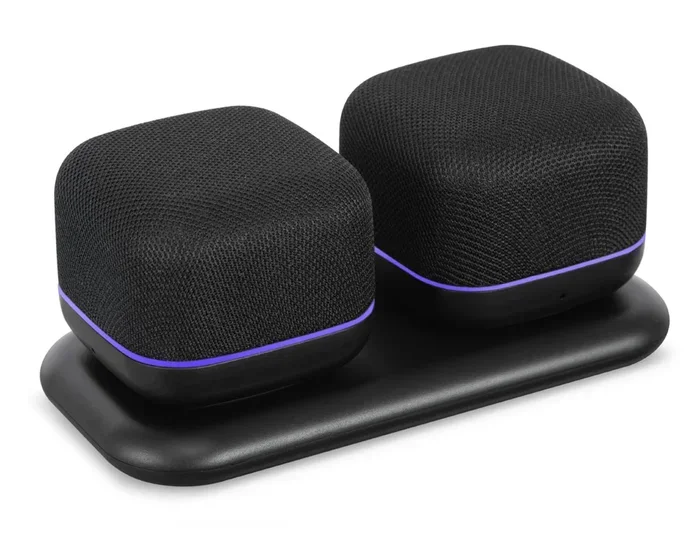
Want to turn your TV into a mini home theater? Pairing a Bluetooth speaker is a great way to boost your audio. The process is the same as pairing headphones. Put the speaker in pairing mode, go to your TV Bluetooth settings, and select the speaker. Once connected, you will notice a big improvement in sound quality.
Some people also use their TV setup for fun activities like singing along to music. If you have ever wondered about turning your TV into a karaoke machine, Can I Turn My TV Into A Karaoke Machine is a great read that explores this possibility with Bluetooth speakers and microphones.
Pairing Multiple Devices
Most Smart TVs allow you to pair more than one Bluetooth device at a time. This is useful if you want to connect both a soundbar and a set of headphones. Check your TV manual for details on how many devices can be paired simultaneously. Some TVs support up to three or four connections at once.
Improving Your Bluetooth Audio Experience
Setting up Bluetooth is only half the battle. To get the best experience, you need to optimize your setup. Here are some proven tips that make a big difference.
Reduce Audio Lag
Audio lag is the biggest complaint people have with Bluetooth TV audio. You see the lips move, but the sound comes a fraction of a second later. This is called latency, and it can be annoying. Here is how to fix it:
- Use a low-latency Bluetooth codec: Look for transmitters that support aptX Low Latency or aptX HD. These reduce delay significantly.
- Keep your Bluetooth device close to the TV: The closer the device, the stronger the signal and the less lag you will experience.
- Avoid Wi-Fi interference: Bluetooth and Wi-Fi both use the 2.4 GHz frequency. If your Wi-Fi is crowded, it can affect Bluetooth performance.
Position Your Bluetooth Device Strategically
Placement matters more than you might think. Bluetooth signals work best with a clear line of sight between the TV and the receiving device. Walls, furniture, and other obstacles can weaken the signal. Try to keep your Bluetooth speaker or transmitter in the same room as the TV and within 30 feet for the best results.
Update Your TV Firmware
TV manufacturers regularly release firmware updates that improve Bluetooth performance. Check your TV settings for a “Software Update” or “Firmware Update” option. Keeping your TV updated ensures you have the latest Bluetooth drivers and bug fixes.
Common Bluetooth Problems And How To Fix Them
Bluetooth technology is reliable, but sometimes things go wrong. Here are the most common issues and how to solve them.
Device Not Showing Up In The Pairing List
If your Bluetooth device does not appear on your TV, try these steps:
- Make sure the device is in pairing mode. The LED light should be flashing.
- Turn Bluetooth off and back on your TV.
- Restart both the TV and the Bluetooth device.
- Remove old paired devices from the list and try again.
Audio Keeps Cutting Out
Intermittent audio is usually caused by distance or interference. Move closer to the TV, remove obstacles, and make sure no other wireless devices are causing congestion. If you are using a transmitter, check the battery level. Low power can cause dropouts.
Poor Sound Quality
If your Bluetooth audio sounds muffled or unclear, try switching audio codecs if your transmitter supports it. Also check that your TV audio output is set to the correct format. Some TVs have settings for “Bitstream” or “PCM” that can affect Bluetooth audio quality.
Connection Keeps Dropping
A dropping connection can be frustrating. The most common cause is an outdated Bluetooth version. Newer devices use Bluetooth 5.0 or higher, which is more stable and has a longer range. If your transmitter is older, consider upgrading to a newer model for a more stable connection.
Remember that making your TV Bluetooth capable is one of the best upgrades you can make for your entertainment setup. It is simple, affordable, and instantly improves your experience.
Comparison Table: Built-In Bluetooth vs Bluetooth Transmitter
Not sure which method is right for you? Here is a quick comparison.
| Feature | Built-In Bluetooth | Bluetooth Transmitter |
|---|---|---|
| Cost | Included with TV | $15 to $50 |
| Setup Difficulty | Very Easy | Easy |
| Audio Quality | Good | Good to Excellent (with aptX) |
| Compatibility | Only works with supported TVs | Works with almost any TV |
| Latency | Varies by TV model | Low with aptX Low Latency |
| Range | 30+ feet typical | 30+ feet typical |
| Multi-Device Support | Usually 2-4 devices | Usually 1-2 devices |
As you can see, built-in Bluetooth is the easiest option if your TV supports it. But a Bluetooth transmitter is a great alternative that works with almost any television. Both methods get the job done effectively.
Expert Tips For The Best Bluetooth TV Setup
After helping hundreds of readers set up Bluetooth on their TVs, here are a few expert tips that make a real difference:
- Buy a transmitter with aptX support. This is the single biggest upgrade you can make for audio quality. Standard Bluetooth compresses audio, but aptX preserves much more detail.
- Label your paired devices. Some TVs show device names like “HC-05” or “JBL Speaker.” Rename them in your device settings so you can easily identify which device is which.
- Set your TV audio output to Bluetooth by default. Most Smart TVs let you set the default audio output. This means audio always goes to your Bluetooth device without you having to change settings manually.
- Keep your transmitter plugged in. Even if it has a battery, keeping it connected to power ensures stable performance and prevents unexpected disconnections.
- Place the transmitter near the center of your room. This maximizes the Bluetooth range and gives you the freedom to move around without losing connection.
Final Thoughts
Installing Bluetooth on your Smart TV is one of the simplest and most rewarding upgrades you can make. Whether your TV has built-in Bluetooth or needs a transmitter, the process is straightforward and takes just a few minutes. You get wireless freedom, better audio quality, and the ability to connect multiple devices with ease.
Start by checking if your TV already supports Bluetooth. If it does, you are just a few menu taps away from connecting your favorite wireless device. If it does not, grab a Bluetooth transmitter and follow the steps in this guide. You will be streaming wireless audio in no time.
Remember to optimize your setup by reducing audio lag, keeping devices close, and updating your firmware. These small steps make a big difference in your daily viewing experience. Now go ahead and enjoy your TV the wireless way.
Frequently Asked Questions
Can I Use Bluetooth On Any Smart TV?
Most Smart TVs made after 2018 have Bluetooth built in. However, some budget models and older TVs may not support it. You can always check your TV settings or user manual to confirm. If your TV lacks Bluetooth, a transmitter will add it.
How Do I Know If My TV Has Bluetooth?
Go to your TV Settings and look for a “Bluetooth,” “Sound,” or “Connections” section. If you see an option to turn Bluetooth on or search for devices, your TV supports it. You can also check your TV model number on the manufacturer website for specifications.
Does A Bluetooth Transmitter Affect Video Quality?
No. A Bluetooth transmitter only handles audio. It does not touch the video signal at all. Your video quality remains exactly the same. The transmitter sends audio wirelessly to your headphones or speaker while the video plays normally through your TV.
Can I Connect Multiple Bluetooth Devices To My TV At Once?
Yes, most Smart TVs support multiple paired Bluetooth devices. However, only one device typically plays audio at a time unless your TV has a feature that splits audio to multiple devices. Check your TV manual for specific multi-device capabilities.
Why Is There A Delay Between The Video And Audio When Using Bluetooth?
This delay is called audio lag or latency. It happens because Bluetooth takes a moment to process and transmit audio data. You can reduce it by using a transmitter with aptX Low Latency, keeping your devices close, and avoiding Wi-Fi interference on the same frequency.
What Is The Best Bluetooth Transmitter For A Smart TV?
Look for a transmitter that supports aptX or aptX Low Latency for the best audio quality. Popular reliable brands include Avantree, 1Mii, and TaoTronics. Make sure it has the right connection type for your TV, such as a 3.5mm jack or RCA output. Most quality transmitters range from $20 to $50.
=== CONCLUSION ===
Adding Bluetooth to your Smart TV is a quick and worthwhile upgrade that transforms how you enjoy your favorite shows and movies. Whether you use built-in Bluetooth or add a transmitter, the process is simple and the results are fantastic. You get wireless freedom, better sound quality, and the flexibility to connect all your favorite devices.
Start today by checking your TV settings. If Bluetooth is already there, you are just minutes away from going wireless. If not, pick up a Bluetooth transmitter and follow the steps in this guide. You will wonder how you ever watched TV without it. Happy streaming!