How Can I Display My Iphone Screen On My Tv Wirelessly
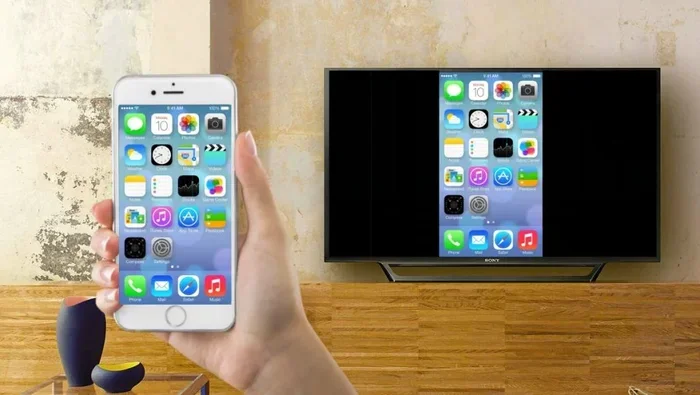
Displaying your iPhone screen on your TV wirelessly is easier than you think. Whether you want to share photos, stream videos, or play games on a bigger screen, there are several simple methods to get it done. This guide covers everything from AirPlay and smart TV apps to HDMI adapters and third-party casting tools.
This is a comprehensive guide about How Can I Display My Iphone Screen On My Tv.
Key Takeaways
- AirPlay is the easiest wireless method if you have an Apple TV or a compatible smart TV.
- HDMI adapters offer a wired backup that guarantees a stable, lag-free connection every time.
- Third-party apps like Replica and Screen Mirroring work on most TVs without extra hardware.
- Setting up wireless display takes just minutes once you know the right steps for your device.
- Common issues like lag or black screens can usually be fixed with a simple restart or Wi-Fi check.
[FEATURED_IMAGE_PLACEHOLDER]
Have you ever wanted to show off vacation photos on a big screen or watch a video from your phone on your living room TV? Displaying your iPhone screen on your TV wirelessly is one of the simplest ways to enjoy your favorite content without fumbling with cables. It opens up a whole world of possibilities, from movie nights to sharing presentations with friends.
Good news — you do not need to be a tech expert to make it work. Most modern TVs and iPhones come with built-in features that make wireless screen sharing a breeze. Even if your TV is older, there are affordable adapters and apps that get the job done. In this guide, we will walk you through every method, step by step, so you can start casting your iPhone to your TV today.
We will cover everything from the easiest wireless options to wired alternatives and troubleshooting tips. By the end of this article, you will know exactly which method works best for your setup. Let us dive in and get your iPhone screen shining on that big TV.
Why Display Your Iphone Screen On Your Tv?
There are many reasons people want to mirror their iPhone to a TV. The most common one is simple — a bigger screen is more fun. Watching videos, scrolling through photos, or playing games on a 55-inch display beats staring at a tiny phone screen every time.
Here are some of the top reasons people cast their iphone screen to tv:
- Sharing memories: Show family photos and videos on a large screen during gatherings and holidays.
- Movie nights: Stream content from apps like Netflix, YouTube, and Disney+ directly from your iPhone.
- Gaming: Play mobile games on a bigger display for a more immersive experience.
- Presentations: Share slides, documents, or notes during meetings and classroom settings.
- Cooking: Follow recipes and cooking videos on your TV while keeping your phone free for timers and notes.
No matter your reason, wireless screen mirroring gives you the freedom to share content without being tethered by a cable. It is convenient, flexible, and works with most setups you already have at home.
Method 1: Use AirPlay For Wireless Display
AirPlay is Apple’s built-in wireless sharing feature, and it is the simplest way to display your iPhone screen on your TV. If you have an Apple TV or a smart TV that supports AirPlay, you are already set. This method works seamlessly and requires no extra apps or hardware.
How AirPlay Works
AirPlay sends your iPhone’s screen content over your home Wi-Fi network to your TV. It mirrors everything you see on your phone in real time. The quality is excellent, and the setup takes less than a minute.
Steps To Use AirPlay
- Make sure your iPhone and TV are on the same Wi-Fi network. This is the most important step. If they are on different networks, AirPlay will not work.
- Open the Control Center on your iPhone. Swipe down from the top-right corner of your screen (or swipe up from the bottom on older models).
- Tap the Screen Mirroring icon. It looks like two overlapping rectangles.
- Select your TV from the list. Your TV name should appear if it supports AirPlay.
- Enter the code if prompted. Some TVs will display a code on screen. Type it into your iPhone to confirm the connection.
That is it! Your iphone screen is now showing on your tv. Anything you do on your phone will appear on the TV screen. To stop mirroring, open the Control Center again and tap “Stop Mirroring.”
Which TVs Support AirPlay?
Most modern smart TVs support AirPlay, including models from Samsung, LG, Sony, and Vizio. If your TV was made in the last few years, check the settings menu for an AirPlay option. You can also find a full list of compatible TVs on Apple’s website. If your TV does not support AirPlay natively, you can add it by connecting an Apple TV streaming box.
For a deeper dive into connecting your iPhone to a TV, check out our guide on how to mirror your iPhone to TV with HDMI for a wired alternative.
Method 2: Connect With An HDMI Adapter
If your TV does not support wireless mirroring or you want a more reliable connection, an HDMI adapter is the best option. This method uses a cable to connect your iPhone directly to your TV, giving you a stable, high-quality display with no lag or buffering.
What You Need
- Lightning to HDMI adapter (for older iPhones) or USB-C to HDMI adapter (for iPhone 15 and newer models).
- An HDMI cable (most adapters come with one included).
- A TV with an available HDMI port.
Steps To Connect
- Plug the adapter into your iPhone’s charging port.
- Connect the HDMI cable to the adapter and to your TV’s HDMI port.
- Switch your TV to the correct HDMI input. Use your TV remote to select the right port.
- Your iPhone screen will appear on the TV automatically.
This wired method is perfect for situations where you need a stable and lag-free connection. It is ideal for presentations, gaming, or watching long videos where wireless interference could cause problems.
One thing to keep in mind — using an HDMI adapter means your phone is plugged in. You might want to use a cable long enough so you can keep your phone nearby while it charges. For more tips on using cables and adapters with your devices, read our article on using USB controllers and adapters with different devices.
Method 3: Use A Smart TV App Or Built-In Casting
Many smart TVs come with built-in casting features or companion apps that let you cast your iPhone screen to your TV without AirPlay. Samsung TVs use Smart View, LG TVs use Screen Share, and other brands have their own versions. These work similarly to AirPlay but may offer different features depending on your TV brand.
How To Use Built-In TV Casting
First, make sure both your iPhone and TV are connected to the same Wi-Fi network. Then, open your TV’s casting feature from the input menu or settings screen. On your iPhone, look for the cast icon (a small rectangle with Wi-Fi waves in the corner) in your Control Center or in compatible apps like YouTube and Netflix.
You can also download your TV brand’s app from the App Store. Samsung’s SmartThings app, LG’s LG ThinQ app, and Sony’s TV SideView app all let you control your TV and mirror your screen directly from your phone.
Third-Party Mirroring Apps
If your TV does not have built-in casting, third-party apps can help. Apps like Replica, Screen Mirroring, and AirScreen are popular choices that work with most smart TVs. These apps usually require you to download them on both your iPhone and your TV (if your TV supports app installation).
Keep in mind that third-party apps may have ads or premium features. Free versions often work well for basic mirroring, but you might experience slight delays compared to AirPlay or HDMI connections.
Want to add Bluetooth audio to your setup? Learn how to make your TV have Bluetooth for an even more connected entertainment experience.
Method 4: Use A Streaming Device Like Apple TV Or Roku
Streaming devices are a great option if your TV is not smart or does not support wireless mirroring natively. Devices like Apple TV, Roku, Amazon Fire Stick, and Chromecast plug into your TV’s HDMI port and add smart features, including screen mirroring.
Apple TV
Apple TV is the gold standard for iPhone-to-TV wireless display. It supports AirPlay natively, which means you can mirror your screen with just a few taps. The video quality is excellent, and Apple TV handles everything smoothly without lag. It is especially great if you are already in the Apple ecosystem.
Roku
Roku devices also support screen mirroring from iPhones. You can use the Roku app on your phone to cast content directly. Some Roku models also support AirPlay, so check your specific model’s compatibility. Roku is a budget-friendly option that works well for most users.
Amazon Fire Stick And Chromecast
Amazon Fire Stick and Google Chromecast are affordable alternatives. Fire Stick works best with Amazon apps, while Chromecast relies on the Google Home app for casting. Neither supports AirPlay natively, but both can mirror your iPhone screen using compatible apps.
If you are looking to improve your overall home setup, check out our guide on extending your Wi-Fi range with a wired connection to make sure your streaming is smooth and uninterrupted.
Troubleshooting Common Issues
Even though wireless screen mirroring is usually straightforward, you might run into problems sometimes. Here are the most common issues and how to fix them.
Screen Mirroring Keeps Disconnecting
This is usually a Wi-Fi issue. Make sure your iPhone and TV are on the same network. If your router is far away, the signal might be weak. Try moving closer to your router or restarting your router to refresh the connection.
Lag Or Delay During Mirroring
Lag happens when your Wi-Fi network is slow or congested. Other devices streaming or downloading data can interfere with screen mirroring. Try turning off other connected devices temporarily to see if that helps. Using a wired HDMI connection eliminates this problem entirely.
TV Does Not Show Up In AirPlay Or Casting Menu
First, make sure AirPlay or screen mirroring is turned on in your TV’s settings. Some TVs disable this feature by default. Also, check that your TV’s firmware is up to date. Restarting both your iPhone and your TV often resolves this issue quickly.
Black Screen Or No Audio
A black screen usually means the connection was not established properly. Try disconnecting and reconnecting. If you have no audio, check your TV’s volume and make sure it is not muted. Also, verify that your iPhone’s volume is turned up and not set to silent mode.
For more tech tips and solutions, explore our article on turning your iPhone into a projector for another creative way to display your phone’s content on a big screen.
Tips For The Best Mirroring Experience
Want to get the most out of displaying your iPhone on your TV? Follow these simple tips for the best experience every time.
- Use a 5 GHz Wi-Fi network: It is faster and less congested than a 2.4 GHz network, which means smoother mirroring.
- Close background apps: Apps running in the background can slow down your phone and affect mirroring performance.
- Keep your devices updated: Software updates often include fixes for connectivity issues and improve compatibility.
- Use a high-quality HDMI cable: If you go the wired route, a good cable makes a big difference in picture and sound quality.
- Restart your devices before troubleshooting: A simple restart fixes most minor connection problems.
These small steps can make a huge difference in your wireless display quality. Taking a few minutes to optimize your setup saves you from frustration later.
Comparing Wireless Vs. Wired Methods
Not sure which method is right for you? Here is a quick comparison of the main options for displaying your iPhone screen on your TV.
| Feature | AirPlay (Wireless) | HDMI Adapter (Wired) | Smart TV App (Wireless) | Streaming Device |
|---|---|---|---|---|
| Setup Difficulty | Very Easy | Easy | Easy | Easy |
| Connection Stability | Good | Excellent | Good | Good |
| Video Quality | High (1080p or 4K) | High (1080p or 4K) | Good | High |
| Lag/Delay | Minimal | None | Moderate | Minimal |
| Extra Cost | None | Low ($10-$30) | None | Medium ($30-$150) |
| Best For | Casual sharing and streaming | Presentations and gaming | Basic mirroring | Non-smart TVs |
As you can see, each method has its strengths. AirPlay is the best all-around choice for most users because it is free, easy, and works well. The HDMI adapter is best when you need zero lag, such as for gaming or presentations. Streaming devices are ideal if your TV is older and not smart.
Final Thoughts
Displaying your iPhone screen on your TV wirelessly is one of the most useful things you can do with your devices. Whether you choose AirPlay, an HDMI adapter, a smart TV app, or a streaming device, the process is simpler than most people think. You do not need expensive equipment or technical skills — just a few minutes and the right method for your setup.
Start with AirPlay if your TV supports it. It is the fastest and easiest option. If you need a more reliable connection, grab an HDMI adapter. And if your TV is older, a streaming device like Apple TV or Roku can transform it into a smart TV that supports wireless mirroring.
The beauty of these methods is that they work with almost any iPhone and TV combination. You can share your favorite content with family and friends, enjoy a bigger screen for movies and games, or use your TV as a second display for work. Wireless screen mirroring has never been more accessible, and the options continue to improve with each new device generation.
Try the method that fits your setup best, and enjoy the experience of having your iPhone screen displayed on your TV. Once you start casting, you will wonder how you ever lived without it.
Frequently Asked Questions
Can I display my iPhone screen on any TV wirelessly?
Most modern smart TVs support wireless mirroring through AirPlay or built-in casting features. If your TV is older and does not have these features, you can use a streaming device like Apple TV, Roku, or Chromecast to add wireless mirroring capability. Check your TV’s settings for a screen mirroring or AirPlay option to confirm compatibility.
Why is my iPhone screen mirroring to my TV lagging?
Lag usually happens when your Wi-Fi network is slow or crowded with other devices. Try moving closer to your router, switching to a 5 GHz network, or closing background apps on your iPhone. If lag persists, a wired HDMI connection will give you a perfectly smooth experience with no delay at all.
Do I need an Apple TV to use AirPlay?
No, you do not need an Apple TV. Many modern smart TVs from Samsung, LG, Sony, and Vizio have AirPlay built in. Check your TV’s settings or look for the AirPlay option in your Control Center on your iPhone. If your TV does not support AirPlay natively, a streaming device can add this feature.
Can I display my iPhone screen on a non-smart TV?
Yes, you can. You will need either an HDMI adapter that plugs into your iPhone’s charging port or a streaming device like Apple TV, Roku, or Amazon Fire Stick that connects to your TV’s HDMI port. Both options turn a non-smart TV into a display for your iPhone screen.
Is screen mirroring from iPhone to TV secure?
Yes, AirPlay uses encrypted connections over your home Wi-Fi network, which makes it secure for personal use. Avoid mirroring sensitive content on public or shared Wi-Fi networks. Using a wired HDMI connection is the most secure option since it does not transmit data over any wireless network.
Can I use my iPhone while mirroring to my TV?
Yes, you can continue using your iPhone while mirroring is active. However, some apps may not display their content on the TV, and notifications can appear on both screens. For the best experience, put your phone in Do Not Disturb mode and use apps that support full-screen casting like Netflix or YouTube.