How Can I Control My Tv Without A Remote Right Now
You can control your TV without a remote in several easy ways. Use your smartphone, voice commands, or a universal remote to keep watching your favorite shows. These simple TV remote control alternatives work on almost any smart TV. Whether your remote is lost, broken, or you just want a better option, this guide has you covered with practical solutions you can try right now.
Have you ever lost your TV remote right when you wanted to watch something? Or maybe the batteries died at the worst possible moment. It happens to all of us. The good news is that you do not need a physical remote to control your TV. There are many simple ways to keep watching your favorite shows and movies. Learning how to control your TV without a remote is easier than you think. In this guide, we will walk you through every method that works right now. You will find options for every type of TV and every budget. Let us get started.
Controlling your TV without a remote is not just a backup plan. It is a smart way to make your viewing experience better. Many people prefer using their phones or voice commands because they are faster and more convenient. TV remote control alternatives have come a long way in recent years. Smart TVs today come with built-in features that let you skip the remote entirely. Even older TVs can be controlled with a few simple tools. Whether you have a Samsung, LG, Sony, or TCL set, there is a solution for you. Read on to find the best method for your setup.
Key Takeaways
- Smartphone Apps: Most TV brands offer free apps that turn your phone into a remote control.
- Voice Control: Alexa, Google Assistant, and Siri can navigate your TV with simple voice commands.
- Universal Remotes: A universal remote works with almost any TV brand and model.
- IR Blasters: Small devices can send infrared signals to your TV from your phone or tablet.
- HDMI-CEC: This built-in feature lets you control your TV with any connected device’s remote.
- Keyboard and Mouse: A USB keyboard or mouse can navigate smart TV menus with ease.
📑 Table of Contents
- Why You Might Need to Control Your TV Without a Remote
- Use Your Smartphone as a TV Remote
- Voice Control Your TV With Smart Assistants
- Use a Universal Remote or IR Blaster
- Control Your TV With a Keyboard or Mouse
- HDMI-CEC: Control Your TV Without Any Extra Device
- Quick Tips and Common Mistakes
- Expert Insights on TV Remote Alternatives
- Final Thoughts
Why You Might Need to Control Your TV Without a Remote
There are many reasons why you might need to control your TV without a remote. Sometimes the remote gets lost under the couch cushions. Other times, the buttons wear out after years of use. Pets love to chew on remotes, and kids tend to lose them everywhere. Batteries can also die at the most inconvenient times. But beyond these everyday problems, going remote-free has some real benefits.
Using your phone as a remote means you always have it with you. You do not need to search the living room for a small black box. Voice control lets you change channels or adjust volume without lifting a finger. These methods also work great when you have guests over and they cannot find the remote. Smart home TV control makes your whole setup feel more modern and streamlined. Once you try these alternatives, you might never go back to using a traditional remote.
Use Your Smartphone as a TV Remote
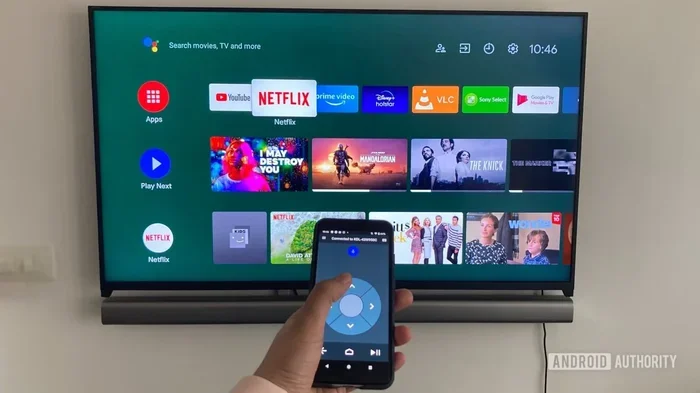
Your phone is one of the best tools for controlling your TV without a remote. Almost every major TV brand offers a free app that turns your smartphone into a remote. These apps use Wi-Fi or infrared to communicate with your TV. The setup is usually very simple and takes just a few minutes.
Samsung SmartThings App
If you have a Samsung TV, the SmartThings app is a great choice. It lets you control your TV, soundbar, and other Samsung devices from one place. You can change channels, adjust volume, and even type text using your phone keyboard. The app also lets you control your TV without Wi-Fi in some cases, which is a big plus. Just download the app, connect your phone to the same network as your TV, and follow the on-screen steps.
LG ThinQ App
LG TV owners can use the ThinQ app for full remote control. It works just like a physical remote but gives you extra features. You can access your TV settings, adjust picture modes, and launch apps directly from your phone. The app also supports voice commands through Google Assistant. This makes it easy to search for shows without typing anything.
Sony TV SideView App
Sony TV users should check out the TV SideView app. It offers a clean and simple interface that mirrors your remote layout. You can also use it to manage your Sony soundbar and home theater system. The app works over Wi-Fi and gives you access to extra settings that a physical remote cannot reach.
Roku Mobile App
If you have a Roku TV or Roku streaming device, the Roku app is perfect. It acts as a full remote with a touchpad, volume buttons, and a headphone jack for private listening. The app also lets you replace your TCL Roku TV remote if your physical remote stops working. It is free and very easy to set up.
Using your phone as a remote has some clear advantages. You always carry your phone with you, so the remote is never truly lost. Phone keyboards make typing search terms much faster. And most of these apps are completely free. The main downside is that some apps need a Wi-Fi connection. If your TV and phone are not on the same network, the app might not work. But for most setups, a smartphone remote is the simplest and most convenient option.
Voice Control Your TV With Smart Assistants
Voice control is one of the most exciting TV remote control alternatives available today. You can use smart speakers or built-in TV microphones to change channels, adjust volume, and launch apps just by speaking. This method is hands-free and very natural to use.
Alexa Voice Commands for TV
Amazon Alexa works with many smart TVs and streaming devices. You can say things like “Alexa, turn on the TV” or “Alexa, increase the volume.” Alexa can also search for shows and switch between inputs. If you have an Echo speaker, you can use it to control your TV with voice commands from across the room. The setup usually involves linking your TV brand skill in the Alexa app.
One great thing about Alexa is that it can also act as a Bluetooth speaker for your TV. This means you can use Alexa-enabled devices to play audio from your TV while still controlling it with your voice. It is a two-in-one solution that adds a lot of value to your setup.
Google Assistant and Google TV Remote
Google Assistant works with Android TVs, Chromecast devices, and many smart TVs from different brands. You can say “Hey Google, change to channel five” or “Hey Google, open Netflix.” Google Assistant is especially good at searching for content across multiple apps. It understands natural language well, so you can ask things like “What movies are playing tonight?” and get quick answers.
Apple Siri and HomeKit
If you are in the Apple ecosystem, Siri can control your TV too. Apple TV users can use Siri for almost everything, from launching apps to searching for content. You can also use HomeKit-compatible smart TVs with Siri on your iPhone or HomePod. The setup is seamless if you already use Apple devices in your home.
Voice control works best when your TV and smart speaker are on the same Wi-Fi network. Make sure your TV supports the voice assistant you want to use. Most modern smart TVs come with built-in support for at least one assistant. If your TV does not support voice control natively, you can add a smart speaker like an Echo or Google Nest to fill the gap.
Use a Universal Remote or IR Blaster
If you prefer a physical remote but your original one is broken or lost, a universal remote is a great option. Universal remotes work with almost any TV brand. They come pre-loaded with codes for hundreds of TV models. You just enter your TV brand and model, and the remote should work right away.
Setting Up a Universal Remote
Setting up a universal remote is straightforward. First, check that the remote supports your TV brand. Most remotes list supported brands on the box or in the manual. Then, enter the code for your specific model. Test the power button to see if it works. If the first code does not work, try the next one in the list. Most universal remotes have a code search feature that makes this process even easier.
Infrared Blasters and Emitters
An infrared blaster is a small device that sends IR signals to your TV. You can connect an IR blaster to your phone or tablet using a USB adapter. This turns your mobile device into a remote control. IR blasters work without Wi-Fi, which makes them very reliable. They are also inexpensive, usually costing under twenty dollars.
IR blasters are great for older TVs that do not have smart features. They also work well as a backup when your Wi-Fi network is down. You can find IR blasters online or at most electronics stores. Some models come with their own apps, so you can customize the remote layout to match your preferences.
Control Your TV With a Keyboard or Mouse
Did you know you can use a keyboard and mouse to navigate your smart TV? This method works especially well on Android TVs and Google TV devices. A USB keyboard gives you a full typing experience, which is much faster than using an on-screen keyboard with a remote.
To use a keyboard with your TV, simply plug it into a USB port on your TV or streaming device. Most smart TVs support USB keyboards right out of the box. You can use the arrow keys to navigate menus and the enter key to select options. A mouse works the same way. Just plug it in and move it around to control the cursor on your screen.
This method is especially helpful when you need to type long search queries or email addresses. It is also a good option if you have limited mobility and find a regular remote hard to use. Control TV with keyboard is one of the simplest and most overlooked methods available.
HDMI-CEC: Control Your TV Without Any Extra Device
HDMI-CEC is a built-in feature that lets connected devices control your TV. CEC stands for Consumer Electronics Control. It uses the HDMI cable to send commands between devices. This means you can use your cable box remote, game controller, or streaming device to turn your TV on and off and change the volume.
How HDMI-CEC Works
When you connect a device to your TV through HDMI, CEC allows that device to communicate with your TV. For example, if you turn on your Roku streaming stick, your TV might turn on automatically too. The same goes for game consoles, soundbars, and Blu-ray players. Each brand calls CEC by a different name, but the feature works the same way across all devices.
To use HDMI-CEC, you need to enable it in your TV settings. Look for settings called “CEC,” “HDMI-CEC,” “SimpLink,” or “Bravia Sync,” depending on your TV brand. Once enabled, your connected devices can control basic TV functions without any extra hardware. It is a free and built-in solution that many people overlook.
Quick Tips and Common Mistakes
Here are some quick tips to make controlling your TV without a remote even easier:
- Keep your phone close: If you use a phone app, make sure your phone stays within Wi-Fi range of your TV.
- Update your apps: Keep your TV remote apps updated for the best performance and bug fixes.
- Check your TV settings: Make sure features like voice control and CEC are turned on in your TV menu.
- Use a USB hub: If your TV has limited USB ports, use a small hub to connect both a keyboard and a mouse.
- Label your IR blaster: If you use an IR blaster, keep it in a visible spot so you remember where it is.
Here are some common mistakes to avoid when setting up remote-free TV control:
- Ignoring Wi-Fi requirements: Some phone apps need both your phone and TV to be on the same Wi-Fi network. Check this first if the app is not working.
- Using the wrong universal remote code: If your universal remote does not respond, try a different code for your TV model.
- Forgetting to enable CEC: HDMI-CEC is off by default on many TVs. You need to turn it on in the settings menu.
- Not checking compatibility: Make sure your TV model is supported by the app or device you want to use.
Expert Insights on TV Remote Alternatives
Experts in home entertainment agree that having multiple ways to control your TV is very valuable. A physical remote is convenient, but it is not the only option. Smart home technology has opened up many new possibilities for wireless TV remote solutions. The best approach is to set up at least two methods so you always have a backup.
Many tech reviewers recommend starting with a smartphone app because it is free and easy to set up. Adding voice control through a smart speaker is the next step. For those who want a more traditional feel, a universal remote is a reliable choice. Combining these methods gives you the most flexibility and ensures you are never stuck without a way to control your TV.
One thing to keep in mind is that TV remote replacement options are more affordable than ever. Universal remotes cost as little as ten to fifteen dollars. IR blasters are even cheaper. These small investments can save you a lot of frustration when your original remote fails or goes missing.
Final Thoughts
Controlling your TV without a remote is simpler than most people think. You have many options, from smartphone apps and voice commands to universal remotes and HDMI-CEC. Each method has its own strengths, and the best choice depends on your TV model and personal preferences. Learning how to control your TV without a remote gives you more flexibility and makes your viewing experience more convenient.
Try out a few of these methods and see which ones work best for you. You might find that you prefer using your phone or voice commands over a traditional remote. Either way, you will never be stuck watching a blank screen just because your remote is missing. Embrace these TV remote control alternatives and enjoy a smarter, more connected viewing experience today.
Frequently Asked Questions
Can I control my TV without Wi-Fi?
Yes, you can. Universal remotes and IR blasters work without any Wi-Fi connection. They use infrared signals to communicate with your TV directly. Some phone apps also work offline if your TV supports infrared. Check your TV model to see which offline options are available.
What is the best free app to use as a TV remote?
The best free app depends on your TV brand. Samsung SmartThings works great for Samsung TVs. The Roku app is ideal for Roku devices. LG ThinQ is perfect for LG sets. Most of these apps are free to download and very easy to set up. Choose the app that matches your TV brand for the best experience.
Can I use voice control if my TV is not a smart TV?
Yes, you can. You can add a smart speaker like an Amazon Echo or Google Nest to control a non-smart TV. These speakers use infrared or Wi-Fi to send commands to your TV. You will need to make sure the speaker is compatible with your TV brand. This is an affordable way to add smart features to any TV.
Do universal remotes work with all TV brands?
Most universal remotes work with all major TV brands including Samsung, LG, Sony, TCL, and Vizio. They come with pre-loaded codes for hundreds of models. You may need to enter a code specific to your TV model for the remote to work properly. Always check the compatibility list before buying a universal remote.
Is HDMI-CEC the same on all TVs?
HDMI-CEC works the same way on all TVs, but each brand uses a different name for it. Samsung calls it Anynet+, LG calls it SimpLink, Sony calls it Bravia Sync, and Roku calls it 1-Touch Play. You can find the setting in your TV’s HDMI or device control menu. Enable it to let connected devices control your TV.
Can I use my phone as a TV remote without an internet connection?
Some phone apps can work without the internet if your TV has an infrared receiver. However, most modern smart TV remote apps need Wi-Fi to function. If you want offline capability, consider using an IR blaster with your phone. This small device sends infrared signals directly to your TV without needing any network connection.