Can I Connect My Soundbar To My Tv Through Bluetooth
Yes, you can connect your soundbar to your TV through Bluetooth, and it is one of the easiest ways to upgrade your home audio setup. This guide covers everything you need to know, from pairing steps to fixing common connection issues. You will learn about compatibility, setup methods, and pro tips for wireless soundbar performance. Whether you own a smart TV or a basic model, Bluetooth streaming can transform your viewing experience. Keep reading to master your TV audio setup in minutes.
So you just bought a soundbar and want to ditch those messy cables. The first question that pops into your head is probably this: can I connect my soundbar to my TV through Bluetooth? The short answer is yes. Most soundbars made in the last five years support Bluetooth pairing right out of the box. But there are a few things you should know before you start pressing buttons on your remote.
Connecting a soundbar wirelessly to your TV is one of the simplest ways to improve your home theater experience. You get richer sound, deeper bass, and clearer dialogue without running a single cable across your living room floor. This guide walks you through everything from the basics of wireless soundbar setup to troubleshooting common problems. By the end, you will feel confident about your TV audio setup and ready to enjoy your favorite shows and movies the way they were meant to sound.
Key Takeaways
- Bluetooth connectivity is widely supported: Most modern soundbars and TVs come with built-in Bluetooth for wireless audio streaming.
- Pairing is simple: You can connect your devices in just a few steps by putting both in pairing mode.
- Range matters: Keep your soundbar within 30 feet of your TV for the best Bluetooth connection.
- Audio latency can be an issue: Some setups may experience slight audio delay, but there are fixes.
- Alternative connections exist: HDMI ARC and optical cables offer wired alternatives if Bluetooth is not available.
- Firmware updates help: Updating your soundbar firmware can improve Bluetooth stability and performance.
- Bluetooth transmitters work as a workaround: Older TVs without Bluetooth can still connect using a transmitter dongle.
📑 Table of Contents
- Can I Connect My Soundbar To My Tv Through Bluetooth?
- Step-by-Step Guide to Pairing Your Soundbar
- Common Bluetooth Soundbar Problems and Fixes
- Bluetooth vs. Wired Connections: Which Is Better?
- How to Connect an Older TV Without Bluetooth
- Tips for Getting the Best Bluetooth Soundbar Performance
- Expert Insights on Bluetooth Soundbar Connections
- Key Takeaways
- Conclusion
Can I Connect My Soundbar To My Tv Through Bluetooth?
The short answer is yes, you absolutely can. Most modern soundbars and smart TVs come equipped with Bluetooth technology. This means you can stream audio from your TV to your soundbar without any cables. It is a wireless connection that uses radio waves to transmit audio signals between devices.
But not all soundbars are created equal. Some older models or budget soundbars may not have Bluetooth built in. And some TVs may only support certain Bluetooth versions, which can affect connection quality. Before you try to pair anything, it helps to understand what you are working with.
How Bluetooth Works with Soundbars
Bluetooth is a short-range wireless technology. It sends audio data between two devices over a distance of about 30 feet. When you pair your soundbar with your TV, the TV acts as the source device and the soundbar acts as the receiving device. The TV sends the audio signal wirelessly, and the soundbar plays it back through its speakers.
The process uses something called Bluetooth pairing mode. Both devices need to be discoverable for a few minutes so they can find each other. Once paired, they remember each other and reconnect automatically when you turn them on. This makes the whole process very convenient for daily use.
What You Need for a Bluetooth Connection
Before you start, make sure you have the following in place:
- A soundbar with Bluetooth support: Check the manual or the back of the unit for the Bluetooth logo or settings menu.
- A TV with Bluetooth or a Bluetooth transmitter: Most smart TVs from brands like Samsung, LG, Sony, and TCL include Bluetooth.
- A stable Wi-Fi connection: While Bluetooth does not need Wi-Fi, some soundbars use Wi-Fi for firmware updates.
- Power for both devices: Make sure your soundbar and TV are both plugged in and turned on.
If your TV does not have Bluetooth, do not worry. You can still connect wirelessly using a Bluetooth transmitter. This is a small dongle that plugs into your TV’s audio output and sends a Bluetooth signal to your soundbar. We will cover this in more detail later.
Step-by-Step Guide to Pairing Your Soundbar
Pairing your soundbar to your TV via Bluetooth is straightforward. Follow these steps and you will be listening to better audio in under five minutes.
Step 1: Turn on Both Devices
Plug in your soundbar and turn it on. Do the same with your TV. Make sure both devices are fully powered and ready to connect. Some soundbars enter pairing mode automatically when you first turn them on. Others require you to press a specific button.
Step 2: Put Your Soundbar in Pairing Mode
On your soundbar remote, look for a button labeled “Bluetooth,” “Pair,” or “Source.” Press and hold it for a few seconds. The soundbar should display a blinking light or a message on its screen indicating it is ready to pair. This is called discoverable mode.
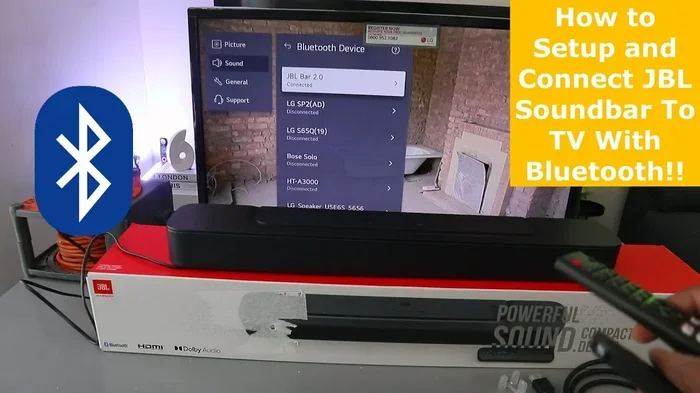
Step 3: Go to Your TV’s Bluetooth Settings
On your TV remote, go to Settings. Look for Bluetooth, Sound, or Connections. The exact path depends on your TV brand. For Samsung TVs, it is usually under Settings > Sound > Sound Output > Bluetooth Speaker List. For LG TVs, try Settings > Sound > Sound Out > Bluetooth Device.
Step 4: Select Your Soundbar
Your TV should now scan for nearby Bluetooth devices. When your soundbar appears on the list, select it. The TV will attempt to pair. You may see a confirmation message or hear a tone from the soundbar. Once connected, the soundbar name will show as the active audio output.
Step 5: Test the Connection
Play a video or some music on your TV. If you hear the audio coming from your soundbar, you are all set. If not, check the TV audio output settings and make sure Bluetooth is selected as the output device.
Common Bluetooth Soundbar Problems and Fixes
Bluetooth connections are not always perfect. Sometimes the audio cuts out, or there is a delay between the video and the sound. Here are the most common issues and how to fix them.
Audio Delay or Lip Sync Issues
One of the most frequent complaints with Bluetooth audio is a slight delay. You see the lips move, but the sound comes a split second later. This is called audio latency, and it happens because Bluetooth compresses and transmits audio data, which takes a tiny bit of time.
To fix this, try the following:
- Go to your TV settings and look for an audio delay or lip sync adjustment.
- Reduce the distance between your TV and soundbar. Closer devices transmit faster.
- Make sure nothing is blocking the signal between the two devices.
- Check if your soundbar has a “low latency” or “game mode” Bluetooth setting.
Soundbar Not Showing Up on TV
If your TV cannot find your soundbar during the scan, try these steps:
- Turn off Bluetooth on both devices and turn them back on.
- Make sure your soundbar is in pairing mode.
- Move the soundbar closer to the TV.
- Remove other Bluetooth devices from the area that might be causing interference.
- Restart both your TV and soundbar.
Audio Keeps Cutting Out
Intermittent audio is frustrating. It usually happens when the Bluetooth range is exceeded or when other wireless signals interfere. Wi-Fi routers, microwaves, and even baby monitors can disrupt the Bluetooth signal.
To solve this, keep your soundbar within 10 to 15 feet of your TV for the most stable connection. Also, try to keep your soundbar away from other wireless devices. If the problem persists, check for a soundbar firmware update. Manufacturers often release updates that improve Bluetooth stability.
Connection Drops After a Few Minutes
Some soundbars are set to go into sleep mode after a period of no audio. When this happens, the Bluetooth connection drops. To fix this, go into your soundbar settings and adjust the sleep timer or auto-off feature. Setting it to a longer time or turning it off entirely can keep the connection steady.
Bluetooth vs. Wired Connections: Which Is Better?
While Bluetooth soundbar connections are convenient, they are not always the best option for every situation. Let us compare Bluetooth to wired alternatives like HDMI ARC and optical cables.
| Feature | Bluetooth | HDMI ARC | Optical Cable |
|---|---|---|---|
| Wireless | Yes | No | No |
| Audio Quality | Good | Excellent | Very Good |
| Setup Difficulty | Easy | Moderate | Easy |
| Audio Latency | Slight Delay | Minimal | Minimal |
| Cable Needed | No | Yes (HDMI) | Yes (Optical) |
| Range | Up to 30 ft | N/A | N/A |
| Best For | Clean Setup | Best Quality | Reliable Audio |
As you can see, Bluetooth wins on convenience. You get a clean, cable-free setup that looks great in any living room. But if audio quality and sync are your top priorities, a wired connection like HDMI ARC is hard to beat. HDMI ARC also lets you control your soundbar with your TV remote, which is a nice bonus.
For most casual viewers, Bluetooth is more than enough. The slight latency is barely noticeable during movies and TV shows. But if you are a serious gamer or an audiophile, you might want to consider a wired connection for the best wireless home theater experience.
How to Connect an Older TV Without Bluetooth
Not every TV has built-in Bluetooth. If your TV is older or is a budget model, you might not find Bluetooth settings in the menu. But that does not mean you are stuck with tinny TV speakers. You have options.
Use a Bluetooth Transmitter
A Bluetooth transmitter is a small adapter that plugs into your TV’s audio output. It acts as a bridge between your TV and your soundbar. The transmitter sends audio wirelessly to your soundbar using Bluetooth, even if your TV does not support it.
Here is how it works:
- Plug the Bluetooth transmitter into your TV’s 3.5mm audio jack, optical output, or HDMI port.
- Put the transmitter in pairing mode.
- Pair your soundbar to the transmitter the same way you would pair it to a TV.
- Play audio and enjoy wireless sound.
Bluetooth transmitters are affordable and widely available online. They cost anywhere from $15 to $50 depending on the brand and features. Some models even support aptX or aptX HD codecs, which deliver better audio quality over Bluetooth.
Use an Aux Cable or RCA Connection
If you do not want to use Bluetooth at all, you can connect your soundbar to your TV with a cable. Most soundbars come with an aux input or RCA ports. You can use a simple cable to run audio from your TV to the soundbar. This gives you a reliable, delay-free connection every time.
The downside is, of course, a cable running across your floor. But if you are not bothered by that, a wired connection is one of the most dependable TV audio setup methods you can use.
Tips for Getting the Best Bluetooth Soundbar Performance
Want to get the most out of your wireless soundbar? Here are some expert tips that make a real difference.
Keep Firmware Updated
Soundbar manufacturers regularly release firmware updates that fix bugs and improve Bluetooth performance. Check your soundbar’s app or settings menu for updates every few months. Keeping your device up to date ensures the smoothest soundbar Bluetooth connection possible.
Place the Soundbar Properly
Position your soundbar directly in front of your TV, ideally on a flat surface below the screen. Avoid placing it inside a closed cabinet or behind furniture. Bluetooth signals travel best with a clear line of sight between devices. If the signal has to pass through walls or metal objects, it can weaken.
Reduce Wireless Interference
Your home is full of wireless signals. Wi-Fi, smart home devices, and even neighboring Bluetooth connections can all interfere with your soundbar’s signal. To minimize interference, keep your soundbar away from your Wi-Fi router and other wireless devices.
Use the Soundbar Remote
When you connect via Bluetooth, your TV remote may not control the soundbar’s volume. Most soundbars come with their own remote, which gives you direct control over volume, bass, treble, and input sources. Keep the soundbar remote handy for the best experience.
Experiment with Sound Modes
Many soundbars come with preset sound modes like Movie, Music, Sports, and Night Mode. Try different modes to see which one sounds best for your content. Movie mode usually enhances dialogue and surround effects, while Night Mode lowers the volume of loud explosions and raises quiet dialogue.
Expert Insights on Bluetooth Soundbar Connections
Audio engineers and home theater specialists agree that Bluetooth has come a long way in recent years. Earlier Bluetooth versions had noticeable latency and lower audio quality. But modern Bluetooth 5.0 and 5.3 standards offer much better performance. The latest codecs like aptX and LDAC deliver near-lossless audio over a wireless connection.
According to experts at Digital Trends and Sound & Vision magazine, the key to a great Bluetooth soundbar setup is patience during the initial pairing process. Make sure both devices are fully updated, keep them close together during the first connection, and test with different types of content to identify any latency issues early.
One thing experts always emphasize: do not assume all Bluetooth connections are the same. The quality of your wireless audio depends heavily on the Bluetooth version supported by both your TV and soundbar, the codec being used, and your home environment. A little knowledge goes a long way in getting the best results.
Key Takeaways
- Bluetooth is the easiest wireless option: Most soundbars and TVs made after 2018 support Bluetooth out of the box.
- Pairing takes just a few minutes: Put both devices in pairing mode, select each other, and you are connected.
- Watch for audio latency: Bluetooth can cause slight delays, but firmware updates and proper placement help reduce this.
- Older TVs can still connect: A Bluetooth transmitter bridges the gap for TVs without built-in Bluetooth.
- Wired connections offer better quality: HDMI ARC and optical cables deliver superior audio if you do not mind cables.
- Placement matters: Keep your soundbar in line of sight and away from interference for the strongest signal.
- Keep firmware updated: Regular updates improve Bluetooth stability and audio performance.
Conclusion
So, can I connect my soundbar to my TV through Bluetooth? Absolutely. It is one of the simplest and most effective upgrades you can make to your home entertainment setup. A wireless soundbar transforms your TV watching experience by delivering richer, fuller sound that makes every scene feel more immersive.
Whether you are pairing a brand-new soundbar or figuring out how to connect an older TV, the process is straightforward. Follow the steps in this guide, troubleshoot any issues that come up, and you will be enjoying better audio in no time. Remember to keep your devices updated, place your soundbar thoughtfully, and experiment with settings until you find the perfect sound profile.
Bluetooth soundbar connections offer a perfect balance of convenience and quality. You get the freedom of wireless audio without the hassle of running cables across your room. And with modern Bluetooth technology, the audio quality is more than good enough for everyday viewing. So go ahead, give it a try, and elevate your TV sound today.
Frequently Asked Questions
Can I connect any soundbar to any TV using Bluetooth?
Not all soundbars and TVs support Bluetooth. Check your TV and soundbar manuals or settings menus to confirm Bluetooth compatibility. If your TV does not have Bluetooth, a Bluetooth transmitter can bridge the gap.
Why is there a delay between the video and audio when using Bluetooth?
This delay, known as audio latency, happens because Bluetooth compresses and transmits audio data wirelessly. It is usually a fraction of a second. You can reduce it by keeping devices close, updating firmware, or using your TV’s audio sync settings.
How far can my soundbar be from my TV when connected via Bluetooth?
Bluetooth has a range of about 30 feet in open space. For the most stable connection, keep your soundbar within 10 to 15 feet of your TV. Walls and other obstacles can reduce the effective range.
Do I need Wi-Fi to connect my soundbar to my TV via Bluetooth?
No, Bluetooth does not require Wi-Fi. It uses its own radio frequency to connect devices directly. However, some soundbars use Wi-Fi for firmware updates or streaming services.
Can I use Bluetooth and HDMI ARC at the same time?
Most soundbars allow only one audio input at a time. If you connect via HDMI ARC, the Bluetooth connection may disconnect. Check your soundbar settings to see if it supports simultaneous inputs.
What should I do if my soundbar keeps disconnecting from my TV?
Try moving the soundbar closer to the TV, removing other wireless devices that might cause interference, and checking for firmware updates. Restarting both devices often resolves temporary connection issues.