Can I Connect Dvi To Tv And Watch Anything On The Big Screen
Yes, you can connect DVI to TV and enjoy your favorite content on the big screen. This guide covers everything you need to know about connecting DVI to TV, including adapters, audio solutions, and step-by-step instructions. You will learn how to make it work easily and avoid common mistakes.
Key Takeaways
- DVI to TV is possible: You can easily connect older DVI devices to modern televisions with the right adapter.
- Audio needs a separate path: DVI does not carry sound, so you need an extra cable or audio extractor for audio.
- Check your connector type: DVI-D, DVI-A, and DVI-I all work differently with TVs and require different setups.
- HDMI adapters are best: Using a DVI to HDMI cable is the simplest and most reliable method for video.
- Adjust your TV settings: Match the display resolution on your TV for the best picture quality and smooth motion.
📑 Table of Contents
- Can I Connect Dvi To Tv And Enjoy The Big Screen
- How To Connect Dvi To Tv Step By Step
- The Audio Challenge When Connecting Dvi To Tv
- Comparing Connection Options For Your TV
- Quick Tips For A Perfect Dvi To Tv Setup
- Common Mistakes When Trying To Connect Dvi To Tv
- Expert Insights For The Best Big Screen Experience
- Conclusion
Can I Connect Dvi To Tv And Enjoy The Big Screen
Many people ask, “Can I connect DVI to TV?” The short answer is yes. You can absolutely connect a DVI output to a television. This is great news if you have an older desktop computer or a legacy device. You want to watch movies, play games, or show presentations on a larger display. Connecting DVI to TV opens up a world of possibilities. You do not need to buy a whole new computer just to use a bigger screen. With the right cable and a little patience, you will be watching your favorite shows in no time. Let us walk through exactly how this works and why it is still so relevant today.
Modern televisions have come a long way. They offer stunning picture quality and smart features. But your older devices might not have the same fancy ports. This is where a simple DVI to TV setup saves the day. You can take that old desktop computer sitting in the closet and bring it back to life. You can turn any spare laptop with a DVI port into a media center. The process is much easier than you might think. It just requires the right adapter and a basic understanding of your connections. Once you see the picture on your big screen, you will wonder why you ever waited.
Before you start buying cables, it helps to understand what you are working with. DVI stands for Digital Visual Interface. It was the standard for many years before HDMI took over. Even though HDMI is the most common port now, DVI is still widely available. Many budget graphics cards and older monitors use DVI. If you are trying to set up a home theater or just want a second screen for work, DVI can do the job. The key is knowing which type of DVI you have and how to bridge the gap to your TV. This guide will give you all the answers you need. You will learn about adapters, audio solutions, and common pitfalls to avoid.
What Is DVI And Why Do People Still Use It
DVI stands for Digital Visual Interface. It was a very popular connector back in the early 2000s. Many desktop computers and older graphics cards still have DVI ports today. Unlike the older VGA connector, DVI can carry a digital signal. This means the picture quality is usually much sharper and clearer. However, DVI does have a big limitation. It does not carry an audio signal. This is the main reason people get stuck when trying to connect to modern televisions. You will see the video, but you will not hear any sound unless you take extra steps. Understanding this difference is the first step to a successful setup.
Another reason DVI is still around is reliability. Digital signals are very stable. They do not suffer from the interference that analog signals do. If you have a long cable run, DVI-D can still deliver a clean picture. Many people prefer the solid connection of a DVI port. It does not wiggle loose as easily as some other cables. When you are setting up a home theater, stability matters. You want your connection to be secure so you are not constantly adjusting things. This is why knowing how to use DVI is a valuable skill. It gives you peace of mind that your picture will not drop out during an intense movie scene.
The Different Types Of DVI Connectors
Not all DVI cables are the same. There are actually three main types you might encounter. Knowing which one you have makes the process much easier. Here are the types you should look for:
- DVI-D: This is a purely digital connection. It offers the best picture quality for digital displays. It is the most common type you will find on modern video cards.
- DVI-A: This is an analog connection. It is basically the same as a VGA cable. You rarely use this for modern TVs because it does not offer the same sharpness.
- DVI-I: This integrates both digital and analog signals. It is the most versatile type of DVI connector. It can work with both digital and analog displays.
If you have a DVI-D or DVI-I cable, you can connect directly to an HDMI port on your TV using a simple adapter. If you have DVI-A, you will need a different conversion method. Always check your ports before buying any cables. This saves a lot of time and frustration. Look closely at the port on your computer. You will see the pin layout. A flat pin means it is DVI-D or DVI-I. A flat pin with surrounding pins means it is DVI-A. Once you know this, your path forward becomes much clearer.
How To Connect Dvi To Tv Step By Step
Now that you know what kind of DVI you have, let us look at the actual setup process. Connecting DVI to TV is usually very straightforward. You just need the right adapter. Most modern televisions use HDMI ports. So, your goal is to bridge the gap between the old DVI port and the new HDMI input. Here is how you do it in a few simple steps.
Step One: Gather Your Equipment
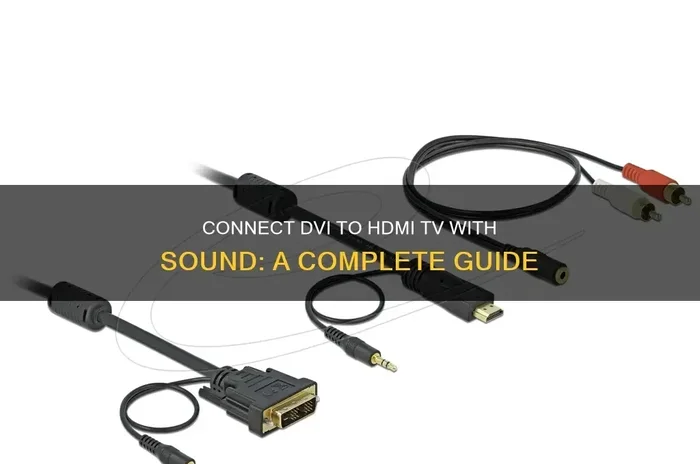
Before you start plugging things in, make sure you have everything. You will need your DVI cable from the computer. Next, you need a DVI to HDMI adapter or a DVI to HDMI cable. These are very cheap and easy to find at any electronics store. You should also have an audio cable ready. This will be a standard 3.5mm headphone jack cable or RCA cables. Having everything ready before you start makes the whole process much smoother. You do not want to be halfway through and realize you are missing a small but important piece. Lay out all your cables on the table so you can see what you are working with.
Step Two: Plug In The Video Cable
Take your DVI cable and plug it into the computer. Make sure it clicks into place firmly. Then, connect the other end to your DVI to HDMI adapter. Plug the adapter into the HDMI port on your television. Turn on the TV and switch the input source to the correct HDMI port. You should see a picture on the screen right away. If the screen is black, double-check that all the connections are tight. A loose cable is the most common reason for a blank screen. Sometimes dust can get inside the port, so give it a gentle blow before plugging it in. This small trick solves the problem more often than you might think.
Step Three: Adjust The Display Settings
Once you see the picture, you might need to tweak some settings. Right-click on your desktop and select display settings. Look for the resolution dropdown menu. Set the resolution to match your TV’s native resolution. For most modern TVs, this is 1080p or Full HD. If you have a 4K TV, you might be limited by your DVI connection. DVI typically maxes out at 1080p. Do not worry, 1080p looks great on most screens. Click apply to save your changes. You should also check your refresh rate. A higher refresh rate like 60Hz or 75Hz makes motion look smoother. This is especially important if you are using this setup for a gaming console or fast-moving video. A smooth picture makes a huge difference in your viewing comfort.
The Audio Challenge When Connecting Dvi To Tv
This is the part that trips most people up. DVI only carries video. It does not send sound to your television. So even if the picture looks perfect, you will hear silence. You must find a way to get the audio to your TV or speakers. Do not worry, this is an easy fix. There are a few different ways to solve the audio problem. You just need to pick the one that works best for your room setup. Signal conversion for video is handled by the DVI to HDMI adapter, but audio requires its own path.
Using A Separate Audio Cable
The most common method is to run audio separately. Your computer or graphics card likely has a green audio jack. Take a standard 3.5mm audio cable and plug it into the computer. Then, plug the other end into the audio input on your TV. If your TV does not have a 3.5mm input, you can use RCA red and white cables instead. Once you plug this in, you need to tell your TV to use the external audio input. Go into your TV settings and select the right audio source. Now the sound will come through your TV speakers. This method is very reliable and does not require any extra equipment. It is the simplest way to get sound from a DVI connected device. Just make sure the cable is long enough to reach from your computer desk to your TV stand.
Using External Computer Speakers
If running a cable to the TV sounds like too much hassle, you have another option. You can just use computer speakers. Plug them directly into the green audio jack on your PC. This completely bypasses the TV for audio. The video goes to the TV through the DVI adapter, and the audio goes to the speakers. This works great if the TV is far away or if you want better sound quality anyway. Many modern Bluetooth speakers work perfectly for this setup too. You can place the speakers anywhere in the room. This gives you a big screen experience without sacrificing audio quality. Just remember to charge your wireless speakers before a movie night. A good pair of desktop computer speakers can also make a big difference in sound clarity.
Audio Extractors For A Cleaner Setup
For the cleanest possible setup, consider buying an audio extractor. This is a small box that sits between your computer and your TV. You plug the DVI cable into the extractor. Then, you plug an HDMI cable from the extractor to the TV. The extractor also has a 3.5mm or optical audio output. You run that to your sound system or TV. This keeps all the cables neat and tidy. It also ensures you get the best possible video and audio quality. Audio extractors are a great investment if you watch a lot of media. They handle the signal conversion for you automatically. This means you do not have to mess with your TV settings every time you turn on the computer. It is a plug-and-play solution that works beautifully for older devices.
Comparing Connection Options For Your TV
When you are trying to get a picture on your TV, you have several choices. DVI is just one option. It is helpful to compare DVI with other common cables. This helps you understand why you might choose one over the other. Here is a quick comparison of the most popular video cables used for home entertainment and screen mirroring.
DVI vs HDMI vs VGA
HDMI is the current standard for most home entertainment. It carries both video and audio in one single cable. This makes it incredibly convenient. You just plug one cord in and everything works. DVI was the standard before HDMI became popular. It carries excellent video, but no audio. VGA is the oldest standard. It is an analog connection and usually looks blurry on modern televisions. If you have a choice, always use HDMI. But if your computer only has DVI, do not worry. You can still get a great picture using an HDMI adapter. The quality difference between DVI and HDMI at 1080p is almost invisible to the human eye. Many people cannot tell the difference when watching a movie.
| Connection Type | Carries Video | Carries Audio | Max Resolution | Ease Of Use |
|---|---|---|---|---|
| DVI | Yes | No | 1080p | Medium (needs adapter) |
| HDMI | Yes | Yes | 4K | Very Easy (plug and play) |
| VGA | Yes | No | 720p (usually blurry) | Easy (but older tech) |
As you can see from the table, DVI is a solid middle ground. It gives you a sharp digital picture. You just have to handle the audio separately. For many people, this is a totally acceptable trade-off. Especially if they are using older devices that still work perfectly. Many gamers still use DVI because it offers a very stable connection. If you are connecting a gaming console or an older desktop computer, DVI is a great choice. The setup is simple once you have the right adapter. Do not let the lack of audio scare you away from using DVI. It is a very capable connection for video. You will be surprised how well it performs on a modern TV.
Quick Tips For A Perfect Dvi To Tv Setup
Setting up a DVI to TV connection does not have to be stressful. A few simple tips can make the whole experience much better. Here are some quick tips to keep in mind. These will help you avoid common problems and get the best picture possible on your modern televisions.
- Check your refresh rate: Make sure your TV and computer refresh rate match. A mismatch can cause flickering or a poor image. Most modern TVs use 60Hz. Set your computer to match this for the smoothest motion.
- Use a high quality adapter: Cheap adapters can cause signal loss. Spend a few extra dollars on a reputable brand. A good adapter ensures a stable digital connection and prevents dropouts.
- Keep cables short: Longer cables can degrade the signal. Try to keep your DVI and HDMI runs under six feet. This keeps the picture crisp and clear without any interference.
- Update your graphics drivers: Sometimes a blank screen is just a driver issue. Update your computer’s graphics software before you buy new cables. This fixes many display problems instantly.
- Test with different ports: If your TV has multiple HDMI ports, try a different one. Sometimes a specific port is faulty or not set to the right input. A simple switch can bring your picture back to life.
Common Mistakes When Trying To Connect Dvi To Tv
Even with the best intentions, people make mistakes. Avoiding these common errors will save you a lot of headache. Here is what to watch out for when you are setting up your display and video cable connections.
Ignoring The Audio Cable
The biggest mistake is assuming the sound will just work. Because DVI does not carry audio, you will be completely silent if you do not plug in a separate audio cable. Always plan for the audio setup before you start. This way, you are not left wondering why you cannot hear anything. Double-check that your audio cable is plugged into the correct jacks. A green port is for audio out on your computer. If you skip this step, your big screen experience will be very quiet. Take the extra five minutes to run that audio cable. It makes all the difference in the world.
Buying The Wrong Adapter
Not all adapters are created equal. If you buy a DVI to VGA adapter, you will not get a digital signal to your TV. Make sure you specifically buy a DVI to HDMI adapter. Check the letters on your DVI port. If it says DVI-D, you need a DVI-D to HDMI adapter. Using the wrong one will result in no picture at all. Take a moment to look at your port before you shop. This small step saves a lot of time and money. It is the difference between a working setup and a frustrating one. Read the packaging carefully to ensure compatibility with your specific DVI type.
Forgetting To Change The TV Input
It sounds obvious, but many people forget to switch the TV to the right input. You plug everything in, but the screen stays black. Press the input or source button on your TV remote. Cycle through the options until you find the HDMI port you used. Sometimes the TV takes a few seconds to detect a new signal. Wait a moment after switching inputs. If you still see nothing, try unplugging the adapter and plugging it back in. This simple reset often fixes detection issues immediately. Patience is key when dealing with signal conversion and new hardware.
Resolution Mismatches
Another common issue is a resolution mismatch. If your computer is outputting a resolution your TV does not support, the screen might go black or look distorted. Always check your TV’s native resolution first. Most TVs are 1080p, but some are 4K or 720p. Set your computer to match. You can usually find this in your display settings. If the picture looks blurry, try lowering the resolution by one step. A clear picture is much better than a stretched one. Getting the display resolution right ensures you get the sharpest image possible.
Expert Insights For The Best Big Screen Experience
To get the most out of your DVI to TV setup, you need to pay attention to a few details. These expert insights will help you get the best possible picture and sound. You do not need to be a tech expert to do this. Just follow these simple steps and you will notice a big difference in your viewing experience.
First, always calibrate your TV picture settings. Most TVs come out of the box with very bright and overly saturated colors. Go into your TV menu and set the picture mode to Movie or Cinema. This gives you the most accurate colors and true blacks. Second, make sure your computer is outputting the correct color space. In your display settings, look for RGB or Limited options. Set it to RGB for the best results on most TVs. Third, keep your firmware updated. Both your TV and your computer benefit from the latest software updates. This ensures maximum compatibility and fewer bugs. Finally, consider the lighting in your room. Even the best display resolution looks washed out in bright sunlight. Close your blinds or draw your curtains for the best viewing experience.
Also, think about how you will use the setup. If you are just watching movies, the default settings are fine. But if you are doing screen mirroring for work or presentations, you might want to adjust the scaling. Go to your display settings and look for the “Scale and layout” option. Setting this to 100% or 125% makes text much easier to read from a distance. This is a small tweak that makes a huge difference. It turns your TV into a proper second monitor for your desktop computer. You can read documents and browse the web comfortably from across the room.
Conclusion
So, can I connect DVI to TV? Absolutely. You now have all the information you need to make it work. Whether you are using a DVI to HDMI adapter or running a separate audio cable, the process is simple. Connecting DVI to TV is a fantastic way to breathe new life into older computers and devices. You get to enjoy a huge big screen experience without spending a fortune on new hardware. Just remember to handle the audio separately, check your adapter types, and adjust your display settings. With these steps, you will be watching your favorite content on the larger display in no time. Enjoy your movie night and make the most of your setup!
Take your time with the setup. Rushing through it often leads to mistakes. Double-check every connection. Make sure your cables are secure. Test the audio and video before you settle in for a movie. A little preparation goes a long way. Soon, you will be enjoying all your favorite shows and games on the big screen. Your old devices still have plenty of life left in them. Give them a new home on your television. You will be glad you did.
Frequently Asked Questions
Can I connect DVI to TV without an adapter?
No, you cannot connect DVI directly to a modern TV without an adapter. Most modern TVs only have HDMI ports. You need a DVI to HDMI adapter or cable to bridge the gap between the two different connection types.
Why is there no sound when I connect DVI to my TV?
DVI cables do not carry an audio signal. They only transmit video. To get sound, you must plug a separate audio cable from your computer’s headphone jack into your TV’s audio input, or use external speakers.
What is the difference between DVI-D and DVI-I?
DVI-D is a purely digital connection, which offers the sharpest picture for modern TVs. DVI-I supports both digital and analog signals, making it more versatile. For connecting to a TV, DVI-D or DVI-I will both work with an HDMI adapter.
Can I use a DVI to TV connection for 4K resolution?
No, standard DVI connections typically max out at 1080p resolution. They do not support the higher bandwidth required for 4K. If you need 4K, you will need to use an HDMI cable or upgrade your graphics card.
Do I need a special DVI cable to connect to a TV?
You do not need a special DVI cable, but you do need a DVI to HDMI adapter. Any standard DVI cable will work fine. Just make sure the adapter matches your DVI port type, whether it is DVI-D or DVI-I.
Is DVI to TV better than using VGA?
Yes, DVI is much better than VGA for connecting to a TV. DVI carries a digital signal, which results in a sharper and clearer picture. VGA carries an analog signal, which often looks blurry and is more prone to interference.