Do Airpods Show Up On Device List And How To Fix It
Do Airpods Show Up On Device List depends on your Bluetooth settings, battery level, and device compatibility. When AirPods don’t appear, it is usually a simple pairing or reset issue. This guide walks you through every fix step by step, so you can get back to listening fast.
Key Takeaways
- AirPods do appear on device lists when Bluetooth is on and they are in pairing mode.
- A dead battery or outdated firmware is the most common reason AirPods vanish from the list.
- Resetting your AirPods solves most visibility problems in under two minutes.
- Checking Bluetooth settings on each device helps you manage where your AirPods connect.
- Keeping your devices updated prevents most connection and discovery issues.
- Distance and interference can also cause AirPods to hide from the device list.
📑 Table of Contents
- Do Airpods Show Up On Device List And How To Fix It
- Why Do Airpods Sometimes Not Show On The Device List
- How To Make Airpods Show Up On The Device List
- Can Airpods Show Up On Multiple Devices At Once
- How Bluetooth Device Discovery Works
- Common Mistakes That Hide Airpods From The Device List
- Quick Tips To Keep Airpods Visible And Connected
- When To Contact Apple Support
- Conclusion
Do Airpods Show Up On Device List And How To Fix It
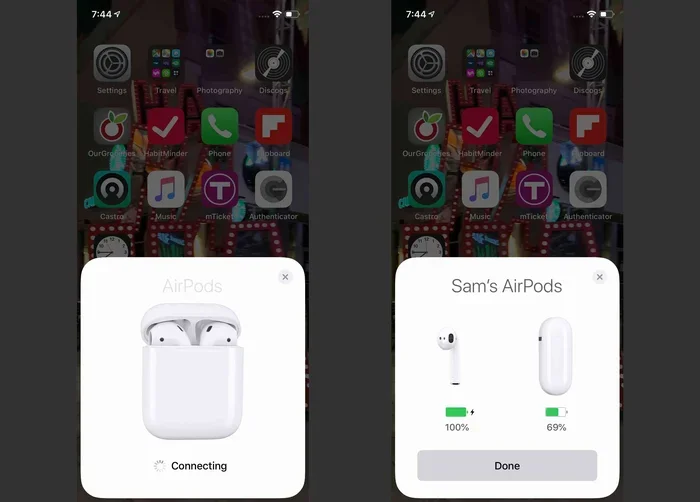
If you have ever opened your Bluetooth settings and wondered do Airpods show up on device list, you are not alone. This is one of the most common questions AirPods users ask. Whether you are trying to connect to a new phone, a laptop, or a tablet, seeing your AirPods on the list matters. When they do not show up, it can feel frustrating and confusing.
The good news is that this problem is almost always fixable. Most of the time, it comes down to a simple setting or a low battery. In this article, we explain exactly why AirPods may not appear on your device list. We also give you clear, step-by-step fixes you can try right now. You will learn how to make your AirPods visible again and keep them connected across all your devices.
AirPods work seamlessly with Apple devices, but they can also connect to non-Apple products. Bluetooth device list visibility depends on a few key factors. These include your AirPods charge level, the Bluetooth version on your device, and whether your AirPods are in discovery mode. We will cover all of this and more below.
Whether you use AirPods Pro, AirPods Max, or the original AirPods, the same rules apply. The steps to make them show up are nearly identical across all models. Let us dive into the details and get your AirPods back on the list.
Why Do Airpods Sometimes Not Show On The Device List
Before we jump into fixes, it helps to understand why this happens. Several things can cause your AirPods to disappear from the Bluetooth list. Knowing the root cause makes fixing the problem much easier.
Low Battery Power
The number one reason AirPods vanish from the device list is a low battery. When your AirPods or their case run low on charge, they may stop broadcasting a Bluetooth signal. This means they become invisible to other devices. Even if the AirPods themselves have some charge, a dead case can prevent them from pairing.
Always check the battery level before troubleshooting. Place your AirPods in the case and open the lid. If the LED light does not come on, the case needs charging. A quick charge of about 15 minutes usually brings them back to life.
AirPods Are Not In Pairing Mode
AirPods only appear on the device list when they are in pairing or discovery mode. If your AirPods are already connected to another device nearby, they will not show up on a new one. This is by design. Bluetooth devices stay connected to one active device at a time to save power and avoid interference.
To put AirPods in pairing mode, open the lid of the case with the AirPods inside. Press and hold the setup button on the back of the case until the LED light flashes white. That flashing light means your AirPods are ready to be found.
Bluetooth Is Turned Off Or Stuck
This sounds obvious, but it happens more often than you think. Sometimes Bluetooth on your phone or laptop turns off without you noticing. Other times, the Bluetooth module gets stuck and needs a refresh. A quick toggle off and on can do the trick in most cases.
On iPhone, you can swipe down from the top right corner and tap the Bluetooth icon. On Windows, go to Settings and then Bluetooth & devices. On Android, check your quick settings panel. Make sure Bluetooth is fully on before looking for your AirPods.
Outdated Firmware Or Software
AirPods receive firmware updates that improve connectivity and fix bugs. If your AirPods are running old firmware, they may not show up properly on newer devices. Similarly, if your phone or laptop has an outdated operating system, there could be a compatibility gap.
Apple pushes AirPods firmware updates automatically when they are connected to an iPhone. To make sure you are up to date, connect your AirPods to your iPhone, go to Settings, then General, then About, and then AirPods. If an update is available, it will install there.
Too Many Devices Connected
Bluetooth has a limit on how many devices it can actively manage. If your phone is connected to a smartwatch, a speaker, a keyboard, and more, it may not scan for new devices properly. Disconnecting a few unused devices can free up space and help your AirPods appear.
Also, if you have been using can i use airpods with cardo or other Bluetooth accessories, those connections can sometimes interfere. Try disconnecting other Bluetooth devices temporarily and see if your AirPods pop up on the list.
How To Make Airpods Show Up On The Device List
Now that you know the common causes, let us walk through the fixes. These steps work for iPhone, iPad, Android phones, Windows laptops, and Mac computers. Follow them in order for the best results.
Step One: Charge Your AirPods And Case
Plug your AirPods case into a power source using a Lightning cable or MagSafe charger. Wait at least 10 to 15 minutes. You want enough charge to power the Bluetooth radio. After charging, open the lid and check that the LED light turns on.
If the LED does not light up at all, try a different cable or power adapter. A faulty cable can prevent charging, which in turn prevents your AirPods from being visible. This is a simple step that many people skip, but it solves the problem more often than you would expect.
Step Two: Put AirPods In Pairing Mode
With the lid open and AirPods inside, press and hold the setup button on the back of the case. Hold it for about five seconds until the LED starts flashing white. If the LED flashes amber, your AirPods need to be reset instead (we cover that below).
Once the white flash appears, go to your device’s Bluetooth settings and start a new scan. Your AirPods should appear within a few seconds. Tap on them to connect.
Step Three: Toggle Bluetooth Off And On
Turn Bluetooth off on your device and wait 10 seconds. Then turn it back on. This refreshes the Bluetooth module and forces a new scan of available devices. It is a quick fix that resolves many connectivity hiccups.
On iPhone, you can also toggle Airplane Mode on and off as an alternative. This resets all wireless connections at once, including Bluetooth. It takes just a few seconds and often works like magic.
Step Four: Remove And Re Add AirPods
If toggling Bluetooth does not work, try removing your AirPods from the device list entirely. Go to your Bluetooth settings, find your AirPods (if they appear), and tap the info icon. Choose “Forget This Device” or “Remove.”
Then put your AirPods back in pairing mode and scan again. This clears any old connection data that might be causing conflicts. It is one of the most effective fixes for stubborn visibility issues.
Step Five: Reset Your AirPods
If none of the above steps work, a full reset is the next move. Here is how to do it:
- Place both AirPods in the case and close the lid.
- Wait 30 seconds, then open the lid.
- Press and hold the setup button on the back of the case for about 15 seconds.
- The LED light will flash amber, then white. This means the reset is complete.
- Now put your AirPods back in pairing mode and try connecting again.
Resetting your AirPods erases all previous pairing data. They will act like brand new AirPods. This fix works for almost every visibility problem.
Can Airpods Show Up On Multiple Devices At Once
Apple designed AirPods to switch between Apple devices automatically. If you are signed into the same Apple ID on your iPhone, iPad, and Mac, your AirPods can connect to any of them. However, they only actively connect to one device at a time for audio playback.
When you start playing audio on your iPad, for example, your AirPods will switch to the iPad automatically. This feature is called “Automatic Switching” and it is very convenient. You can find it in Settings, then Bluetooth, then tap the info icon next to your AirPods on your iPhone.
On non-Apple devices, things work differently. Your AirPods will only show up on one device at a time unless you manually disconnect them from one device before connecting to another. If you want to use your AirPods with a Windows laptop and a phone, you need to disconnect them from one before pairing with the other.
Some users also ask about using AirPods for long listening sessions. If you are wondering about comfort and earplug-style usage, check out can i use airpods as earplugs for helpful tips on using AirPods as ear protection during loud activities.
How Bluetooth Device Discovery Works
Bluetooth uses a process called “discovery” or “inquiry scanning” to find nearby devices. When a device is in discovery mode, it broadcasts a signal that other devices can detect. This is how your phone finds your AirPods, and how your AirPods find your phone.
Not all Bluetooth devices are always discoverable. Most devices, including AirPods, only become discoverable during the initial pairing process or when manually placed in pairing mode. After a successful connection, the device stops broadcasting to save battery and reduce interference.
Bluetooth range also plays a role. Standard Bluetooth has a range of about 30 feet (10 meters). Walls, furniture, and other electronics can reduce this range. If your AirPods are too far away or blocked by obstacles, they may not show up on the device list even when in pairing mode.
Interestingly, the same discovery principles apply to other Bluetooth devices. For instance, if you have ever wondered about connecting game controllers, the process is similar to how can i use a usb controller on my switch works through Bluetooth pairing and device discovery.
Common Mistakes That Hide Airpods From The Device List
Many people make small mistakes that prevent their AirPods from showing up. Knowing these pitfalls can save you a lot of time and frustration.
Keeping The Case Lid Closed
This one is obvious but surprisingly common. If the case lid is not fully open, the AirPods stay in sleep mode and do not broadcast a Bluetooth signal. Always make sure the lid is wide open before trying to pair.
Forgetting To Charge The Case
People often focus on charging the AirPods themselves but forget the case. The case holds the Bluetooth chip that makes your AirPods discoverable. A dead case means invisible AirPods, even if the earbuds are fully charged.
Being Too Far From The Device
Bluetooth has a limited range. If your phone is in another room, your AirPods may not show up during a scan. Bring the devices closer together when pairing. Once connected, you can move further away.
Not Updating Your Devices
Old software can cause Bluetooth compatibility issues. Always keep your phone, tablet, and laptop updated to the latest operating system version. Apple and Google regularly push updates that fix Bluetooth bugs and improve device discovery.
Ignoring Interference From Other Devices
Wi-Fi routers, microwaves, and even USB 3.0 ports can interfere with Bluetooth signals. If you are in a crowded area with many Bluetooth devices, your AirPods might have trouble showing up. Move to a quieter area and try again.
Quick Tips To Keep Airpods Visible And Connected
Once your AirPods are showing up and connected, you want to keep them that way. Here are some quick tips to maintain a smooth Bluetooth experience.
- Charge your AirPods case regularly. Keep it above 50 percent whenever possible.
- Update your devices frequently. Install iOS, Android, and Windows updates as soon as they are available.
- Reset your AirPods once a month. This clears any cached connection data and keeps things running smoothly.
- Keep your AirPods clean. Dirt and debris in the charging contacts can prevent proper charging and connectivity.
- Restart your phone or laptop when Bluetooth acts up. A simple reboot can fix many temporary Bluetooth glitches.
- Avoid connecting to too many Bluetooth devices at once. Disconnect devices you are not actively using.
- Store your AirPods in the case when not in use. This protects the battery and keeps the Bluetooth module ready.
When To Contact Apple Support
Most visibility issues with AirPods are fixable at home using the steps above. However, there are times when the problem points to a hardware issue. If you have tried every fix and your AirPods still do not show up on any device, it may be time to seek professional help.
Signs of a hardware problem include a case that will not charge at all, AirPods that make unusual sounds, or one AirPod that is significantly louder than the other. These issues are not related to Bluetooth settings or software and need professional diagnosis.
You can contact Apple Support through the Apple Support app, the Apple website, or by visiting an Apple Store or authorized service provider. If your AirPods are still under warranty or covered by AppleCare, the repair or replacement will likely be free.
Also, keep in mind that AirPods connected to other accessories, such as the question of can i use airpods with cardo or similar Bluetooth devices, can sometimes cause firmware conflicts. If you use AirPods with third-party accessories and notice visibility issues, try disconnecting those accessories and testing again.
Conclusion
Do Airpods Show Up On Device List is a question with a straightforward answer. Yes, they do, as long as they are charged, in pairing mode, and within Bluetooth range. When they do not show up, the fix is usually quick and simple. Start with the basics, charge your case, toggle Bluetooth, and reset if needed.
Most visibility problems are caused by low battery, outdated software, or a simple pairing glitch. The fixes in this guide cover all of these scenarios. By following the steps in order, you should be able to get your AirPods back on the device list within minutes.
Keep your devices updated, charge your AirPods regularly, and treat them well. These small habits go a long way in preventing connectivity issues. Now that you know how to fix the problem, you can enjoy your music, podcasts, and calls without interruption. Happy listening!
Frequently Asked Questions
Why do my AirPods not show up on any device list?
The most common reasons are a low battery, AirPods not being in pairing mode, or Bluetooth being turned off. Try charging your AirPods case, putting the AirPods in pairing mode, and toggling Bluetooth on and off. If that does not work, reset your AirPods using the setup button on the back of the case.
How long do AirPods stay visible on a device list?
AirPods stay visible for about 5 minutes after you put them in pairing mode. If they do not connect within that window, they will go back to sleep and disappear from the list. Simply put them back in pairing mode and try again.
Can I see AirPods on a Windows PC or Android phone?
Yes, AirPods can show up on any device with Bluetooth, including Windows PCs and Android phones. You may need to put them in pairing mode manually since Apple devices auto-pair more easily. Once paired, they will reconnect automatically when Bluetooth is on.
Do AirPods show up on the device list when the case is closed?
No, AirPods do not show up when the case is closed. The case needs to be open for the AirPods to broadcast a Bluetooth signal. Always open the lid fully before scanning for devices.
What should I do if my AirPods show up but will not connect?
If your AirPods appear on the list but refuse to connect, try forgetting the device on your phone or laptop and then reconnecting. Also check that your AirPods firmware is up to date. Restarting the device you are trying to connect to can also resolve the issue.
Can interference from other devices prevent AirPods from showing up?
Yes, other Bluetooth devices, Wi-Fi routers, and even USB 3.0 ports can create interference that hides your AirPods from the device list. Move to a quieter area with fewer wireless devices and try scanning again. Disconnecting unused Bluetooth devices can also help.