Can You Use A Document Camera Without A Projector
Yes, you can absolutely use a document camera without a projector. A document camera works as a powerful visualizer that connects directly to a monitor, laptop, or even a TV screen. You do not need a projector to share documents, annotate in real time, or present materials clearly. This guide covers every method, setup option, and practical tip so you can start using your document camera right away, no projector required.
This is a comprehensive guide about Can You Use A Document Camera Without A Projector.
Key Takeaways
- Document cameras work independently: They connect to monitors, laptops, and TVs without needing a projector at all.
- Multiple connection options exist: USB, HDMI, and wireless methods let you display documents on almost any screen.
- Teaching and presentation benefits remain: You still get real-time annotation, zoom, and document sharing without a projector.
- Cost savings are real: Skipping the projector can save hundreds of dollars while still delivering a clear visual experience.
- Setup is simple: Most document cameras plug in and work within minutes using common cables and software.
- Alternative projection methods work well: You can use a blank wall, a white sheet, or blackout curtains as a makeshift screen if needed.
- Compatibility matters: Check your camera’s ports and your display’s inputs before buying cables or adapters.
[FEATURED_IMAGE_PLACEHOLDER]
Can You Use A Document Camera Without A Projector?
The short answer is a confident yes. A document camera does not need a projector to function. Many people assume these devices only work with a projector, but that is far from the truth. A document camera is really just a high-tech camera designed to capture and display physical documents, objects, or written notes in real time.
You can connect a document camera directly to a computer monitor, a laptop screen, a television, or even a tablet. The image appears on the connected display just like it would on a projector screen. This opens up a world of flexibility for teachers, presenters, and professionals who want to share visual content without the bulk and cost of a projector setup.
What makes this especially useful is that you do not need a dark room either. Projectors struggle in bright environments, but a monitor or TV screen stays perfectly visible regardless of the lighting. You get a crisp, bright image every time. Whether you are in a small office, a bright classroom, or at home, a document camera without a projector can still deliver excellent results.
In this article, we will walk through every way you can use a document camera without a projector. We will cover connection methods, setup steps, best practices, and common mistakes to avoid. By the end, you will have everything you need to set up your own document camera display system today.
What Exactly Is A Document Camera?
A document camera is a specialized camera mounted on a stand. It captures real-time images of documents, three-dimensional objects, and handwritten notes. The camera feeds the image to a display device so everyone in the room can see what is being shown.
These devices became popular in classrooms and boardrooms over the past two decades. They replaced old overhead projectors and offer much more flexibility. You can zoom in on text, rotate images, and even record sessions for later viewing.
Most document cameras connect to a computer or display through a USB cable or HDMI cable. Some newer models support wireless connections too. The key thing to remember is that the camera itself does not produce any image on its own. It needs a display device, and that device does not have to be a projector.
How Document Cameras Differ From Projectors
A projector takes an image from a source and throws it onto a large screen or wall. A document camera captures images and sends them to a display. They serve different purposes even though they often work together. Think of a document camera as the eyes and a projector as the megaphone that amplifies the view for a large audience.
Without a projector, the document camera still functions as a powerful visualizer. You simply view the content on a smaller or medium-sized screen instead of a large projected image. For many settings, this is more than enough and often produces a sharper, brighter image.
How To Connect A Document Camera To A Monitor
Connecting a document camera to a monitor is one of the simplest ways to use it without a projector. Most modern document cameras come with a USB cable and sometimes an HDMI cable. You can plug the camera directly into a computer monitor or use a USB connection to a laptop that is linked to an external display.
Here is a simple step-by-step process:
- Place your document camera on a stable surface or mount.
- Connect the USB cable from the camera to your computer.
- If your camera has an HDMI output, connect it directly to your monitor using an HDMI cable.
- Open the camera software on your computer or select the HDMI input on your monitor.
- Place a document under the camera and adjust the focus and zoom.
That is it. Your document now appears on the monitor in real time. You can write on the document, zoom into specific sections, and show details that would be hard to see with the naked eye.
Using A USB Connection
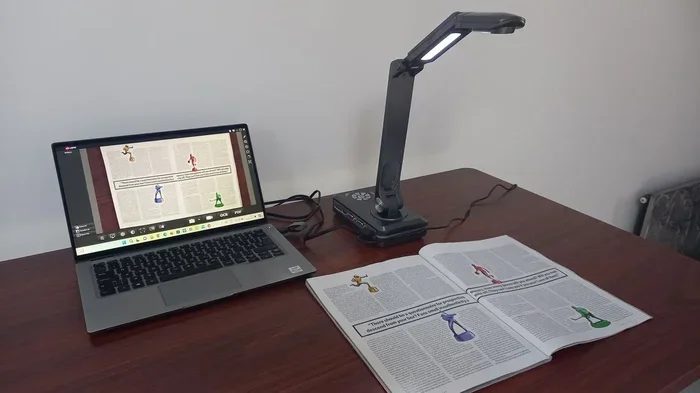
Most document cameras use a standard USB connection. This is the most common method because nearly every computer has USB ports. The camera acts like a webcam when connected via USB. Your computer recognizes it as an external camera, and you can use it with video conferencing software, presentation software, or dedicated document camera software.
The USB method works great for smaller groups. If you are using a laptop connected to a monitor, everyone can see the display clearly. The image quality depends on your camera’s resolution, but most modern models offer at least 1080p, which looks sharp on any screen size.
Using An HDMI Connection
If your document camera has an HDMI output, you can skip the computer entirely. Just plug the HDMI cable from the camera directly into any HDMI-enabled monitor or television. The camera becomes a standalone device, and the image appears instantly on the screen.
This method is perfect for classrooms or meeting rooms where you want a quick setup. There is no software to install, no computer to boot up, and no lag time. You place a document under the camera, and it shows up on the screen right away. Many presenters prefer this method for its simplicity and reliability.
Using A Document Camera With A Laptop Screen
A laptop screen is one of the most accessible displays you can use with a document camera. Since most document cameras connect via USB, you simply plug the camera into your laptop and open the camera app or presentation software.
This setup works beautifully for one-on-one sessions, small group meetings, or remote presentations. You can share your laptop screen through a video call, and the person on the other end sees exactly what the document camera captures. This makes the document camera a versatile tool for remote work, online teaching, and virtual presentations.
One major advantage of using a laptop screen is portability. You can set up a document camera on a kitchen table, a desk, or even a tray table on a plane. As long as you have your laptop, you have a display. This makes the document camera an excellent travel companion for educators and business professionals alike.
Maximizing Laptop Screen Visibility
To get the best results from a laptop screen, adjust the brightness to match your room lighting. In bright rooms, increase the brightness so the document remains visible. You can also use full-screen mode in your presentation software to make the image as large as possible on the laptop display.
If you are presenting to a small group, position the laptop so everyone can see the screen comfortably. A laptop stand can help elevate the screen to eye level, making it easier for everyone to view the document clearly.
Using A Document Camera With A Television Or Large Screen
A television or large screen TV makes an excellent alternative to a projector. Most modern TVs have multiple HDMI inputs, and many also support USB connections. This gives you flexible options for displaying your document camera feed on a big screen.
Using a TV has several advantages over a projector. The image is always bright and clear, even in a room with windows and overhead lights. There is no need to dim the lights or close the curtains. You also avoid the fan noise and heat that projectors generate. A TV stays cool and quiet while delivering a vibrant image.
Connecting Via HDMI
For the best quality, use an HDMI cable to connect your document camera directly to the TV. Most document cameras with HDMI output work seamlessly with any modern television. Simply plug one end into the camera and the other into an available HDMI port on the TV.
Switch the TV to the correct HDMI input using the remote control. The document camera image should appear immediately. You can now use the camera’s controls to zoom, focus, and adjust the image as needed. This setup is ideal for classrooms, conference rooms, and home offices where a large, clear display matters.
Connecting Via USB To A Smart TV
Some smart TVs allow USB connections for external cameras. If your TV supports this, you can connect the document camera directly to the TV’s USB port. The TV may recognize the camera as an external device and display the feed on the screen.
Not all smart TVs support USB camera input, so check your TV’s manual or settings before trying this method. If your TV does not support USB cameras, the HDMI method or the computer-connected method will work just as well.
Alternative Display Methods Without A Projector
Beyond monitors, laptops, and TVs, there are other creative ways to display a document camera feed without a projector. These alternatives give you even more flexibility depending on your situation and available equipment.
Using A Blank Wall As A Display
You can project a document camera image onto a blank wall if you have the right setup. Some document cameras work with portable smart projectors that are compact and affordable. But if you want to avoid a projector entirely, you can use a large monitor or TV mounted on the wall. The document camera feeds into the display, and the wall behind the screen becomes a natural viewing area for the audience.
If you are looking for a more DIY approach, some people use a blank white wall combined with a large tablet or monitor placed nearby. This creates a pseudo-projector experience without any actual projection equipment.
Using A Sheet Or Whiteboard As A Makeshift Screen
In a pinch, you can display your document camera feed on a white sheet hung on the wall. While this works better with an actual projector, you can pair it with a large monitor positioned behind the sheet for a backlit effect. The sheet diffuses the light and creates a larger viewing surface for small groups.
Similarly, a whiteboard can serve as a display surface when paired with a monitor positioned at an angle. This works well in classrooms where the teacher wants to annotate on the whiteboard while the document camera displays supplementary materials on a nearby screen.
Using Blackout Curtains As A Screen Alternative
Some people have found success using blackout curtains as a projection or display surface. The matte white side of blackout curtains can work as a makeshift screen when paired with a monitor or a small projector. The fabric is smooth and light-colored, which helps display images clearly. This is a budget-friendly trick for classrooms or home offices that do not have a dedicated projection screen.
While this is not the primary use for blackout curtains, it shows how versatile display options can be when you are creative with what you have available. The key is to use a light-colored, smooth surface for the best results.
Benefits Of Using A Document Camera Without A Projector
There are many reasons to skip the projector and use a document camera with a different display. These benefits make the setup appealing for a wide range of users.
- Better image quality: Monitors and TVs produce sharper, brighter images than most projectors, especially in well-lit rooms.
- No dark room needed: You keep the lights on and the room comfortable. Everyone can take notes and see the display clearly.
- Lower cost: Projectors can be expensive. A monitor or TV you already own works perfectly as a display.
- Less setup time: No need to mount, focus, or position a projector. Plug in the camera and go.
- Quieter operation: Projectors have fans that create noise. A monitor or TV runs silently.
- Longer lifespan: Projector bulbs wear out and need replacement. Monitors and TVs last much longer without maintenance.
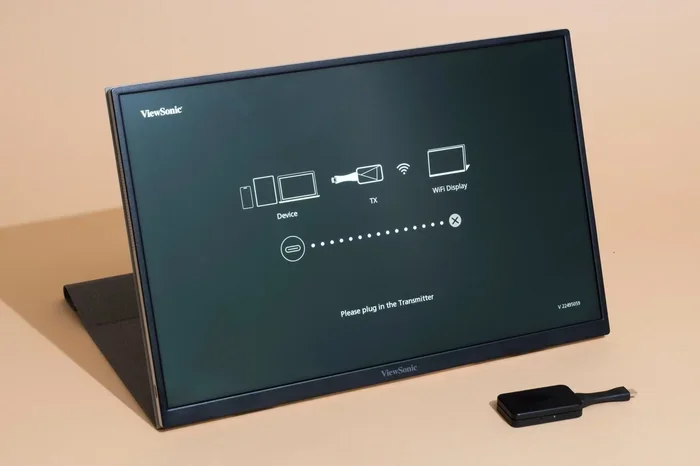
- Portability: A document camera with a laptop or portable monitor is easy to carry and set up anywhere.
These advantages make the document camera without projector setup a smart choice for many situations. Whether you are teaching, presenting, or working remotely, you get excellent results without the projector hassle.
Common Mistakes To Avoid
Even with a simple setup, some common mistakes can reduce the quality of your document camera experience. Avoid these pitfalls to get the best results every time.
- Using the wrong cable: Always check which ports your camera and display support. Using the wrong cable means no signal or poor quality.
- Ignoring lighting: Even though you do not need a dark room, avoid placing the camera under harsh overhead lights that create glare on the document.
- Skipping software updates: Keep your document camera software and drivers up to date for the best performance and compatibility.
- Not adjusting focus: A blurry image defeats the purpose. Always take a moment to focus the camera before your presentation begins.
- Overcrowding the frame: Place only the document or object you want to show under the camera. Cluttered backgrounds distract viewers.
- Forgetting to test beforehand: Always test your setup before the actual presentation. Nothing is worse than discovering a cable issue or software glitch mid-presentation.
By avoiding these mistakes, you ensure a smooth, professional presentation every time you use your document camera without a projector.
Expert Tips For Getting The Most From Your Document Camera
Experienced users know that a document camera can do so much more than just display documents. Here are some expert tips to elevate your setup.
Use annotation software. Many document camera packages include software that lets you draw, highlight, and annotate on the live feed. This is incredibly useful for teaching and brainstorming sessions. You can circle important text, add arrows, or write notes directly on the displayed image.
Record your sessions. Most document camera software allows you to record the live feed along with audio. This creates a valuable resource you can share with students, colleagues, or clients later. Recorded sessions save time and reduce the need to repeat presentations.
Pair with a second screen. If you are using a laptop, connect a second monitor or TV. Use one screen for your document camera feed and the other for your presentation slides or notes. This gives you a professional, multi-display setup without a projector.
Experiment with angles. Document cameras with flexible arms let you position the camera at different angles. You can show the top of a book, a three-dimensional object, or even a science experiment from above. The flexibility goes beyond what a traditional projector setup offers.
Keep spare cables handy. HDMI cables, USB cables, and adapters can wear out or get lost. Keeping a few spares in your bag or desk drawer saves you from unexpected disruptions during important presentations.
Who Benefits Most From A Document Camera Without A Projector?
Many different types of users can benefit from this setup. Here are some of the groups who find the most value in using a document camera without a projector.
- Teachers and educators: They can display worksheets, textbooks, and student work to the class using a classroom monitor or TV.
- Business presenters: They can share documents, contracts, and product samples during meetings without needing a bulky projector setup.
- Remote workers: They can use their laptop screen or a monitor at home for clear document sharing during video calls.
- Students and researchers: They can annotate and display research materials, maps, and diagrams on a personal screen or tablet.
- Healthcare professionals: They can show patient documents, X-rays, or diagrams to colleagues during consultations using a screen.
In each case, the document camera delivers clear, real-time visual content without the need for a projector. The flexibility and simplicity make it a valuable tool across many fields.
Final Thoughts
Using a document camera without a projector is not only possible, it is often the better choice. You get a brighter image, a simpler setup, and lower costs. Whether you connect the camera to a monitor, a laptop, or a television, the results are clear and professional.
The methods we covered in this article give you plenty of options to find the setup that works best for your situation. From USB connections to HDMI setups, from small laptop screens to large TVs, there is a way to use your document camera that fits your needs and budget.
So go ahead and set up your document camera today. Try connecting it to a monitor or TV, experiment with different display options, and discover how versatile this tool really is. You do not need a projector to make a document camera work beautifully. All you need is the right display and a little creativity.
The next time someone tells you that a document camera needs a projector, you can confidently share what you have learned here. The truth is simple: a document camera is a standalone visualizer that works with any screen you have available.
FAQ
Can I use a document camera with just a computer monitor?
Yes, absolutely. Most document cameras connect to a computer monitor via USB or HDMI. The monitor displays the live feed from the camera, and you can zoom, focus, and annotate just like you would with a projector setup. This is one of the simplest and most common ways to use a document camera without a projector.
Do I need special software to use a document camera without a projector?
Most document cameras come with their own software that installs on your computer. This software lets you view the camera feed, adjust settings, and annotate in real time. However, you can also use the camera as a standard webcam in video conferencing tools like Zoom or Microsoft Teams without any special software at all.
Can I use a document camera with a smart TV?
Yes, you can. If your document camera has an HDMI output, simply connect it to any HDMI port on your smart TV. If the camera only has USB, you can connect it to a computer and then mirror or extend the display to the smart TV using an HDMI cable from the computer to the TV.
Is a document camera better than a projector for small rooms?
In most cases, yes. A document camera paired with a monitor or TV produces a bright, sharp image that is easy to see in small rooms. Projectors can be overwhelming in small spaces and require dimmed lights. A monitor-based setup is more compact, quieter, and more practical for small rooms.
Can I use a document camera as a webcam for video calls?
Yes, you can. When connected via USB, a document camera functions as a high-quality webcam. It provides a top-down view of documents, objects, or your workspace during video calls. This makes it a great tool for remote presentations, online teaching, and virtual meetings where showing physical documents is important.
What is the best display to pair with a document camera if I do not have a projector?
A modern LED monitor or a smart TV works best. Look for a display with at least 1080p resolution and an HDMI input for the clearest image. If you are on a budget, a standard computer monitor connected via USB works perfectly fine. The key is to choose a display that is bright enough for your room and has the right input ports for your camera.
Frequently Asked Questions
What is Can You Use A Document Camera Without A Projector?
Can You Use A Document Camera Without A Projector is an important topic with many practical applications.